Uploading an Anonymous Manuscript
When the journal follows a Double-Blind Peer Review model, the identities of both the author and reviewer are concealed from each other.
Therefore, an anonymized manuscript must be available before the manuscript can proceed to reviewer assignment.
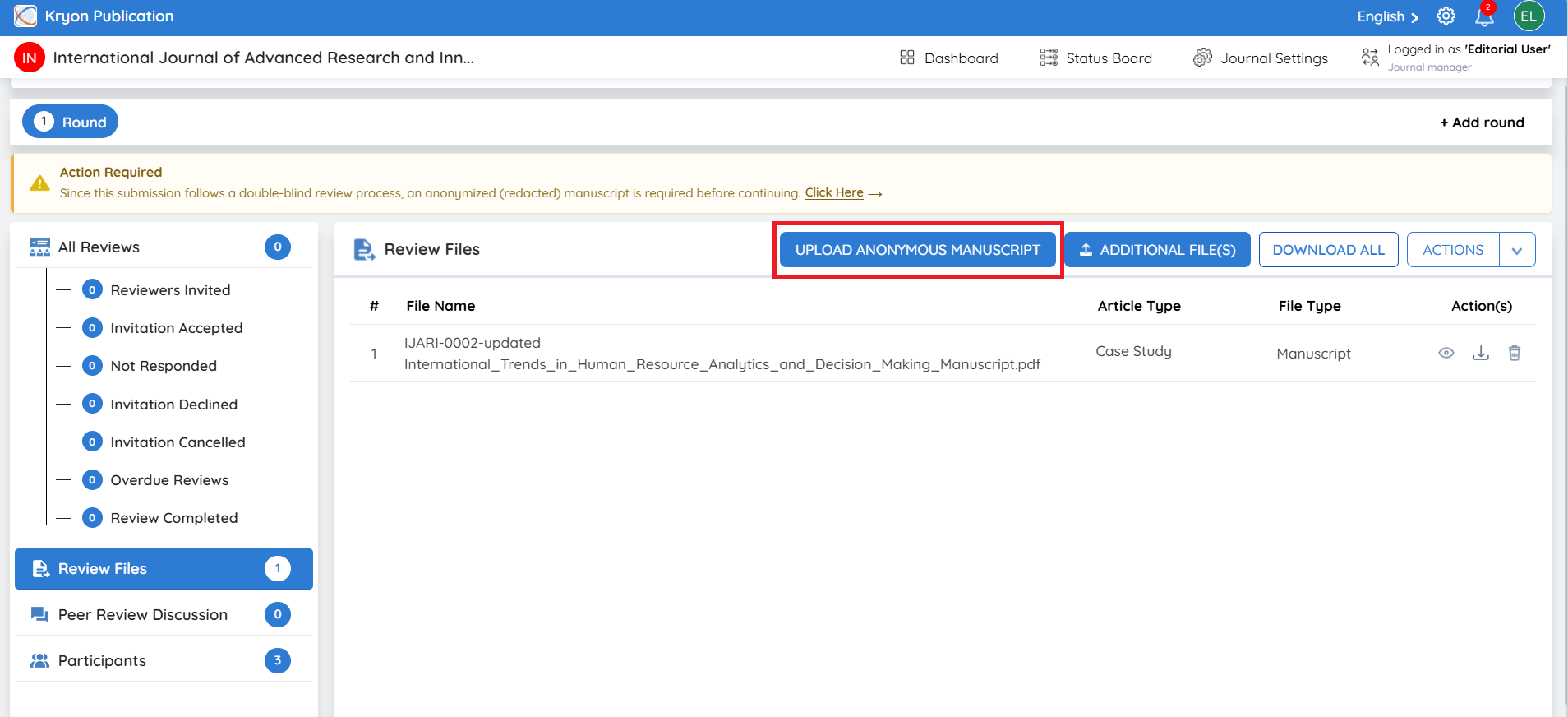
If the anonymous manuscript has not yet been uploaded, Kryoni JMS displays an Action Required notification indicating that an anonymized or redacted manuscript is required before continuing.
Steps to Upload an Anonymous Manuscript
1. Open Review Files
Navigate to the Review Stage and select Review Files from the left-side menu.
Click Upload Anonymous Manuscript.
2. Prepare the Manuscript for Anonymity
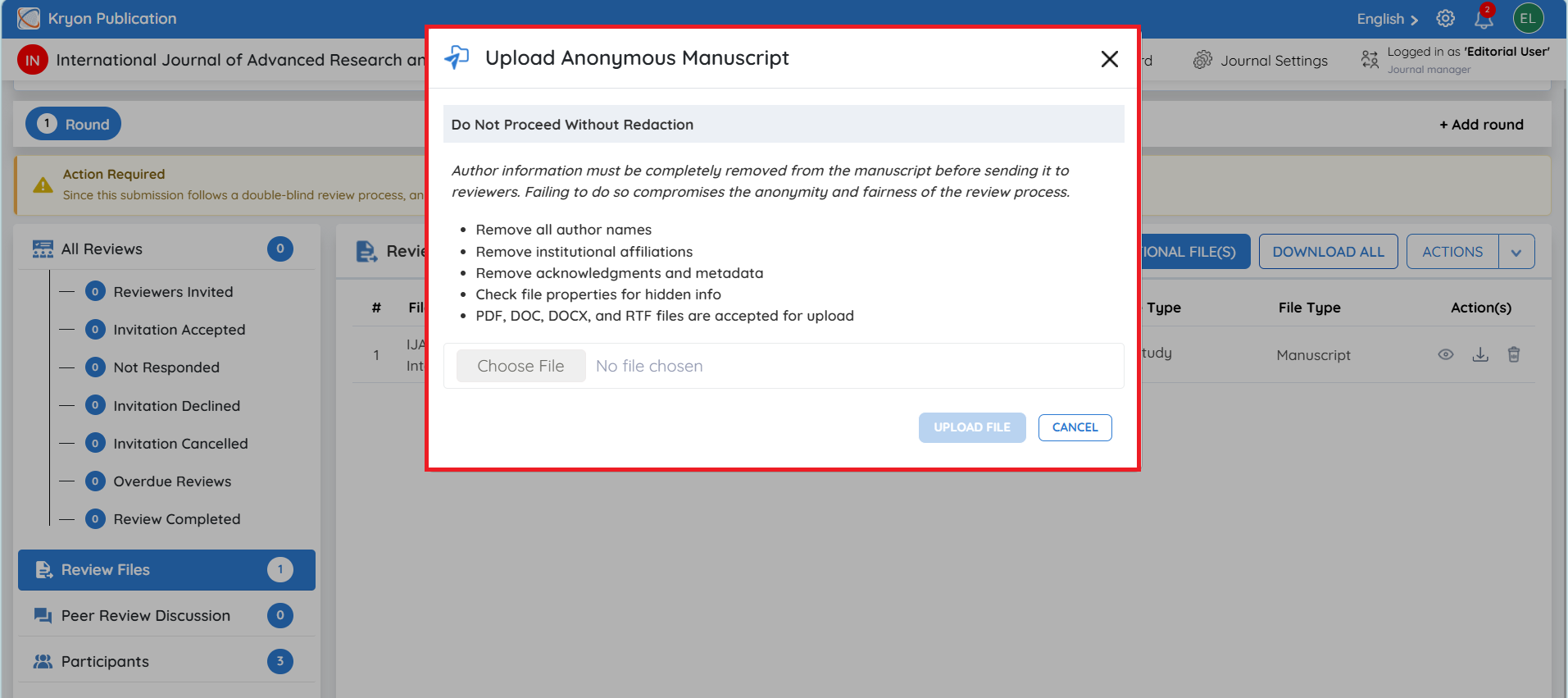
Before uploading the file, verify that information that could reveal the author's identity has been removed.
This may include:
-
Author Names – Remove author names from the title page, headers, footers, and other manuscript sections.
-
Institutional Affiliations – Remove institution, university, organization, department, and other identifying affiliations where required.
-
Author Contact Information – Remove email addresses, telephone numbers, ORCID information, and other identifying contact details where applicable.
-
Acknowledgements – Remove or anonymize acknowledgements that may directly identify the authors or their institutions.
-
Document Metadata – Check the document properties and remove identifying author information stored within the file metadata.
-
Self-identifying References – Review wording around previous work or self-citations that could unnecessarily reveal authorship, while preserving citations required for scholarly integrity.
The objective is to ensure that reviewers cannot identify the authors from the version provided for peer review.
3. Verify the File Format
Ensure that the anonymized manuscript meets the file-format requirements configured for the journal.
4. Upload the Anonymous Manuscript
-
Select the prepared anonymized manuscript and upload it using the Upload Anonymous Manuscript option.
-
PDF is the preferred format for the anonymous manuscript because it helps preserve the document layout and reduces the possibility of exposing editable document information.
5. If Uploading a Word Document
If the anonymous manuscript is uploaded in Word (DOC/DOCX) format, ensure that all identifying information is removed before uploading.
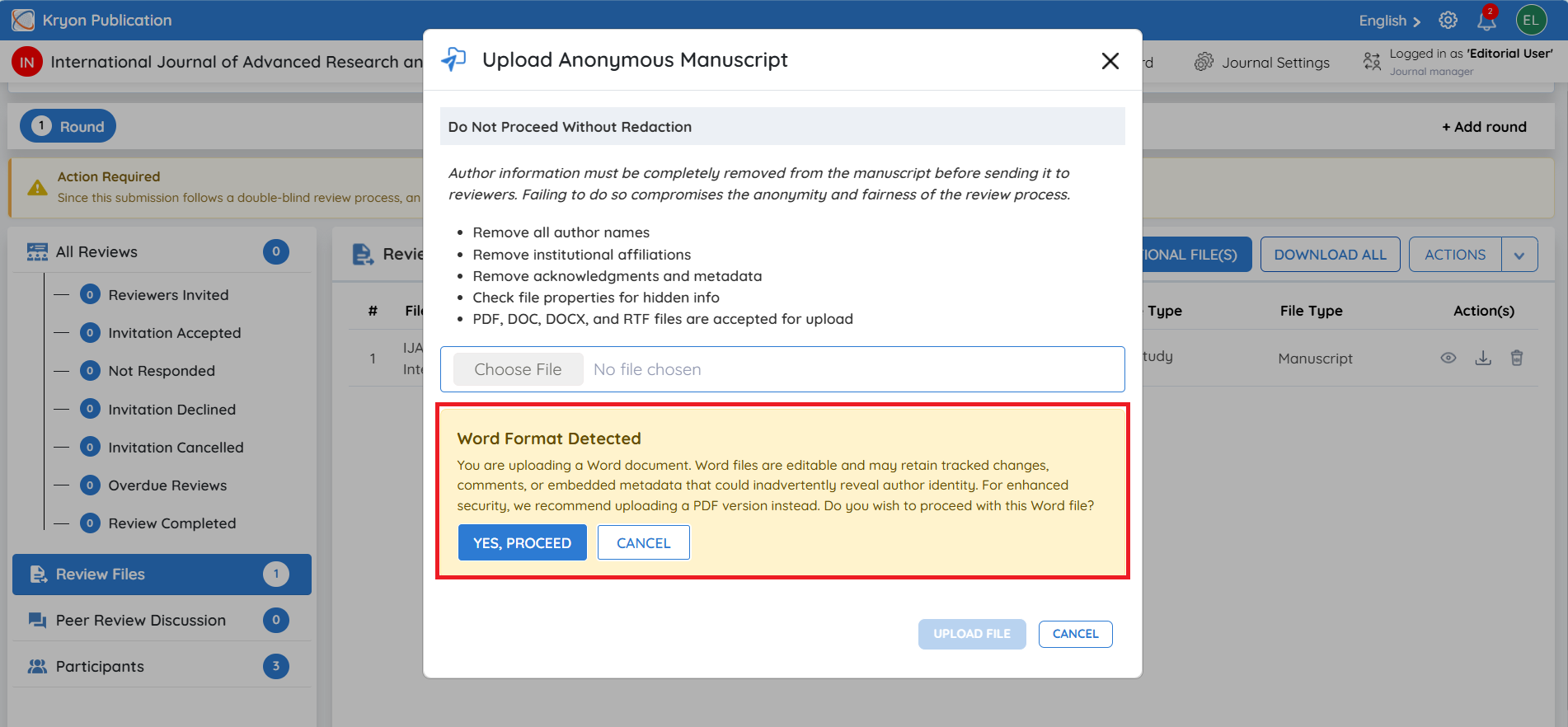
If the editorial user uploads an anonymous manuscript in Word format, the system displays a Word Format Detected confirmation message.
The message explains that Word files are editable and may contain information that could unintentionally reveal the author's identity, including:
-
Tracked changes
-
Comments
-
Embedded metadata
-
Document properties or other identifying information
For enhanced anonymity and security, the system recommends uploading a PDF version instead.
The editorial user can then choose:
-
Yes, Proceed – Continue uploading the Word document after confirming that all author-identifying information has been removed.
-
Cancel – Cancel the upload and replace the Word document with a properly anonymized PDF version.
6. Complete the Anonymous Manuscript Upload
Once the correct anonymized manuscript has been selected and verified:
-
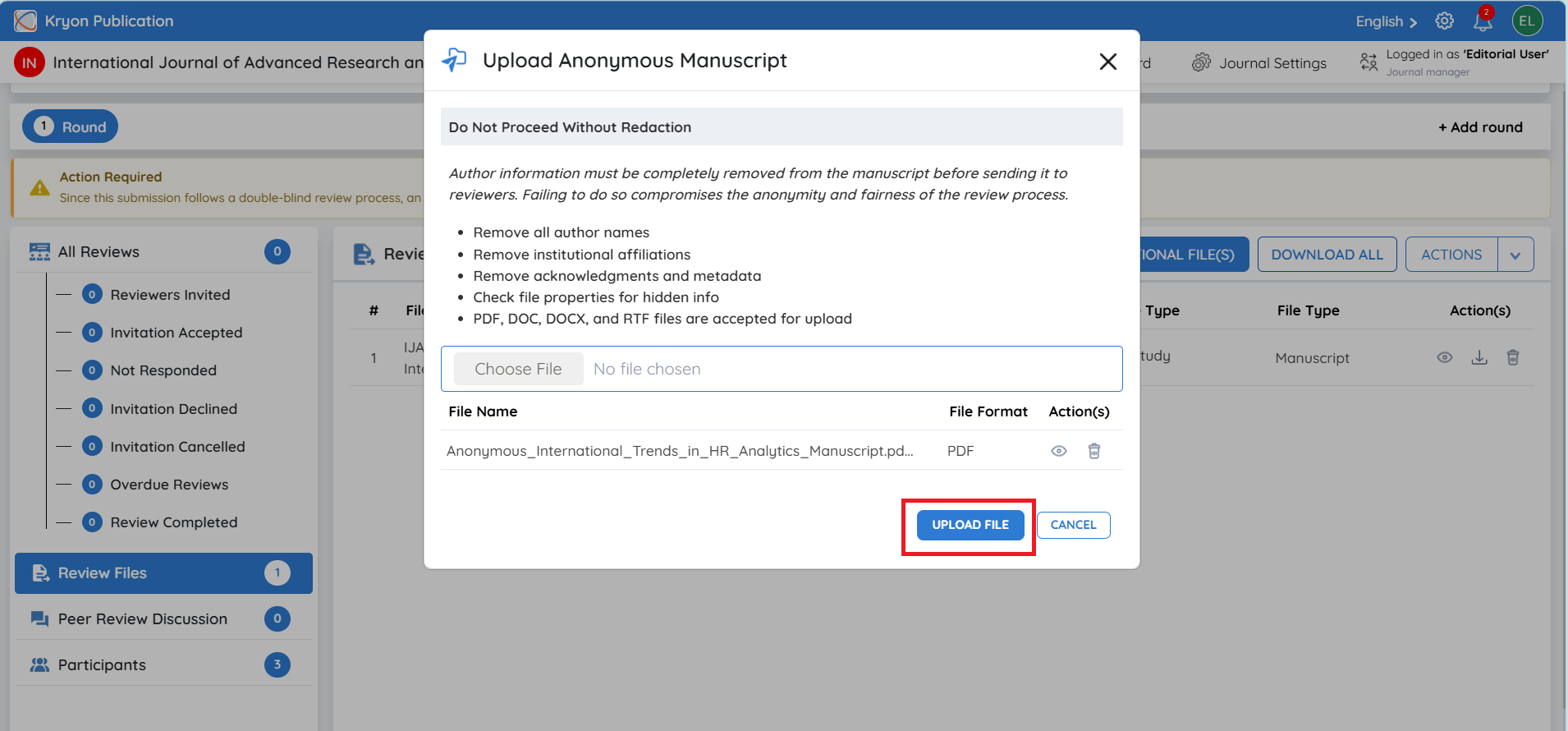
Click Upload File to complete the upload.
-
The system will upload the file and associate it with the manuscript in the Review Stage.
-
Return to the Review Files section to verify the uploaded document.
-
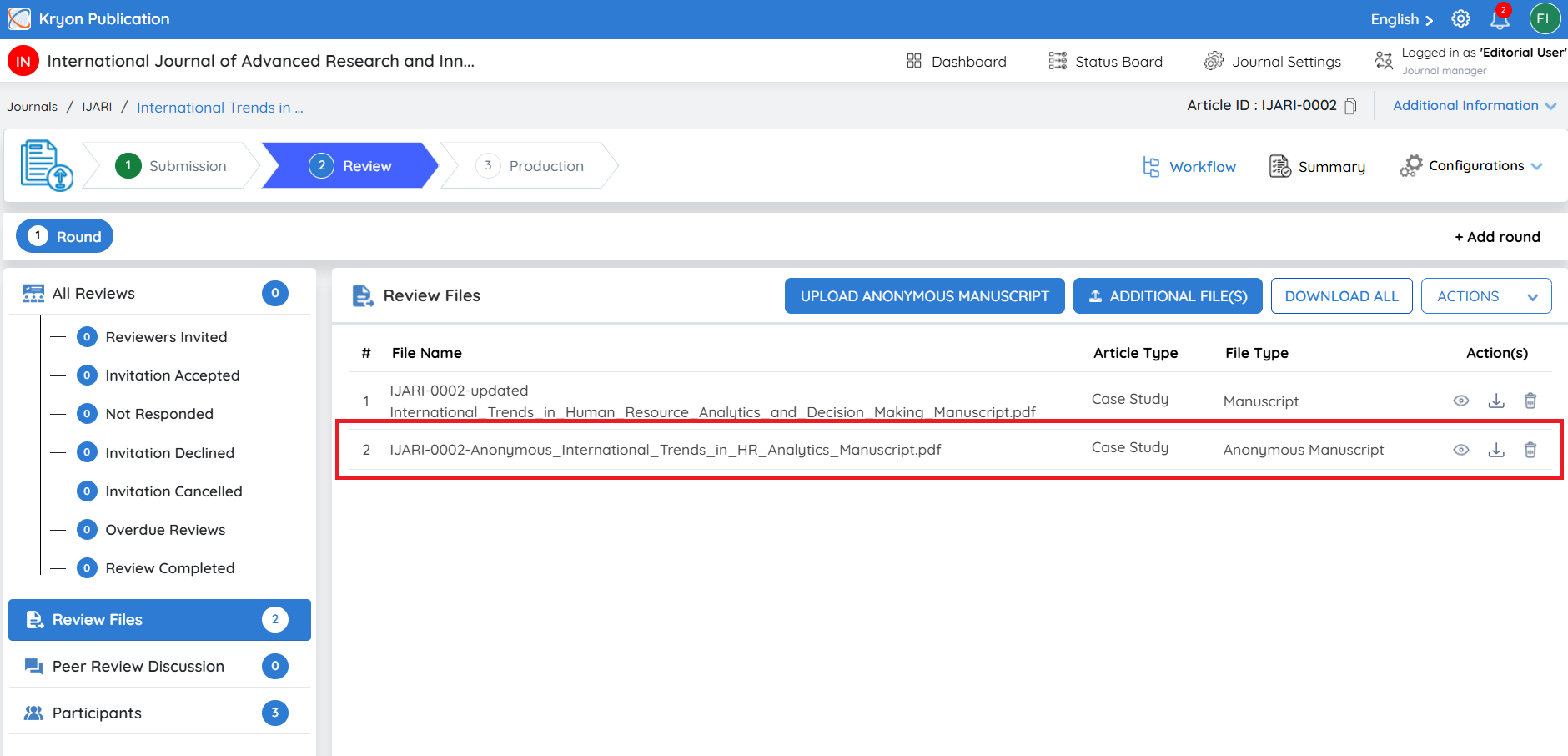
The anonymized manuscript will now appear with the File Type – Anonymous Manuscript.
-
Editorial users can view or download the uploaded anonymous manuscript using the available Action(s).
The Anonymous Manuscript can now be used for the double-blind peer review process without exposing the author's identity to reviewers.