Creating Another Reviewer Queue
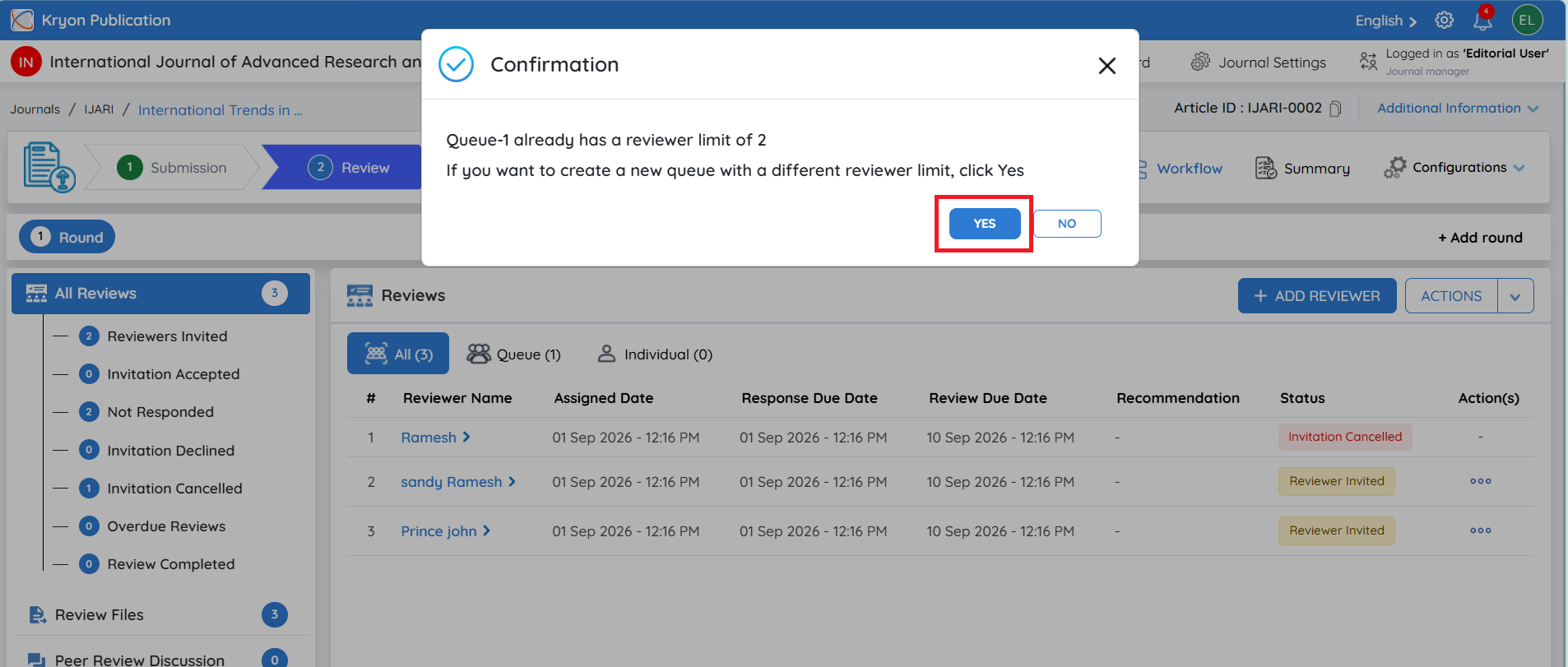
If the editorial user needs to create a separate reviewer queue, click + Add Reviewer and select Create New Queue.
A new queue, such as Queue-2, can then be created with a different set of reviewers and its own reviewer limit and review timeline.
This is useful when the editorial user wants to manage reviewers in separate groups or phases rather than adding them to the existing queue.
Once the required details are configured, click Assign Reviewer to create the new queue and send the reviewer invitations.
The new queue will be managed separately from Queue-1, allowing the editorial user to track reviewer invitations and responses for each queue independently.
Option 2: Add Individual Reviewer
The Add Individual Reviewer option is used when the editorial user has already identified a specific reviewer who is a suitable match for the manuscript.
Unlike Create New Queue, this option allows the editorial user to select and assign only one reviewer at a time.
Steps to Add an Individual Reviewer
-
From the All-Reviews section, click + Add Reviewer.
-
Select Add Individual Reviewer.
-
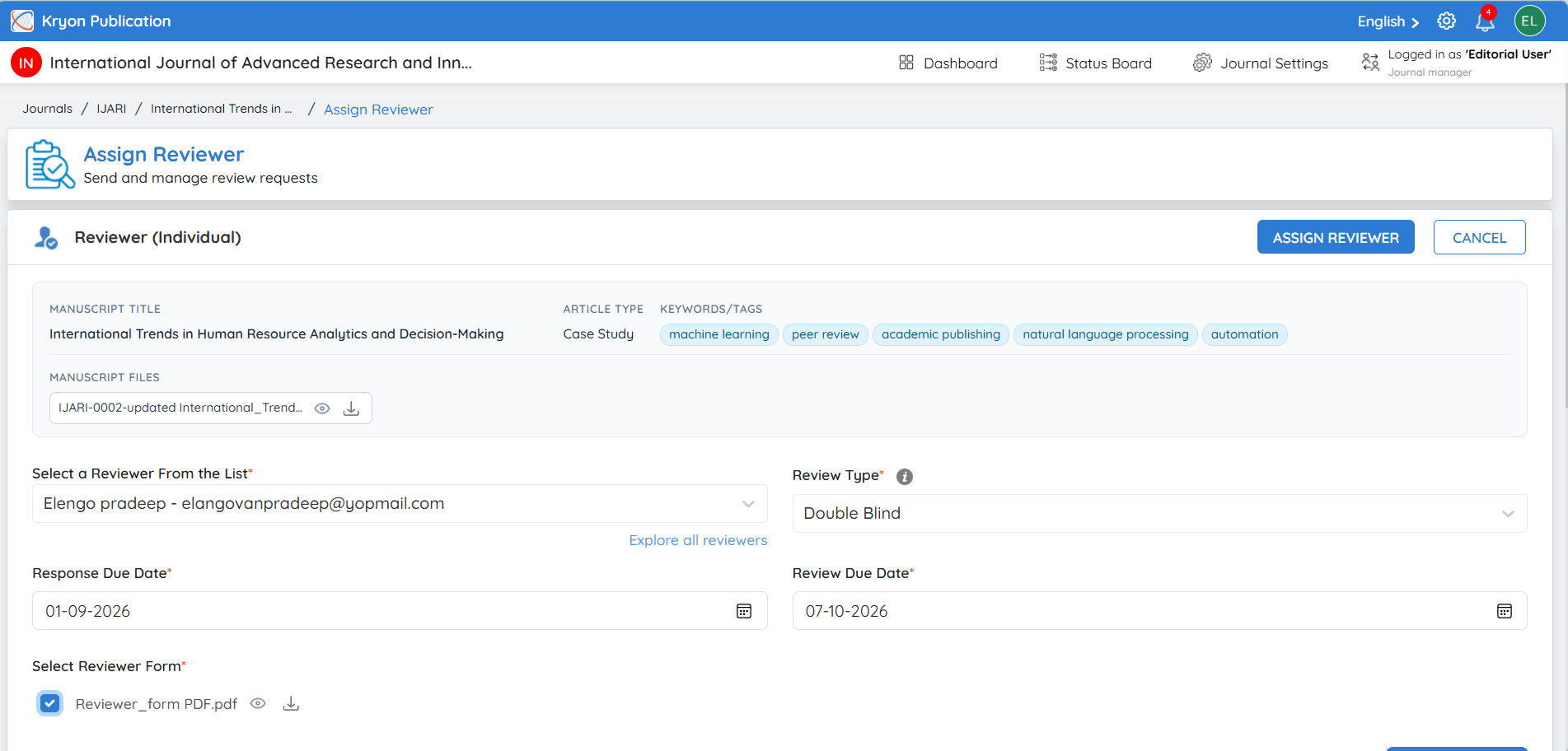
The Reviewer (Individual) page will open.
-
Complete the reviewer assignment details. The process is similar to the reviewer selection process explained earlier.
Select a Reviewer From the List*
Select the reviewer who should evaluate the manuscript. Only one reviewer can be selected at a time when using the Add Individual Reviewer option.
If required, click Explore all reviewers to view the complete reviewer list and identify a suitable reviewer based on expertise, rating, availability, and previous review activity.
Response Due Date*
Set the deadline by which the reviewer should accept or decline the review invitation.
If you want the Response Due Date/TAT to be calculated automatically, refer to [LINK – Reviewer TAT Configuration] for more information.
Review Due Date*
Set the deadline by which the reviewer should complete and submit the review after accepting the invitation.
If you want the Response Due Date/TAT to be calculated automatically, refer to [LINK – Reviewer TAT Configuration] for more information.
Select Reviewer Form*
Select the Review Form that the reviewer will use to provide their evaluation. The View icon can be used to preview the form before assignment.
Select the Review Files*
Select the manuscript files that should be made available to the reviewer. For a Double-Blind Review, ensure that the Anonymous Manuscript is selected so that author-identifying information is not shared with the reviewer.
If an additional document is required, click Upload File to add it.
Once all the required information has been verified, click Assign Reviewer. The selected reviewer will then receive the review invitation and can accept or decline it.
Add Individual Reviewer assigns one reviewer at a time. If multiple reviewers need to be managed together with a reviewer acceptance limit, use Create New Queue instead.