Sending a Revision Request to the Author
Once the peer review process is completed and the reviewer recommendations have been received, the editorial user can evaluate the reviews and decide the next course of action.
If changes are required before the manuscript can proceed further, the editorial user can send the reviewer comments to the author and request a revised manuscript.
How to Send the Review to the Author
-
From the All Reviews section, review the completed reviewer recommendations and comments.
-
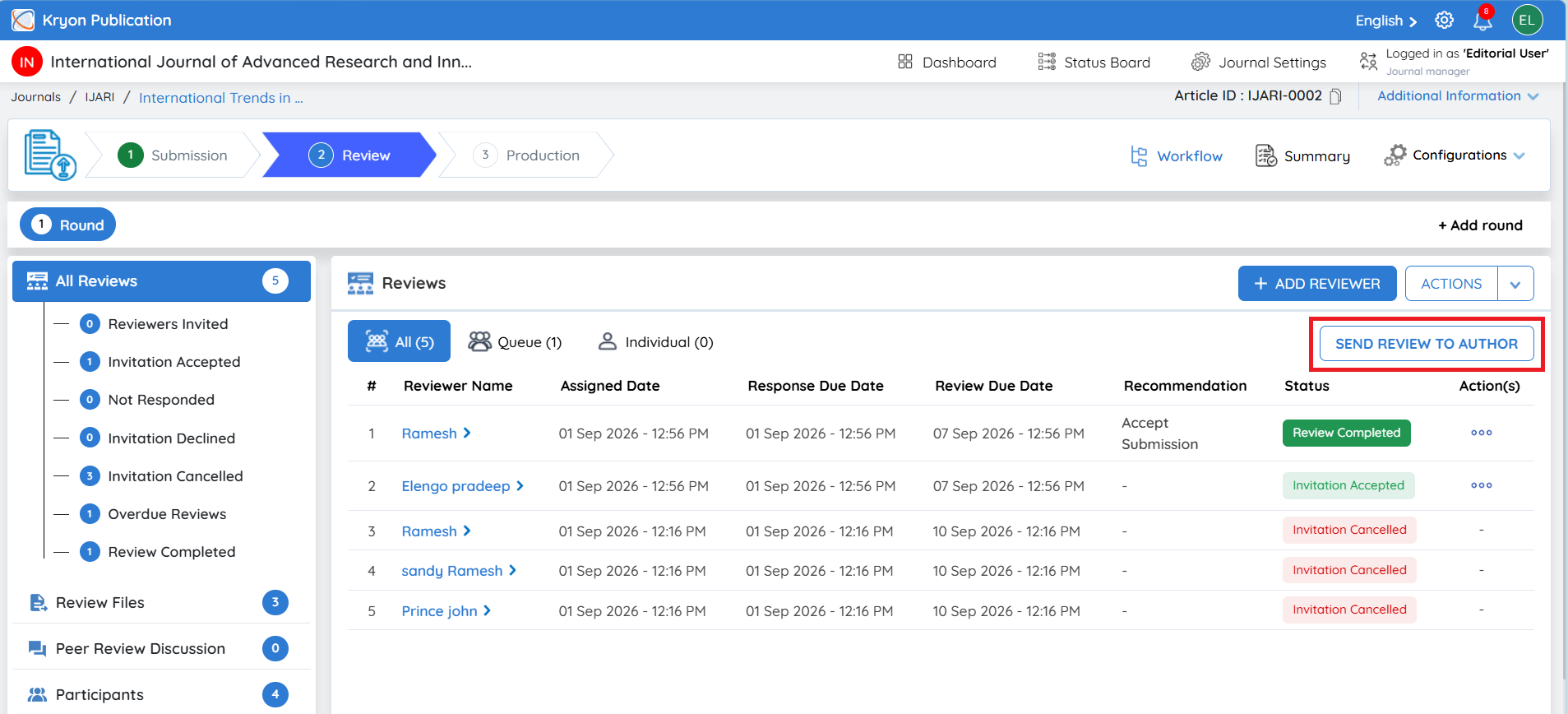
Click Send Review to Author.
-
The Request Revision window will open.
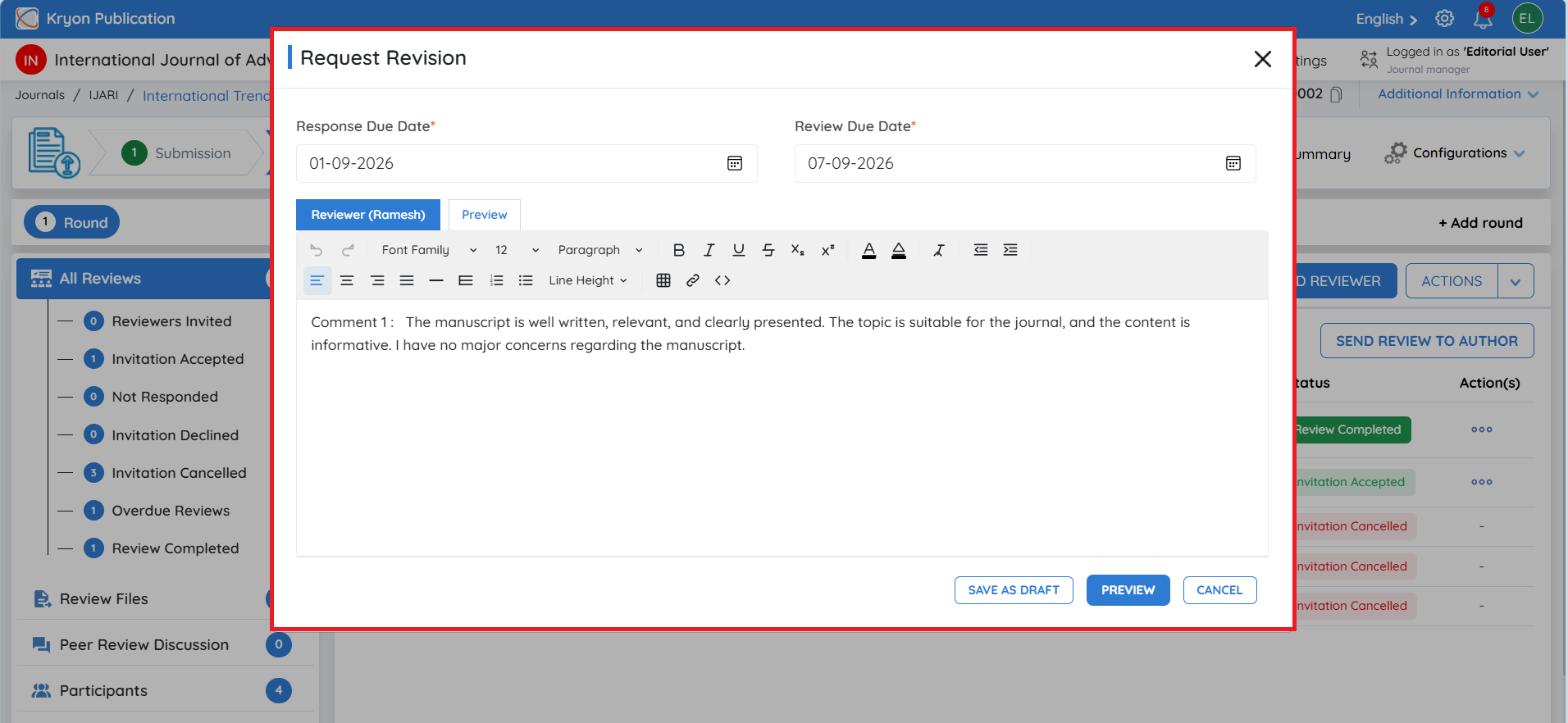
Response Due Date
Set the deadline by which the author is expected to respond to the revision request.
Review Due Date
Set the deadline associated with the revision/review process after the author's response.
If you want the Response Due Date/TAT to be calculated automatically, refer to [LINK – Reviewer TAT Configuration] for more information.
Review and Edit Reviewer Comments
The comments submitted by the completed reviewers are automatically collated and displayed in the Request Revision window.
Each reviewer's comments can be accessed through the respective Reviewer tab.
Before sending the comments to the author, the editorial user can:
-
Review the comments submitted by each reviewer.
-
Edit or refine the comments directly using the Rich Text Editor, if required.
-
Remove information that should not be communicated to the author.
-
Ensure that the instructions provided to the author are clear and relevant.
Once the comments have been reviewed and edited, click Save & Next.
Preview the Revision Request
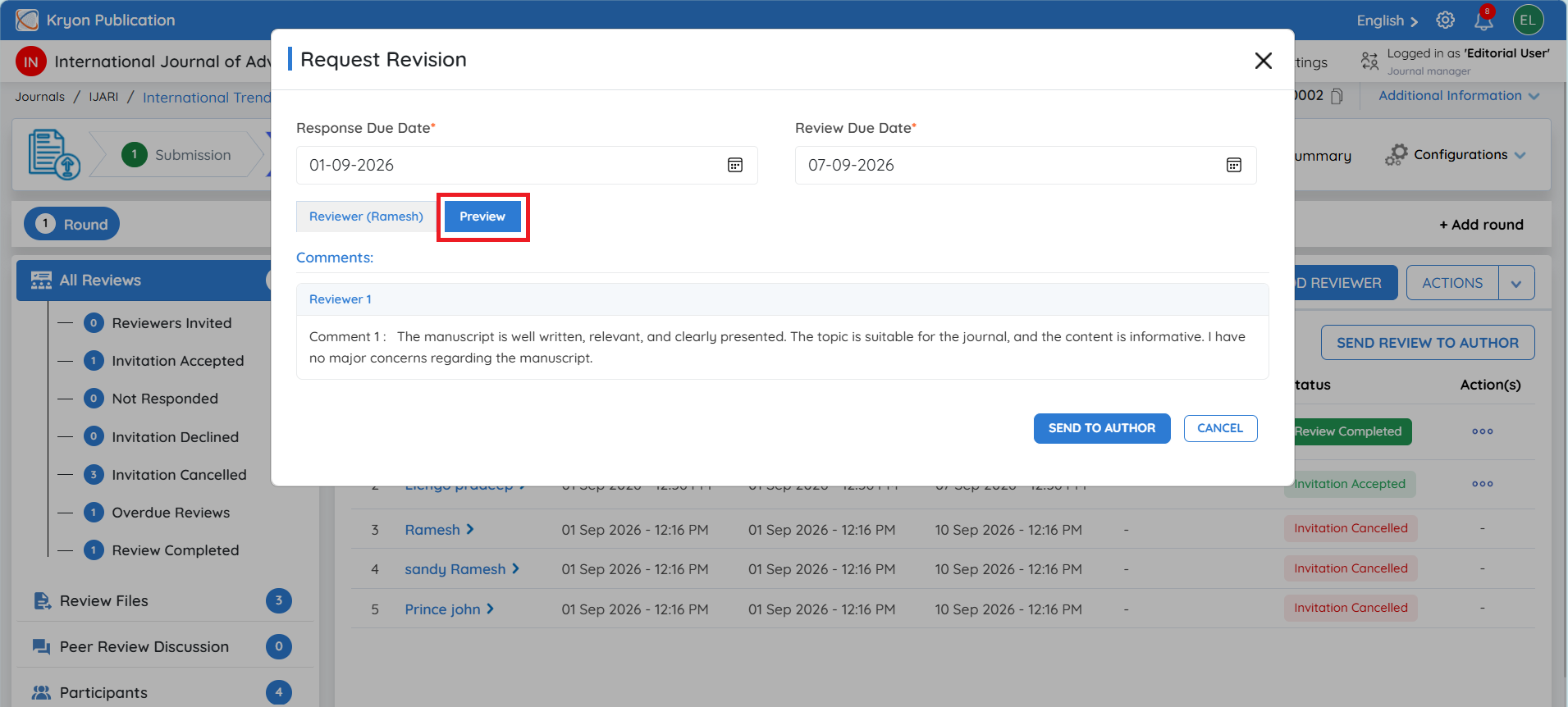
The Preview option allows the editorial user to verify how the consolidated review comments will appear to the author before sending the revision request.
Review the content carefully to ensure that all required reviewer feedback and revision instructions are presented correctly.
The reviewers' names, email addresses, and other identifying details will not be displayed to the author. Only the appropriate review comments and recommendations will be communicated according to the journal's review workflow.
Once all the information has been verified, click Send to Author.
The revision request will then be sent to the author, allowing the author to review the comments, make the required changes, and submit the revised manuscript.
Revision Details
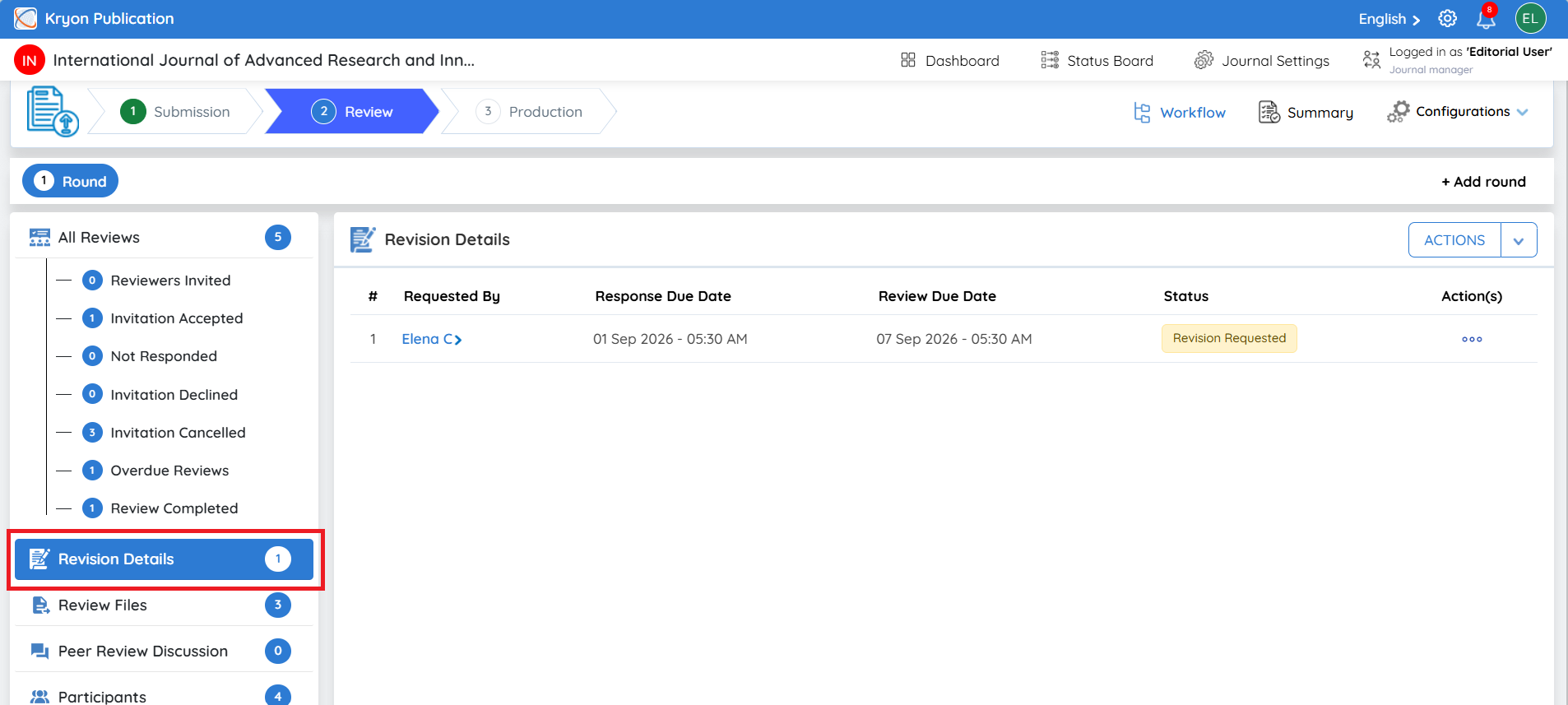
Once the revision request is sent, a new Revision Details tab appears on the left-hand side of the Review Stage.
Delete Revision
The three-dot Action(s) menu provides the Delete Revision option.
This allows the editorial user to delete the revision request when necessary. It should be used carefully, as it removes the revision request from the active workflow.
Uploading a Revision on Behalf of the Author
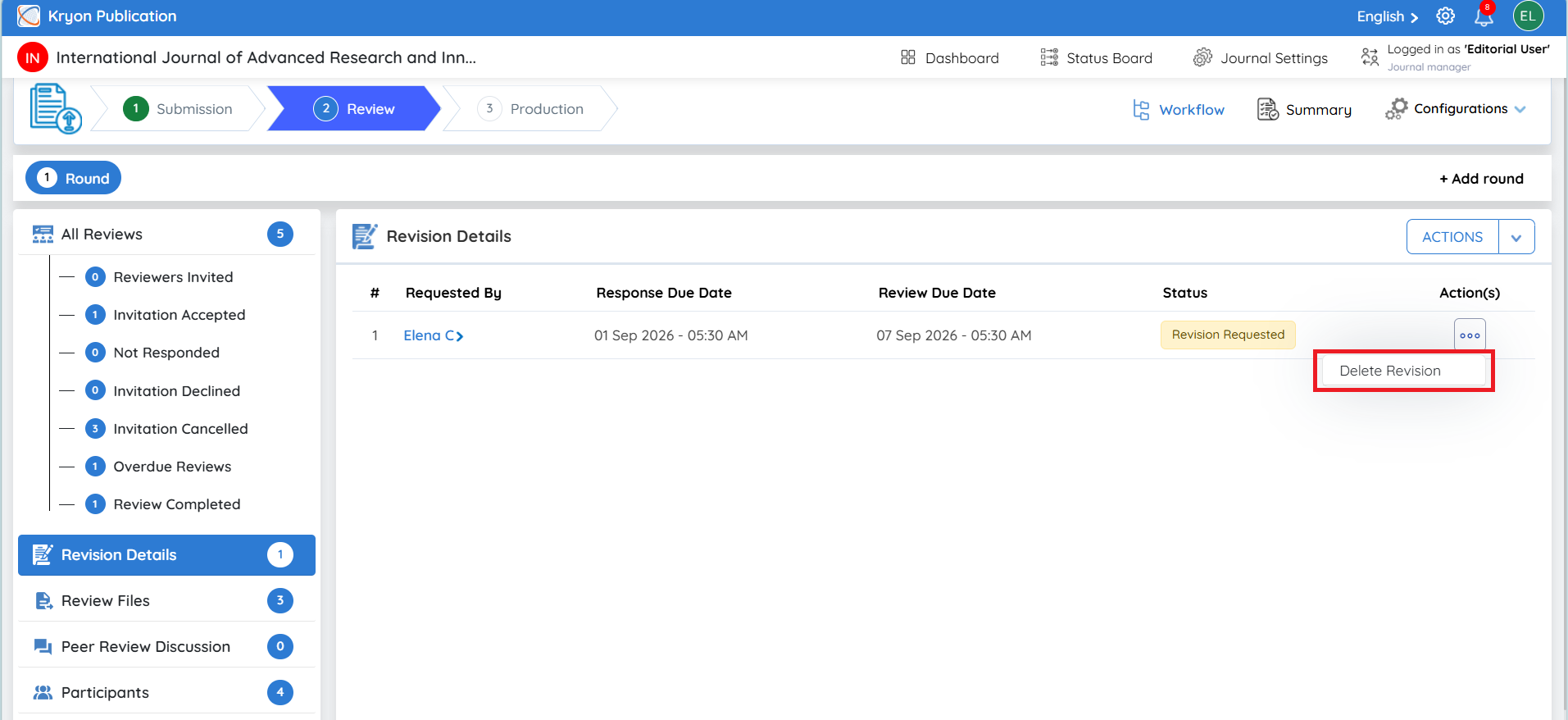
Once the author accepts the revision request, the status in the editorial user’s Revision Details section changes to Revision Accepted.
Normally, the author can upload the revised files directly through their account. However, if the author shares the revised manuscript with the editorial team through another communication channel, such as email, or discussion section the editorial user can upload the revision on behalf of the author.
Steps to Upload the Revision on Behalf of the Author
-
Go to Revision Details for the manuscript.
-
Confirm that the status shows Revision Accepted.
-
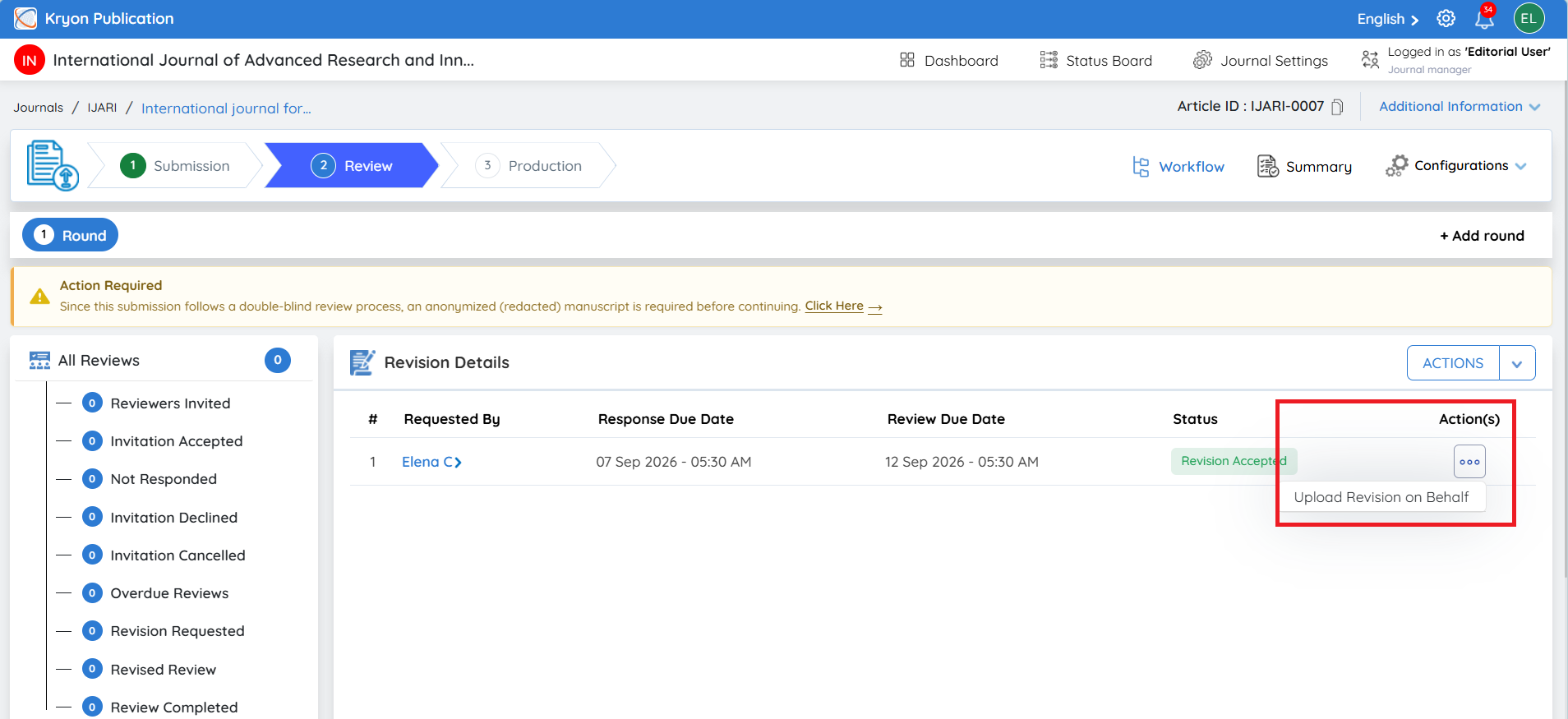
Under Action(s), click the three-dot menu (⋯).
-
Select Upload Revision on Behalf.
-
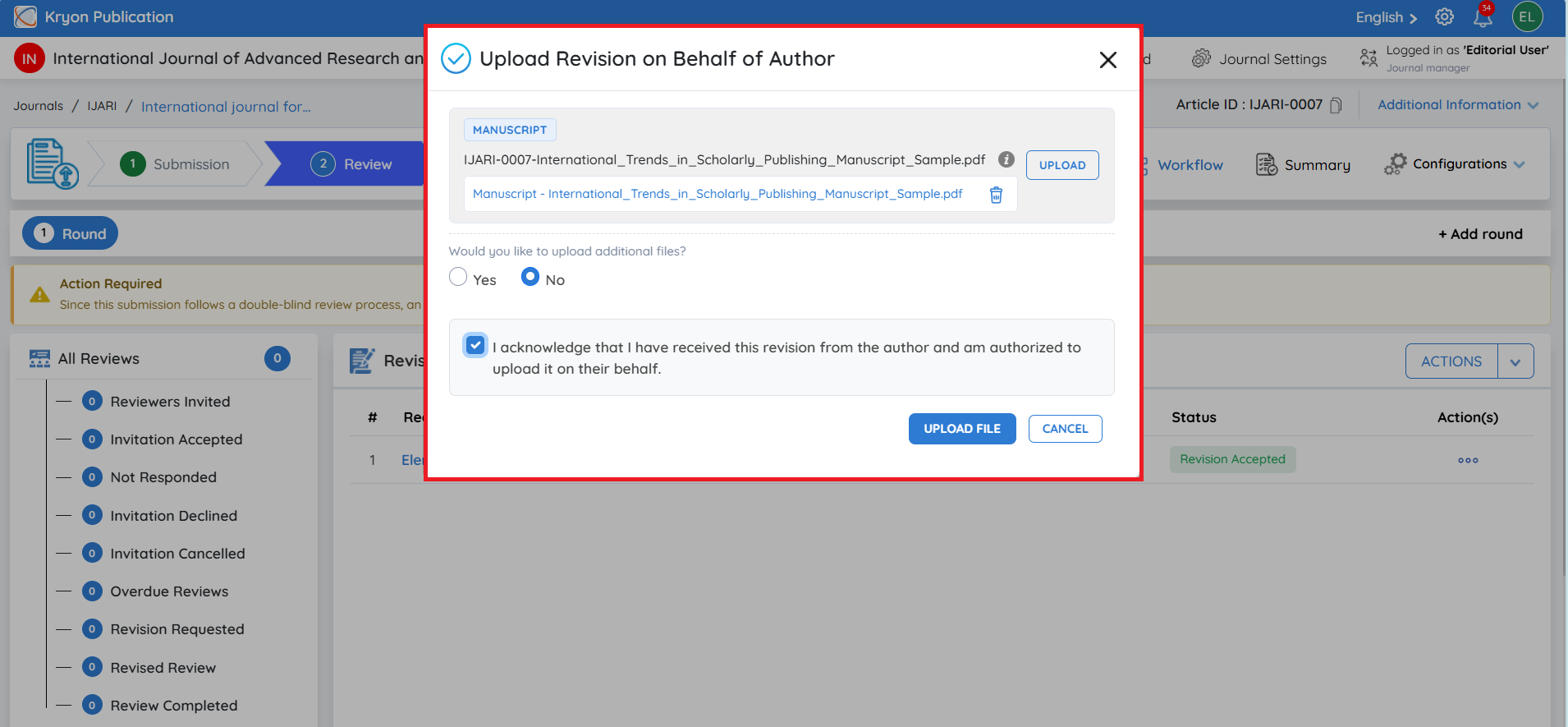
The Upload Revision on Behalf of Author window will open.
-
Upload the revised file against the appropriate file type, such as:
a. Source Files
b. Manuscript
c. Anonymous Manuscript
-
If additional supporting files need to be uploaded, select Yes under Would you like to upload additional files?
-
Select the acknowledgement checkbox confirming:
“I acknowledge that I have received this revision from the author and am authorized to upload it on their behalf.”
-
After verifying the files, click Upload File to complete the revision upload.
-
Once the revision is uploaded successfully, the author will receive an email notification confirming that the revised files have been uploaded on their behalf.
The Upload Revision on Behalf of Author option should be used only when the editorial user has received the revised files from the author and is authorized to upload them on the author’s behalf.
The Allow Editorial Users to Upload Author Revision Submissions option can be enabled or disabled based on the journal’s workflow requirements. If you do not want editorial users to upload revisions on behalf of authors, this option can be controlled in the journal settings. Refer to [LINK – Review Configuration Settings] for more information.
FAQ
What happens if the author sends the revised manuscript through email or the Discussion section instead of uploading it directly?
If the author shares the revised manuscript through email or the Discussion section, the file is not automatically submitted as the official revision in the manuscript workflow.
The editorial user can upload the received file using Upload Revision on Behalf of Author. Before uploading, the editorial user must confirm that the file was received from the author and that they are authorized to submit it on the author’s behalf.
Once uploaded successfully, the revision will be recorded in the workflow and the status will change to Revision Submitted.
Author Revision Submitted
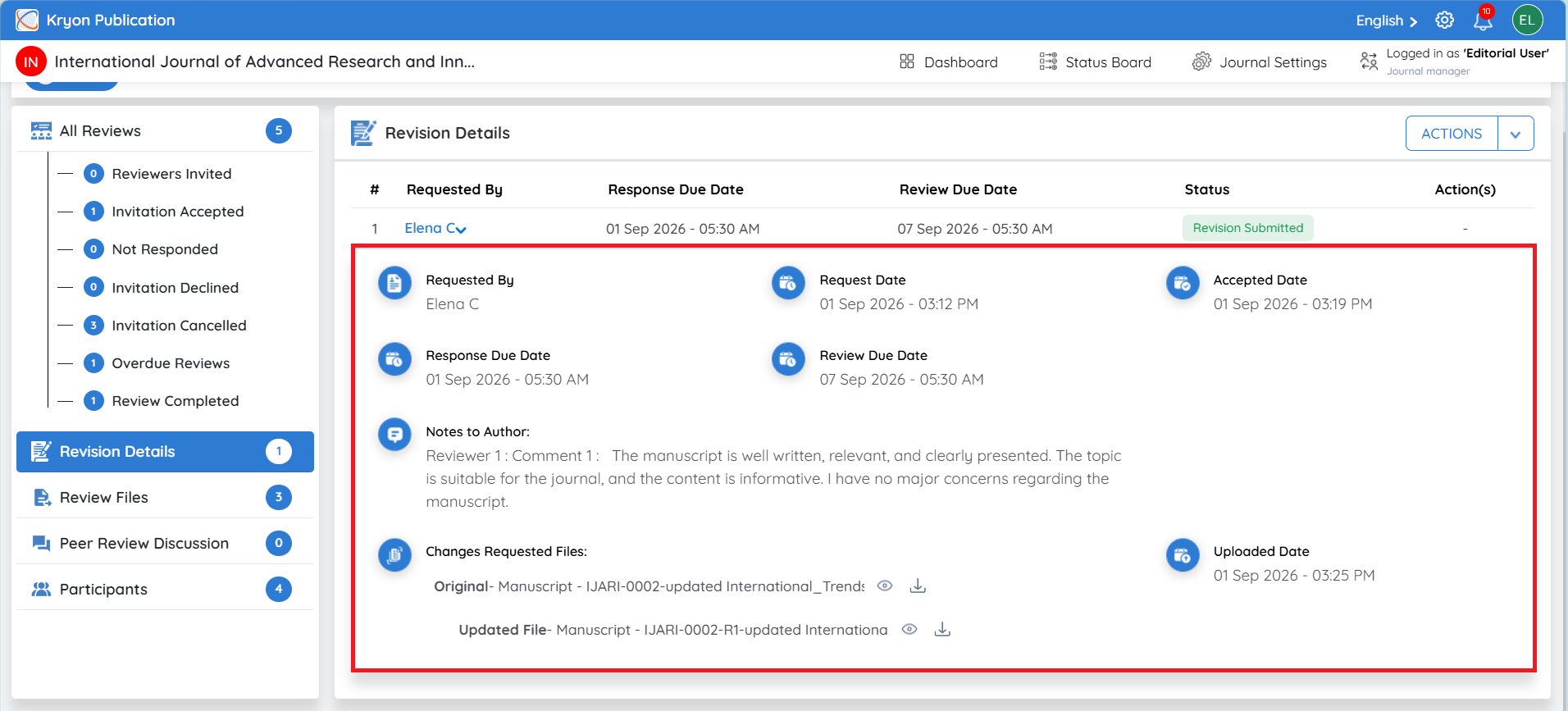
Once the author uploads and submits the revised manuscript, the revision status will automatically change to Revision Submitted in the editorial user’s Revision Details section.
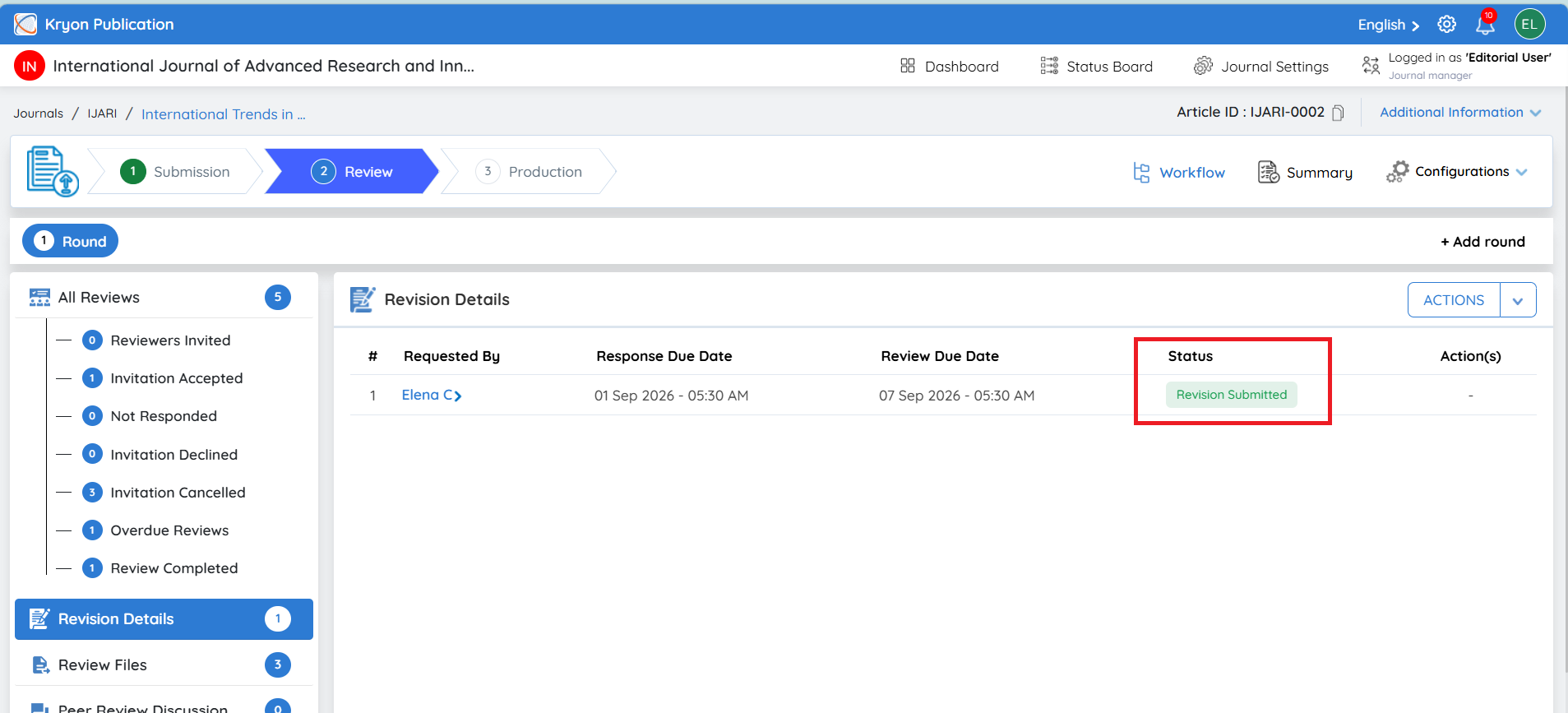
The editorial user can expand the revision entry to review the complete revision information, including the Requested By, Request Date, Accepted Date, Response Due Date, Review Due Date, Notes to Author, and Uploaded Date.
Under Changes Requested Files, the editorial user can compare the files associated with the revision:
-
Original – Displays the original file that was available before the revision.
-
Updated File – Displays the revised file submitted by the author in response to the revision request.
Use the View or Download options to review the files and verify that the requested changes have been provided.
Once the revised submission has been reviewed, the editorial user can decide the appropriate next step in the peer-review workflow, such as proceeding with the manuscript or initiating another review/revision cycle if required.