Adding Reviewers to the Peer Review Process
Once the manuscript moves to the Review Stage, the editorial user can begin assigning suitable reviewers to evaluate the manuscript.
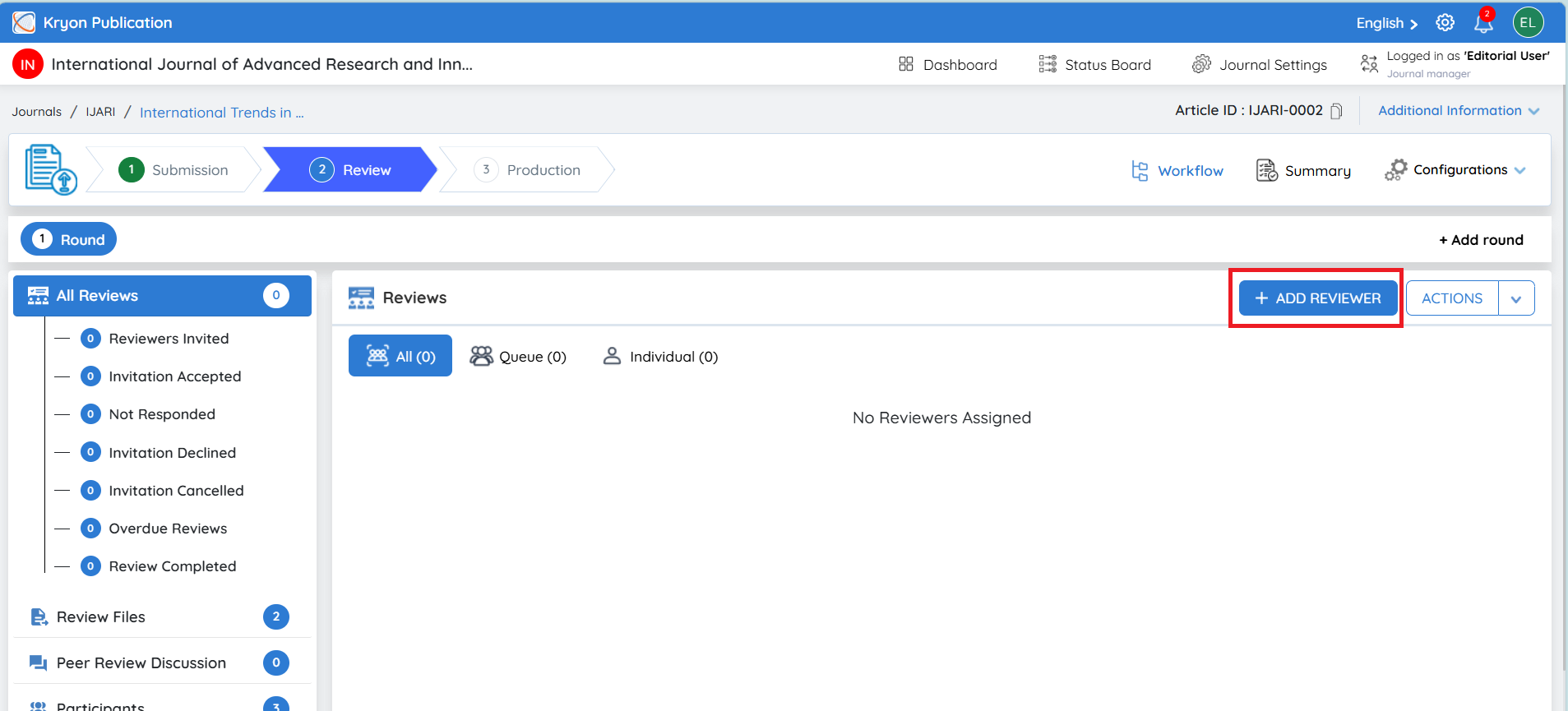
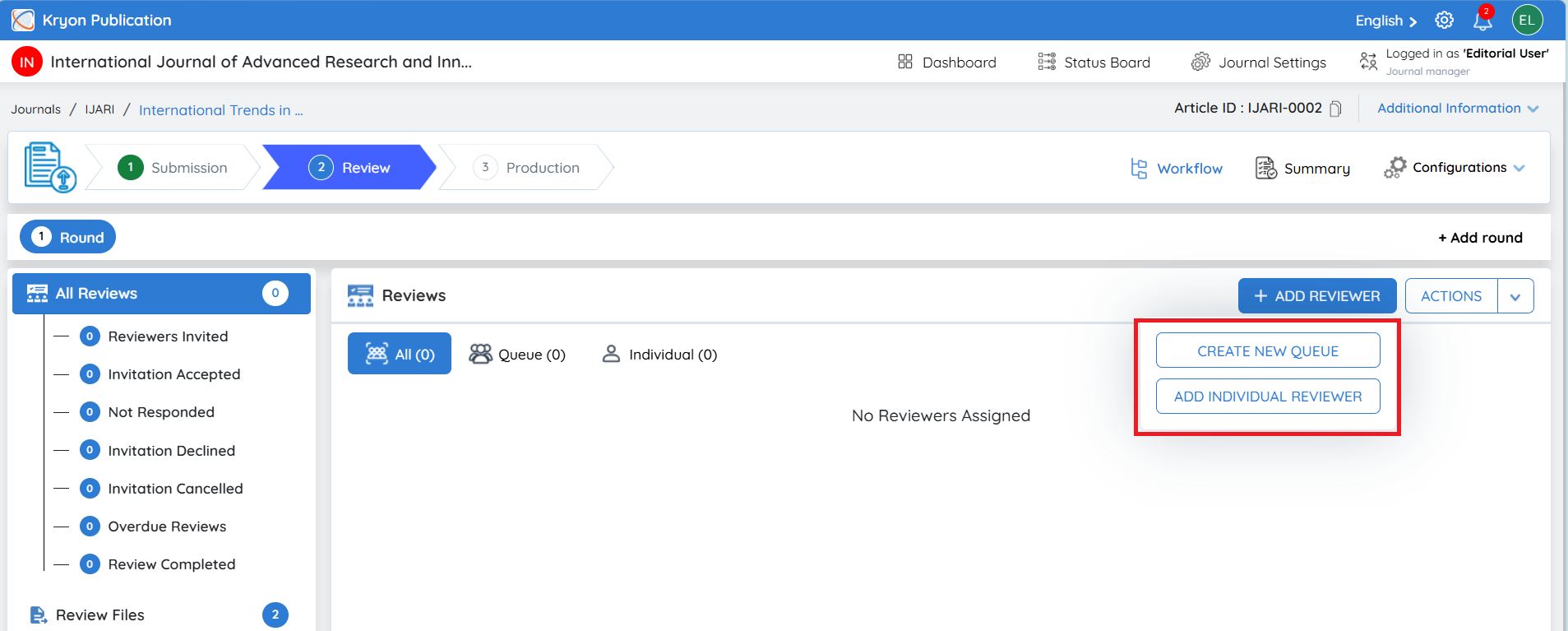
From All Reviews, click + Add Reviewer. Two options will be displayed:
-
Create New Queue – Create a group of potential reviewers and define how many reviewer acceptances are required.
-
Add Individual Reviewer – Directly invite a specific reviewer who has been identified as a suitable expert for the manuscript.
Option 1: Create New Queue
Definition:
The Create New Queue option allows the editorial user to invite multiple potential reviewers while setting a Reviewer Limit that determines how many reviewers are required to accept the invitation.
Once the specified reviewer limit is reached, the system will automatically cancel the remaining pending invitations without manual intervention.
Benefits:
-
Controls Reviewer Count – Ensures that only the required number of reviewers are assigned.
-
Automatic Invitation Management – Pending invitations are automatically cancelled once the reviewer limit is reached.
-
Reduces Manual Effort – Editorial users do not need to manually monitor and cancel unnecessary invitations.
-
Prevents Over-Assignment – Avoids having more reviewers than required evaluating the manuscript.
-
Improves Review Efficiency – Multiple reviewers can be invited simultaneously, increasing the likelihood of securing the required reviewers promptly.
An editorial user needs 2 reviewers for a manuscript but wants to avoid delays caused by declined or unanswered invitations.
The editorial user:
-
Sets the Reviewer Limit to 2.
-
Invites 5 suitable reviewers.
-
The first two reviewers accept the invitation.
-
The required reviewer limit is now reached.
-
Kryoni JMS automatically cancels the remaining 3 pending invitations.
This allows the manuscript to proceed with the required two reviewers without the editorial user manually tracking and cancelling the remaining invitations.
The Reviewer Limit is based only on the number of reviewers who accept the review invitation. It does not depend on whether the reviewers have completed or submitted their reviews. Once the required number of reviewers accepts the invitation, the remaining pending invitations will be automatically cancelled.
Option 2: Add Individual Reviewer
Definition:
The Add Individual Reviewer option allows the editorial user to directly invite a specific reviewer who is considered a suitable match for the manuscript.
This option is useful when the editorial user has already identified an appropriate reviewer based on the manuscript's subject, discipline, research area, or required expertise.
Benefits:
-
Targeted Reviewer Selection – Allows the editorial user to choose a specific subject-matter expert.
-
Better Expertise Matching – Helps assign reviewers whose knowledge closely aligns with the manuscript.
-
Direct Assignment – Eliminates the need to create a reviewer queue when only a particular reviewer needs to be invited.
-
Greater Editorial Control – Gives the editorial team direct control over reviewer selection for specialized manuscripts.
Adding Reviewers Using Create New Queue
Now, let’s see how to add reviewers to the manuscript using the Create New Queue option.
From the All Reviews section:
-
Click + Add Reviewer.
-
Select Create New Queue from the dropdown.
-
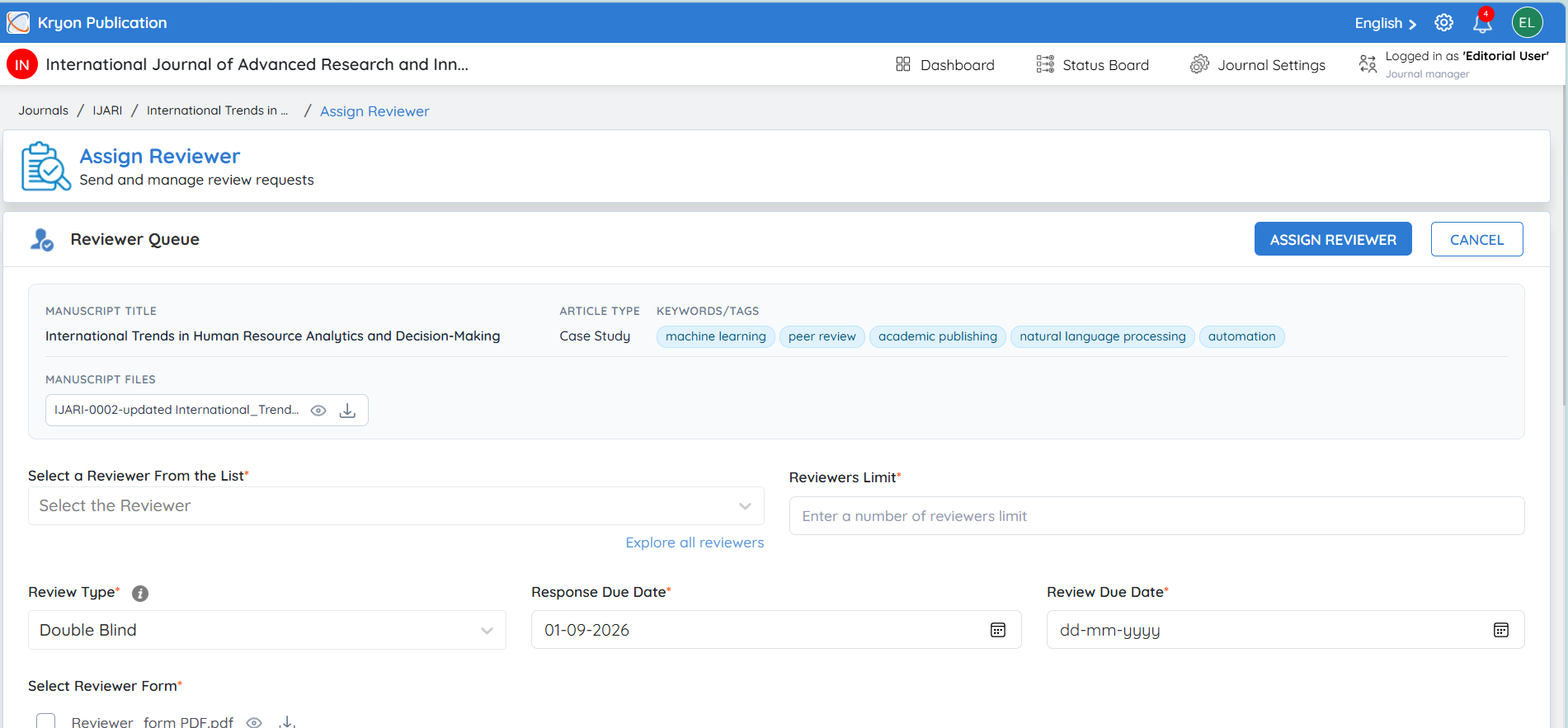
The Reviewer Queue page will open, where the editorial user can select suitable reviewers and configure the review requirements.
Step 1: Review the Manuscript Information
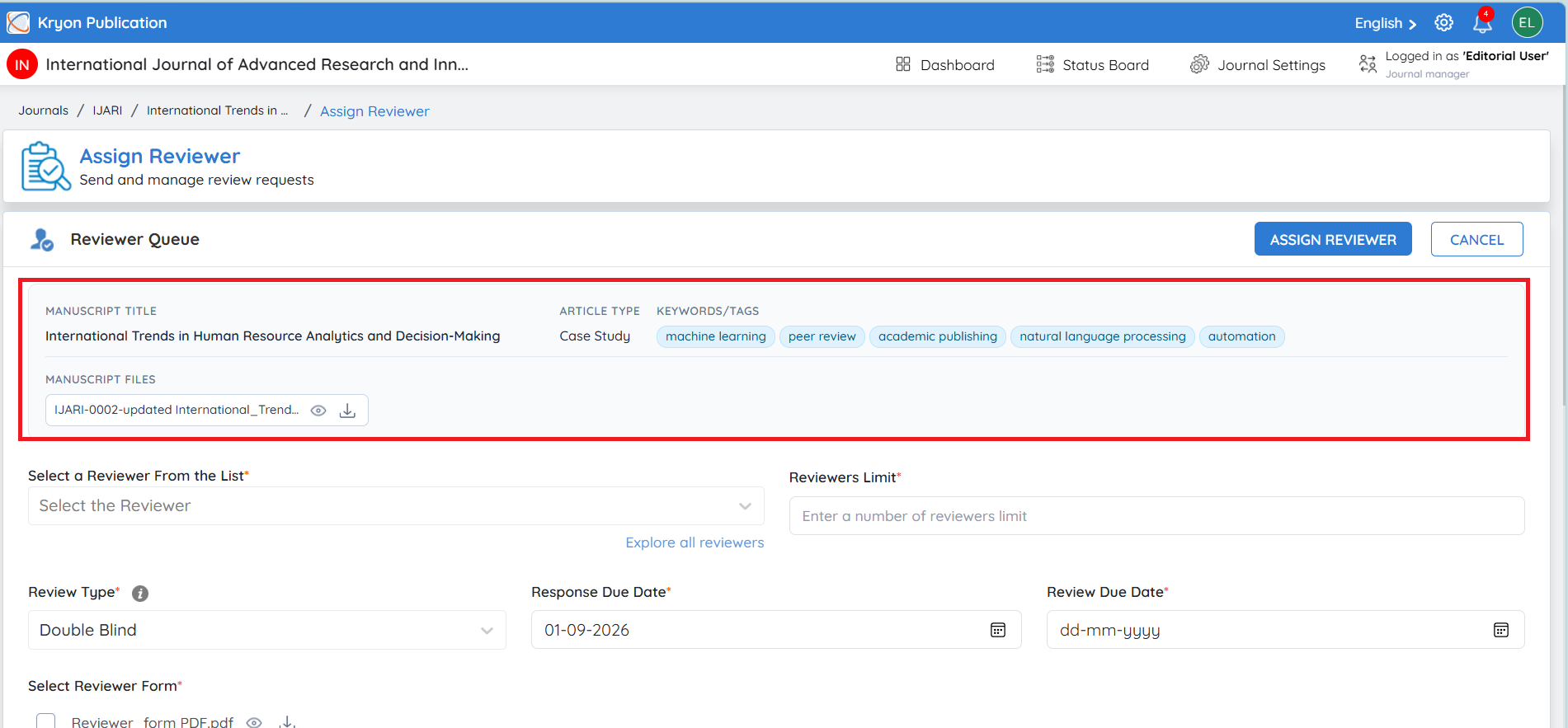
At the top of the Reviewer Queue page, the editorial user can view important manuscript information, including:
-
Manuscript Title
-
Article Type
-
Keywords/Tags
-
Manuscript Files
This information helps the editorial user identify reviewers whose expertise is relevant to the manuscript.
Step 2: Select Reviewers
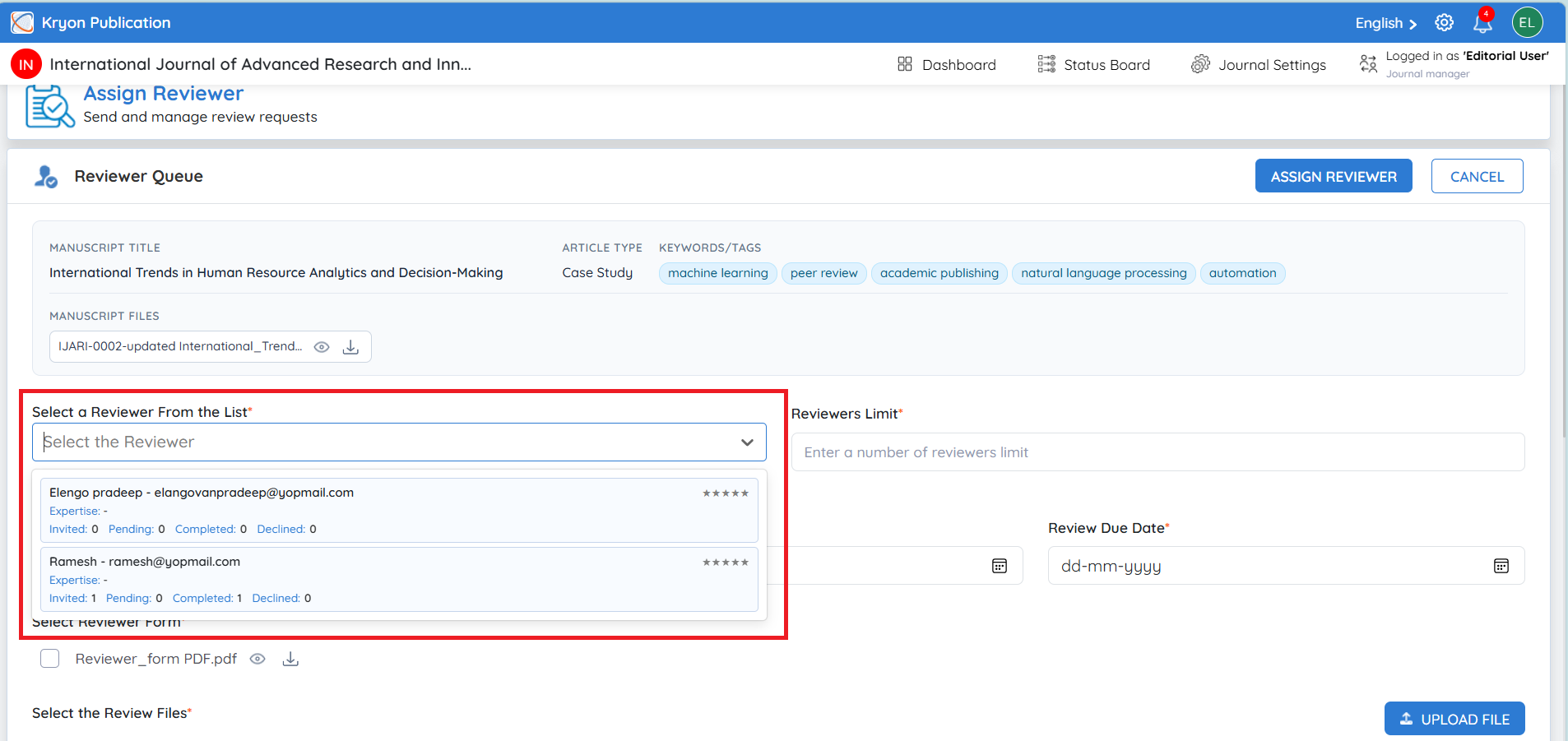
Click Select the Reviewer to open the reviewer list.
The system displays the available reviewers along with useful information such as:
-
Reviewer Name and Email
-
Expertise – The research areas or subject expertise associated with the reviewer.
-
Invited – Number of review invitations previously sent to the reviewer.
-
Pending – Number of invitations/reviews currently pending.
-
Completed – Number of reviews successfully completed.
-
Declined – Number of review invitations declined.
-
Rating – The reviewer's rating based on the journal's reviewer evaluation process.
This information helps the editorial user make a more informed reviewer selection rather than assigning reviewers based only on their name.
View Reviewer Details
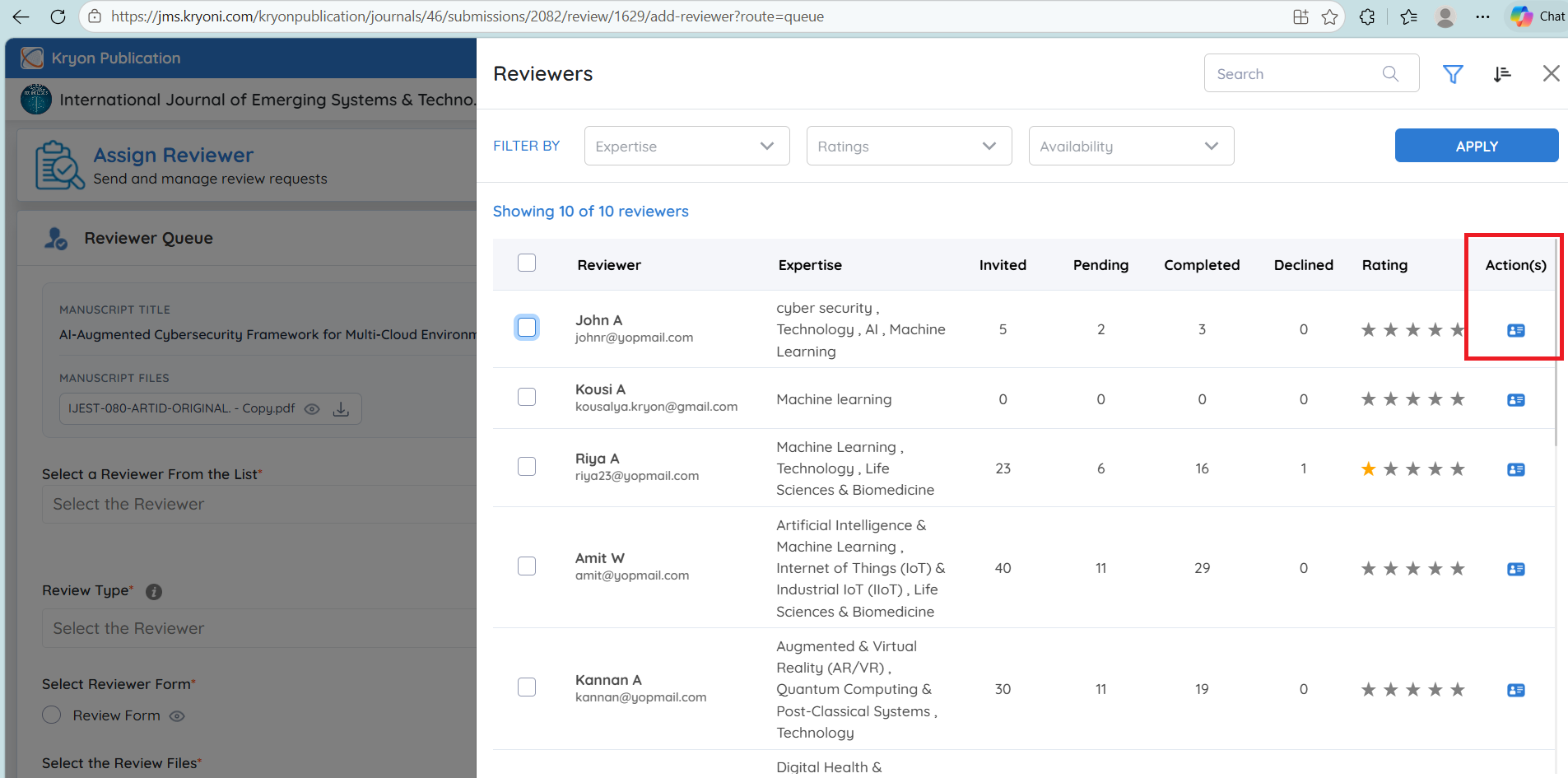
The Action(s) option beside a reviewer allows the editorial user to view the reviewer's profile and additional information.
The profile may include details such as:
-
Personal information
-
Email and contact information
-
Degree/qualification
-
Biography
-
Area of expertise
-
Address and other available profile information
The editorial user can review these details before deciding whether the reviewer is suitable for the manuscript.
Step 3: Search, Filter, and Sort Reviewers (SMART REVIEWER FILTER)
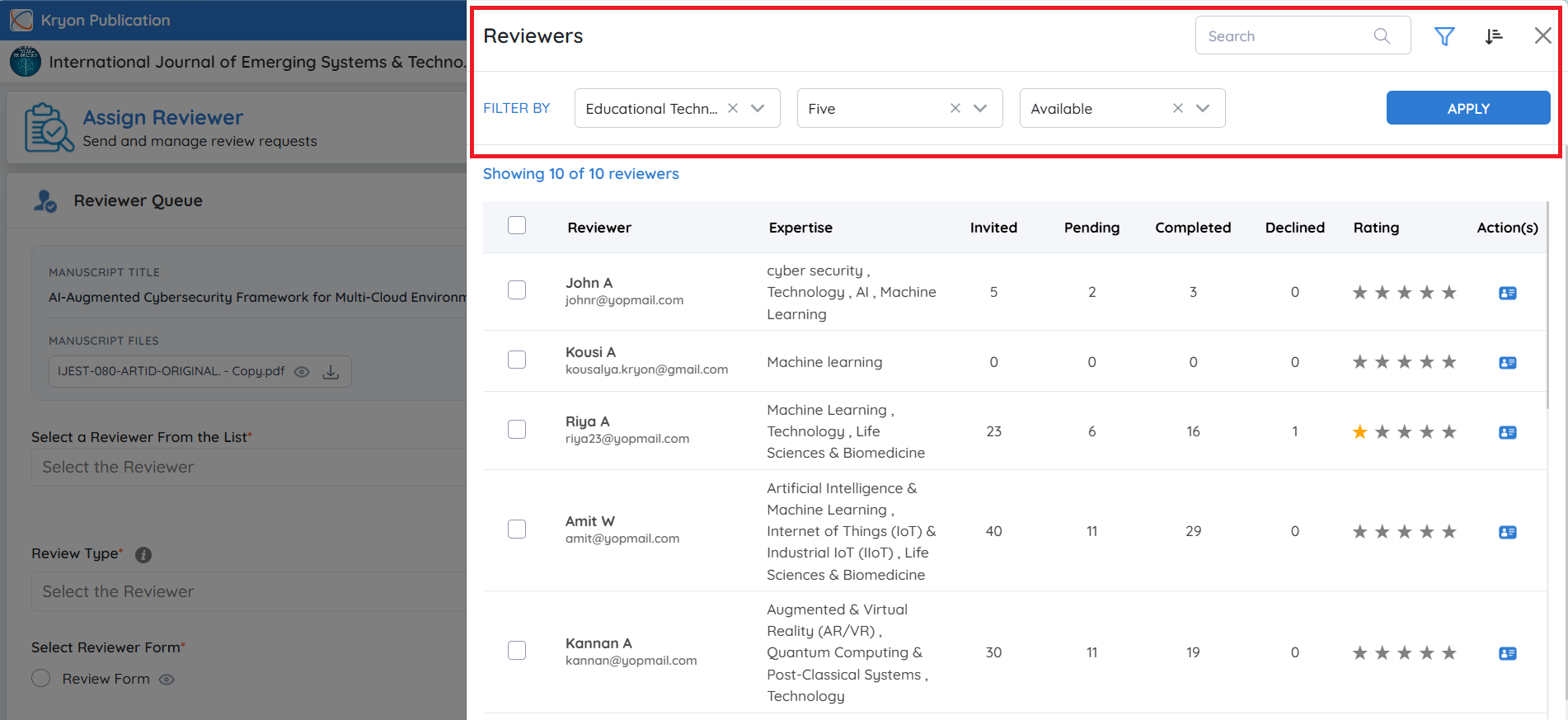
When a large reviewer database is available, the editorial user can use the available Search, Filter, and Sort options to quickly identify suitable reviewers.
Search can be used to locate a reviewer directly.
Filter By provides options such as:
-
Expertise – Find reviewers based on their subject or research expertise.
-
Ratings – Filter reviewers according to their reviewer rating.
-
Availability – Display reviewers based on whether they are currently available or not available.
After selecting the required filters, click Apply to update the reviewer list.
The Sort By option can also be used to organize reviewers according to their previous review activity, including:
-
Low to High Declined Submissions
-
High to Low Declined Submissions
-
Low to High Completed Submissions
-
High to Low Completed Submissions
These options help the editorial user evaluate reviewer experience and previous review activity when making a selection.
Step 4: Set the Reviewer Limit
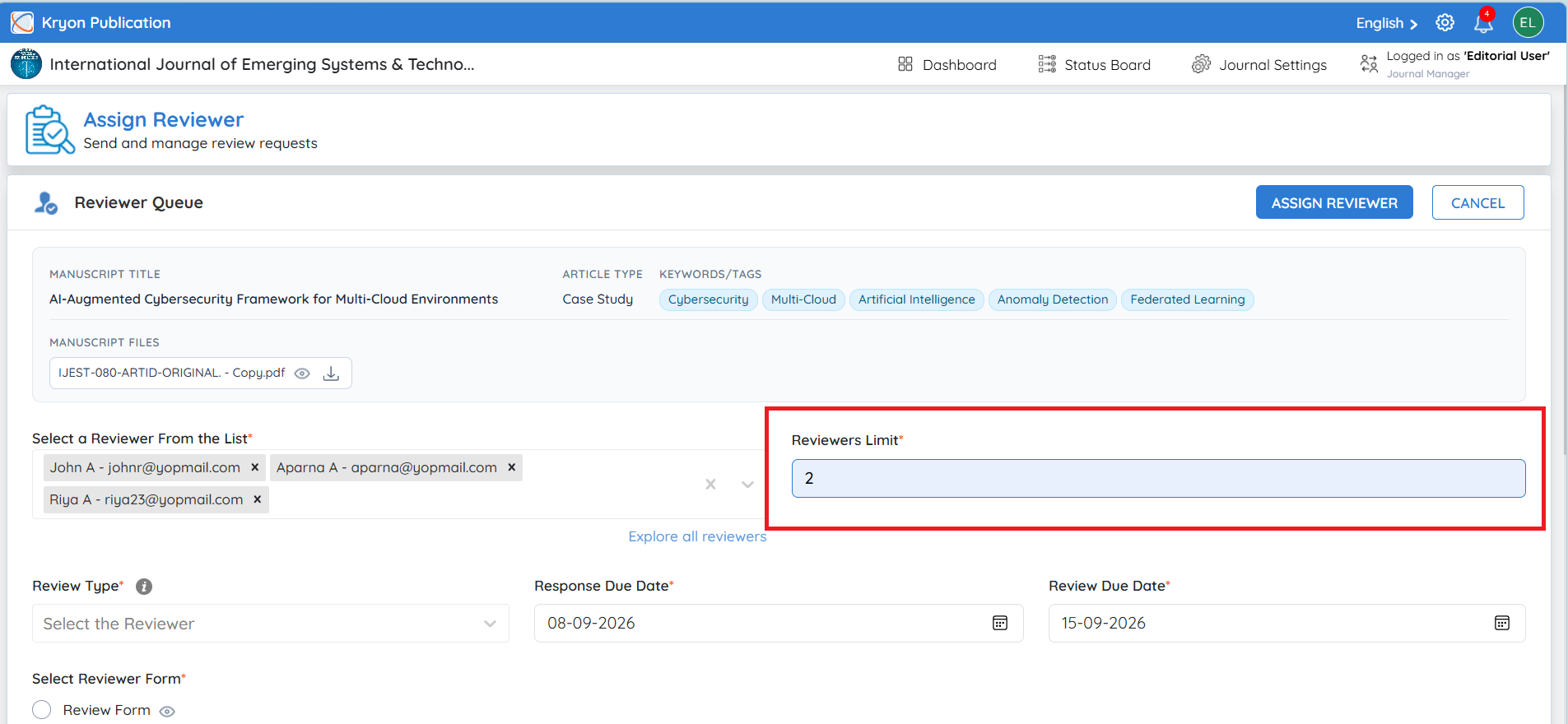
Enter the required number in Reviewers Limit.
The Reviewer Limit determines how many reviewers need to accept the review invitation for that queue.
For example, if the editorial user:
-
Sets the Reviewer Limit to 2.
-
Invites 5 reviewers.
-
Two reviewers accept the invitation.
Once the limit of 2 accepted reviewers is reached, Kryoni JMS automatically cancels the remaining pending invitations.
This prevents over-assignment and eliminates the need for the editorial user to manually cancel unnecessary invitations.
The Reviewer Limit is based on review invitation acceptance, not on completion of the review.
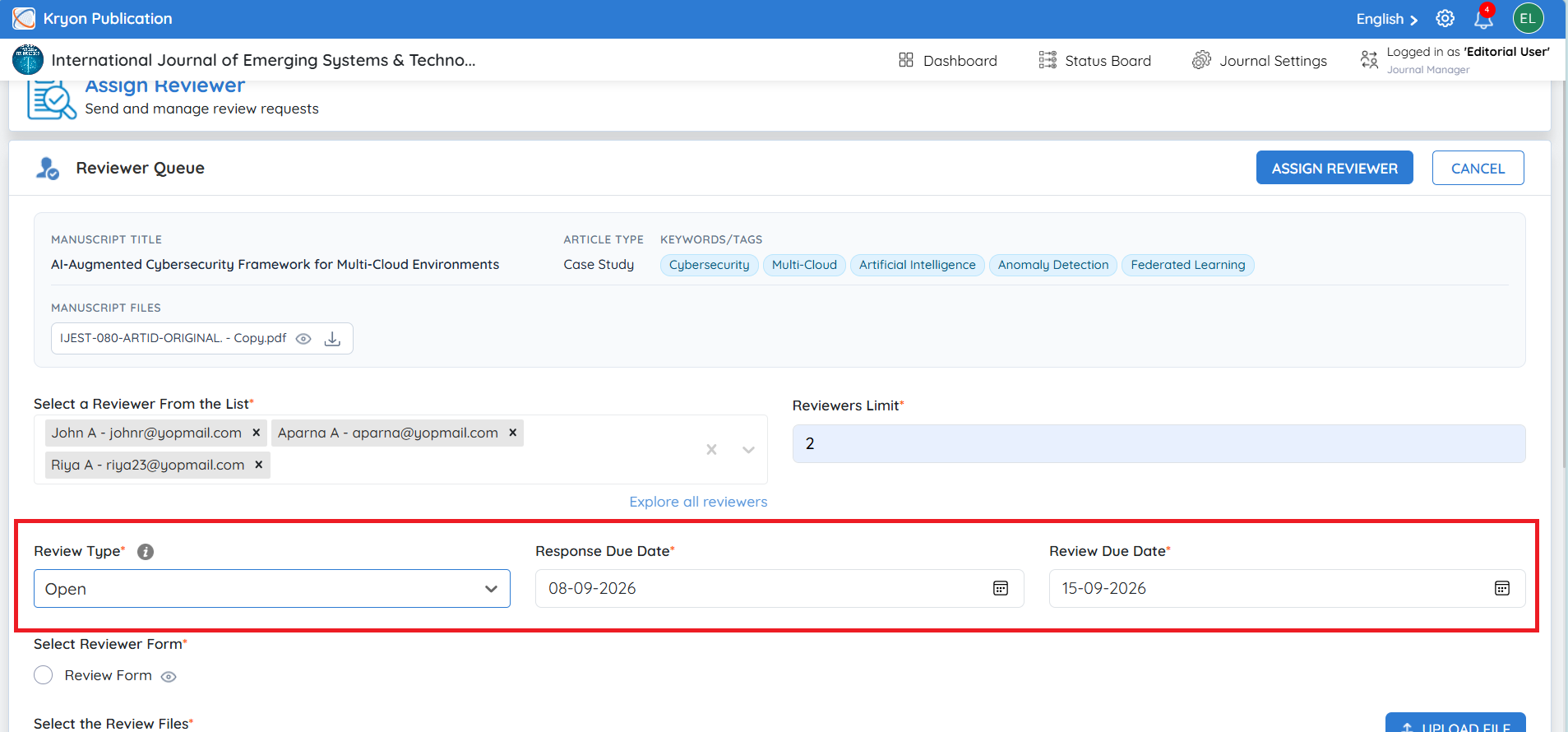
Step 5: Set the Review and Response Due Date
Select the Review and Response Due Date for the reviewers.
Response Due Date
The deadline by which the reviewer must respond to the review invitation by accepting or declining it.
Review Due Date
The deadline by which the reviewer must complete and submit their review after accepting the invitation.
If you want the Review and Response Due Date/TAT to be calculated automatically, refer to [LINK – Reviewer TAT Configuration] for more information.
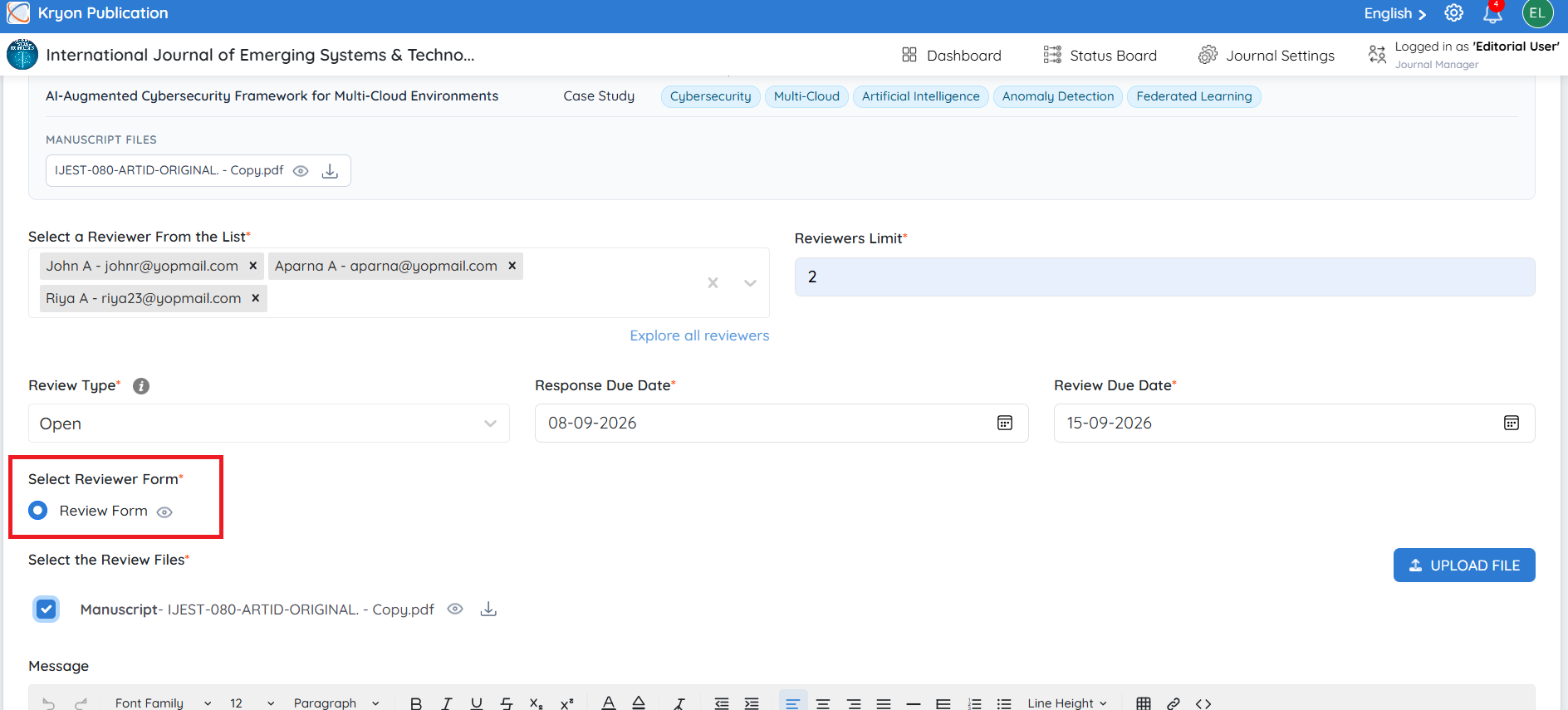
Step 6: Select the Reviewer Form
Under Select Reviewer Form, choose the review form that reviewers will use to provide their evaluation.
The View option can be used to check the review form before assigning it.
The selected form provides the structured questions, assessment criteria, comments, and recommendations that the reviewer will complete during the review process.
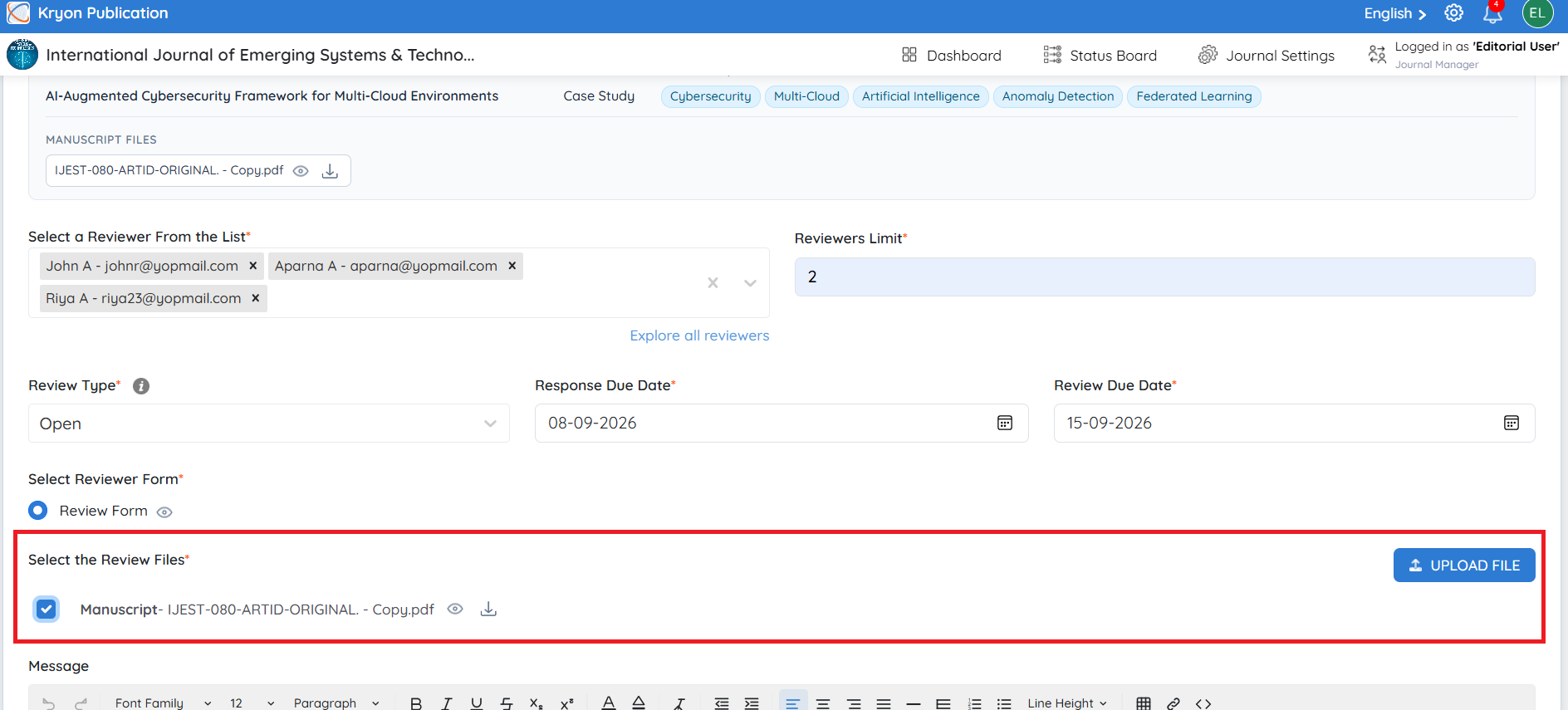
Step 7: Select the Review Files
Under Select the Review Files, choose the files that should be made available to the reviewers.
Depending on the journal's review model, the available files may include:
-
Source Files
-
Manuscript
-
Anonymous Manuscript
-
Other supporting files
If the journal follows a Double-Blind Review process, an Anonymous Manuscript must be selected so that the reviewers do not receive information that could reveal the identity of the authors.
If an anonymous manuscript is required but has not been selected or uploaded, the system displays a validation message requesting the editorial user to upload or choose an existing anonymous manuscript.
The Upload File option can also be used to add any additional document required specifically for the review
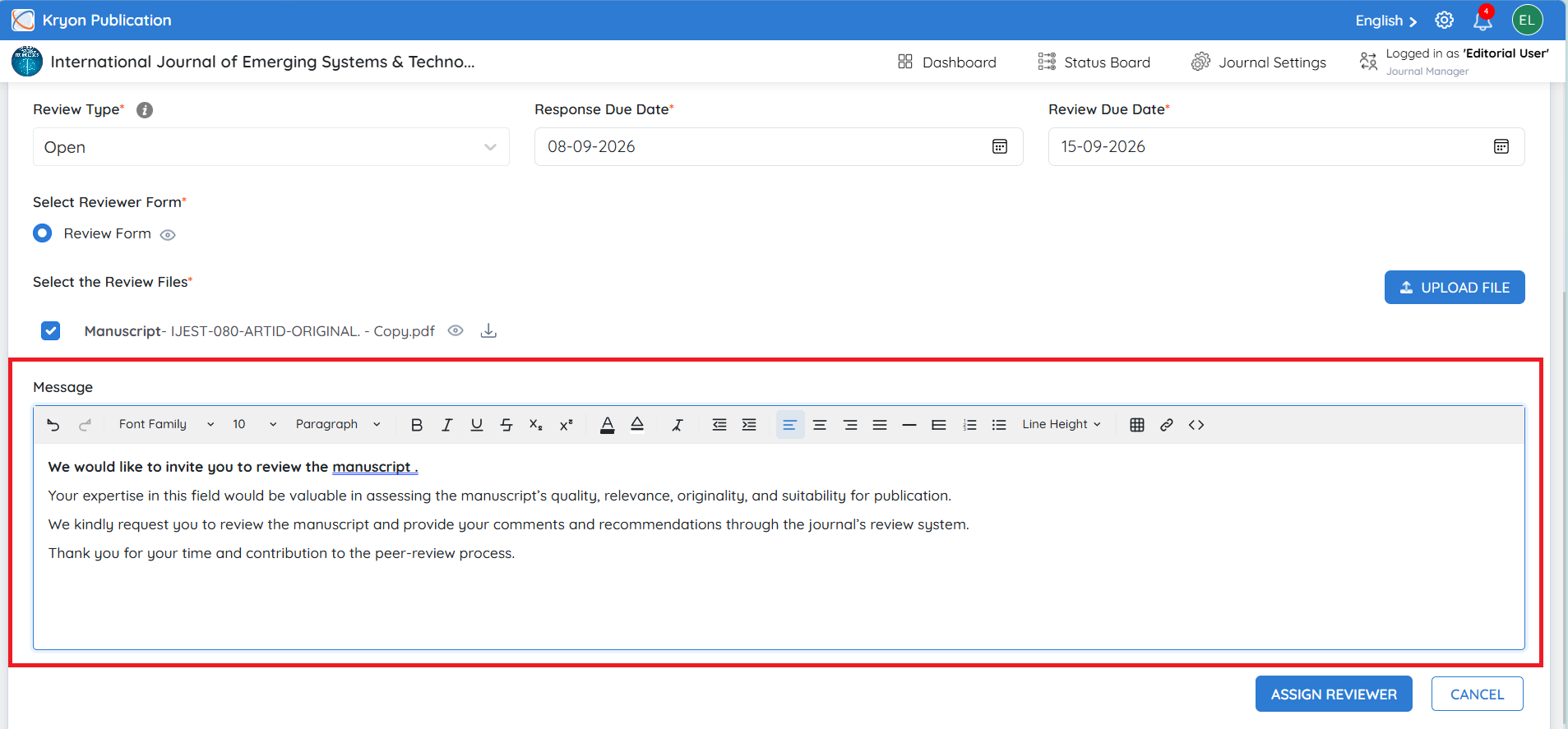
Step 8: Add a Message
The Message section allows the editorial user to include additional instructions or information for the reviewers.
Step 9: Assign the Reviewers
Once the editorial user has:
-
Selected the appropriate reviewers,
-
Set the reviewer limit,
-
Defined the review due date,
-
Selected the reviewer form,
-
Selected the appropriate review files, and
-
Added a message, if required,
click Assign Reviewer.
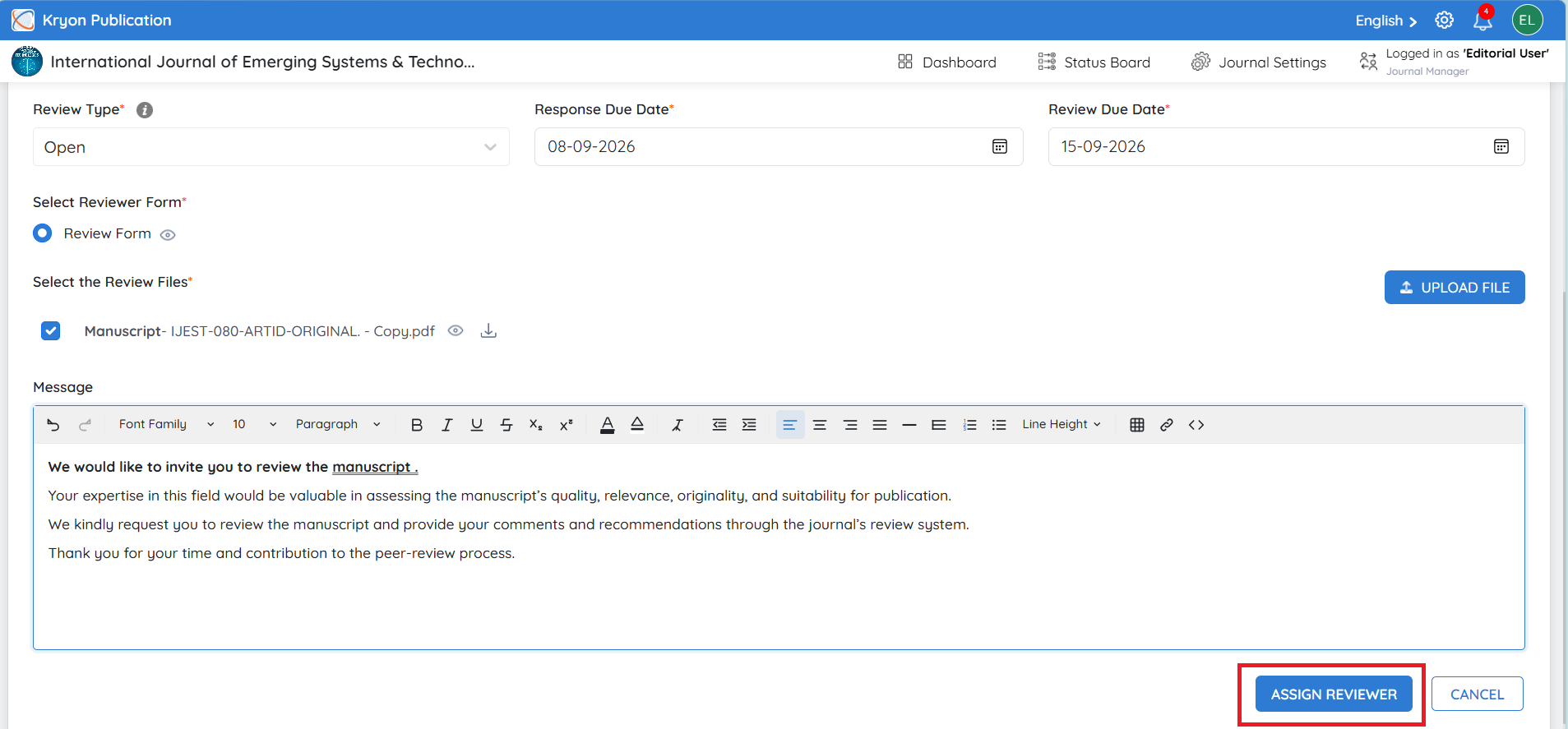
The selected reviewers will then receive their review invitations, and the reviewer queue will become part of the manuscript's active peer review workflow.
The editorial user can subsequently monitor invitation acceptance, pending responses, declined invitations, overdue reviews, and completed reviews from the All Reviews section.