Managing an Invited Reviewer
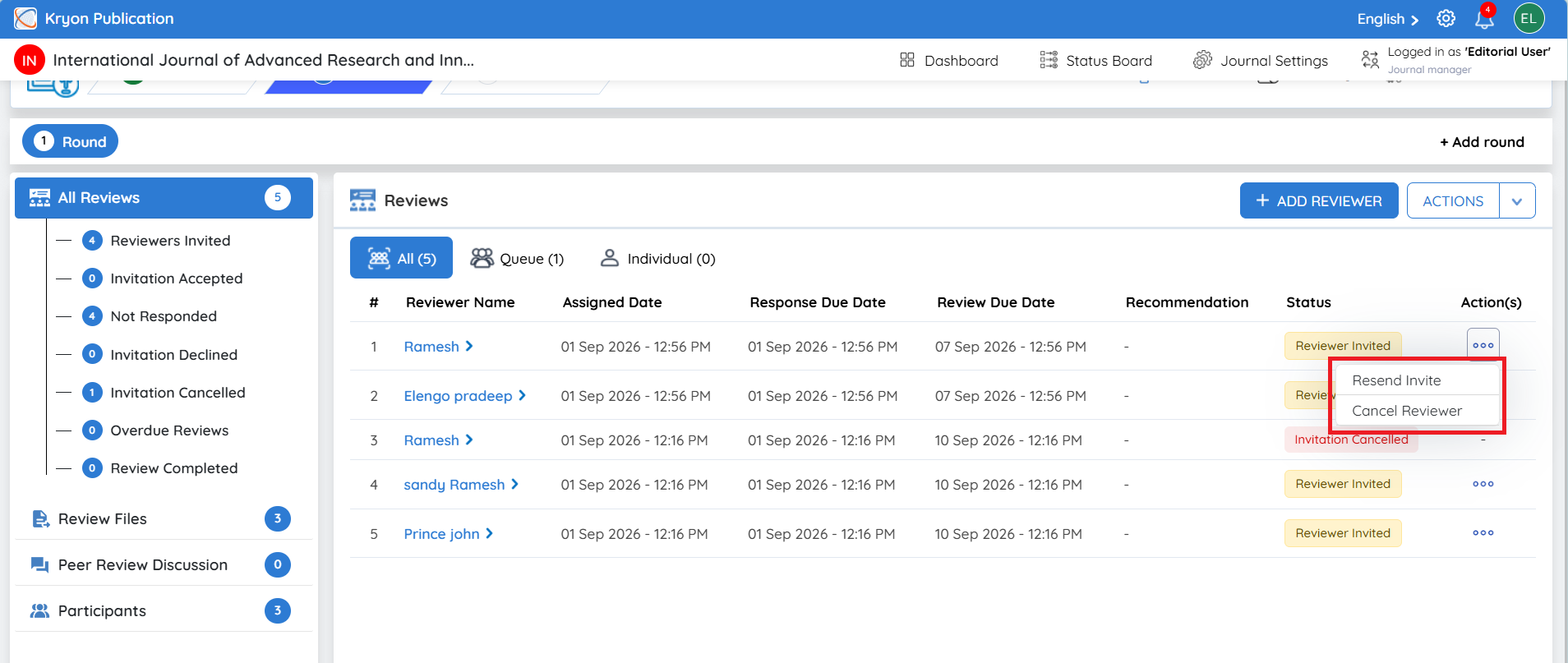
Once a reviewer has been invited, the reviewer’s status will appear as Reviewer Invited in the Reviews section.
Until the reviewer accepts or declines the invitation, the editorial user can manage the invitation through the three-dot menu (⋯) under Action(s):
-
Resend Invite – Resends the review invitation to the reviewer. This can be used if the reviewer has not responded or needs the invitation email to be sent again.
-
Cancel Reviewer – Cancels the reviewer invitation if the editorial user no longer wants the reviewer to participate in the review.
Once the reviewer responds to the invitation, the corresponding reviewer status will be updated in the system.
Completing a Review on Behalf of the Reviewer
Once the reviewer has accepted the review invitation, they are normally expected to complete and submit the review through the dedicated reviewer workflow.
However, if the reviewer provides their completed review through another communication channel, such as email or the Discussion section, the editorial user can record and submit the review on behalf of the reviewer.
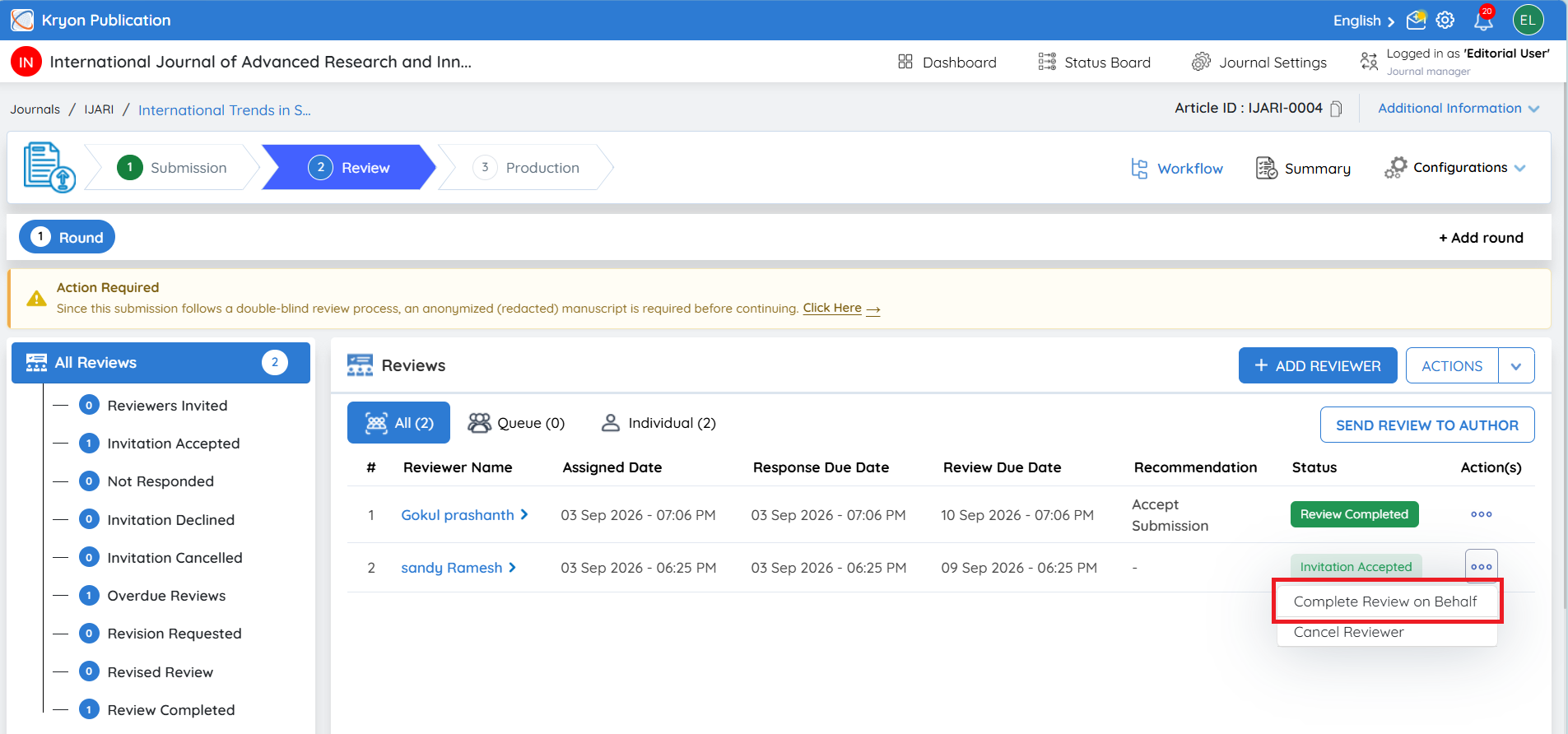
To do this, locate the reviewer whose status is Invitation Accepted. Under Action(s), click the three-dot menu (⋯) and select Complete Review on Behalf.
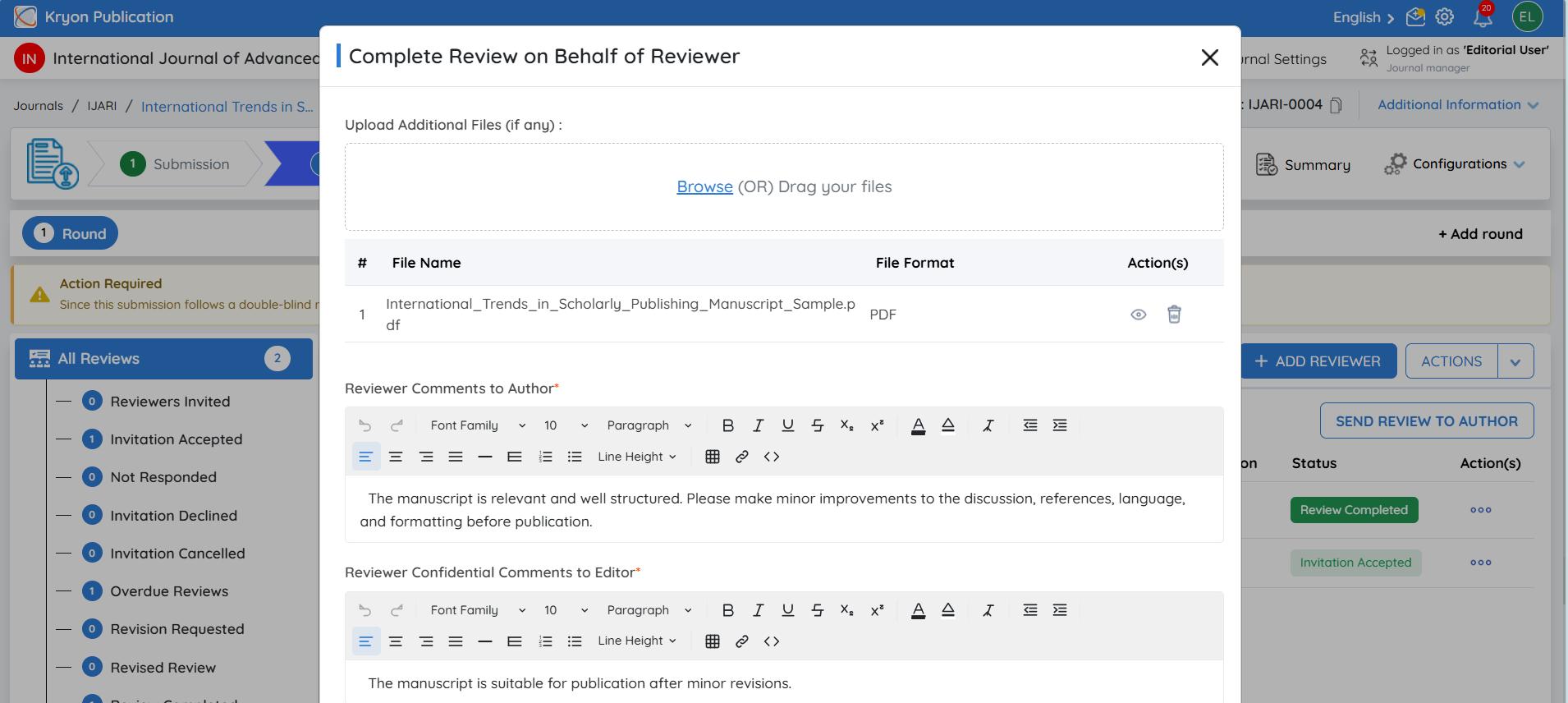
The Complete Review on Behalf of Reviewer window will open. Complete the following information:
-
Upload Additional Files (if any) – Upload any review files or supporting documents received from the reviewer.
-
Reviewer Comments to Author – Enter the comments provided by the reviewer that are intended to be shared with the author.
-
Reviewer Confidential Comments to Editor – Enter any confidential comments provided specifically for the editorial team. These comments will not be shared with the author.
-
Recommendation – Select the recommendation provided by the reviewer.
Before submitting, select the acknowledgement checkbox confirming:
“I acknowledge that I have received this review from the reviewer and am authorized to submit it on their behalf.”
After verifying that the entered information accurately reflects the review received from the reviewer, click Submit Review.
Once submitted, the review will be recorded in the system as completed on behalf of the reviewer, and the review information will become available to the editorial user as part of the peer-review workflow.
Once the review is submitted on behalf of the reviewer, the reviewer will also receive an email notification confirming that the review has been submitted on their behalf by the editorial user.
The Complete Review on Behalf of Reviewer option should be used only when the reviewer has provided the review outside the dedicated reviewer workflow and the editorial user is authorized to submit it on the reviewer’s behalf.
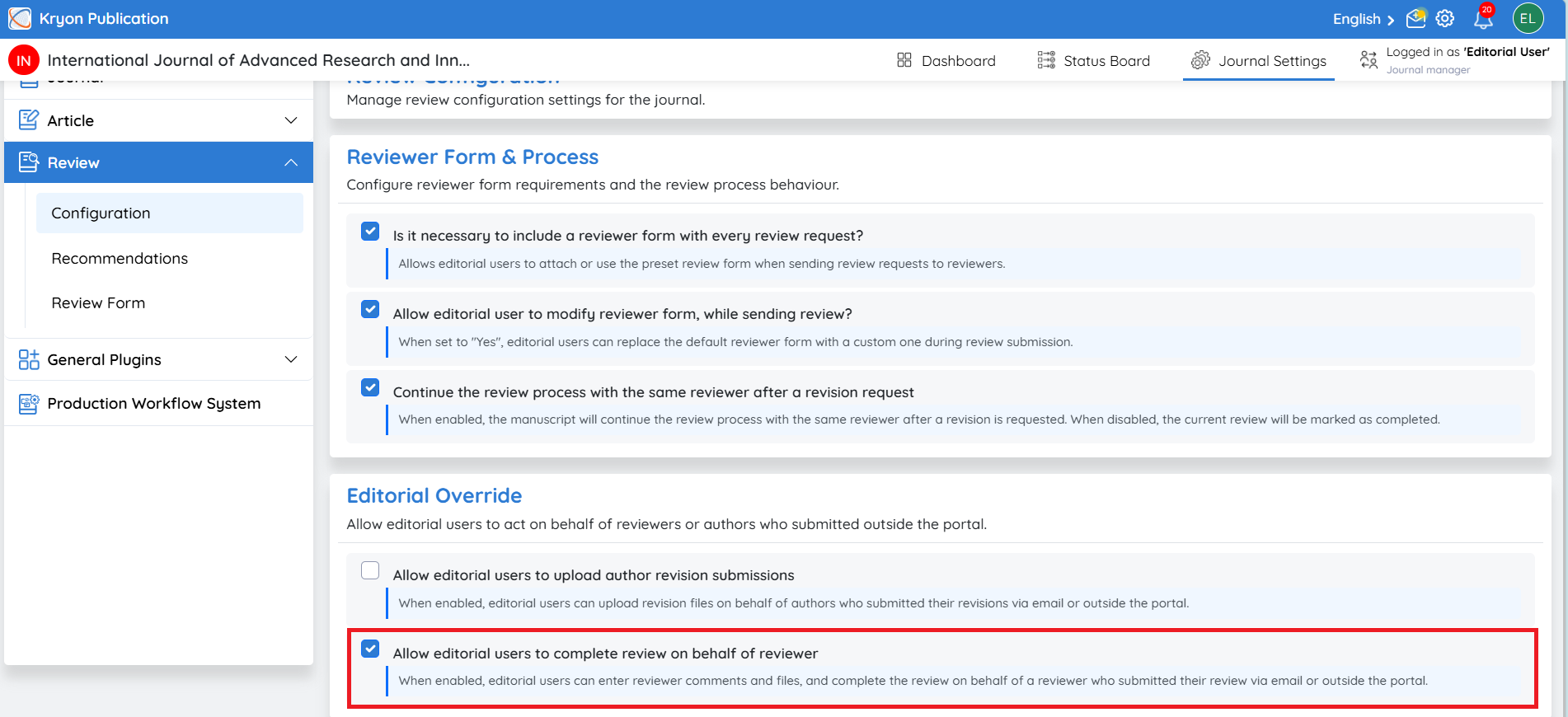
The Allow Editorial Users to Complete Reviews on Behalf of Reviewers option can be enabled or disabled based on the journal’s workflow requirements. If you do not want editorial users to submit reviews on behalf of reviewers, this option can be controlled in the journal settings. Refer to [LINK – Review Configuration Settings] for more information.