Mandatory Reviewer Continuation for Revisions
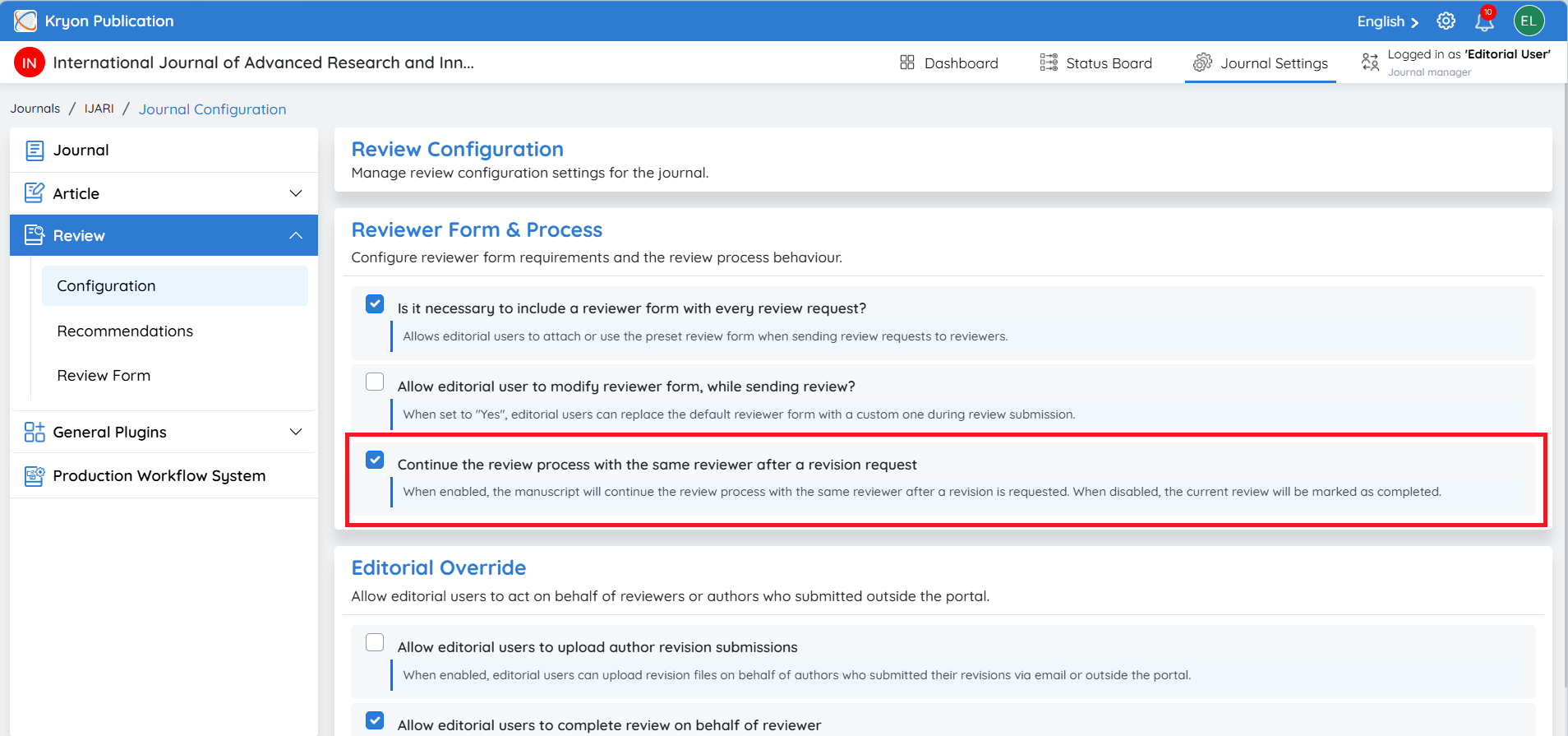
For journals that require a continuous review process, Kryoni JMS can be configured so that when a reviewer recommends Revision Required, the revised manuscript must be sent back to the same reviewer for further evaluation.
This option can be enabled under:
Journal Settings → Journal Configuration → Review → Configuration
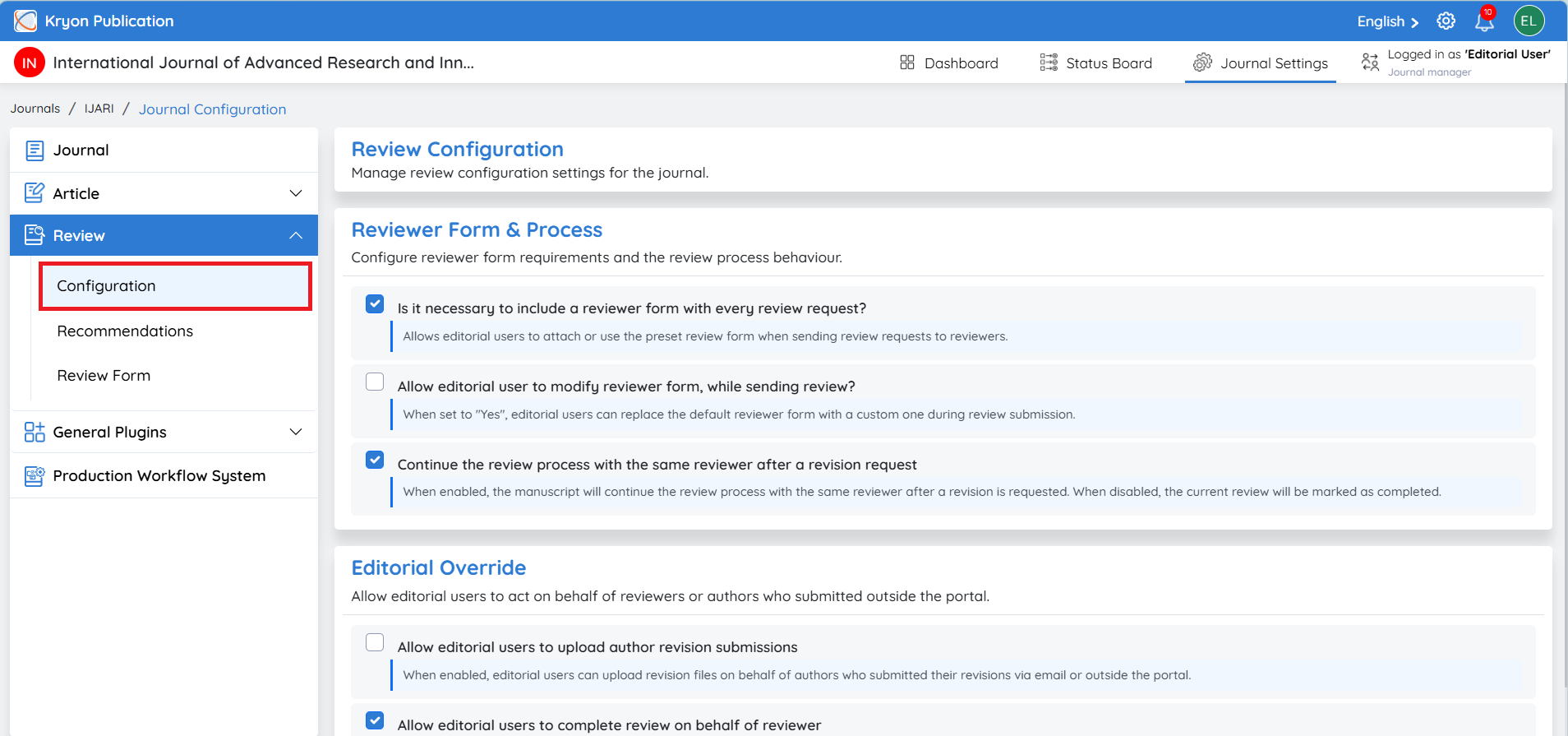
When this setting is enabled:
-
A reviewer completes the review and recommends Revision Required.
-
The editorial user sends the revision request to the author.
-
The author submits the revised manuscript.
-
A new review round is initiated for the revision.
-
The revised manuscript must be assigned to the same reviewer who requested the revision.
-
The reviewer evaluates the revised manuscript and provides the next recommendation.
-
If the reviewer requests another revision, the same process continues in the subsequent review round.
Until the required follow-up review is completed by the reviewer, the review cycle associated with that reviewer will not be considered complete.
This configuration helps maintain reviewer continuity across revision rounds, ensuring that the reviewer who originally requested changes can verify whether the author has adequately addressed the requested revisions.
When Reviewer Continuation for Revisions Is Enabled
If the mandatory reviewer continuation option is enabled and a reviewer requests a revision, the review will remain associated with that reviewer until the revised manuscript is evaluated.
When the Reviewer Requests a Revision
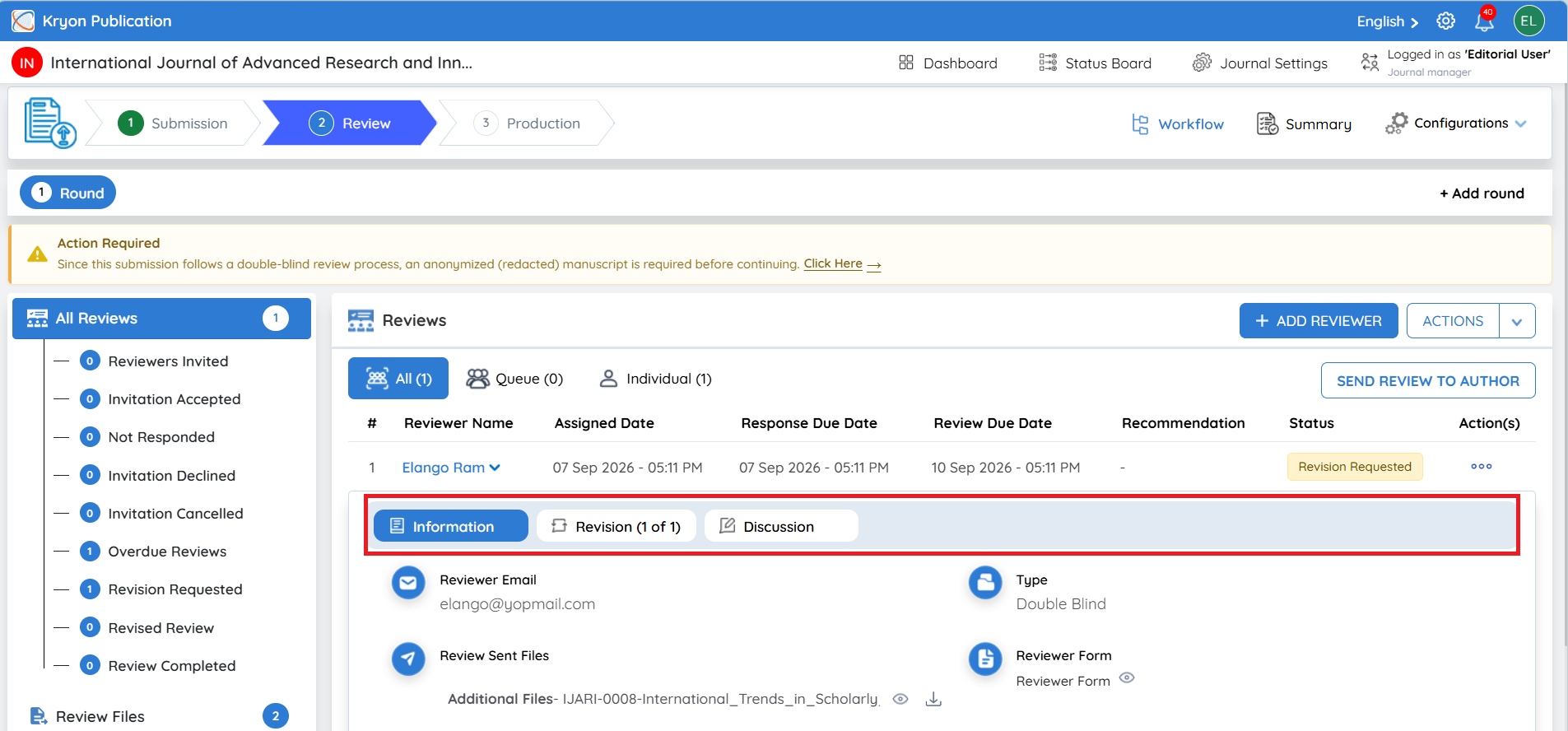
Once the reviewer requests changes, the reviewer’s status changes to Revision Requested.
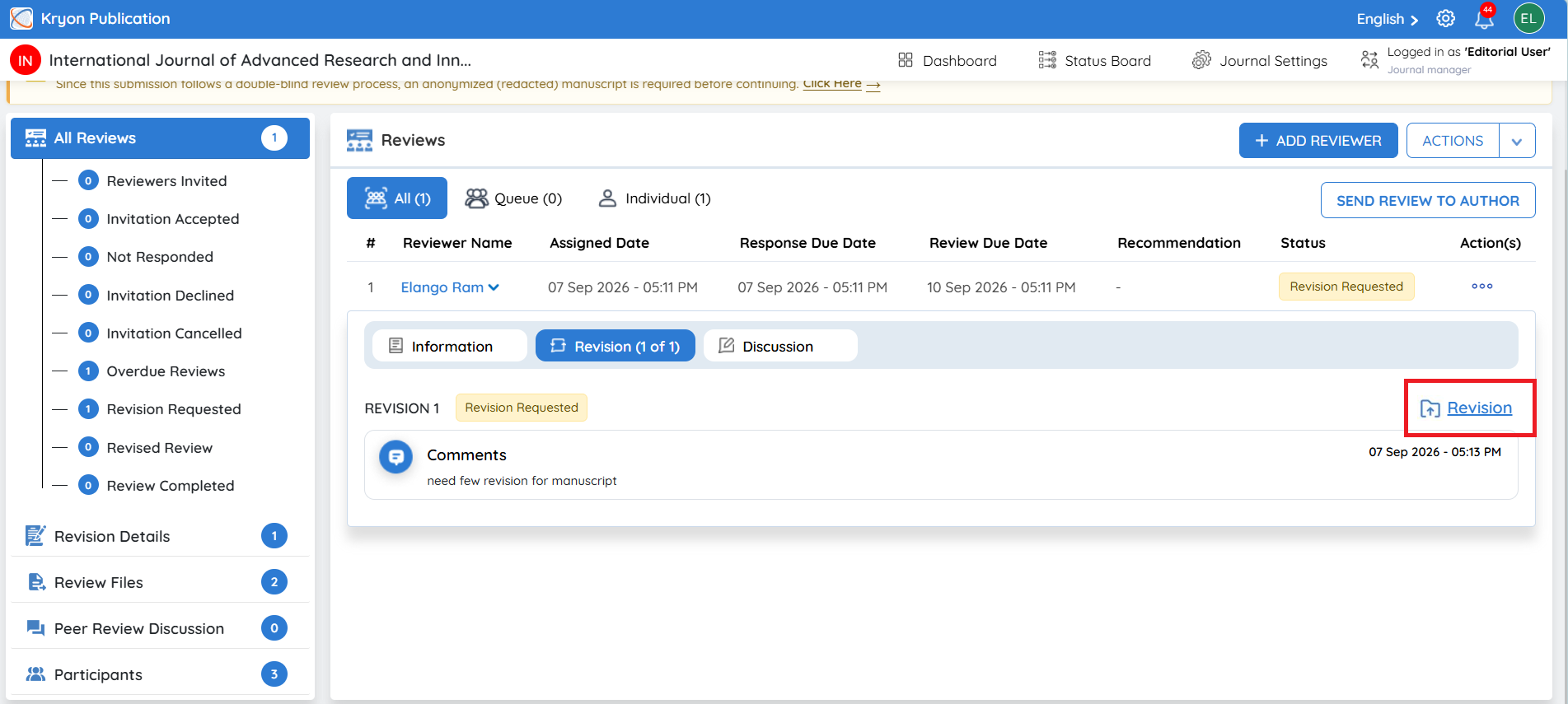
Expand the reviewer details. Three tabs will be available:
-
Information – Displays the reviewer and review details.
-
Revision – Displays the revision request and comments provided by the reviewer.
-
Discussion – Allows review-related communication.
Click Revision to view the reviewer’s revision comments.
The editorial user can then follow the standard revision process to send the revision comments to the author and request a revised manuscript - LINK
After the Author Submits the Revised Manuscript
Once the author submits the revision, the editorial user should review the revised files and confirm that the required documents have been provided.
The revised manuscript must then be sent back to the same reviewer for further evaluation.
Sending the Revised Manuscript Back to the Reviewer
-
Open the reviewer record and select the Revision tab.
-
Click Revision.
-
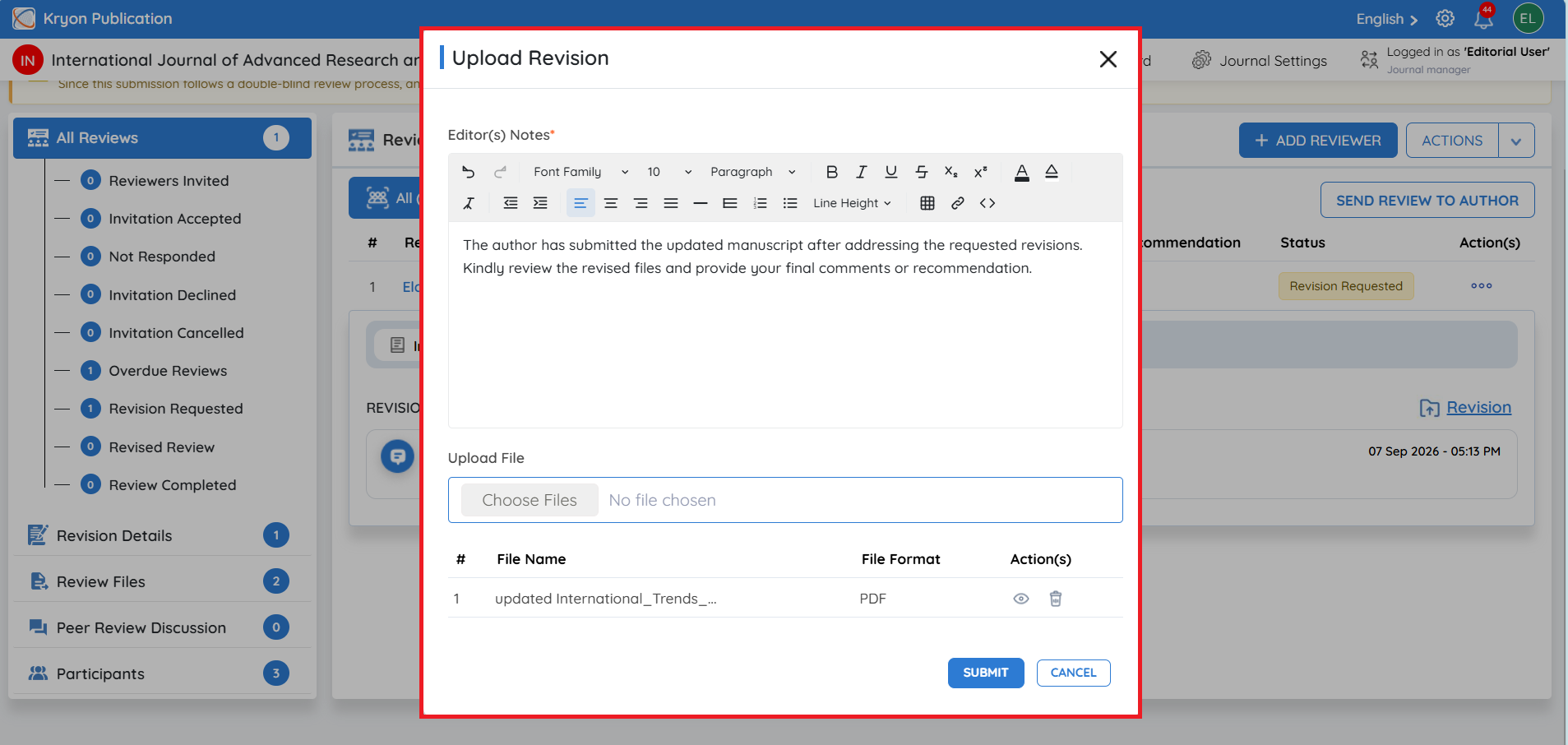
The Upload Revision window will open.
-
Enter the required Editor(s) Notes for the reviewer.
-
Upload the revised manuscript or other relevant files.
-
Click Submit.
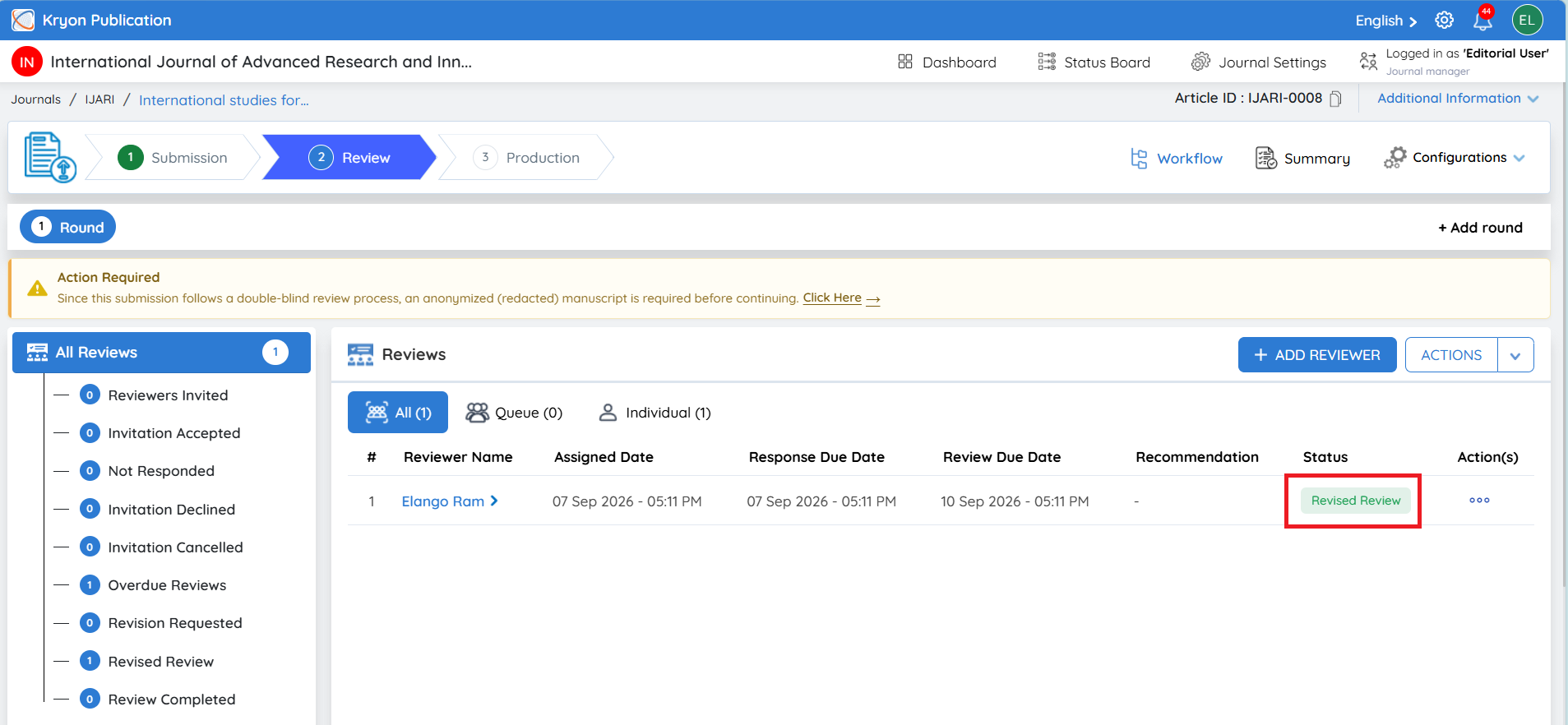
- The reviewer’s status changes to Revised Review.
The revised manuscript is now available to the same reviewer for the next evaluation.
Reviewer Completes the Revised Review
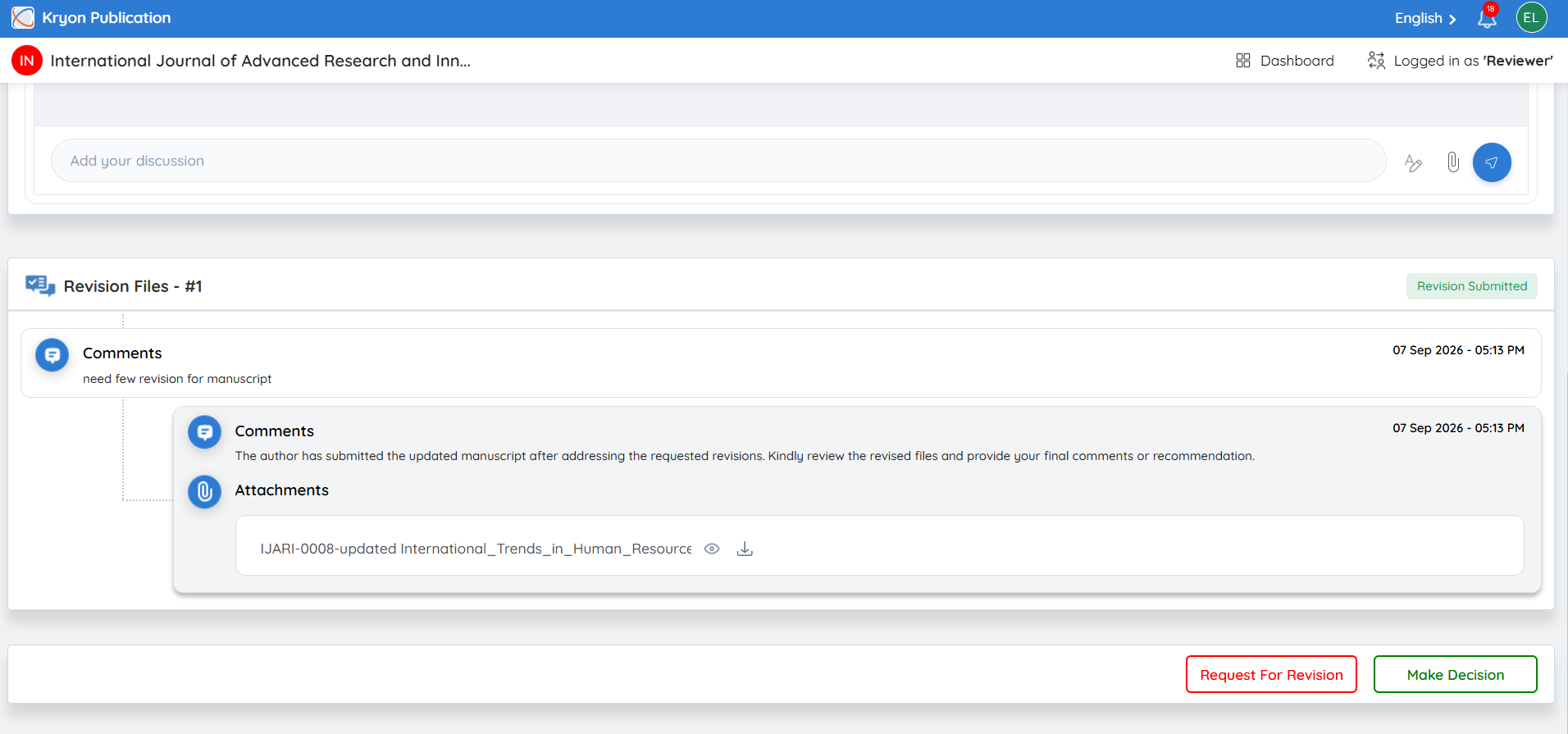
The reviewer can review the revised manuscript, verify whether the requested changes have been addressed, and submit their updated recommendation.
If the reviewer requests another revision, the same revision cycle will continue until the reviewer provides a recommendation that does not require further revision.
When mandatory reviewer continuation is enabled, a reviewer who requests a revision remains part of the continuing review cycle. The revision must be returned to that reviewer for follow-up evaluation before their review cycle can be considered complete.
Proceeding After All Reviews Are Completed
Once all reviewers have completed their reviews and the manuscript has received the required recommendations, the editorial user can decide the next step for the submission.
Click Actions to view the available options and select the appropriate action based on the reviewers’ recommendations and the journal’s editorial decision
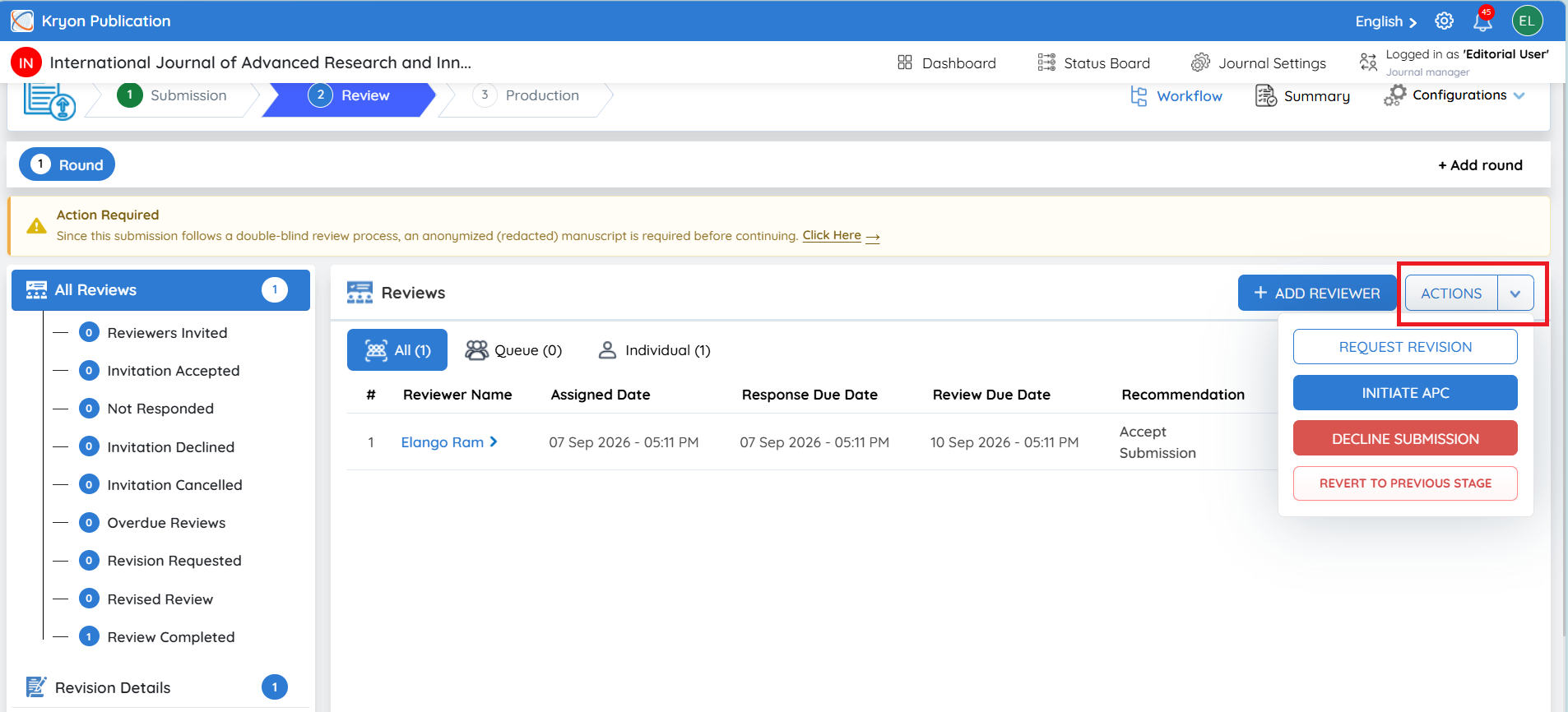
Actions Available After Review Completion – IF APC Is not collected in KRYONI JMS
Once the peer review process is completed, the editorial user can click Actions and select the appropriate next step:
-
Request Revision – Send the manuscript back to the author when further changes are required.
-
Move to Production – Move the manuscript to the Production stage when it is ready to proceed.
-
Decline Submission – Decline the manuscript if the editorial decision is not to proceed with publication.
-
Revert to Previous Stage – Move the manuscript back to the previous workflow stage when further action or correction is required.

Actions Available After Review Completion – If APC Is Enabled
If Article Processing Charges (APC) are enabled for the journal, the editorial user will see Initiate APC instead of moving the manuscript directly to Production.
After the review process is completed, click Actions. The following options are available:
-
Request Revision – Request further changes from the author.
-
Initiate APC – Start the APC process for the manuscript before proceeding to the next stage.
-
Decline Submission – Decline the manuscript if it will not proceed further.
-
Revert to Previous Stage – Return the manuscript to the previous workflow stage if additional action is required.
When APC is applicable, the required APC process must be completed before the manuscript can proceed to the next stage.
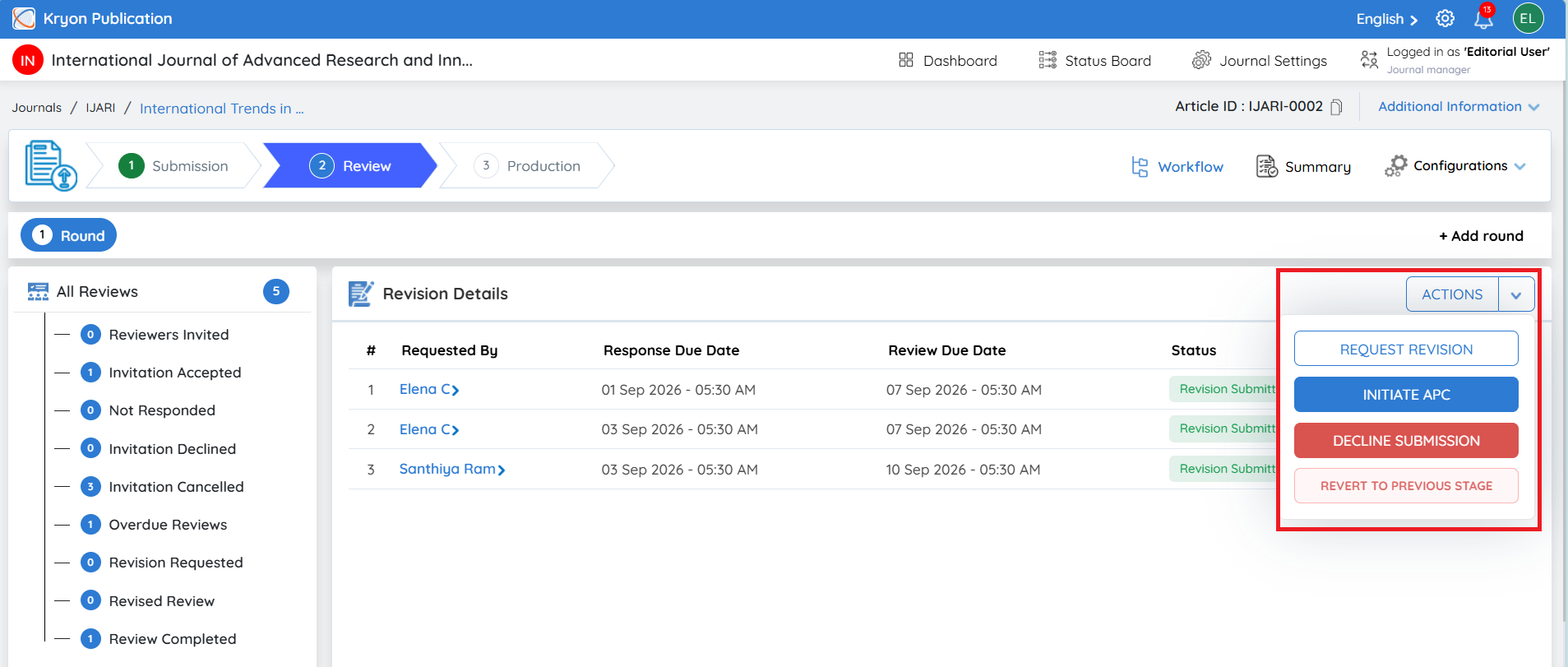
First, let’s explore how each of these options works.
Request Revision
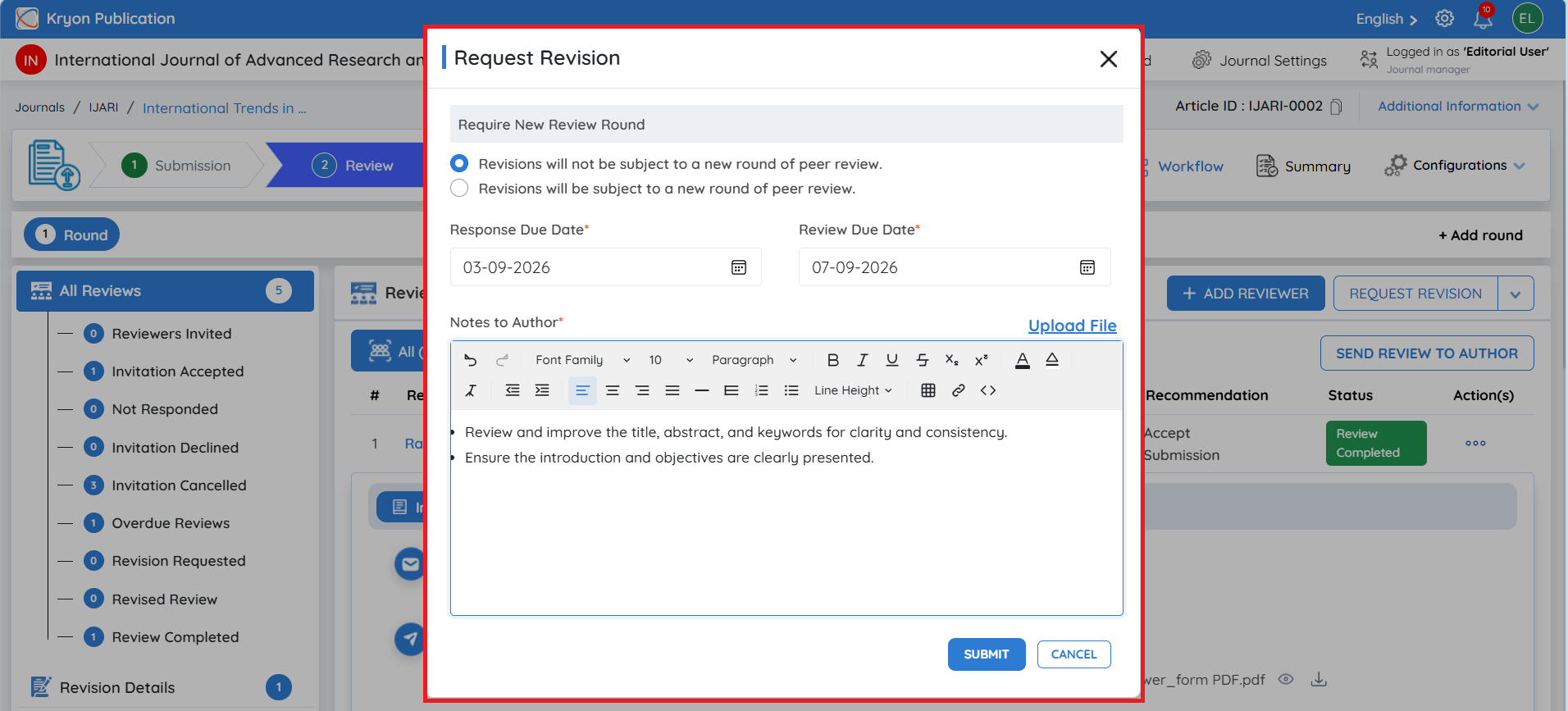
If the editorial user determines that further changes are required after reviewing the reviewers’ recommendations, select Request Revision from Actions.
Unlike Send Review to Author, where the reviewer comments are automatically collated, Request Revision is a manual process.
The editorial user must manually copy and paste the required reviewer comments or revision instructions into the Notes to Author field.
This option is useful when the editorial user wants to prepare a customized revision request instead of sending the collated reviewer comments directly to the author.
The Request Revision window opens, where the editorial user can choose how the revised manuscript should be handled:
-
Revisions will not be subject to a new round of peer review – Select this when the editorial team will evaluate the author’s revised manuscript without initiating another peer review round.
-
Revisions will be subject to a new round of peer review – Select this when the revised manuscript needs to undergo another round of peer review.
Next, select the Response Due Date and Review Due Date.
Enter the required instructions or revision comments for the author in Notes to Author. If necessary, use Upload File to attach supporting documents.
After verifying the details, click Submit to send the revision request to the author.
The option selected under Require New Review Round determines whether the revised manuscript will continue without another peer review round or proceed through a new review round.
Decline Submission
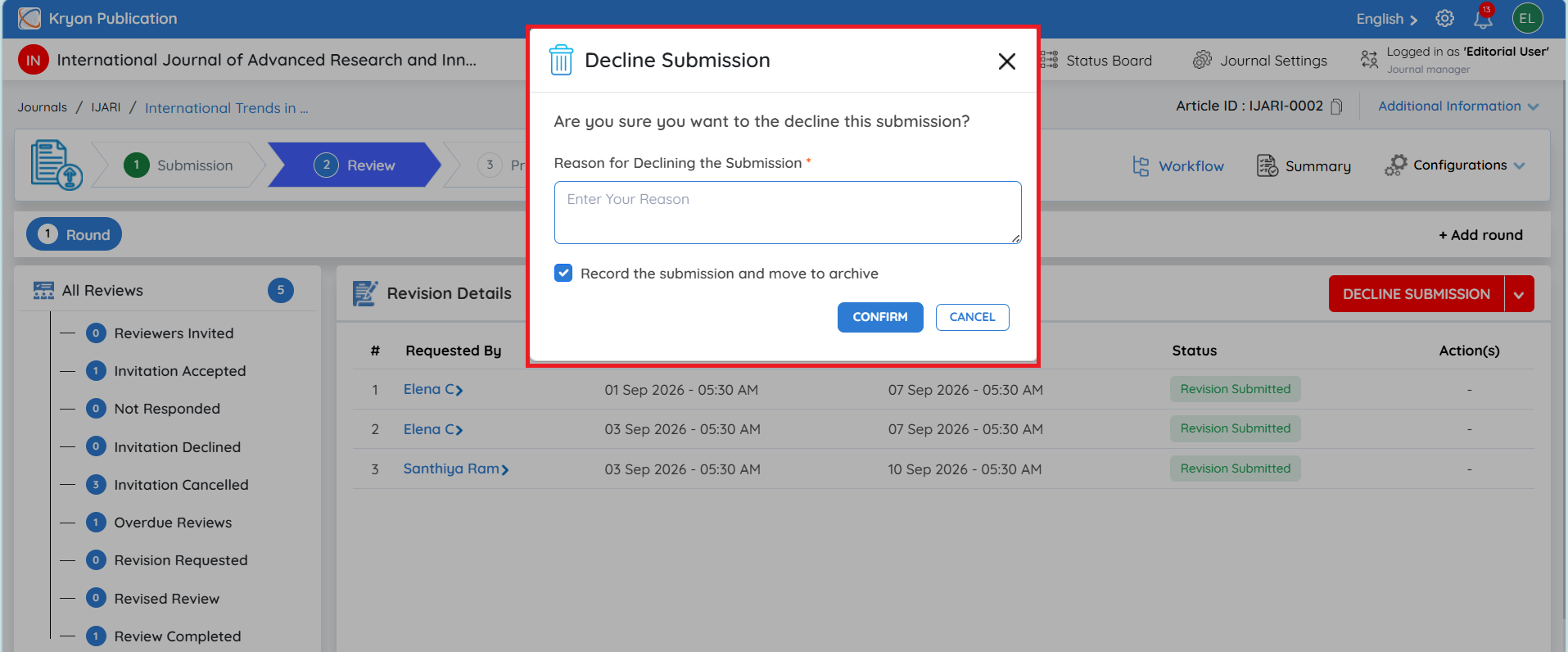
If the editorial user decides not to proceed with the manuscript after reviewing the reviewer recommendations, select Decline Submission from Actions.
The Decline Submission window will open.
Enter the Reason for Declining the Submission. This field is mandatory.
If Record the submission and move to archive is selected, the declined submission will be recorded and moved to the archive.
After verifying the details, click Confirm to decline the submission.
Revert to Previous Stage
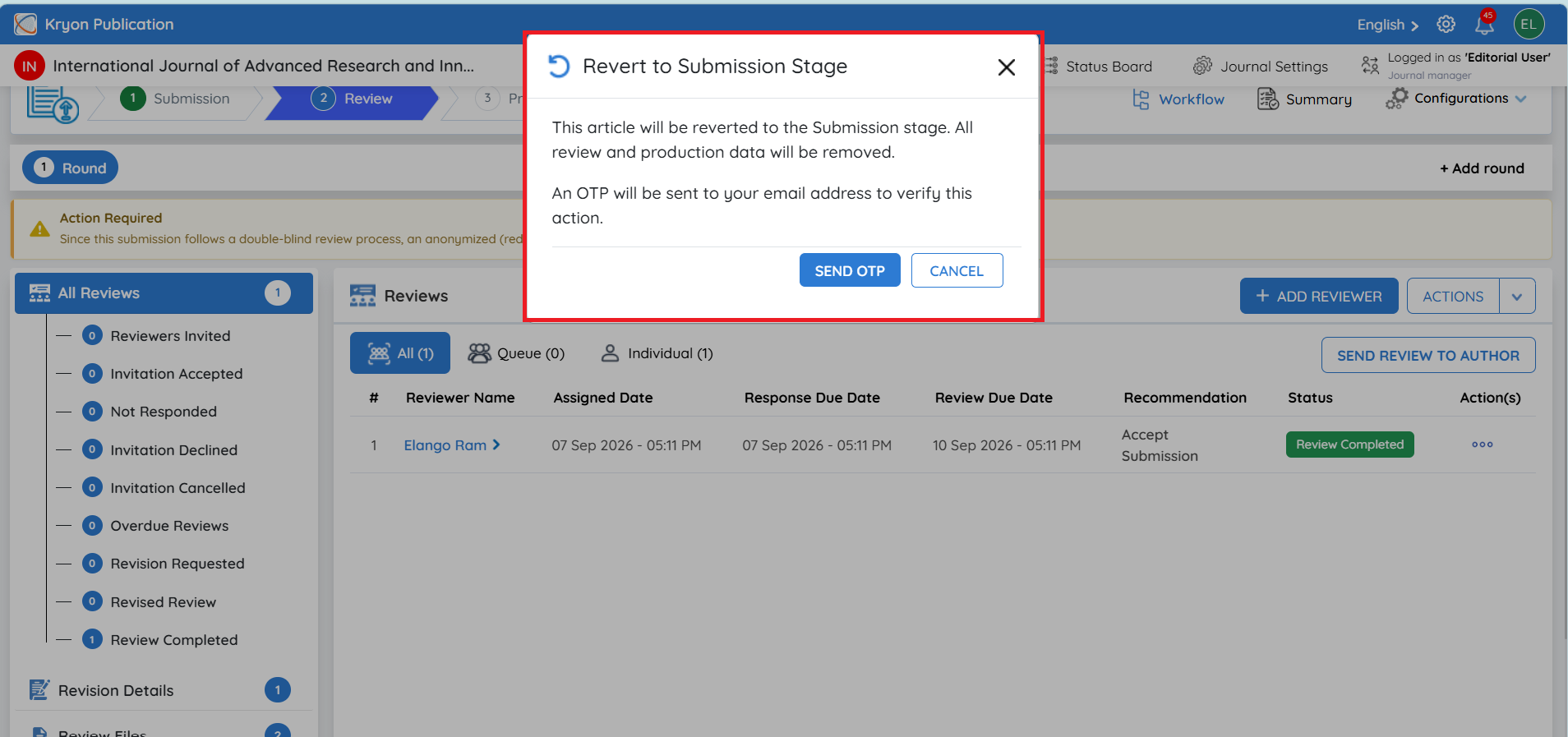
If the manuscript needs to be moved back from the Review stage to the Submission stage, the editorial user can select Revert to Previous Stage from Actions.
The Revert to Submission Stage confirmation window will open.
The system will display a warning that the manuscript will be returned to the Submission stage and that all Review and Production data will be removed.
To continue:
-
Click Send OTP.
-
A 6-digit OTP will be sent to the editorial user’s registered email address.
-
Enter the OTP in the Enter OTP field.
-
Click Verify.
-
After successful verification, the manuscript will be reverted to the Submission stage.
Important: Use this option carefully. Reverting the manuscript removes the existing Review and Production data associated with the submission.