Request Changes from the Author
Now, let’s see how an editorial user can request changes from an author.
During the initial screening of a newly submitted manuscript, the editorial user reviews the manuscript details, submission files, author information, declarations, and other required materials.
If the editor identifies any issues that need to be corrected before the manuscript can proceed to the next stage, the Request Changes option can be used to formally send the manuscript back to the author for the required corrections.
This keeps the complete correction process within Kryoni JMS and provides a clear record of the request, author response, revised files, and subsequent editorial action.
When Can an Editor Request Changes?
An editorial user may request changes when issues such as the following are identified:
-
Manuscript formatting does not comply with journal guidelines.
-
Required manuscript files are missing.
-
Incorrect or incomplete author information is provided.
-
Author affiliations require correction.
-
Conflict of Interest (COI) information is missing or incomplete.
-
Ethical declarations or approval information require clarification.
-
Figures or tables are missing, incorrectly labelled, or provided in an unsuitable format.
-
Supplementary materials need to be added or corrected.
-
Manuscript title, abstract, keywords, subject, or other metadata require correction.
-
References or citations require technical corrections.
-
Incorrect file versions have been uploaded.
-
Mandatory declarations or supporting documents are missing.
-
Other technical, administrative, or submission-level requirements have not been satisfied.
These corrections can be resolved before the manuscript proceeds to the formal Review stage.
How to Request Changes
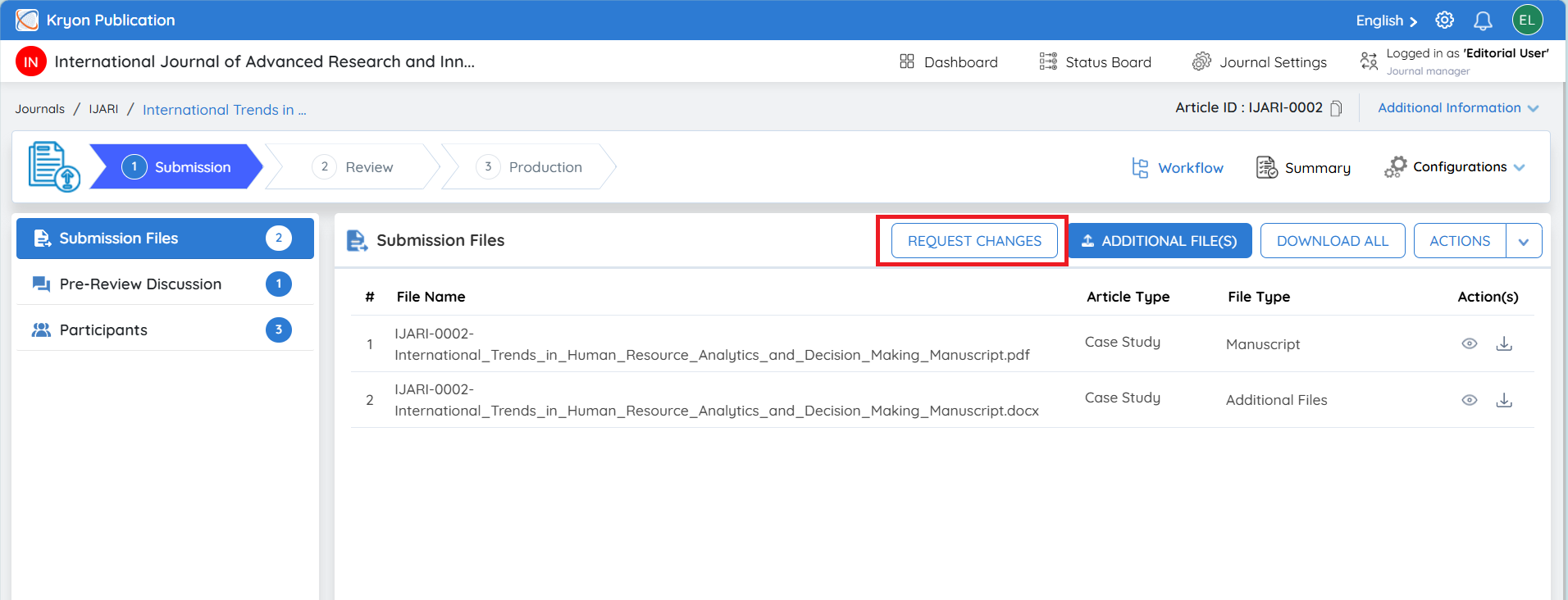
From the manuscript's Submission stage, navigate to Submission Files.
Click Request Changes.
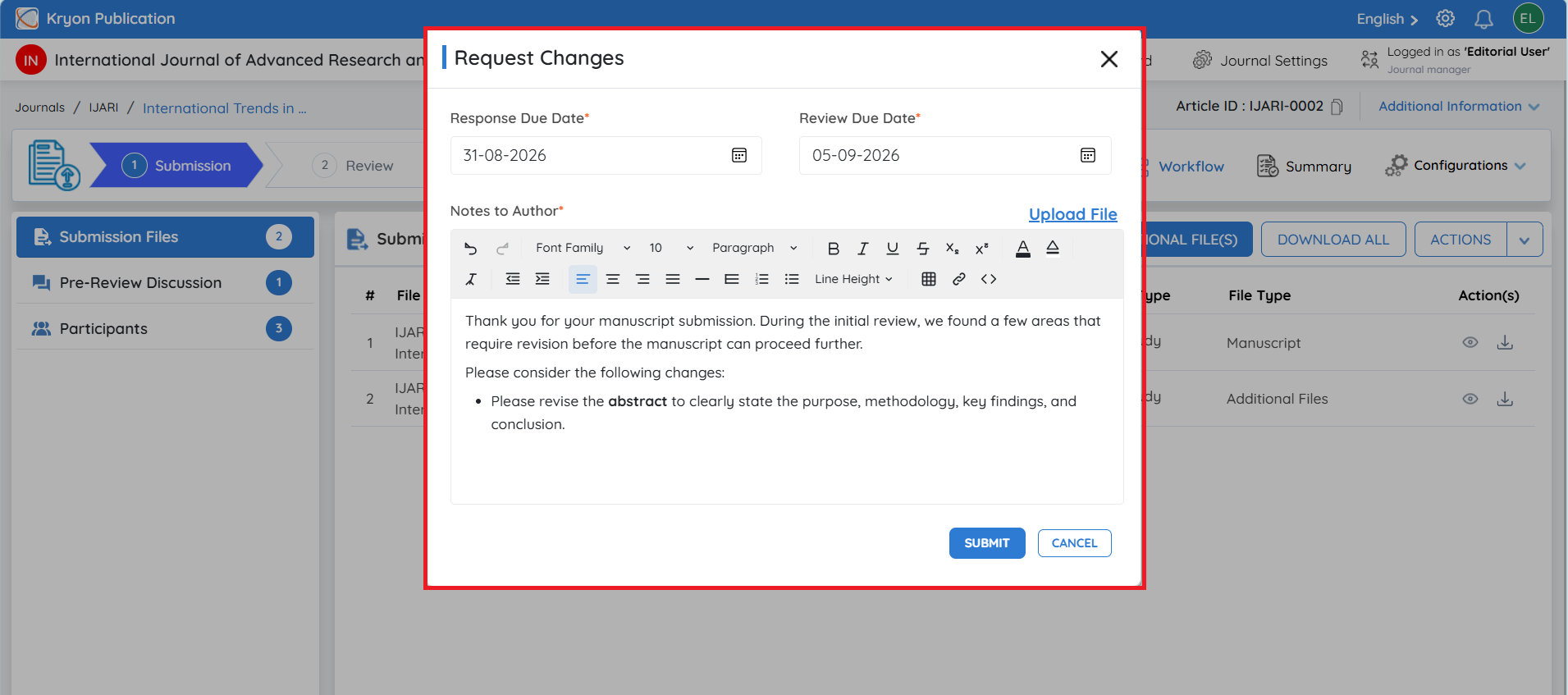
The Request Changes window will open, where the editorial user can define the correction requirements and deadlines for the author.
1. Set the Response Due Date
Select the Response Due Date.
This indicates the date by which the author is expected to respond to the editor's change request.
The deadline helps the editorial team track outstanding author actions and prevent unnecessary delays in manuscript processing.
2. Set the Review Due Date
Select the Review Due Date according to the journal's workflow requirements.
This provides the applicable deadline for completing the requested correction cycle and helps the editorial team monitor the progress of the submission.
3. Enter Notes to the Author
In Notes to Author, clearly explain what needs to be corrected.
The instructions should be specific and actionable so that the author can easily understand the changes required.
For example:
Please revise the manuscript according to the journal's submission guidelines. Update the author affiliations, provide the missing Conflict of Interest declaration, verify the figure labels, and upload the corrected manuscript file.
Where multiple corrections are required, the editorial user can clearly list each item to help the author address all requested changes.
4. Upload a Supporting File, If Required
If additional information is required to explain the requested corrections, click Upload File.
The editorial user can attach supporting materials such as:
-
Annotated manuscript
-
Marked-up PDF
-
Correction checklist
-
Formatting instructions
-
Editorial comments
-
Reference documents
This is useful when the requested corrections cannot be explained sufficiently through the Notes to Author field alone.
5. Submit the Change Request
After entering the required dates, instructions, and any supporting files, review the information carefully.
Click Submit.
The change request will be recorded against the manuscript and communicated to the author through the system.
Viewing the Requested Changes
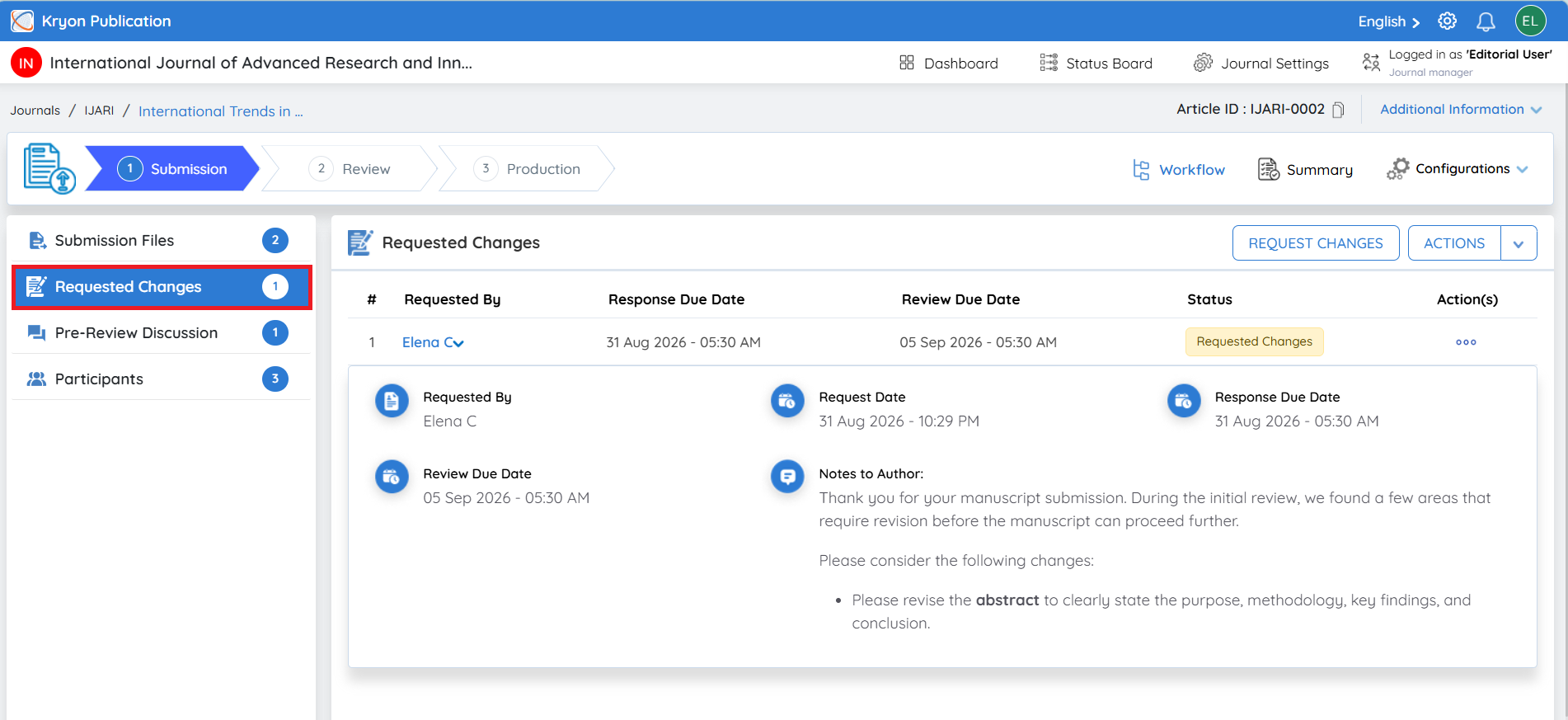
Once the change request is submitted, a new Requested Changes tab will automatically appear in the left-hand navigation panel.
Click Requested Changes to view and track all change requests raised for the manuscript.
The section displays key information such as:
-
Requested By – Editorial user who initiated the change request.
-
Request Date – Date and time the request was created.
-
Response Due Date – Deadline for the author to respond to the request.
-
Review Due Date – Deadline associated with completing the requested revision cycle.
-
Notes to Author – Instructions and corrections communicated to the author.
-
Status – Current status of the change request, such as Requested Changes.
Click the Requested By entry to expand the request and view its complete details.
Managing the Change Request
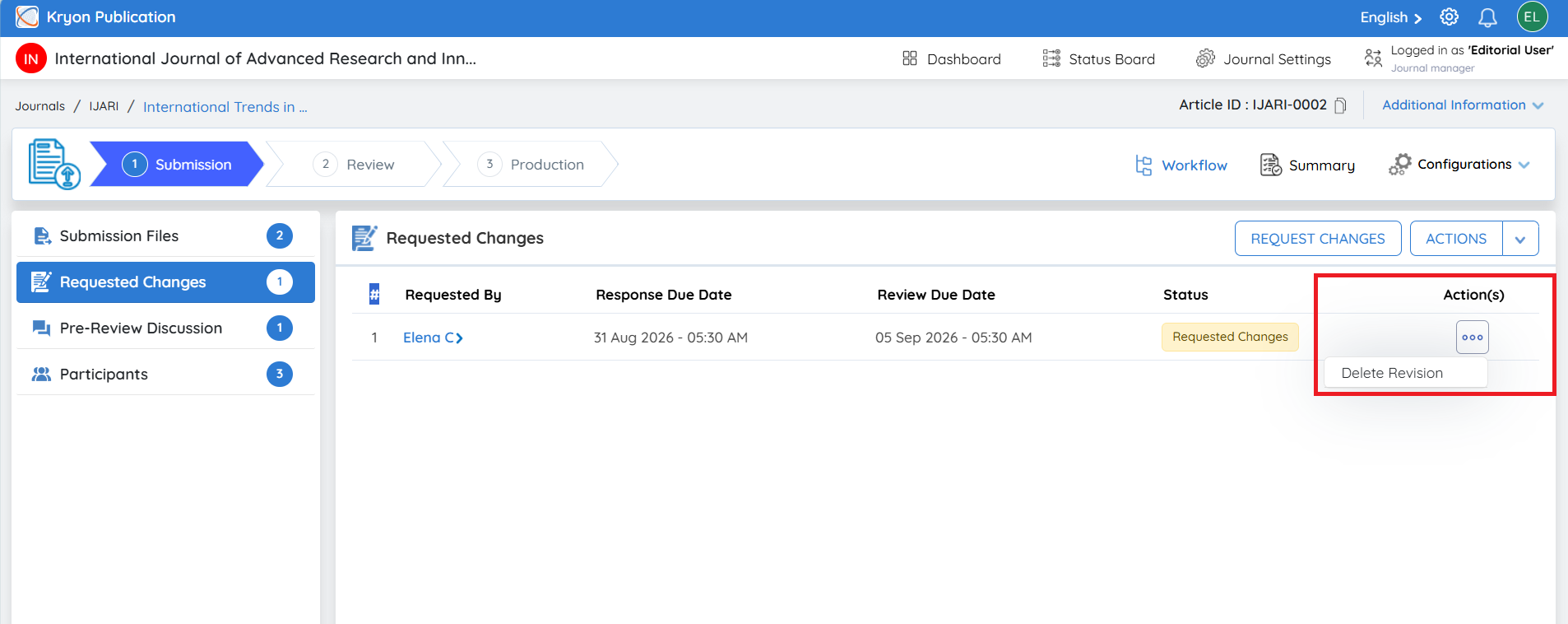
Under the Actions menu, the editorial user can manage the request. For example, Delete Revision can be used when a change request needs to be withdrawn or removed, subject to the workflow permissions available to the editorial user.
The Requested Changes section therefore provides a centralized location for tracking the complete correction cycle between the editorial team and the author.
Once the author responds and submits the requested corrections, the status and available workflow actions will be updated accordingly, allowing the editorial user to review the revised submission and continue manuscript processing.
What Happens After the Request Is Submitted?
Once the editorial user submits the change request, the author is notified that action is required on the manuscript.
The author can log in to Kryoni JMS and access the relevant submission to:
-
Review the editor's instructions.
-
View or download supporting files provided by the editor.
-
Make the requested corrections.
-
Upload revised manuscript files.
-
Provide the required information or documents.
-
Submit the corrected version through the designated workflow.
Once the author completes and submits the requested changes, the manuscript becomes available to the editorial team for further assessment.
The editorial user can review the revised files and determine whether all requested corrections have been addressed.
If the submission meets the journal's requirements, the manuscript can proceed to the next stage of the editorial workflow. If further corrections are required, the editor can initiate another appropriate action according to the journal's workflow.
Upload Requested Changes on Behalf of the Author
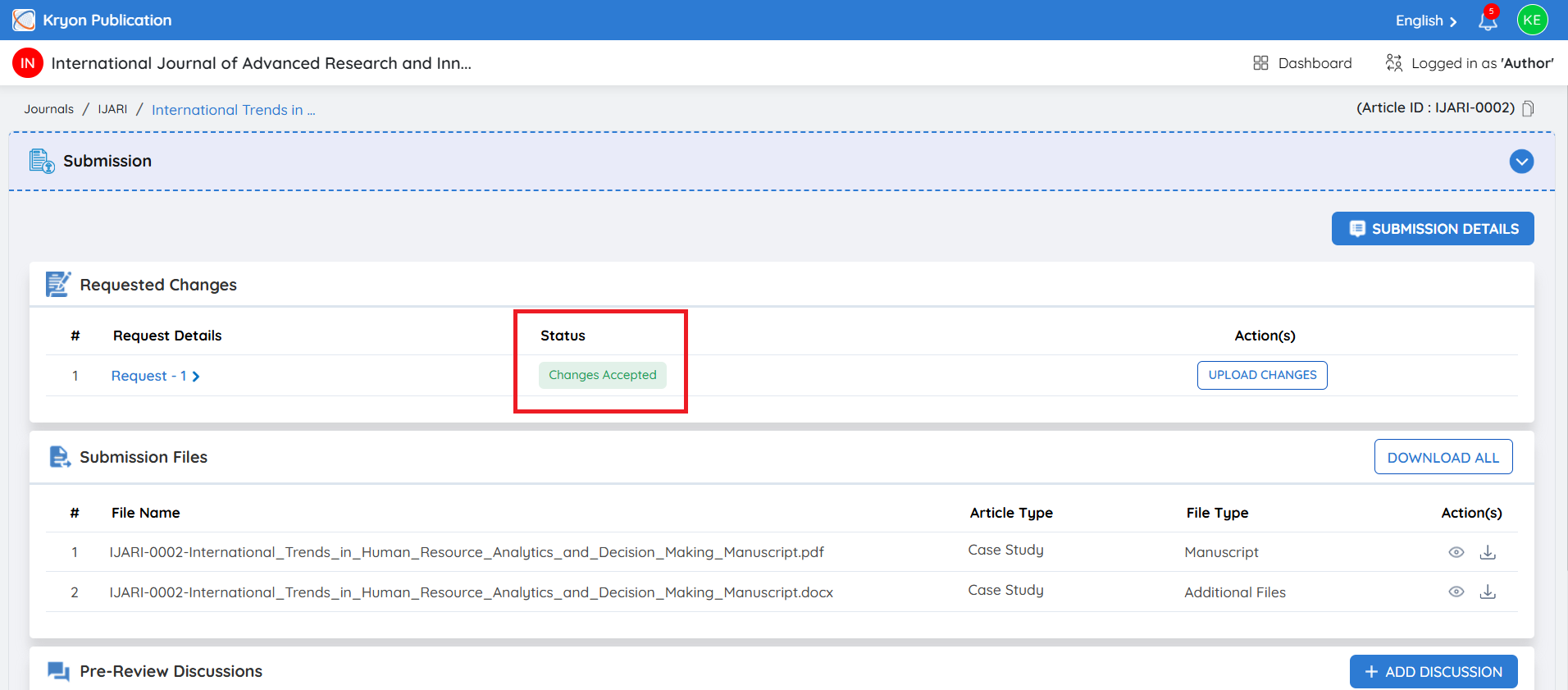
Once the author acknowledges the change request, the status in the editorial workflow will change to Changes Accepted.
In some cases, the author may provide the revised files to the editorial team through email, the Discussion section, or another approved communication channel, instead of uploading them directly through the system.
In such cases, the editorial user can upload the revised files on behalf of the author.
Steps to Upload Revised Files on Behalf of the Author
-
Open the Requested Changes section.
-
Confirm that the request status is Changes Accepted.
-
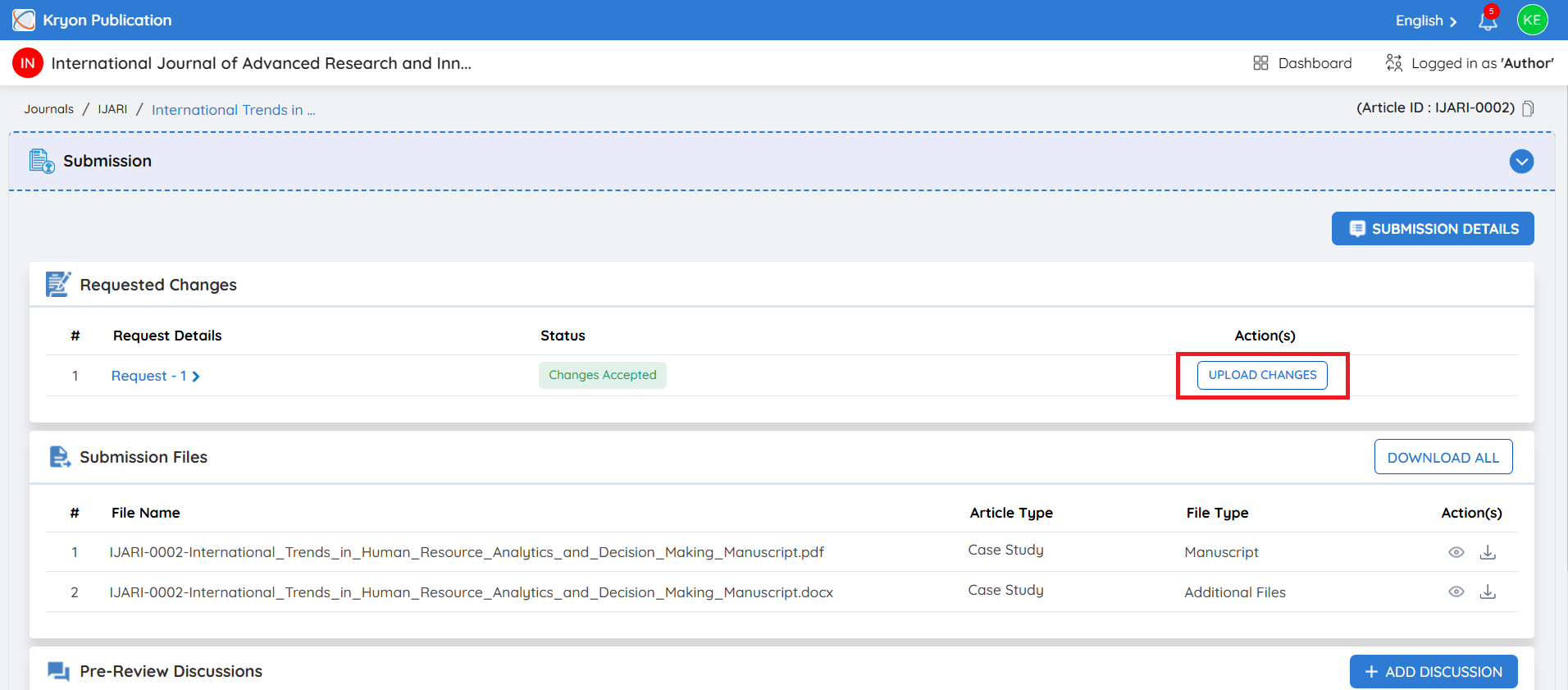
Under Action(s), click the three-dot (⋯) menu.
-
Select Upload Request Changes on Behalf.
-
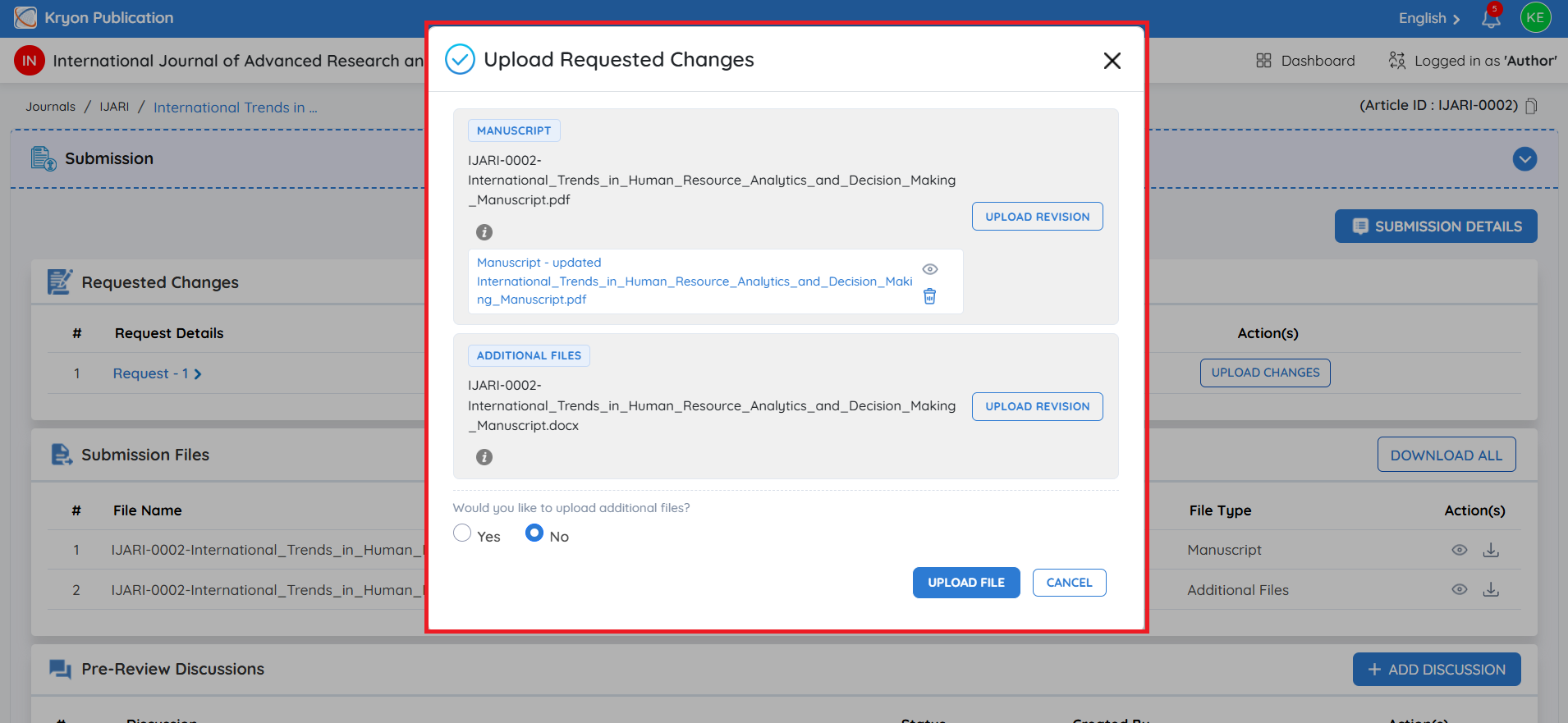
The Upload Request Changes on Behalf of Author window will open.
-
The system displays the original submission files according to their File Type, such as:
a. Manuscript
b. Source Files
-
Click Upload Request Changes against the appropriate file type and upload the revised file received from the author.
-
If additional supporting files need to be included, select Yes under Would you like to upload additional files? and upload the required files.
-
Select the acknowledgement checkbox confirming that the revised files were received from the author and that you are authorized to upload them on the author's behalf.
-
Click Upload Request Changes to complete the process.
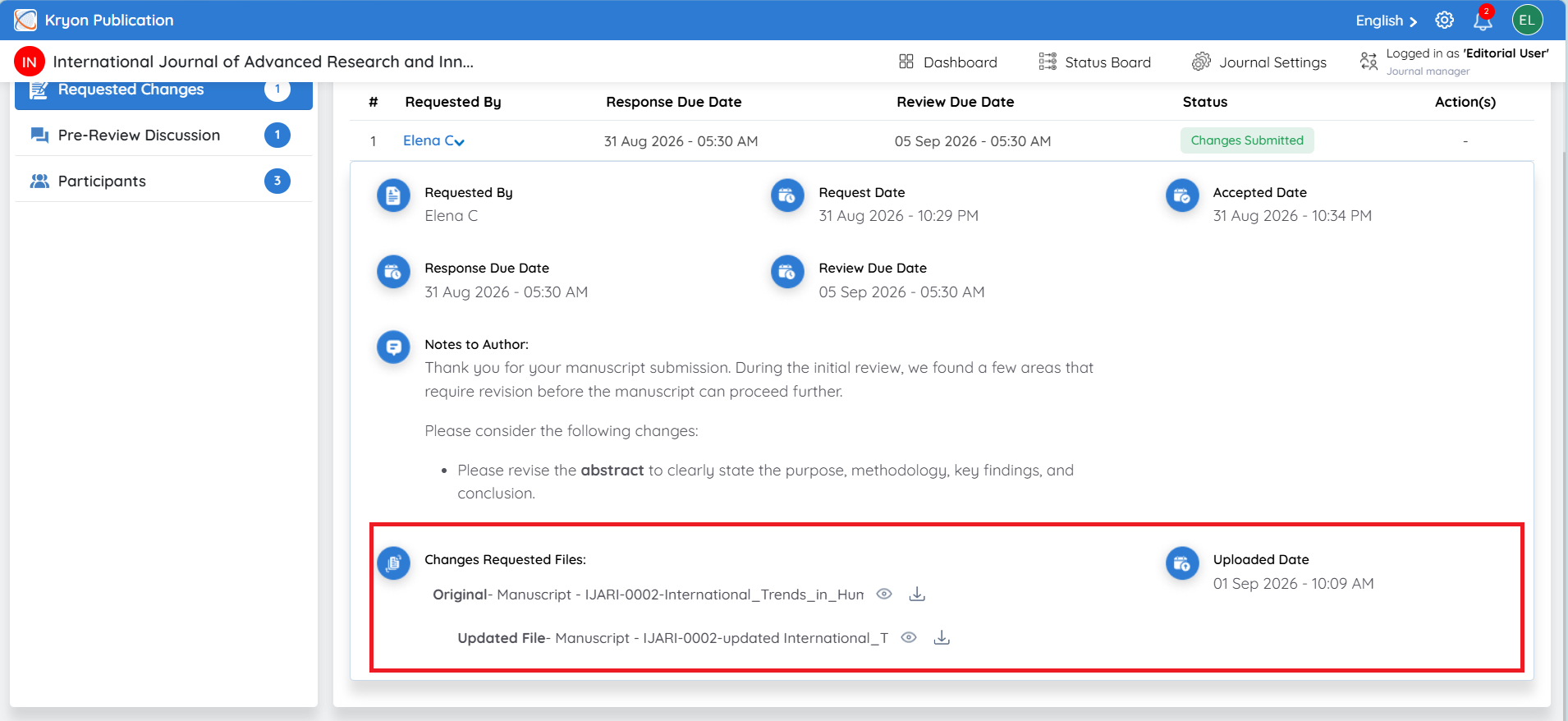
Changes Submitted
Once the revised files are successfully uploaded, the status of the change request will update to Changes Submitted.
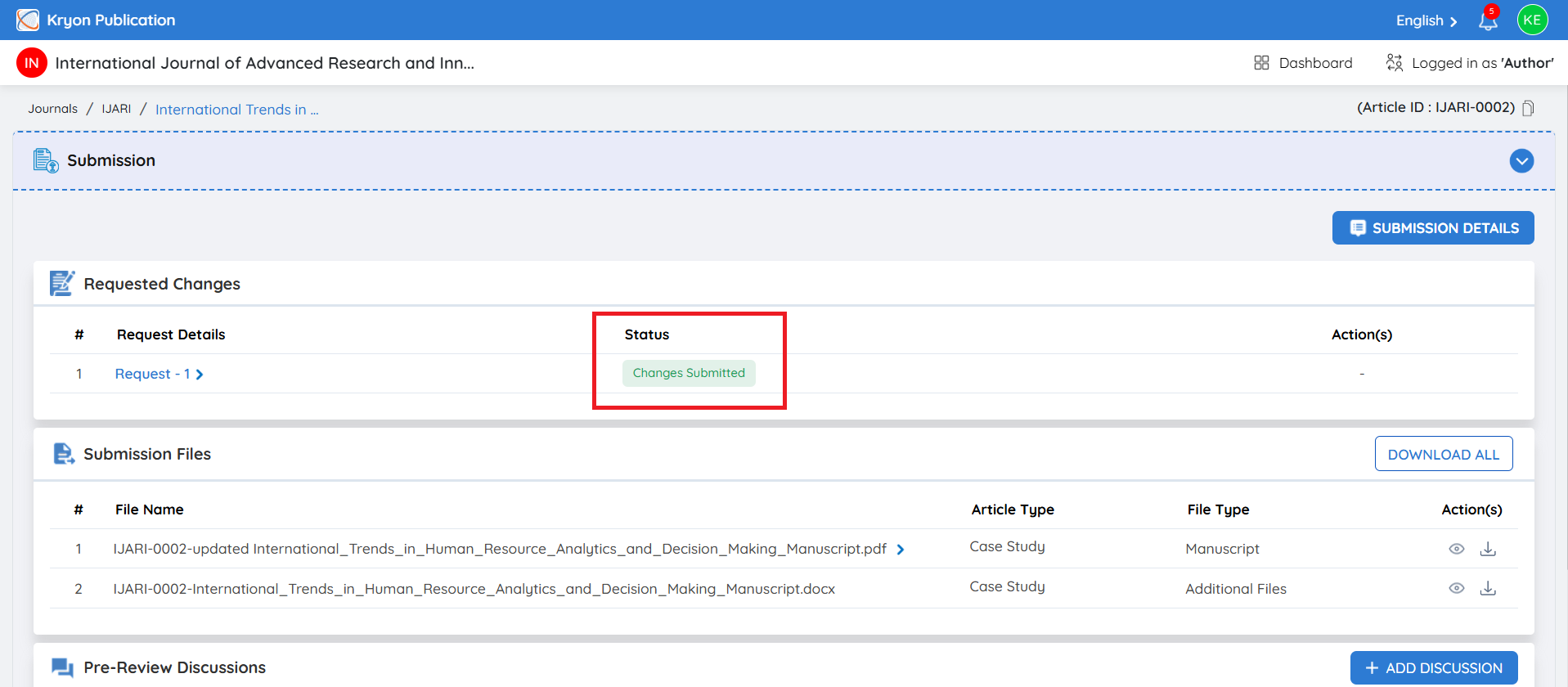
The editorial user can expand the request details to review the complete revision information, including the Accepted Date, Uploaded Date, and the files associated with the change request.
Under Changes Requested Files, the system displays both versions:
-
Original File – The manuscript file submitted before the requested corrections.
-
Updated File – The revised manuscript uploaded after completing the requested changes.
The editorial user can view or download both files, making it easy to compare the original and revised versions and verify that the requested corrections have been addressed.
Using the Updated File for Peer Review
Once the revised manuscript has been checked and is ready to proceed, the Updated File can be used for the next stage of the editorial workflow.
When the manuscript is moved to the Review stage, the editorial user can share the updated manuscript with the assigned reviewers. This ensures that reviewers evaluate the latest revised version rather than the original manuscript.