Processing a Submitted Manuscript
Overview
Now let's see how an Editorial User processes a newly submitted manuscript after it has been received in Kryoni JMS.
To begin, navigate to the Submissions page and click on the required manuscript from the submission list.
The editorial workflow is organized into three major stages:
-
Submission
-
Review
-
Production
Each stage contains a set of workflow steps that guide the manuscript from initial submission to final publication.
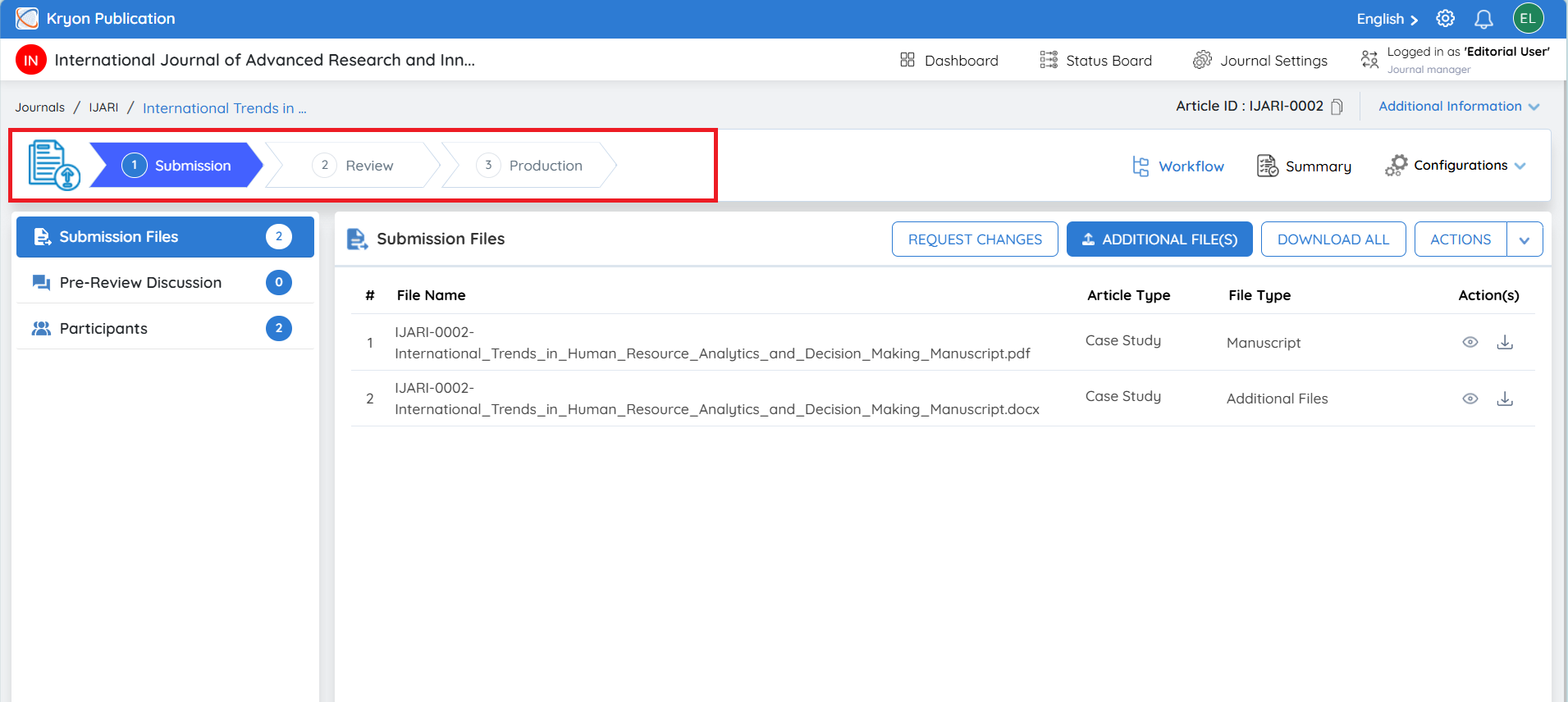
Stage 1: Submission (Pre-Review)
The Submission stage, also referred to as the Pre-Review stage, is where the editorial office performs the initial evaluation of the manuscript before it is sent for peer review.
During this stage, the editorial user verifies that the submission complies with the journal's submission requirements and editorial policies.
Typical activities performed during this stage include:
-
Reviewing the manuscript details and metadata.
-
Verifying that all mandatory files have been uploaded.
-
Checking the manuscript against the journal's submission guidelines.
-
Confirming author information and affiliations.
-
Performing initial editorial screening.
-
Running plagiarism or similarity checks (if configured).
-
Requesting revisions or additional information from the author, if required.
-
Determining whether the manuscript is suitable to proceed to peer review.
Once the manuscript successfully passes the pre-review checks, it is moved to the Review stage for reviewer assignment and peer review.
Workflow
The Workflow tab is the primary workspace where editorial users manage manuscripts. It provides quick access to submission files, discussions, participants, and workflow actions required to process the manuscript.
Submission Files
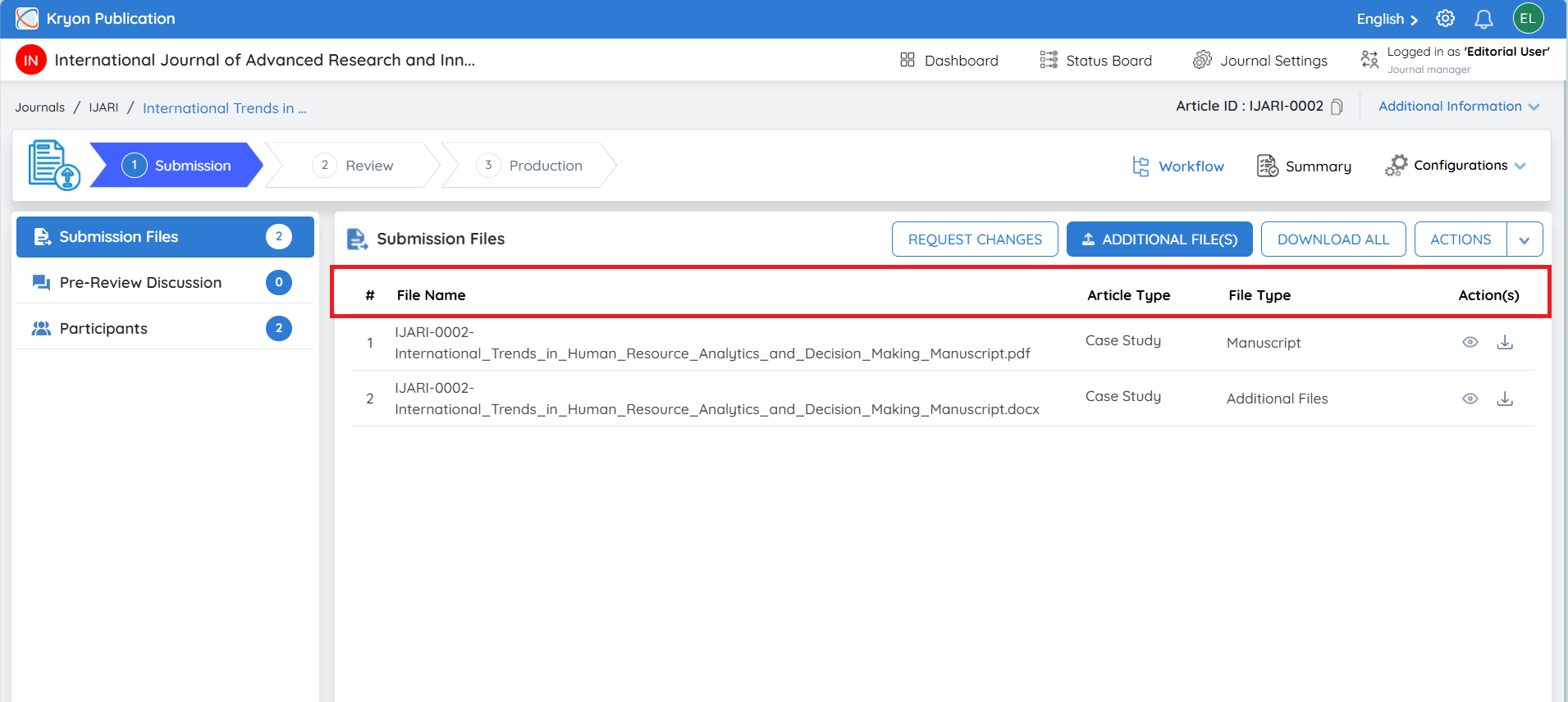
The Submission Files section displays all files uploaded by the author during manuscript submission.
The following information is available for each file:
| Field | Description |
|---|---|
File Name | Name of the uploaded file. |
Article Type | The manuscript category (e.g., Research Article, Review Article). |
File Type | Type of uploaded file (Manuscript, Source File, Cover Letter, Supplementary File etc.). |
Actions | View or download the individual file. |
Available Actions
View File
Click the View (Eye) icon to preview the uploaded file directly within the system.
Download File
Click the Download icon to download an individual file for offline review.
Download All
Click Download All to download all submitted files as a single ZIP file.
This allows editors to review every submission file together without downloading them individually.