Accessing New Submissions
Step 1: Log in to Kryoni JMS
Log in to the Kryoni Journal Management System (JMS) using your editorial account credentials.
Editorial users can access newly submitted manuscripts in either of the following ways:
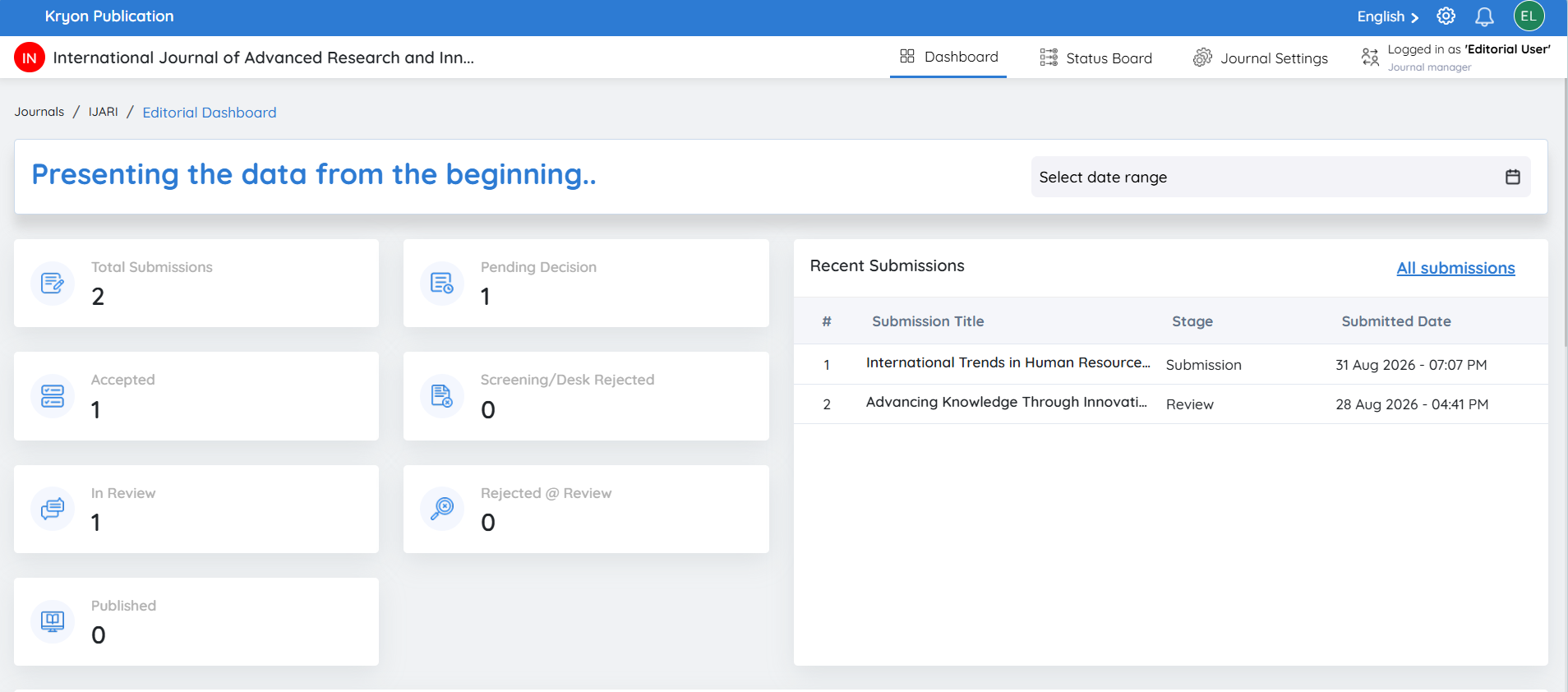
Option 1: Access from the Dashboard
-
Log in to Kryoni JMS.
-
Navigate to the Dashboard.
-
Select the journal you want to manage.
-
You will be redirected to the Submissions page, where all manuscripts submitted to that journal are displayed.
Option 2: Access from the Email Notification
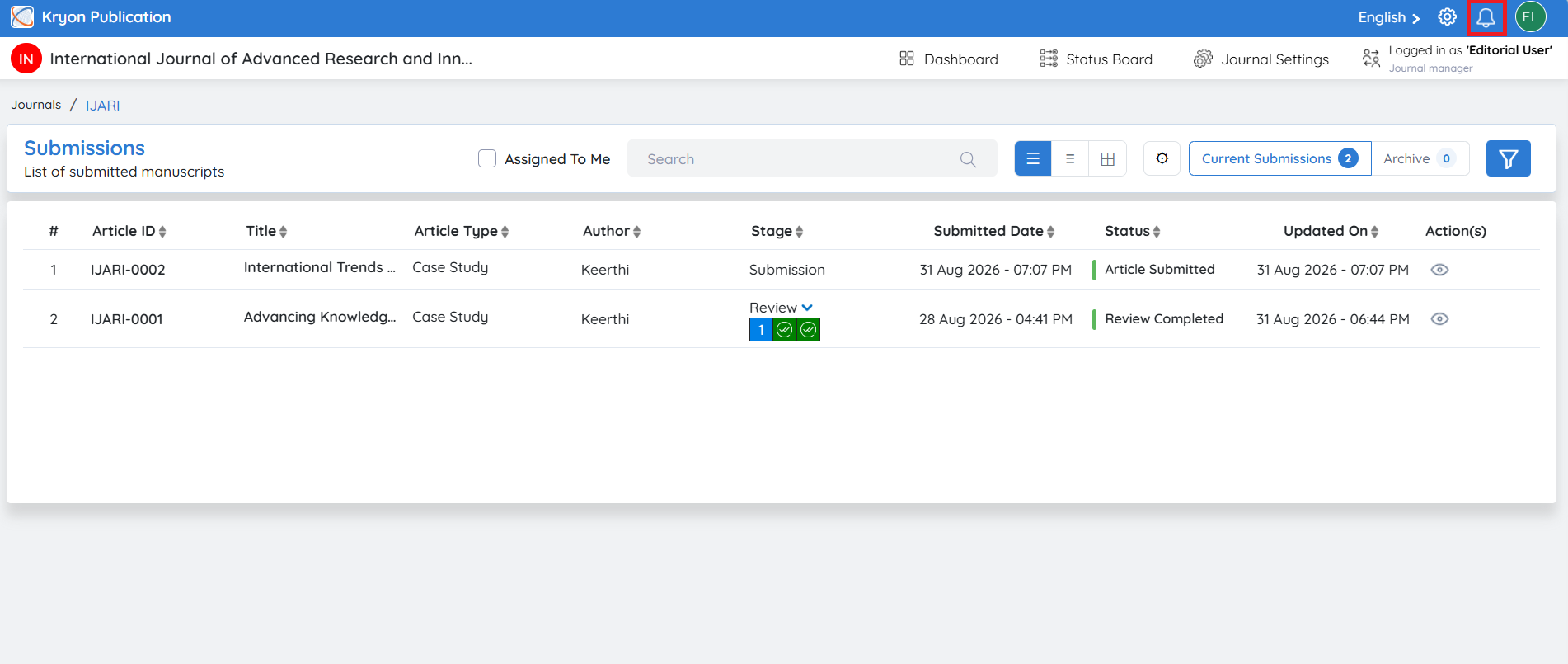
Whenever a new manuscript is submitted, the assigned Editorial User automatically receives an email notification.
The email contains:
-
Article ID
-
Manuscript Title
-
A direct link to the submitted manuscript
Click the View Submission (or the provided submission link) in the email to open the manuscript directly in Kryoni JMS without navigating through the dashboard.
Step 2: Open the Journal
Click the required journal.
You will be redirected to the Submissions page, which contains all manuscripts submitted to that journal.
Submission List
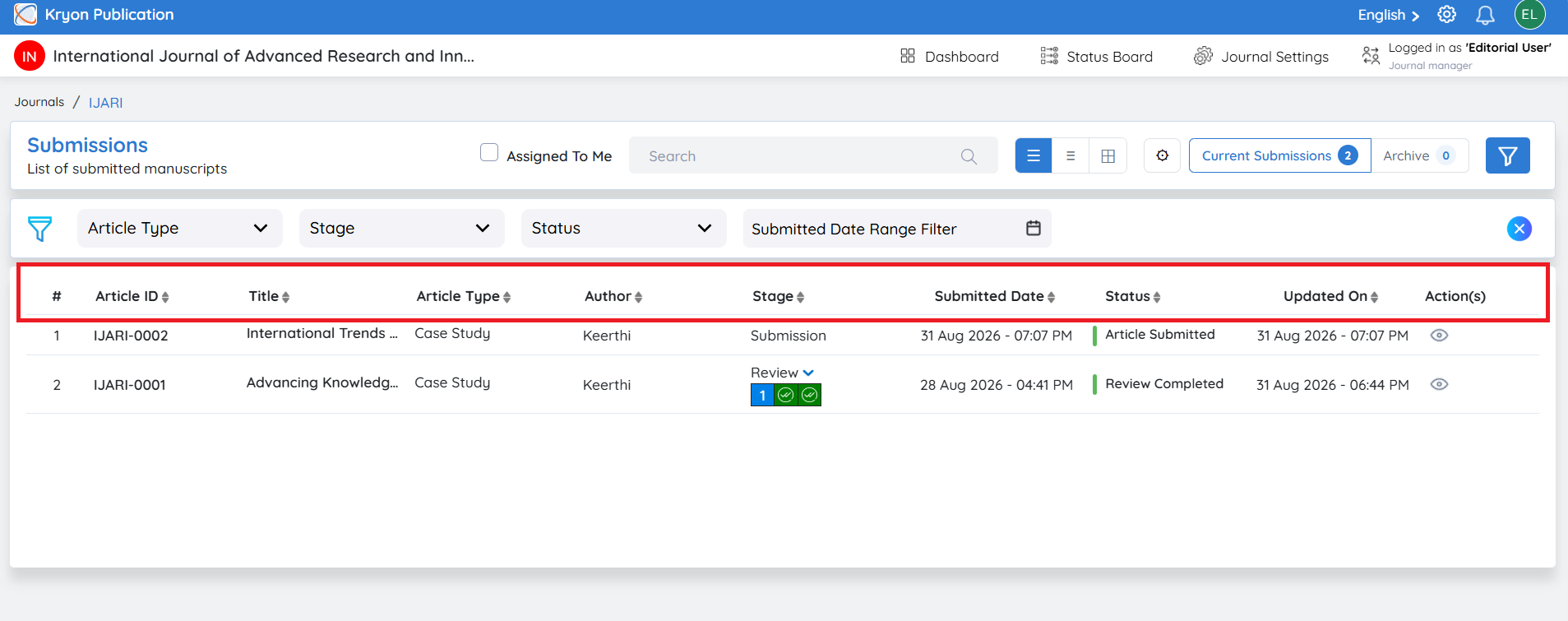
The Submission List provides a complete overview of all manuscripts currently managed under the selected journal.
The following information is displayed for each submission:
| Field | Description |
|---|---|
Article ID | Unique identifier assigned to the manuscript. |
Submission Title | Title of the submitted manuscript. |
Article Type | Type of article (Research Article, Review, Case Study, etc.). |
Author | Name of the submitting author. |
Stage | Current stage of the editorial workflow. |
Submitted Date | Date and time the manuscript was submitted. |
Status | Current manuscript status. |
Updated On | Date of the most recent update. |
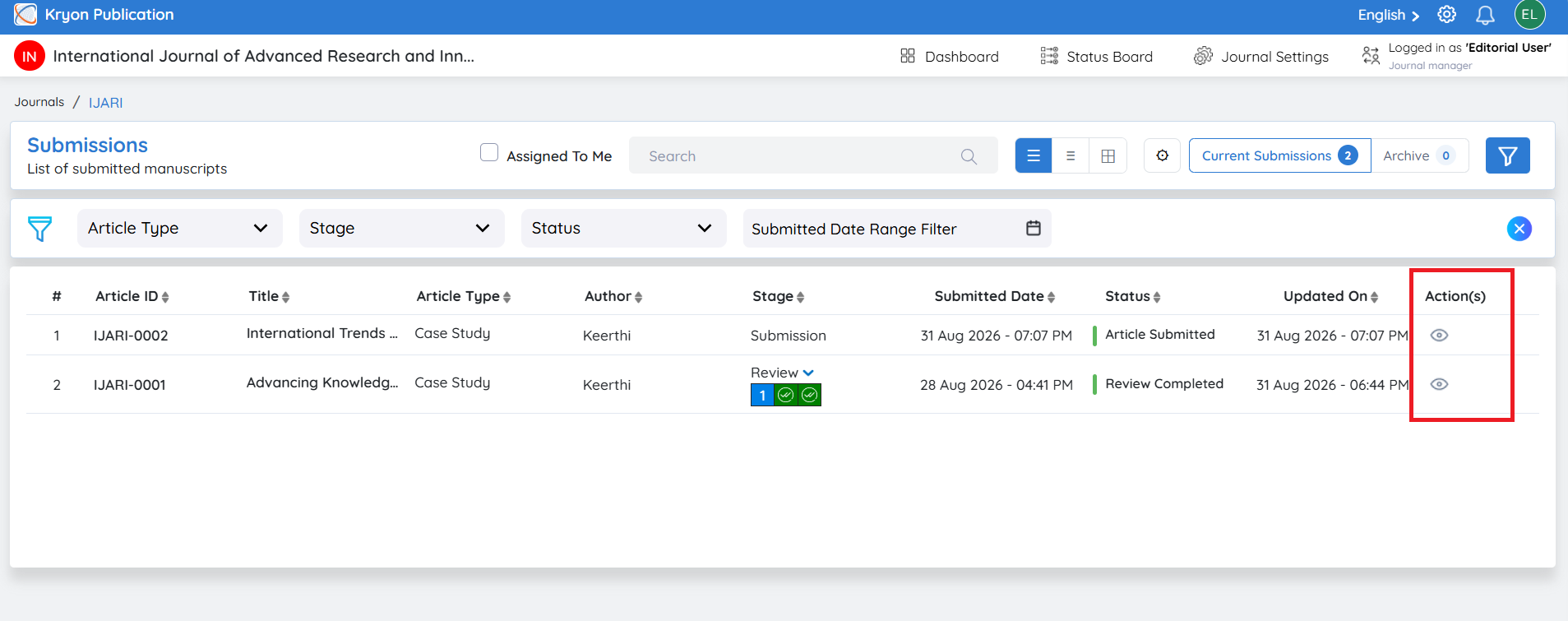
Actions | Options to view, archive, or unarchive the submission. |
Viewing a Submission
To view a manuscript:
-
Locate the required submission.
-
Click the View icon under the Actions column.
The complete submission details will open, allowing you to review the manuscript, author information, uploaded files, workflow history, and available editorial actions.
Archiving a Submission
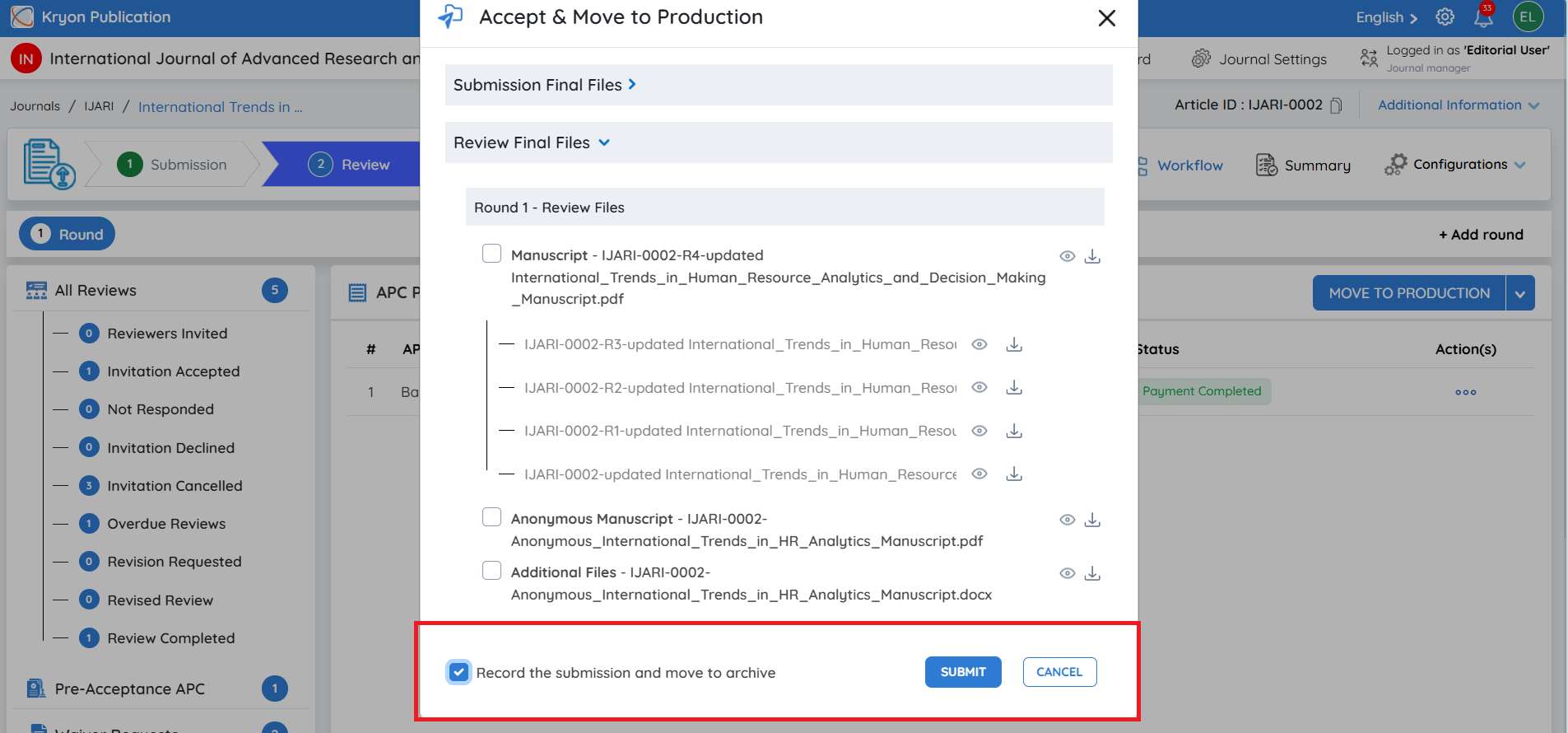
Archiving allows editorial users to remove inactive or completed manuscripts from the active submissions list while retaining them for future reference.
To archive a submission:
-
Locate the manuscript.
-
Click the Archive icon under Actions.
-
A confirmation message appears.
Are you sure you want to archive this submission?
- Click Yes to confirm.
The manuscript is moved to the Archived submissions list.
Typical reasons for archiving
-
The manuscript has been declined.
-
The publication workflow has been completed.
-
The submission needs to be retained for record-keeping without appearing in the active list.
Viewing Archived Submissions
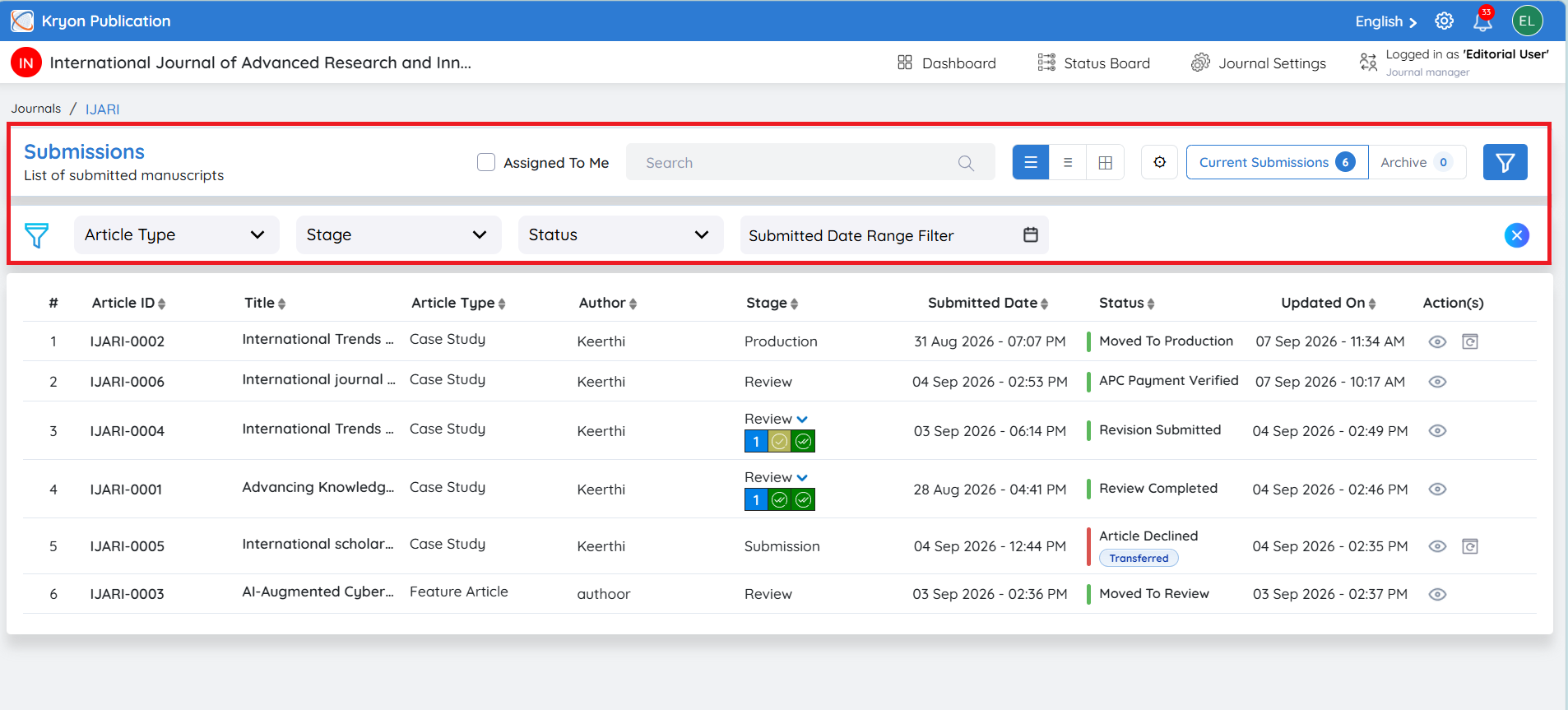
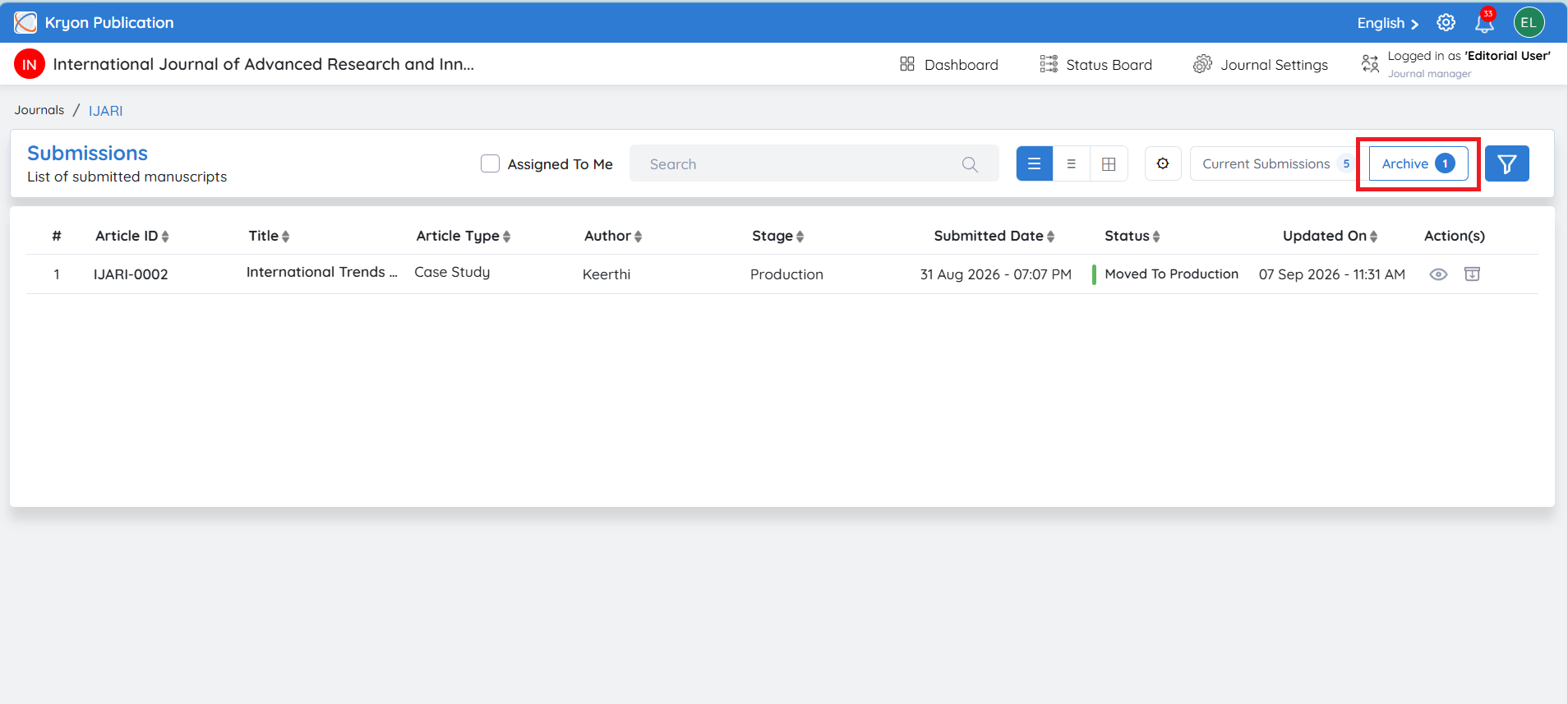
Use the Filter option at the top of the Submissions page to switch between submission lists.
Available filters include:
-
Current Submissions – Displays all active manuscripts.
-
Archived Submissions – Displays archived manuscripts.
This allows editors to quickly access either active or archived records.
Restoring an Archived Submission
If an archived manuscript needs to be returned to the active workflow:
-
Select Archived Submissions from the filter.
-
Locate the required manuscript.
-
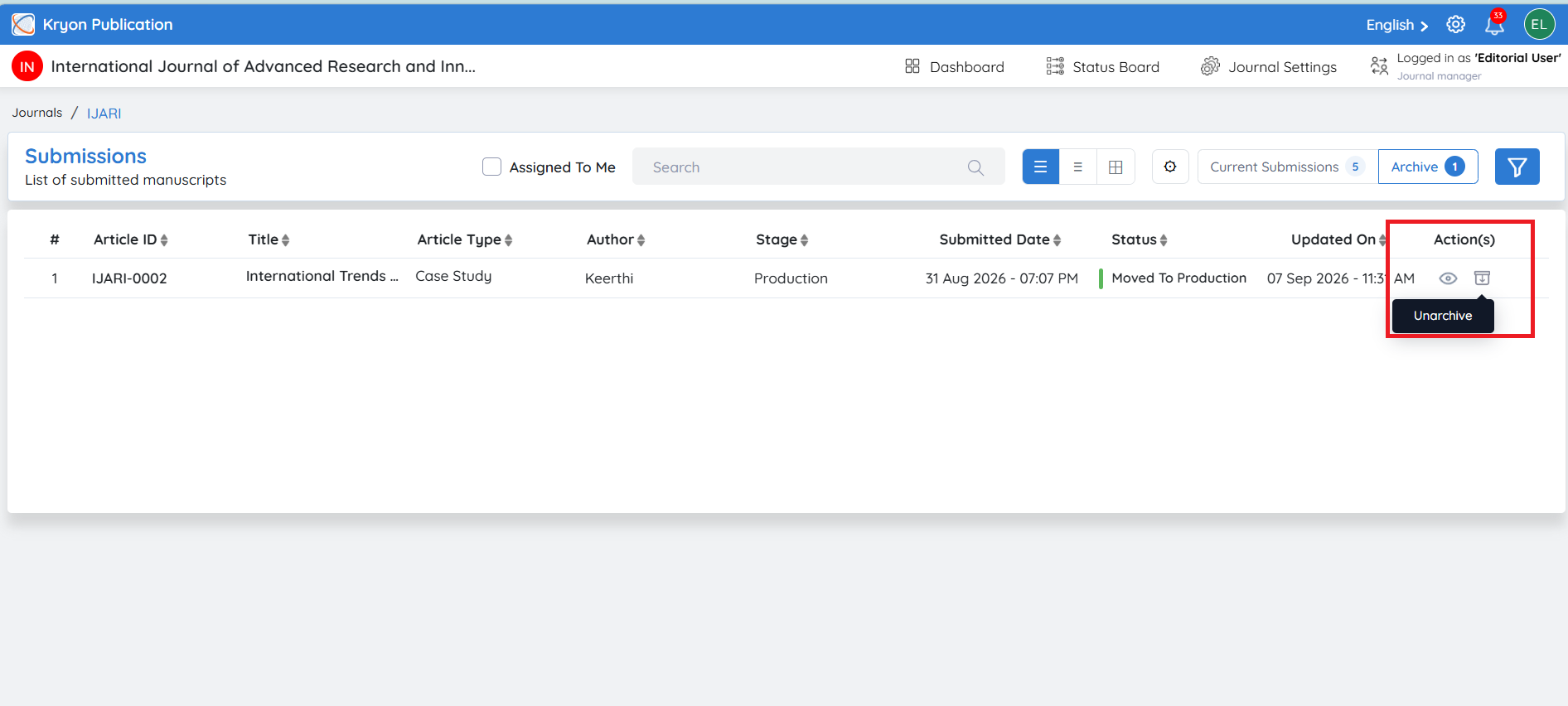
Click the Unarchive icon.
-
A confirmation message appears.
Are you sure you want to unarchive this submission?
- Click Yes.
The manuscript is restored to the Current Submissions list and becomes available for further editorial processing.
Submission Page Options
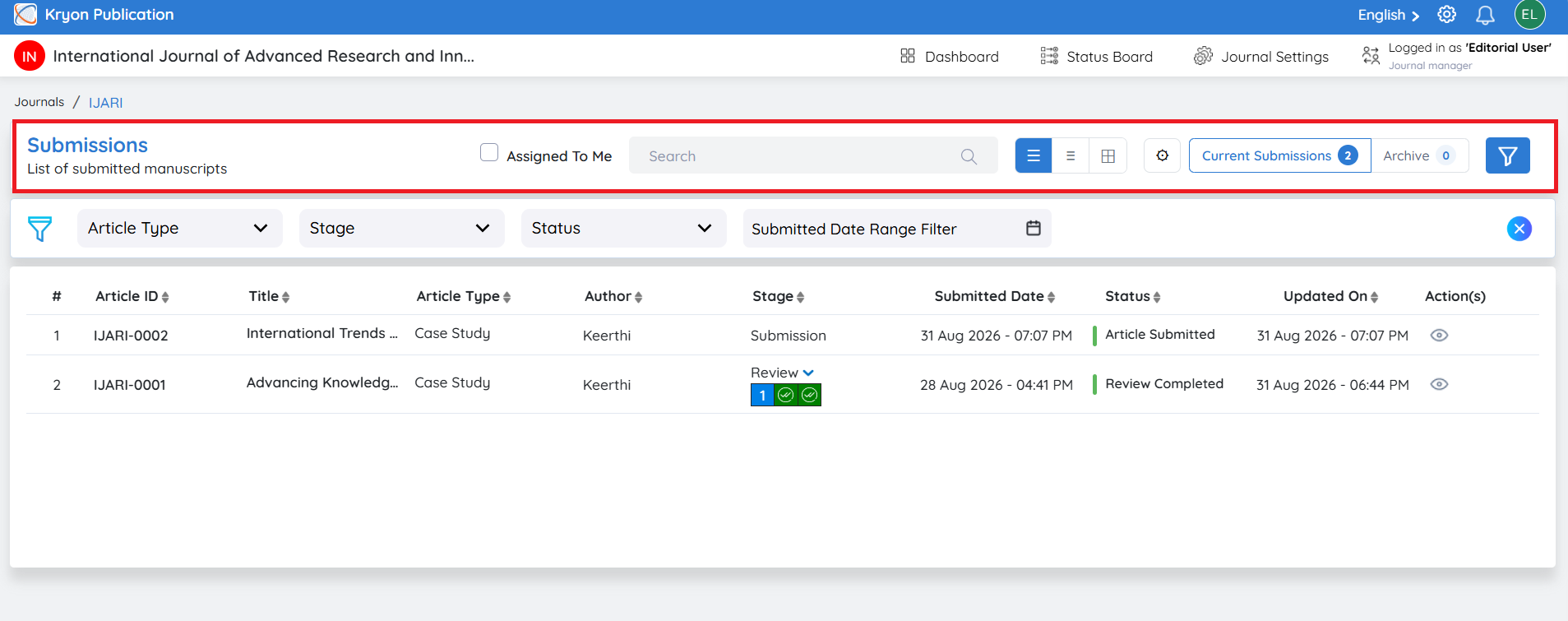
The Submissions page provides several tools to help editorial users efficiently manage and locate manuscripts.
Assigned To Me
Enable the Assigned To Me checkbox to display only the manuscripts currently assigned to you.
Search
Use the Search box to quickly locate a manuscript.
You can search using information such as:
-
Article ID
-
Submission Title
-
Author Name
-
Other searchable manuscript details
The submission list updates automatically based on the entered search term.
View Options
The submission list can be displayed in different layouts based on your preference.
-
List View – Displays submissions in a detailed table with complete manuscript information.
-
Compact View – Displays submissions in a simplified list with fewer details.
-
Grid View – Displays submissions in a card-based layout for easier visual browsing.
You can switch between these views at any time without affecting the manuscript data.
Column Settings
Click the Settings (⚙️) icon to customize the columns displayed in the submission list.
You can:
-
Show or hide specific columns.
-
Display only the information relevant to your workflow.
-
Personalize the submission list for easier navigation.
Filter Options
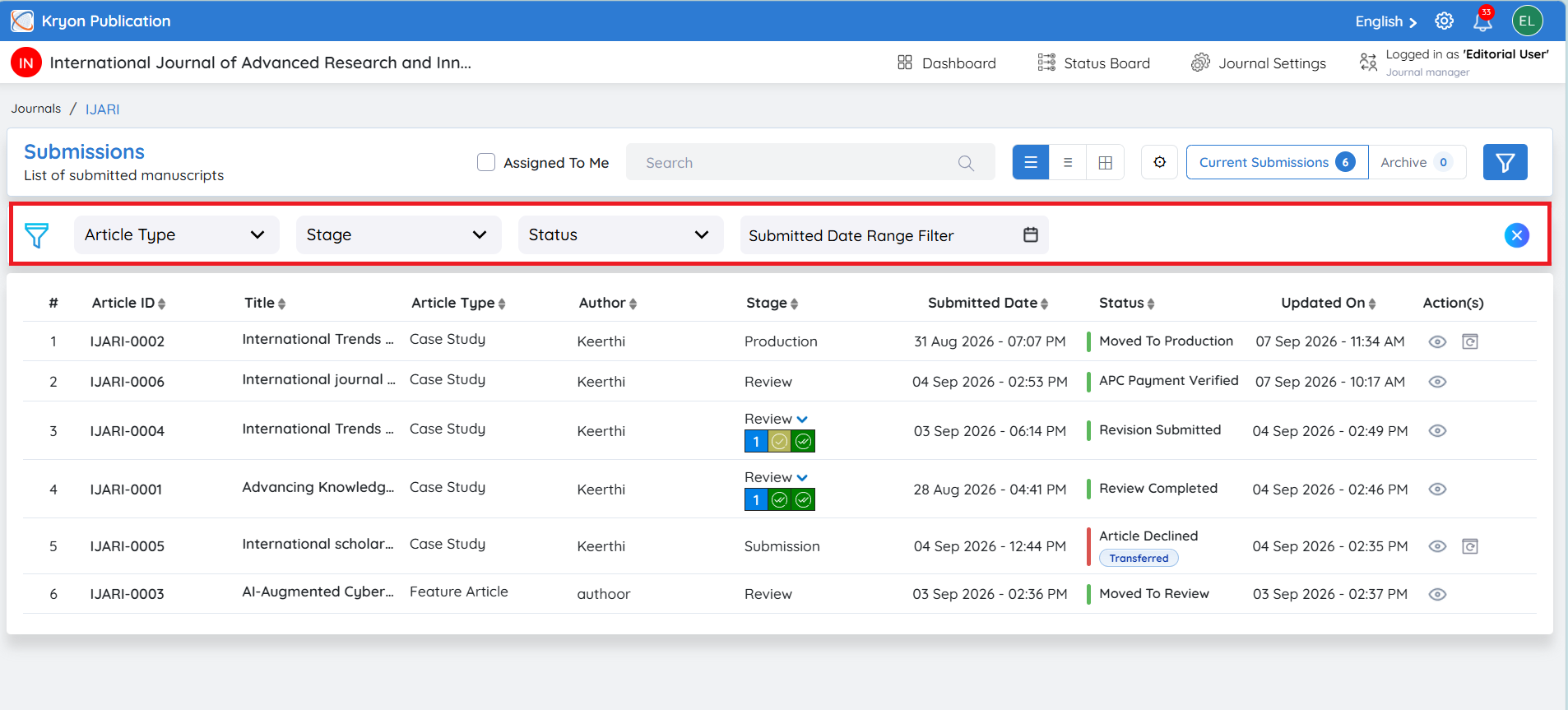
Click the Filter icon to open advanced filtering options.
You can refine the submission list using one or more of the following filters:
Article Type
Filter manuscripts based on their article category.
Stage
Filter submissions based on their current workflow stage.
Status
Filter manuscripts according to their current processing status.
Submitted Date Range
Filter manuscripts based on the date they were submitted.
Select a start date and end date to display only submissions received during the specified period.
This is useful for:
-
Reviewing monthly submissions.
-
Generating reports for a specific time period.
-
Monitoring editorial workload over selected dates.
Combining Filters
Multiple filters can be applied simultaneously.
For example, you can display:
-
Research Articles
-
In the Review stage
-
With Under Review status
-
Submitted during the last 30 days
Using multiple filters helps editorial users quickly identify manuscripts that require attention.