Invite New User
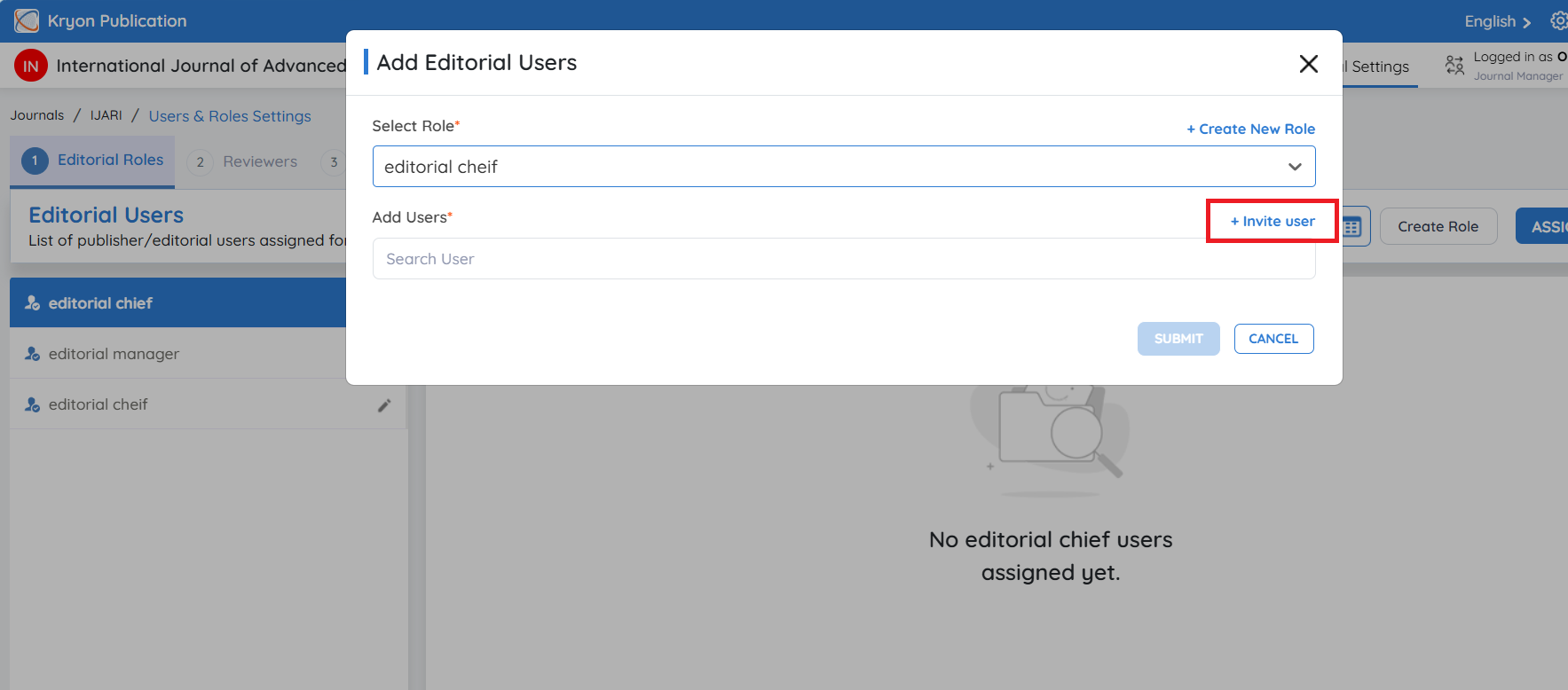
If the required user is not already available in the system:
- Click Invite User.
-
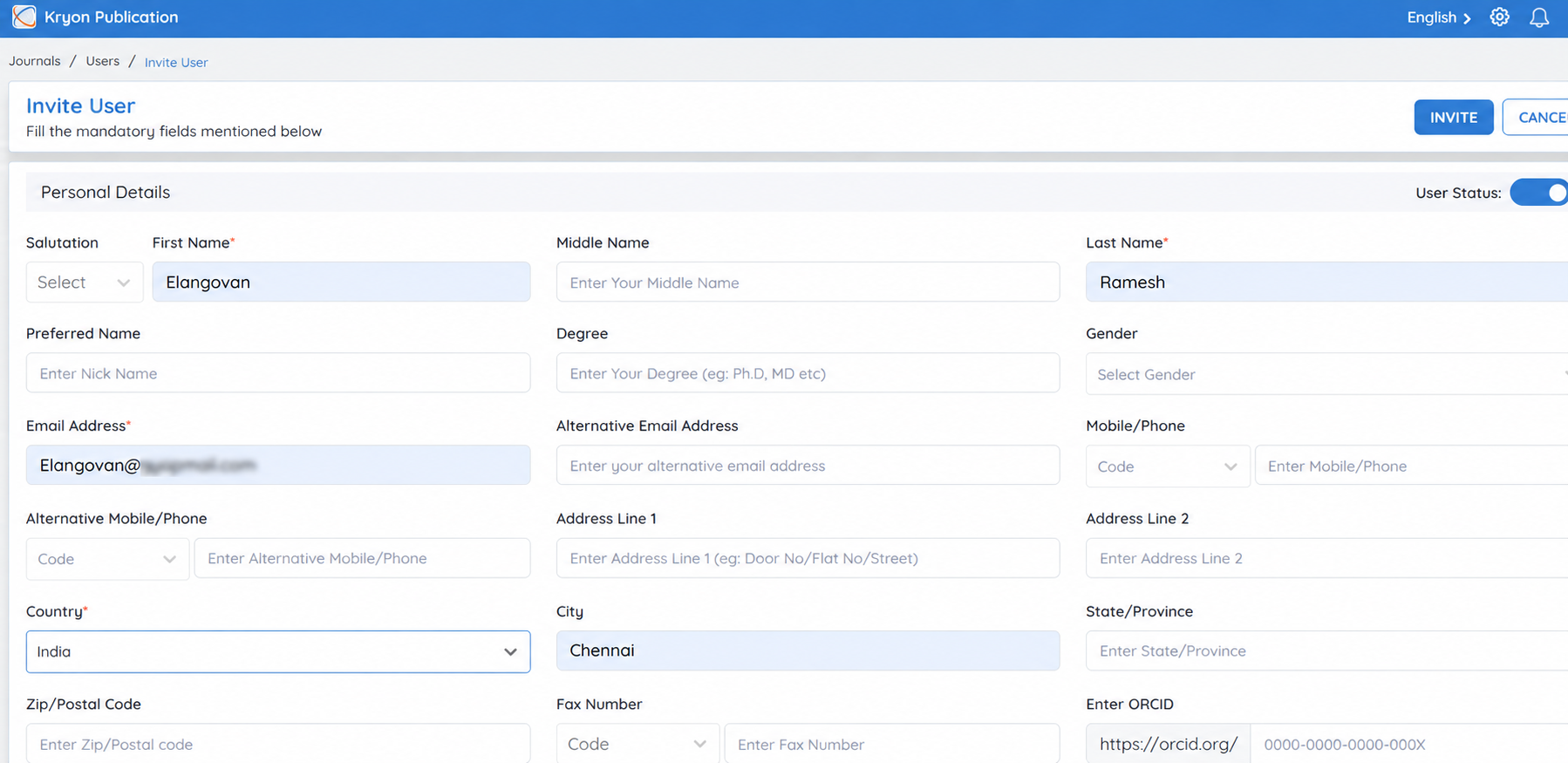
A new invitation form opens.
-
Enter all the required user details.
-
Click Invite.
An invitation email is automatically sent to the specified email address.
The invited user must accept the invitation before gaining access to the journal.
Step 6: Select Workflow Access
Specify the workflow stage(s) where the user should have access.
You can grant permissions for one or more of the following workflows:
-
Submission
-
Review
-
Production
Select the appropriate workflow(s) based on the user's responsibilities within the editorial process.
This option is recommended for roles such as Journal Manager or Editor-in-Chief, who oversee all submissions.
Step 7: Save the Role
After completing the configuration, click Save.
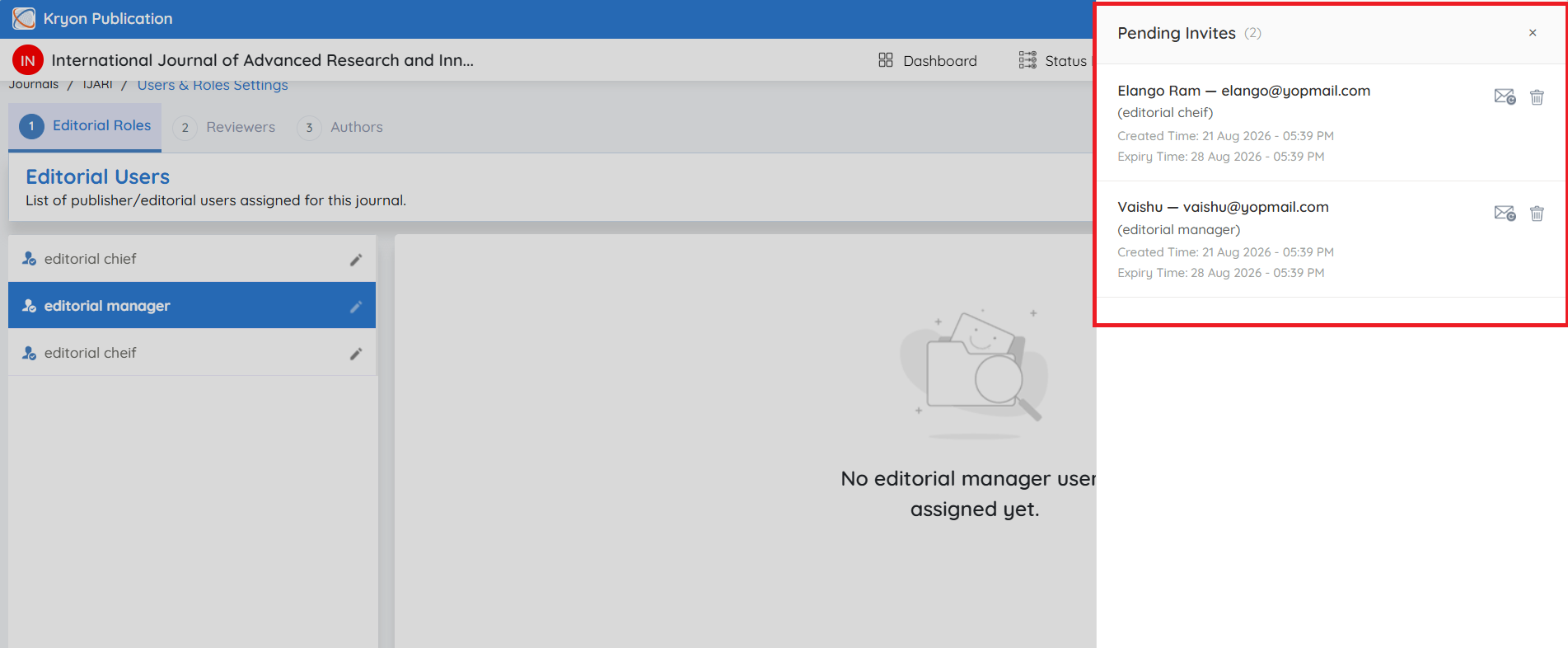
The new role is created, and invited users will appear under the Pending Invitations section.
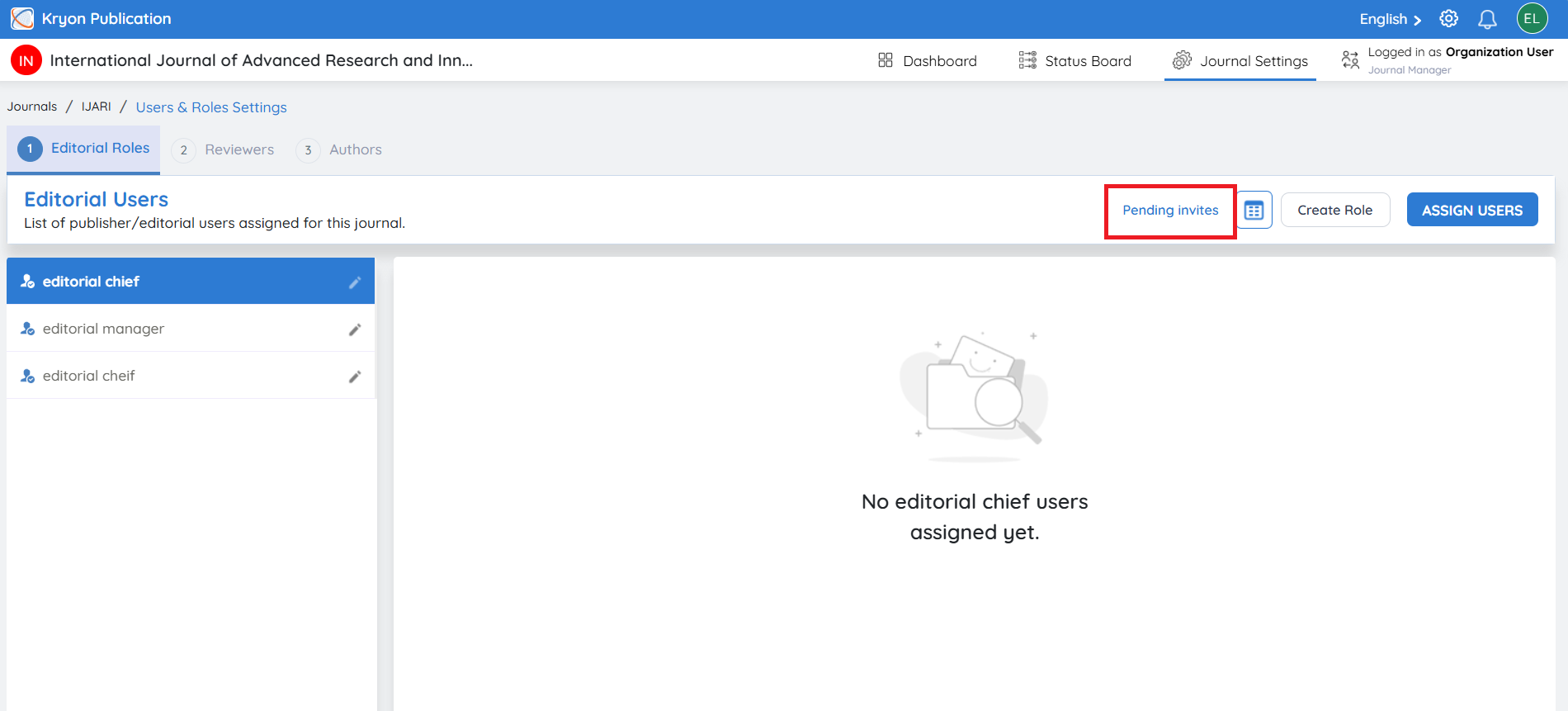
For each pending invitation, administrators can:
-
View invitation details
-
Resend the invitation
-
Delete the invitation if it is no longer required
Repeat the same process to create additional editorial roles with the appropriate permissions.