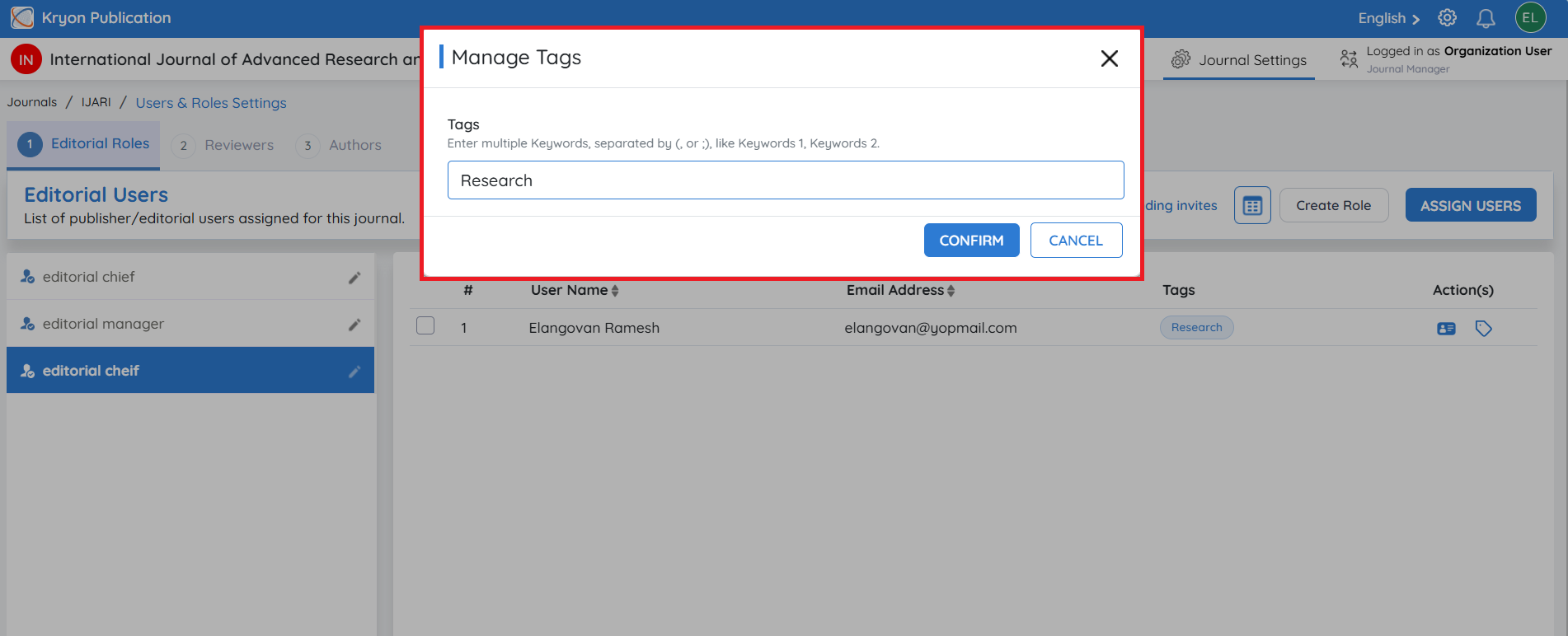
Import Users in Bulk
Kryoni JMS also supports bulk user imports, making it easy to onboard multiple editorial users simultaneously.
To import users:
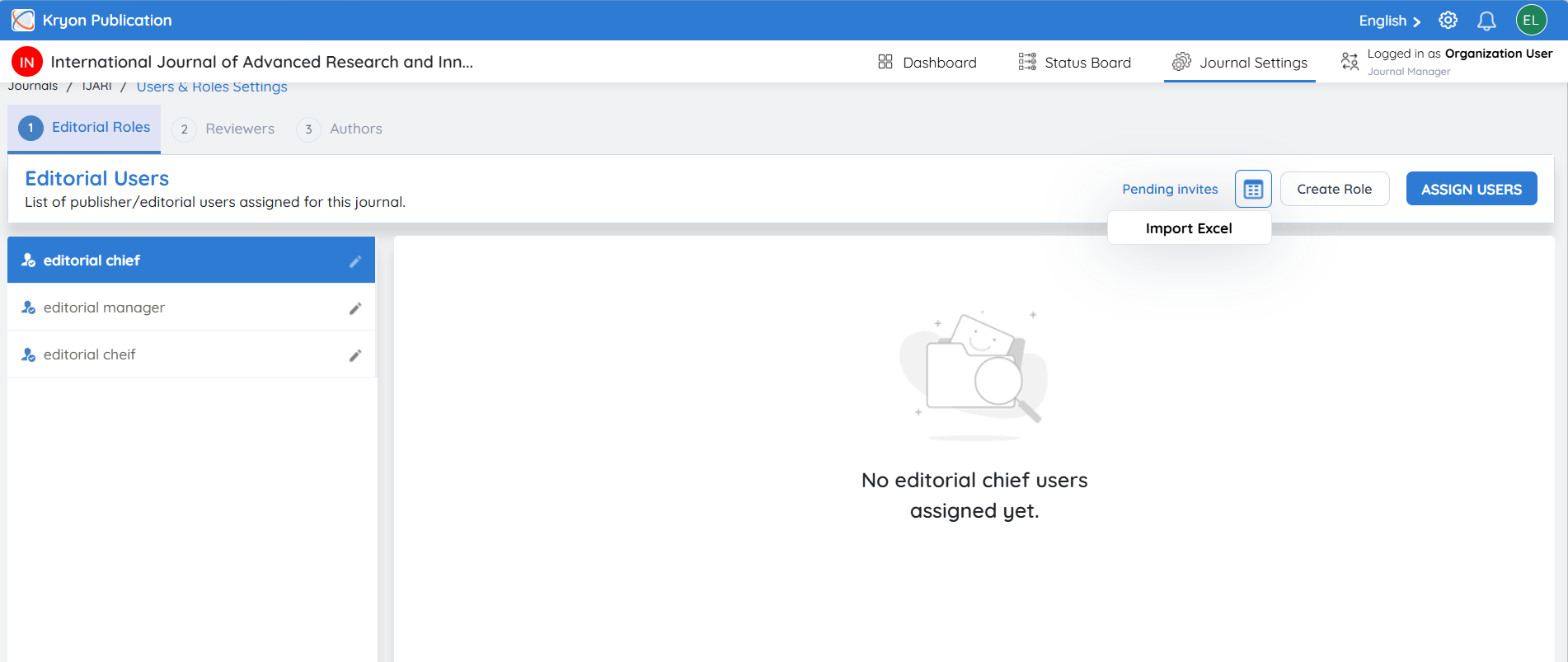
- Click the Import Users icon.
-
Click Import Excel.
-
Select the Role that should be assigned to all imported users.
-
Upload the completed Excel file.
-
Click Import.
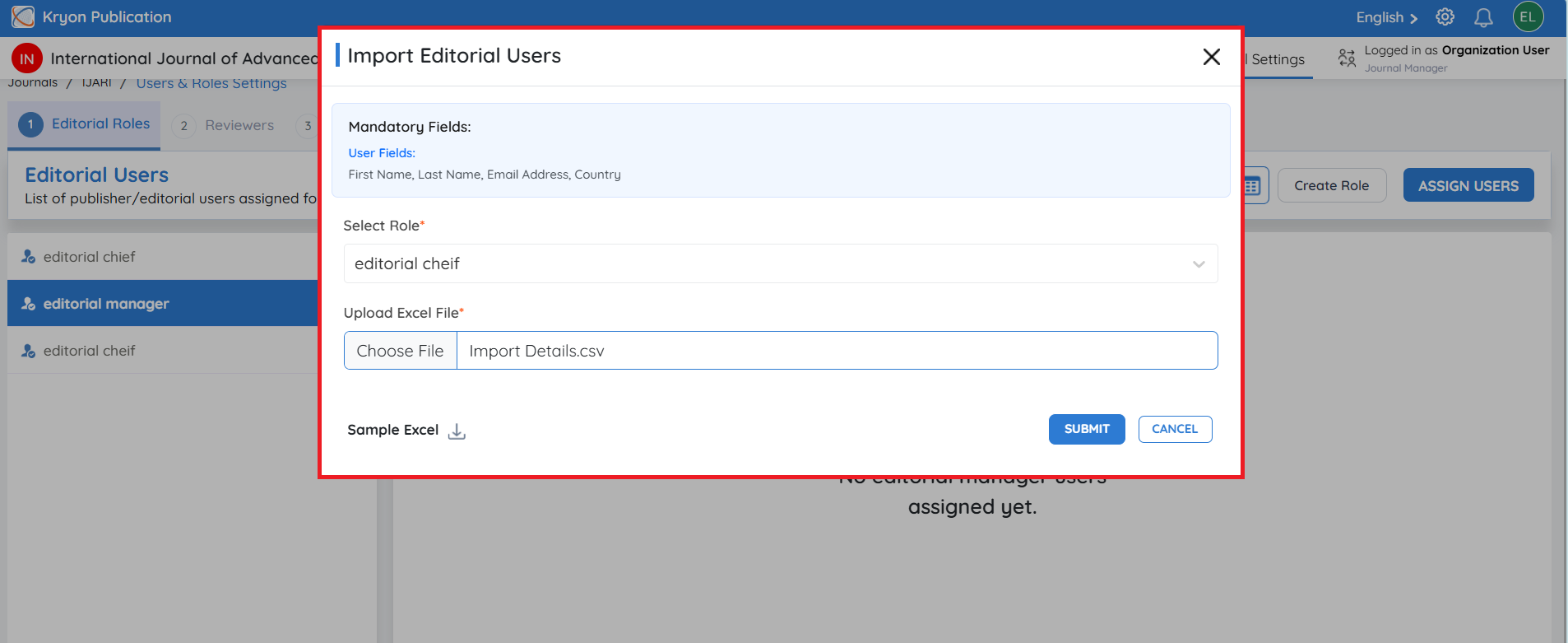
Sample Excel Template
You can download the Sample Excel Template to understand the required format for importing users.
Complete the template with the necessary user details before uploading it.
Ensure that all mandatory fields in the Excel file are completed correctly. After a successful import, invitation emails are automatically sent to the imported users, who must accept their invitations before accessing the journal.
https://cdn.kryoni.com/kryoni-docs/images/role-settings/sample-excel.webp
Deactivating an Editorial User
If an editorial user no longer requires access to the journal, you can deactivate their account.
To deactivate a user:
-
Navigate to Journal Configuration → User Roles and Settings → Editorial Users.
-
Select the required editorial role.
-
Click the user's name.
-
Change the User Status to Inactive (Deactivate).
The user will no longer be able to access the journal until their account is reactivated.
Deactivating a user does not remove their historical activities or workflow records from the journal.
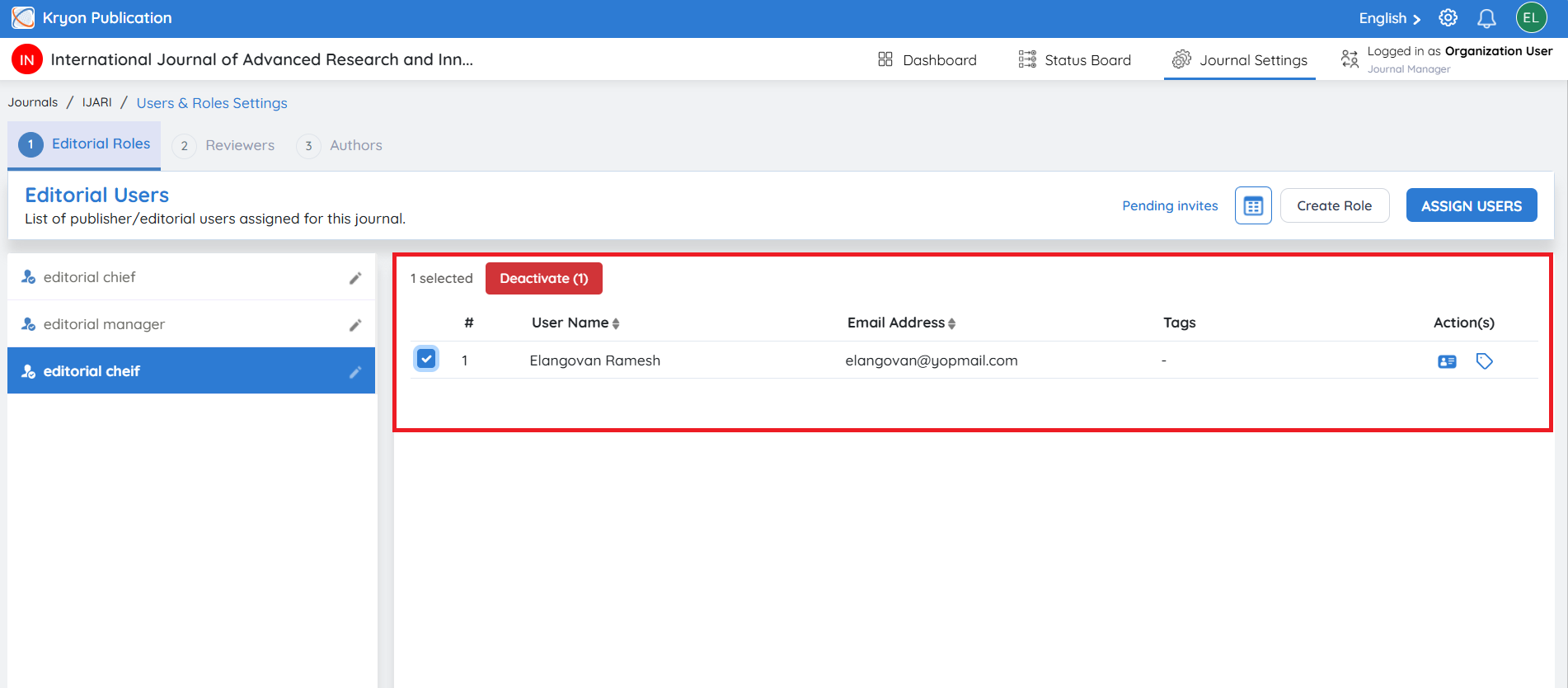
Reactivating an Inactive Editorial User
If an editorial user has been deactivated, administrators can reactivate the user at any time.
To reactivate an inactive user:
-
Navigate to Journal Configuration → User Roles and Settings → Editorial Users.
-
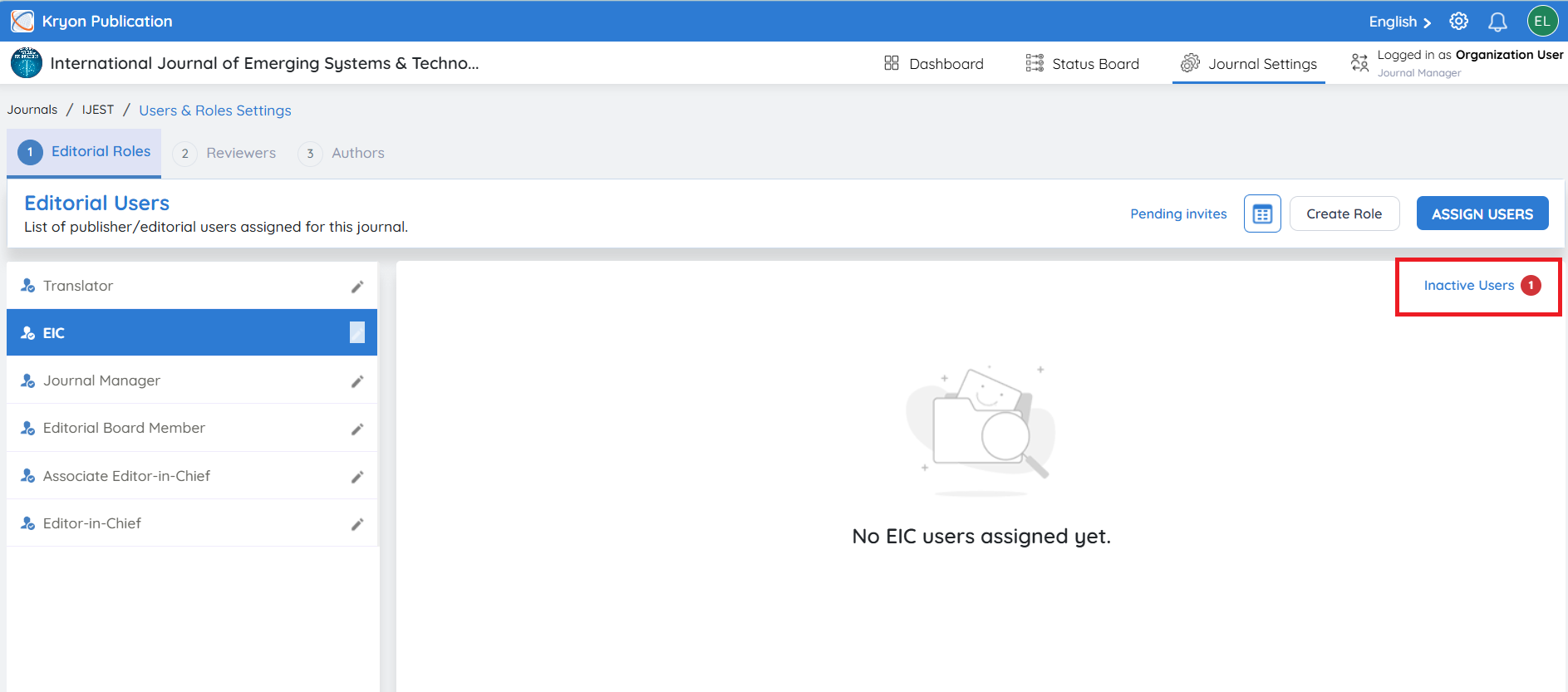
Click Inactive Users.
-
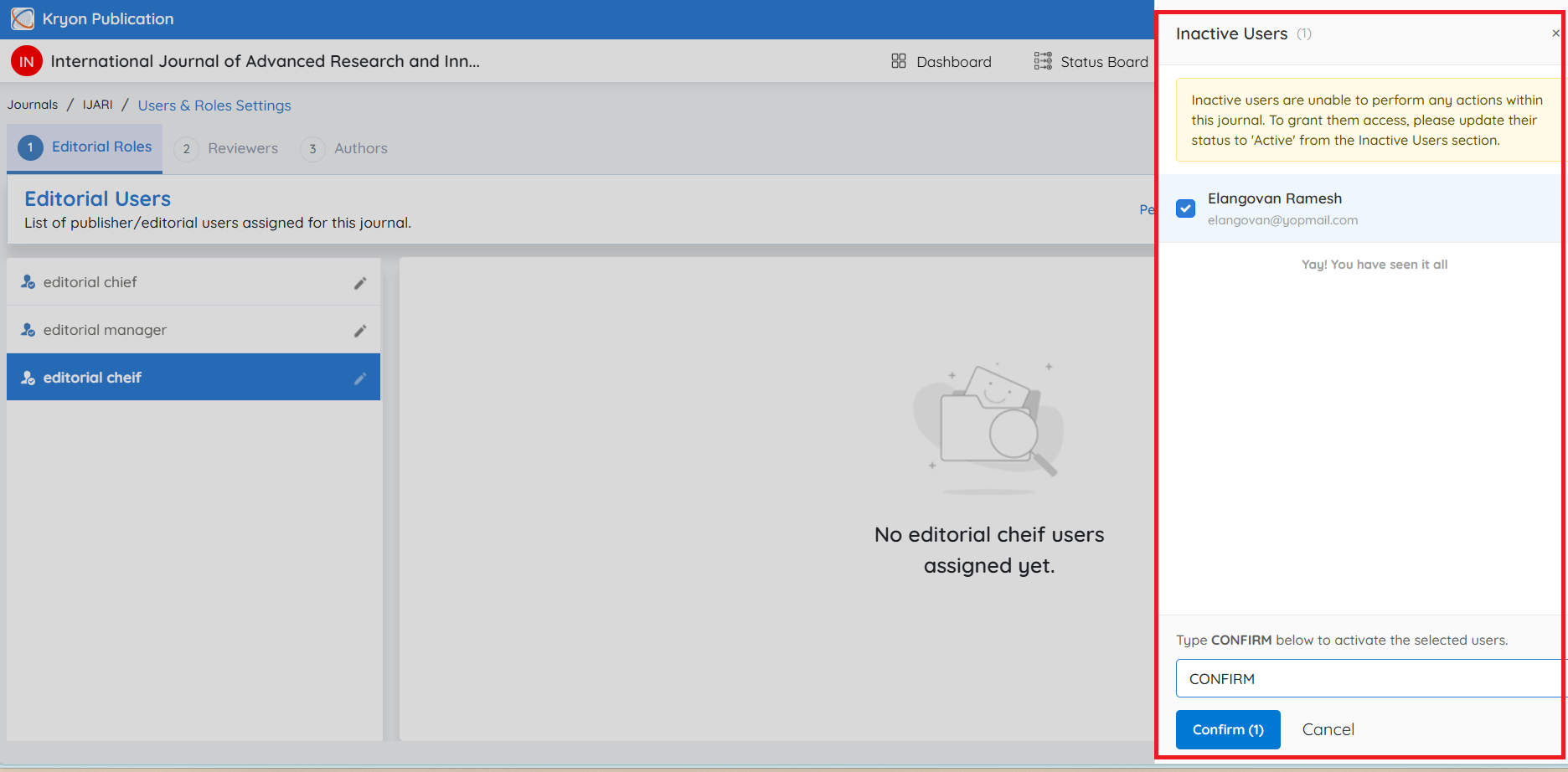
The list of inactive users is displayed.
-
Select the user(s) you want to reactivate.
-
Type CONFIRM in the confirmation box.
-
Click Confirm.
The selected user's status is changed to Active, and they regain access to the journal with all previously assigned roles and permissions.
Inactive users cannot perform any actions within the journal. Once reactivated, they can immediately resume their assigned responsibilities without requiring a new invitation or role assignment.
Viewing a User Profile
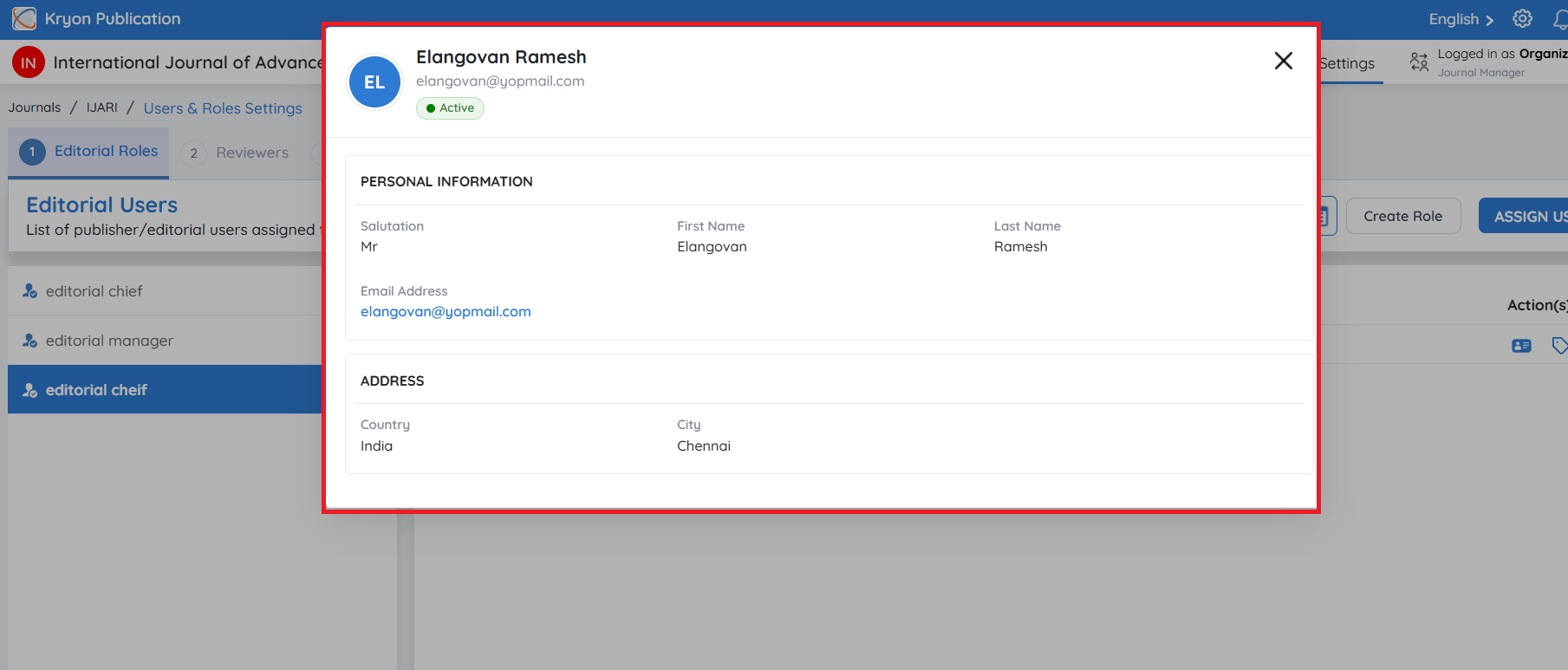
To view an editorial user's details:
-
Navigate to the required editorial role.
-
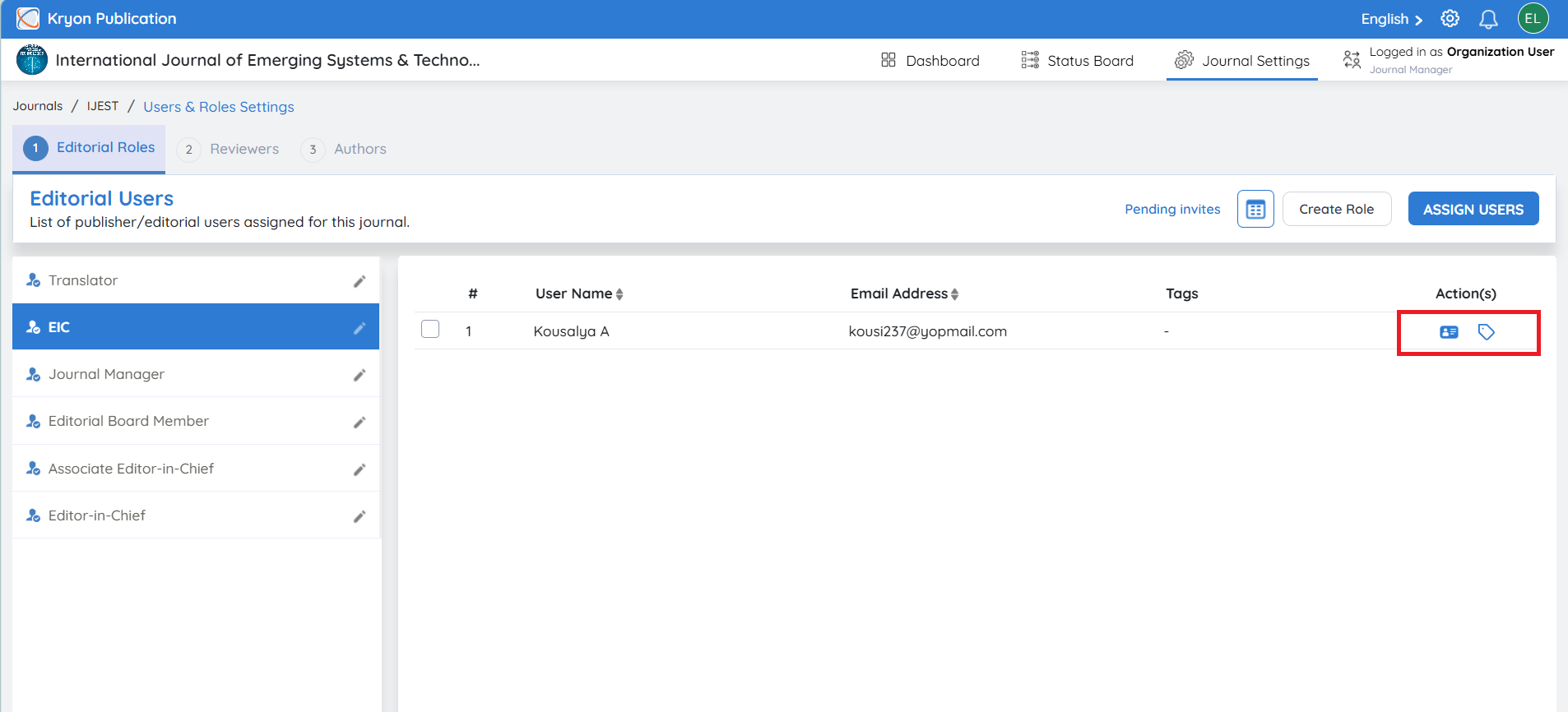
Under the Actions column, click the View Profile icon.
Adding Tags
Tags help categorize editorial users and make them easier to identify.
To add tags:
-
Under the Actions column, click the Tags icon.
-
Enter one or more tags.
-
Click Confirm.
Tags can be used to quickly identify users based on their responsibilities or specialization within the journal.
Tip: Use meaningful and consistent tags to simplify user management, especially when your journal has a large editorial team.