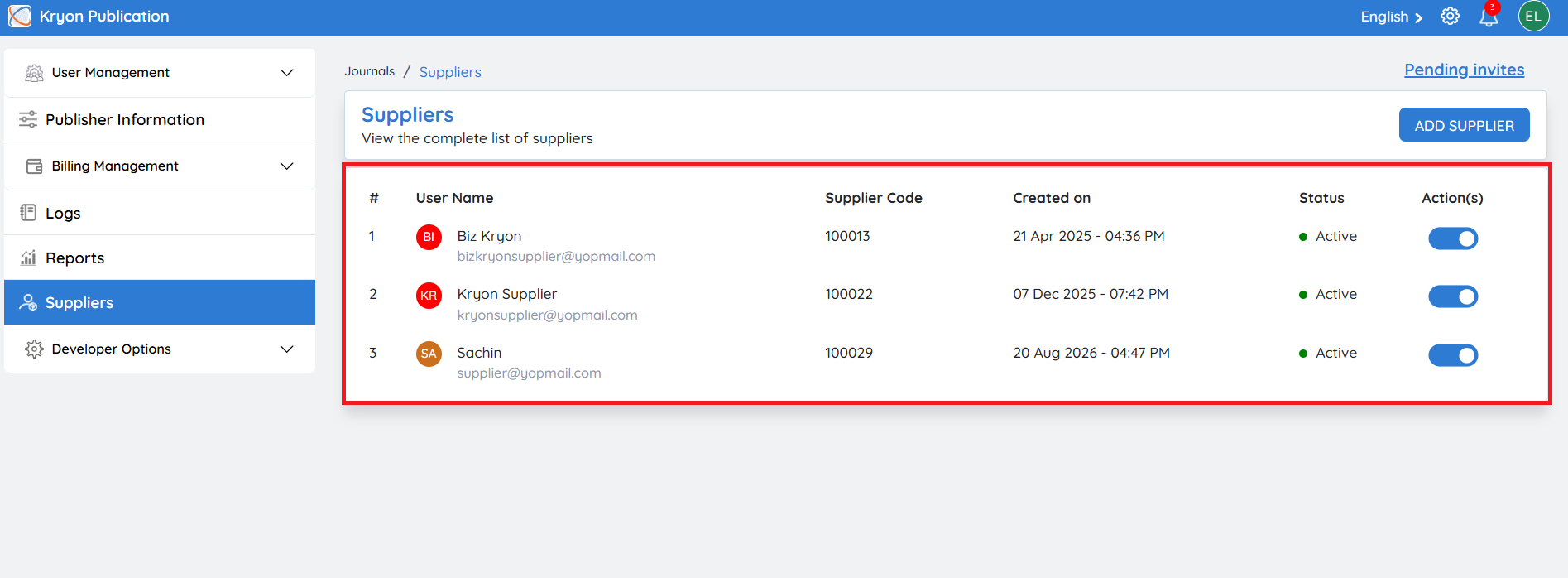
Suppliers
The Suppliers section allows administrators to configure and manage external service providers involved in the publishing workflow. Suppliers can be onboarded into Kryoni JMS to perform production-related tasks such as copyediting, typesetting, XML conversion, proofreading, artwork processing, and other publishing services.
Once a supplier is added, they can be assigned to production workflows based on the organization's requirements.
Adding a Supplier
To onboard a new supplier into Kryoni JMS, follow the steps below.
Step 1: Click Add Supplier
Click Add Supplier to begin the supplier onboarding process.
Step 2: Enter the Invite Code
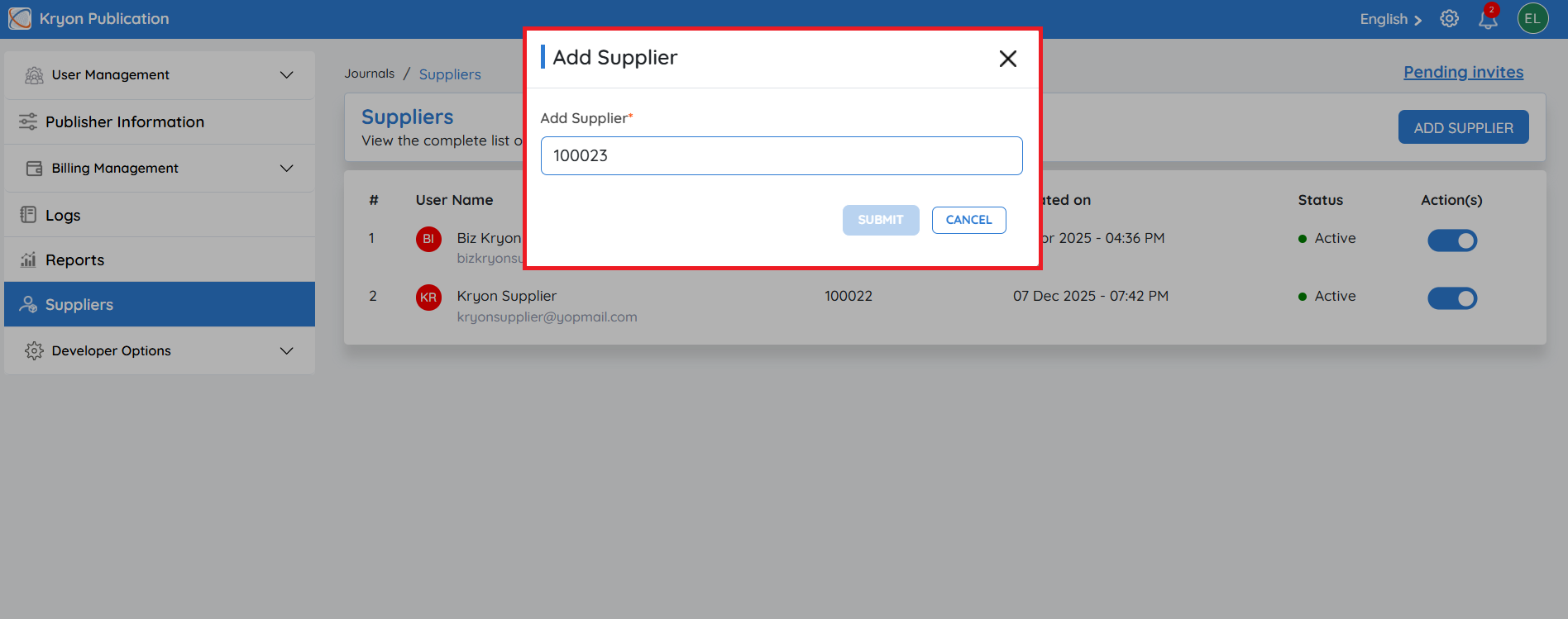
Obtaining the Invite Code (Supplier Side)
Before a supplier can be invited, they must first register with Kryoni JMS.
The supplier should:
-
Register or log in to their Supplier Portal.
-
Navigate to Settings - Manage
-
Go to Supplier Enrollment Details
-
Locate the Invite Code generated for their supplier account.
-
Copy the Invite Code.
-
Share the Invite Code with the publishing organization's administrator.
The Invite Code is unique to each supplier account and can only be generated after the supplier has successfully registered with Kryoni JMS.
Enter the Invite Code provided by the supplier and click Invite.
Supplier Onboarding
Once the invitation is sent:
-
The supplier receives an invitation notification
-
After accepting the invitation, the supplier is added to your organization's supplier list.
-
The supplier can then be assigned to production activities such as copyediting, typesetting, XML conversion, proofreading, or other publishing services based on the permissions and workflows configured by the administrator.
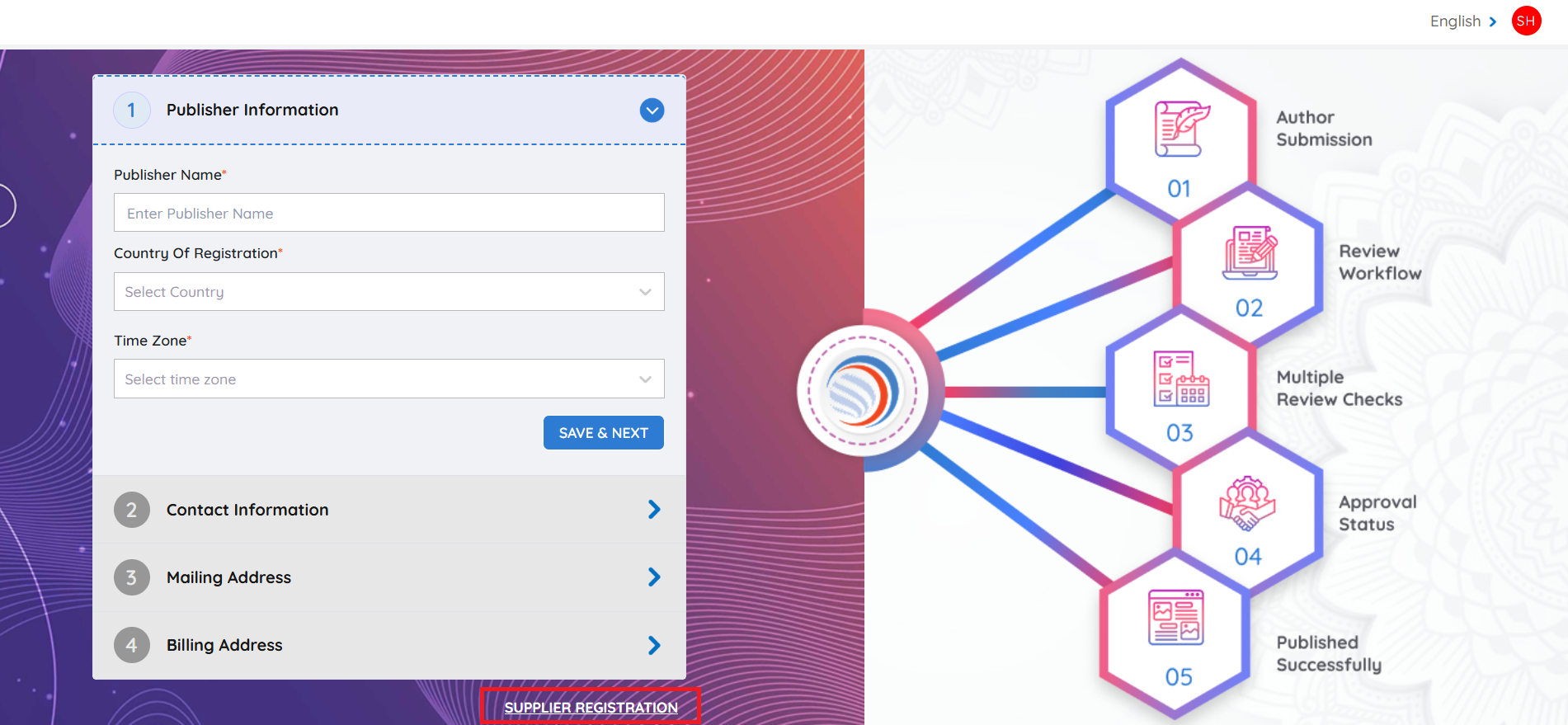
Supplier Registration
Overview
Before a supplier can be invited by a publishing organization, they must first register as a Supplier in Kryoni JMS. During registration, the supplier creates their account, provides company information, specifies their service expertise, and obtains a unique Invite Code that can be shared with publishing organizations for onboarding.
Register as a Supplier
Step 1: Access the Kryoni JMS Portal
Open the Kryoni JMS login page:
https://jms.kryoni.com/login
Step 2: Register Your Account
You can register using either:
-
OTP Registration
-
Password Registration
The registration process is the same as described in the Registration section of this guide.
Once your account is created, Click on Supplier registration
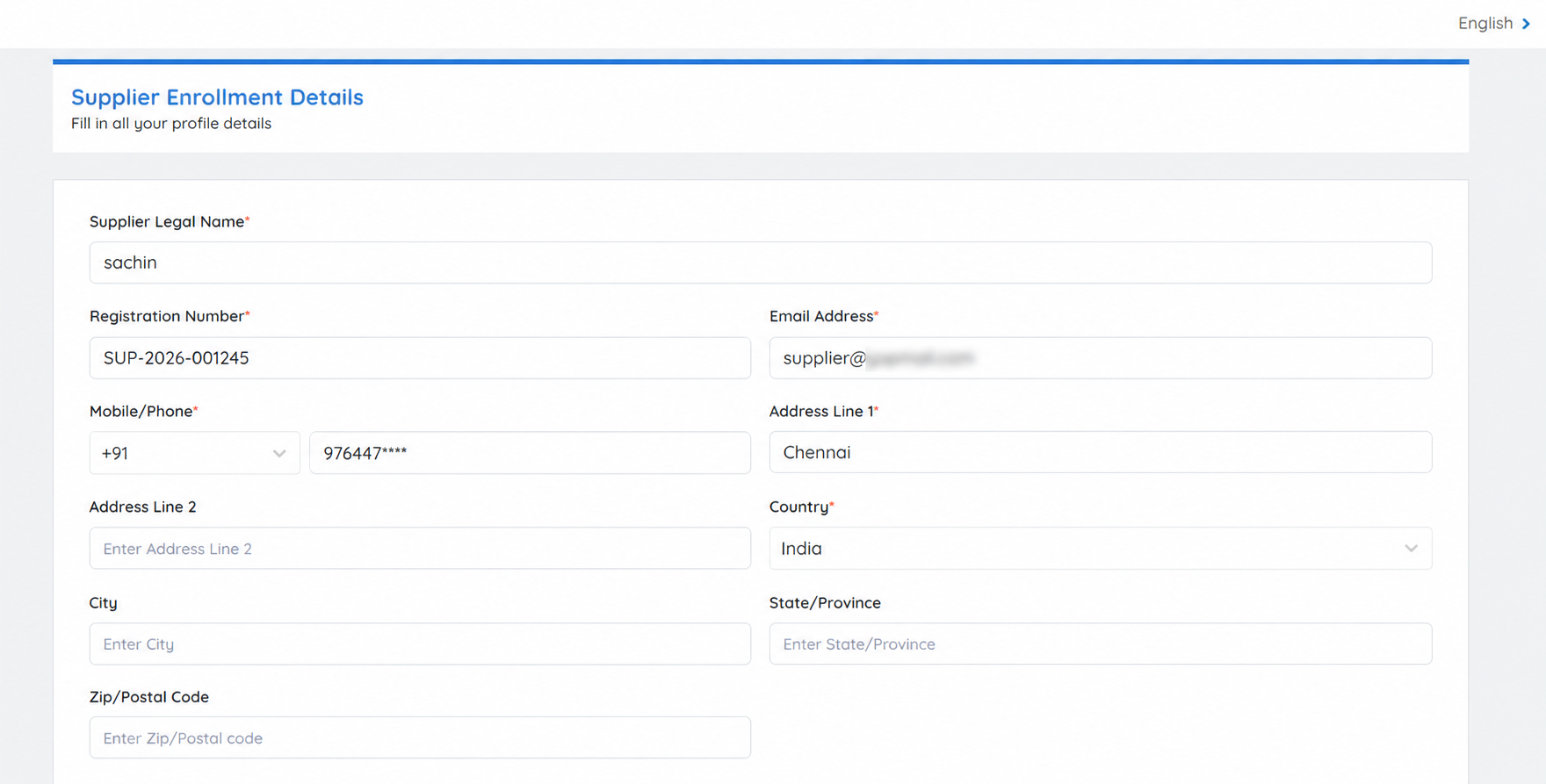
Supplier Enrollment Details
Complete the Supplier Enrollment form by entering the required information.
Organization Information
Provide your organization's basic details.
-
Supplier Legal Name* - Official registered name of your company.
-
Registration Number* – Business or company registration number.
-
Email Address* – Primary business email address.
-
Mobile/Phone* – Contact phone number.
Address Information
Enter your business address.
-
Address Line 1*
-
Address Line 2 (Optional)
-
Country*
-
City
-
State / Province
-
Zip / Postal Code
Service Expertise
Specify the publishing services your organization provides.
Examples include:
-
Copyediting
-
Typesetting
-
XML Conversion
-
Proofreading
-
eBook Conversion, and more
You may add one or multiple areas of expertise based on your services.
Certificates
Upload any relevant certifications or supporting documents.
Click Browse or drag and drop your files into the upload area.
Examples include:
-
ISO Certifications
-
Quality Certifications, and more
References
If available, provide professional references who can verify your organization's experience.
For each reference, enter:
- Full Name
- Email Address
- Designation / Position
Providing references is optional but may help during the supplier verification process.
Click Save and Next
After completing the Supplier Enrolment Details, review the information entered and click Save & Next to proceed to the next step.
Working Days & Leave Calendar
In this section, configure your organization's working schedule and holidays
Click submit
Supplier account is created
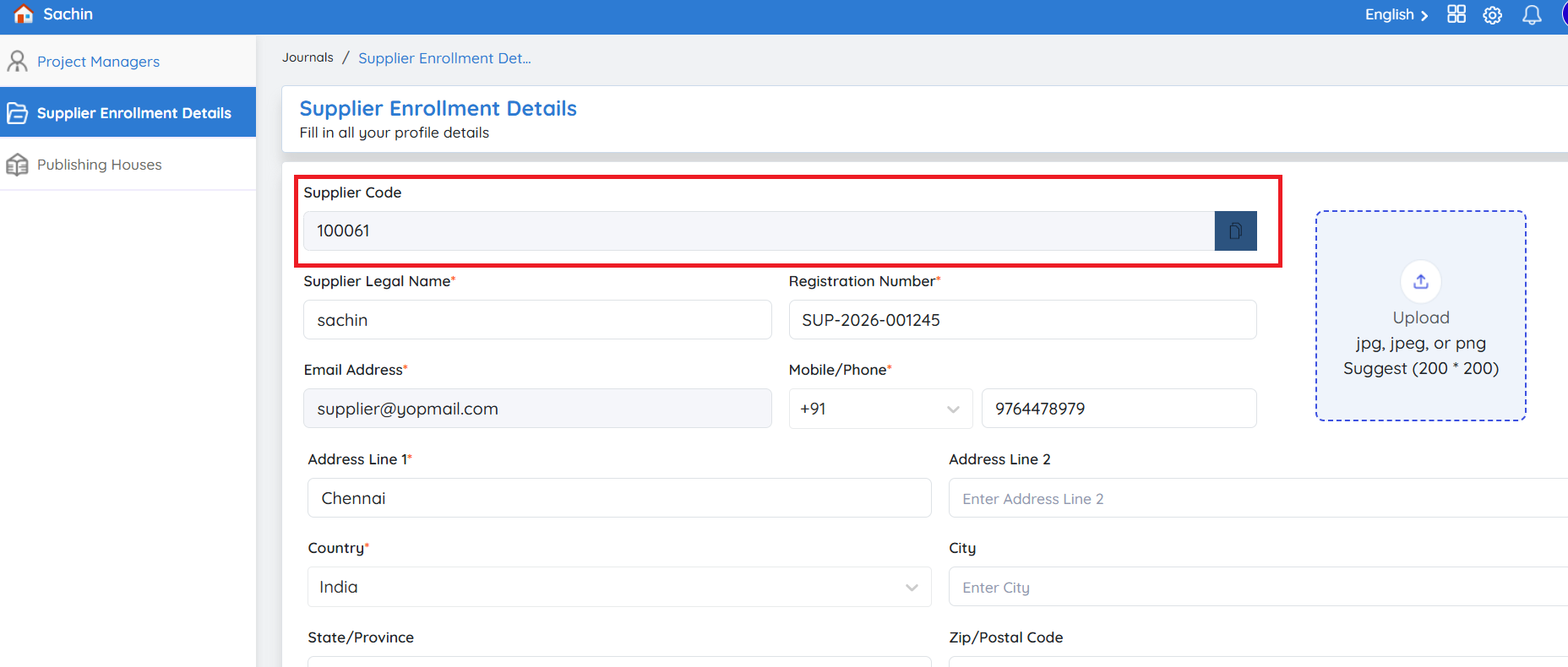
Obtaining the Invite Code (Supplier Side)
Before a supplier can be invited, they must first register with Kryoni JMS.
The supplier should:
-
Register or log in to their Supplier Portal.
-
Navigate to Settings - Manage
-
Go to Supplier Enrollment Details
-
Locate the supplier Code generated for their supplier account.
-
Copy the supplier Code.
-
Share the supplier Code with the publishing organization's administrator.
The Invite Code is unique to each supplier account and can only be generated after the supplier has successfully registered with Kryoni JMS.
Accepting the Publishing House Invitation (Supplier Side)
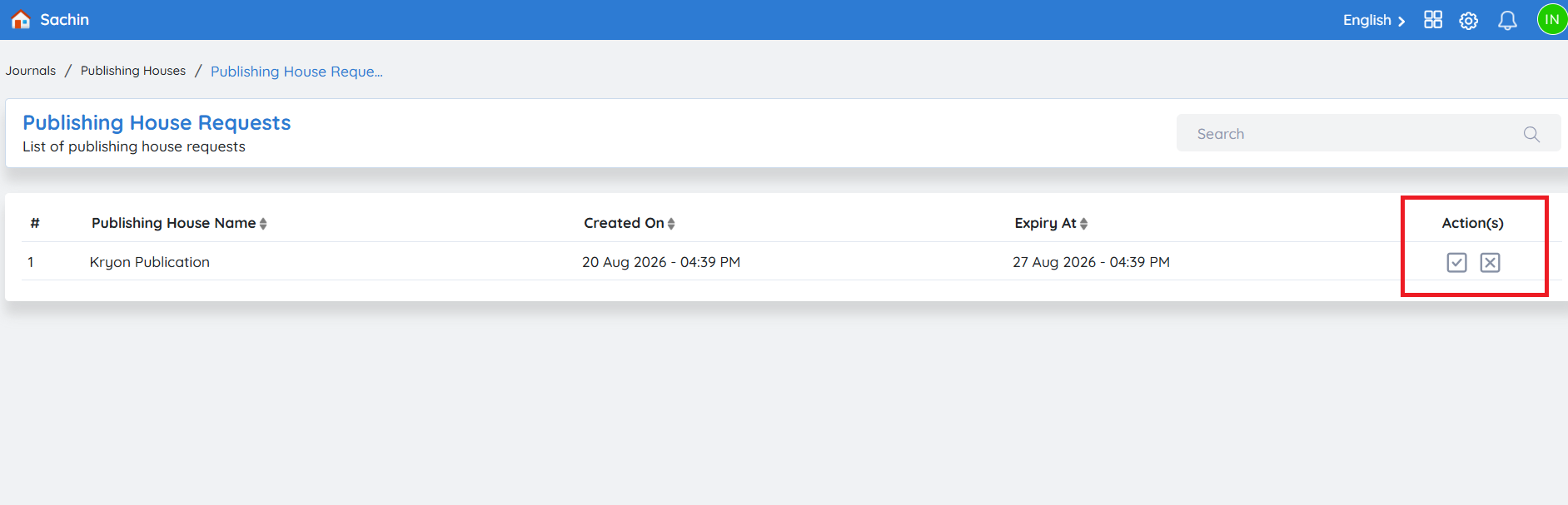
Once the administrator sends the invitation:
-
The supplier receives an invitation email from Kryoni JMS.
-
Log in to the Supplier Portal.
-
Navigate to Settings → Manage → Publishing Houses → Requests.
-
The pending invitation from the publishing organization will be displayed.
-
Review the invitation details.
-
Click Accept to join the publishing house or Decline if you do not wish to join.
Administrator Actions After Supplier Acceptance
Once the supplier accepts the invitation, the supplier is successfully associated with your publishing organization.
The administrator can then manage the supplier from the Suppliers section.
View Supplier Details
The supplier's profile will appear in the Administrator Dashboard → Suppliers list, where administrators can view supplier information and onboarding status.
Enable or Disable a Supplier
Administrators can enable or disable a supplier account at any time.
-
Enable – Allows the supplier to receive production assignments and participate in publishing workflows.
-
Disable – Temporarily prevents the supplier from receiving new assignments while retaining their account information.
This provides flexibility in managing supplier availability.