Reports
Overview
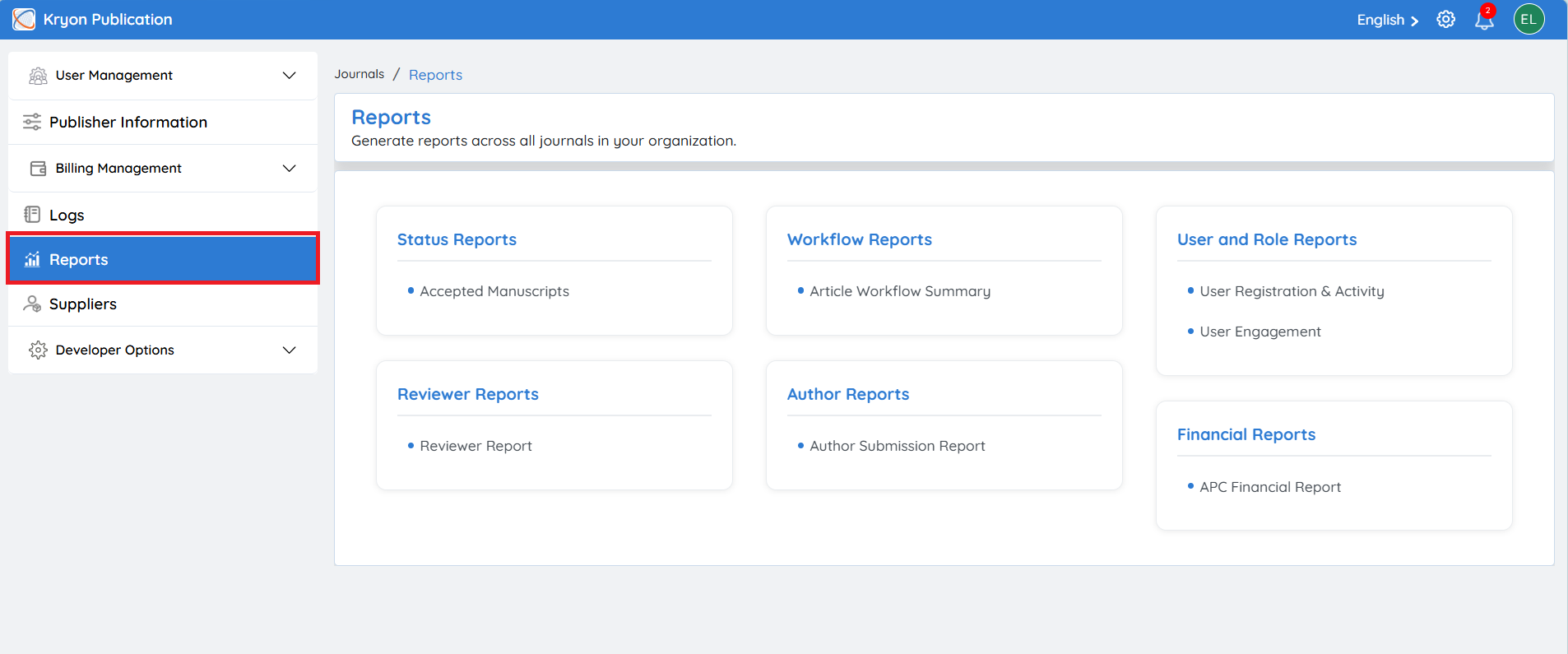
The Reports section provides organization-wide reporting across all journals managed within your publishing organization. It enables administrators and publishers to generate comprehensive reports on manuscript status, editorial workflows, user activities, reviewer performance, author submissions, and financial information.
Reports are consolidated across all journals, providing a centralized view of publishing operations and helping organizations monitor performance, track manuscript progress, analyze workflows, and support informed decision-making.
Reports are organized into different categories for quick and easy access.
The available report categories include:
- Status Reports
- Workflow Reports
- Reviewer Reports
- Author Reports
- User and Role Reports
- Financial Reports
Status Reports
Provides reports based on the current status of manuscripts.
Workflow Reports
Provides insights into manuscript progress throughout the editorial workflow.
Reviewer Reports
Provides reports related to reviewer assignments and activities.
Author Reports
Provides reports related to author submissions.
User and Role Reports
Provides reports related to users and their activities.
Financial Reports
Provides financial information related to APC processing.
Generating a Report
The procedure for generating reports is similar across all report categories. The following example demonstrates how to generate an Article Workflow Summary report.
Example: Article Workflow Summary
Navigate to:
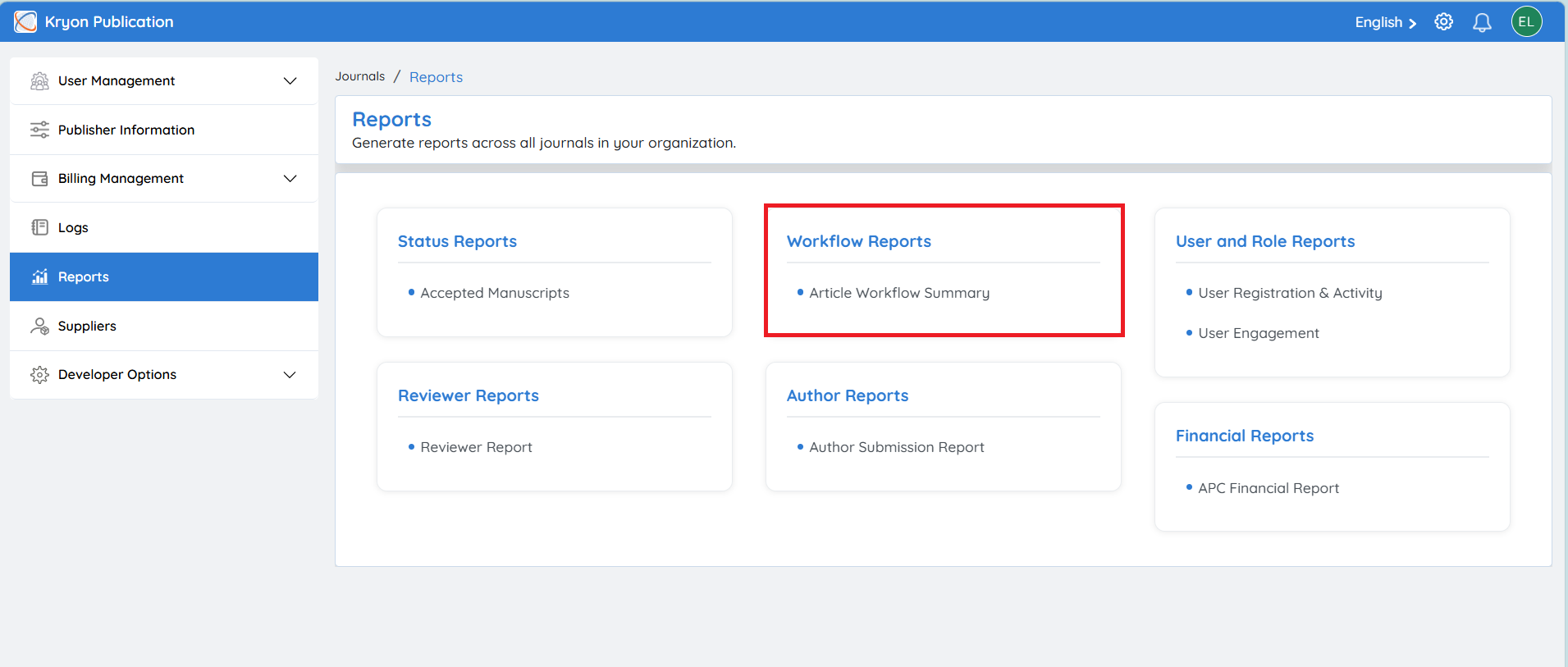
Reports → Workflow Reports → Article Workflow Summary
The report page allows you to generate customized reports by applying filters.
Select Journal
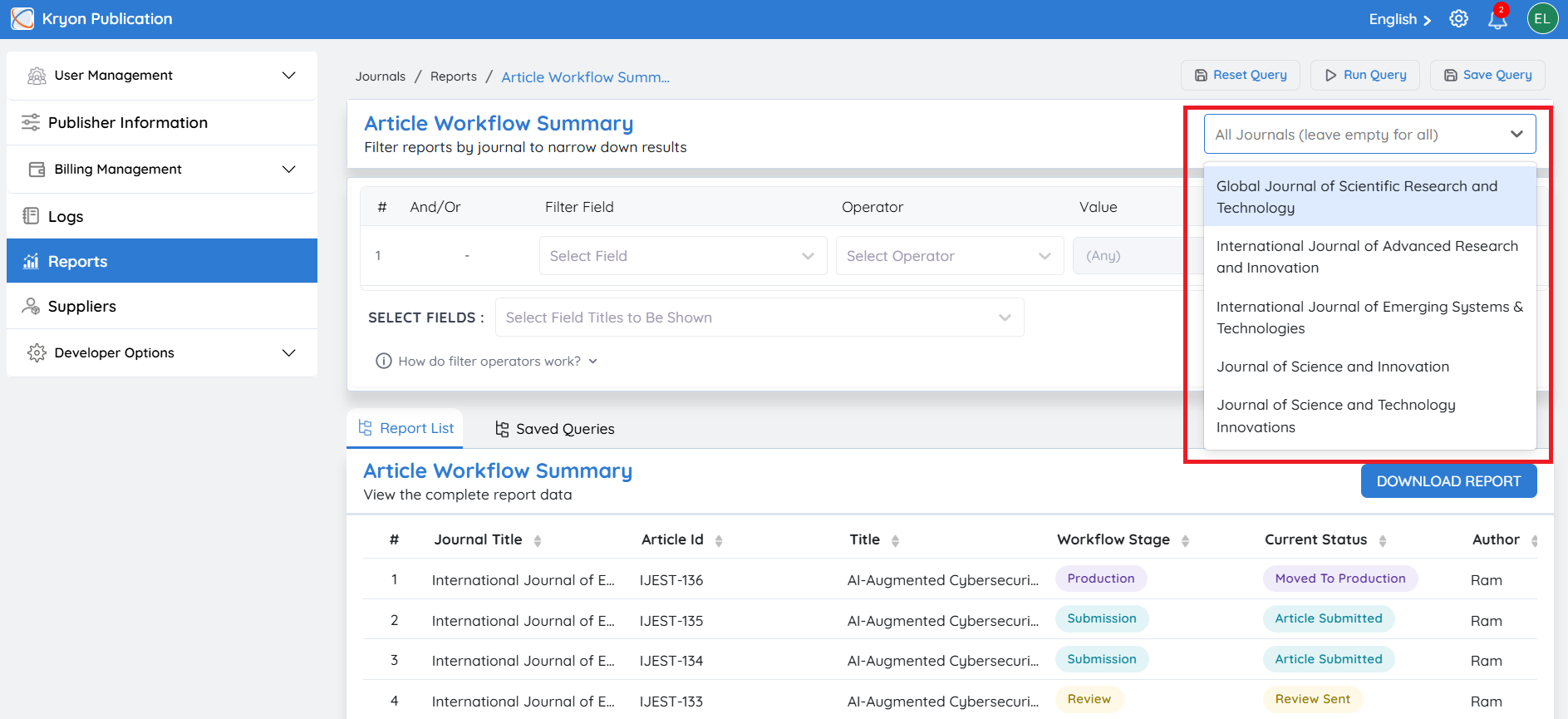
At the top of the page, you can choose whether to generate the report for all journals or for a specific journal.
All Journals
Leave the Journal field empty or keep All Journals selected.
The report will include data from every journal under your publishing organization.
Specific Journal
To generate a report for a single journal:
-
Click the Journal drop-down.
-
Select the required journal.
-
Continue configuring the report filters.
-
Click Run Query.
The report will display data only for the selected journal.
If no journal is selected, Kryoni JMS automatically generates the report using data from all journals.
Understanding Report Filters
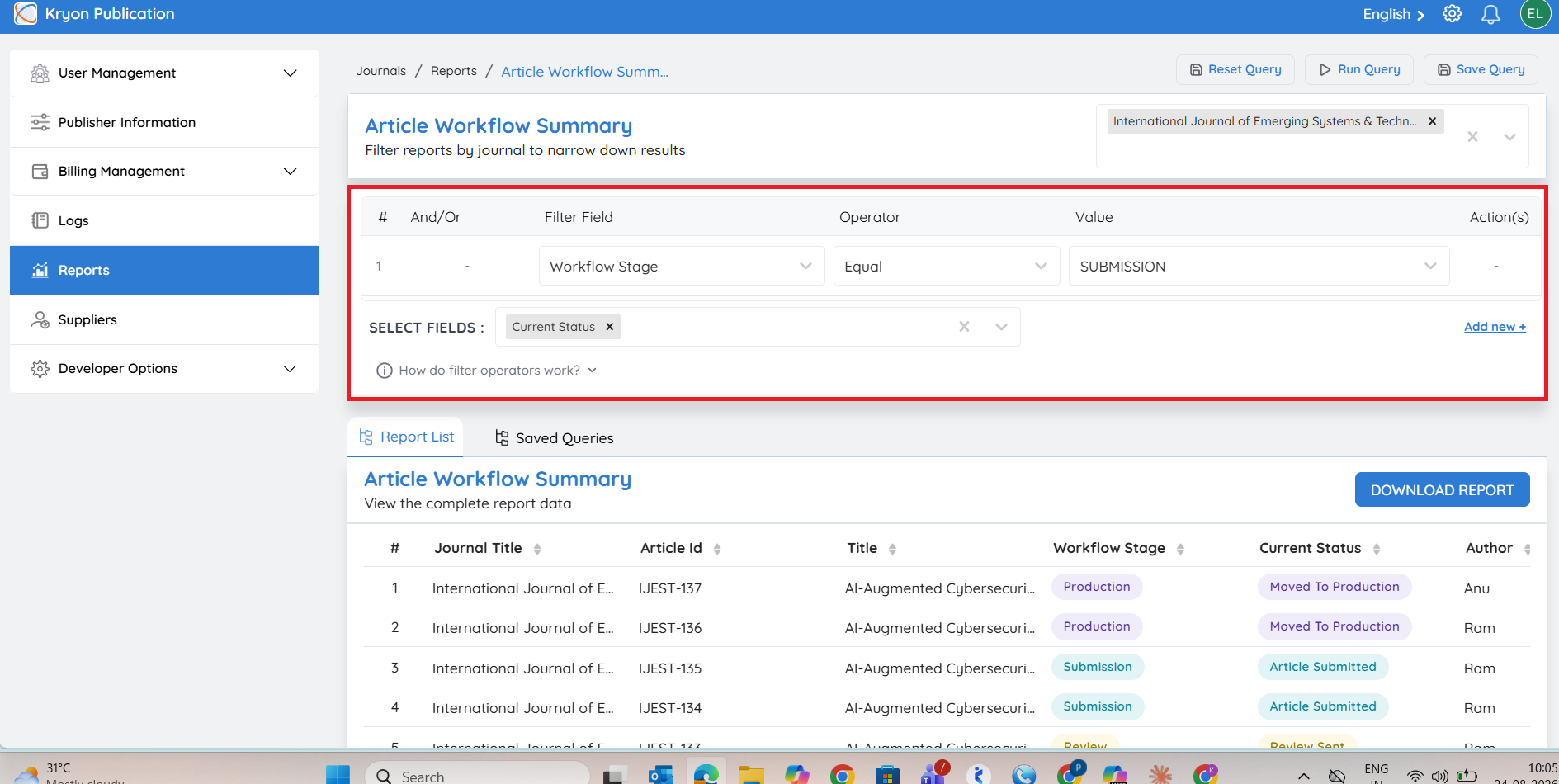
Reports are generated using one or more filters.
Each filter consists of four components:
- Field
- Operator
- Value
- Logical Operator (AND / OR)
Operator
The Operator determines how the selected field is compared with the entered value.
The available operators vary depending on the selected field.
EXAMPLES
Text Operators
Like
Returns records containing the entered text.
Example
-
Journal Name Like "Medical"
-
Returns all journals containing the word Medical.
Equal
Returns records that exactly match the specified value.
Example
-
Status Equal Accepted
-
Returns only accepted manuscripts.
Not Equal
Returns all records except those matching the specified value.
Example
-
Status Not Equal Rejected
-
Returns all manuscripts except rejected ones.
In
Returns records matching any value from a selected list.
Example
Status In
-
Submitted
-
Under Review
-
Accepted
Returns manuscripts having any of these three statuses.
Not In
Excludes records matching any value in the selected list.
Example
Status Not In
-
Rejected
-
Withdrawn
Returns all remaining manuscript statuses.
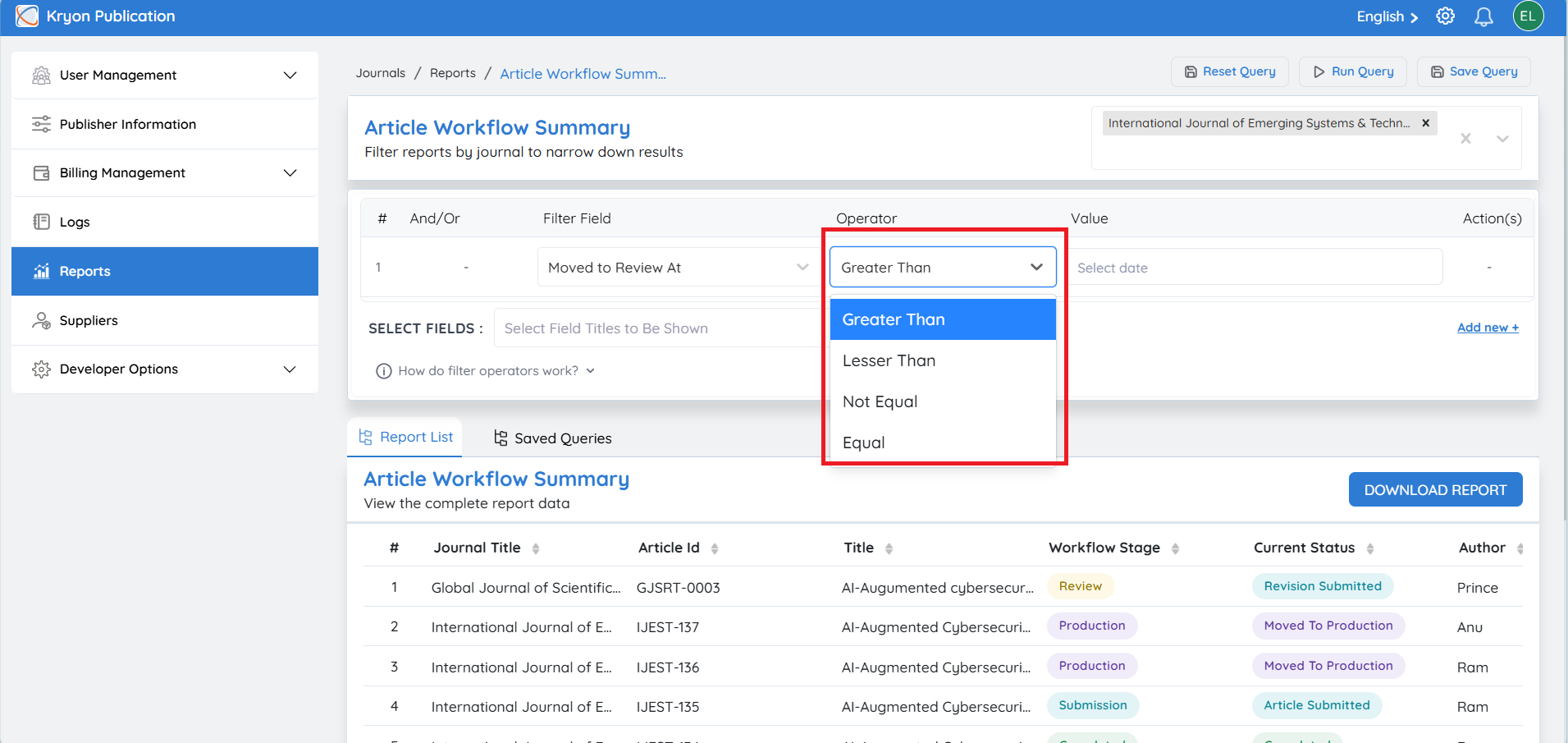
Date & Number Operators
Greater Than
Returns records with values greater than the specified value.
For dates, it returns records after the selected date.
Example
-
Moved to Review At
-
Greater Than
-
01-Jul-2026
-
Returns articles moved to review after 1 July 2026.
Less Than
Returns records with values less than the specified value.
For dates, it returns records before the selected date.
Example
-
Moved to Review At
-
Less Than
-
20-Jul-2026
-
Returns articles moved to review before 20 July 2026.
Equal
Returns records exactly matching the selected date or value.
Not Equal
Excludes records matching the selected date or value.
Combining Multiple Filters
If additional filtering is required, click Add New.
Multiple filters can be connected using logical operators.
AND
The report returns only records that satisfy all conditions.
Example
-
Moved to Review At Greater Than 01-Jul-2026
-
AND
-
Moved to Review At Less Than 20-Jul-2026
-
Result: Shows manuscripts moved to review between 1 July 2026 and 20 July 2026.
OR
The report returns records satisfying either condition.
Example
-
Journal Name = Medical Journal
-
OR
-
Journal Name = Engineering Journal
-
Result: Displays manuscripts from either journal.
Running the Report
After configuring the required filters:
-
Review the selected journal and filter conditions.
-
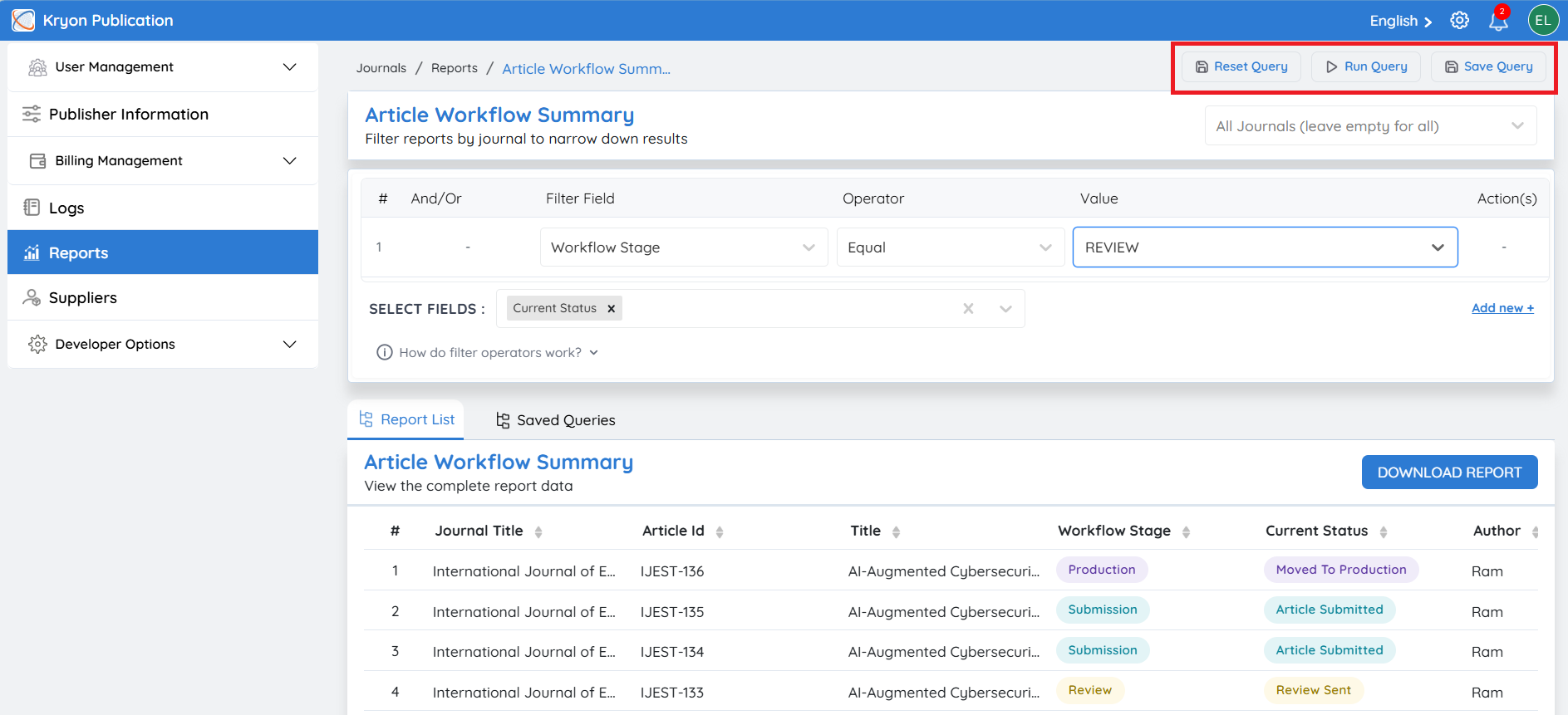
Click Run Query.
The system generates the report based on the specified criteria.
Reset Query
Click Reset Query to clear all selected filters and return the report page to its default state.
Use this option when creating a new report with different criteria.
Save Query
If you frequently use the same filter criteria, click Save Query.
The saved query can be reused later without having to configure the filters again, saving time and ensuring consistent reporting.
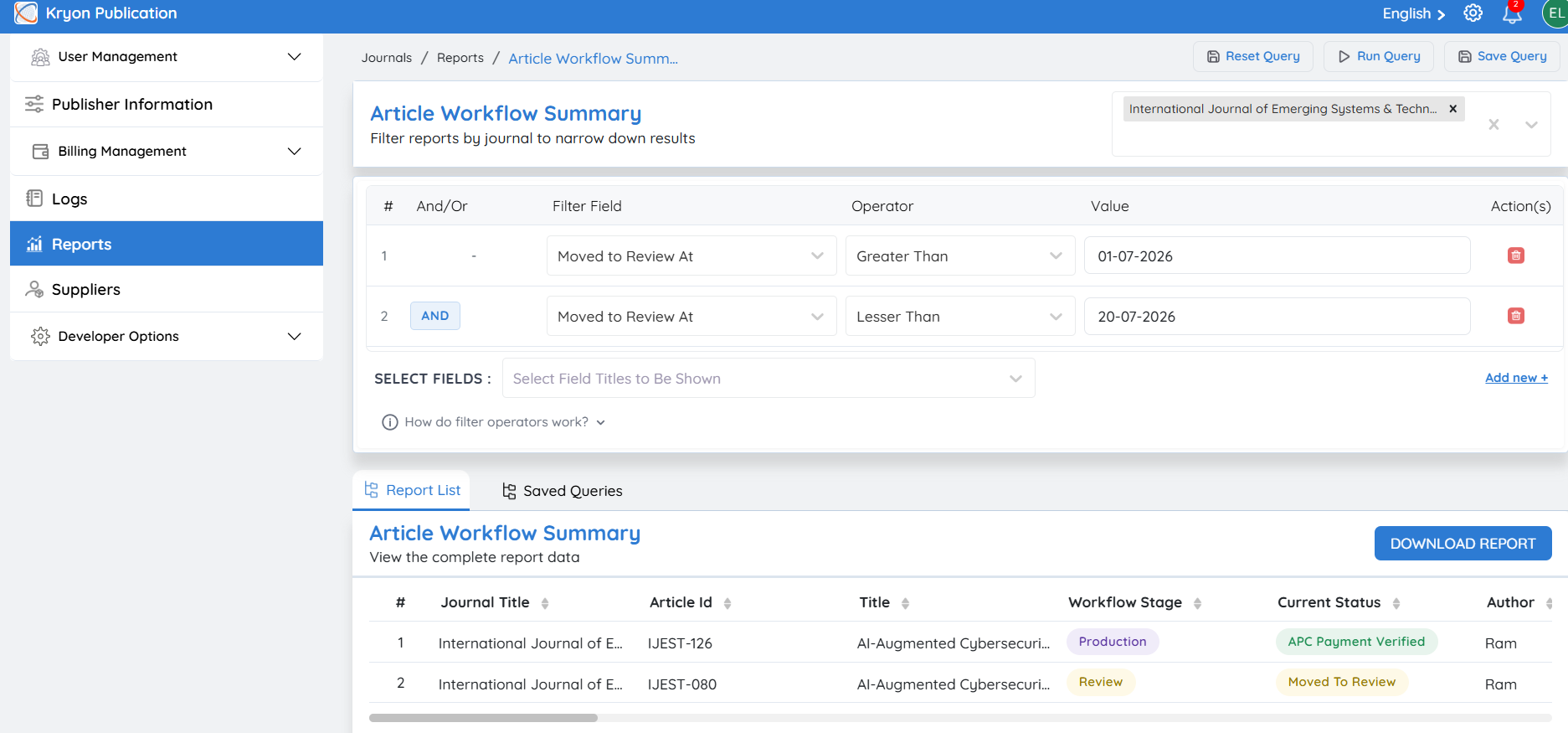
Example Workflow
Generate an Article Workflow Summary report for articles that entered the review stage between 1 July 2026 and 20 July 2026 for a specific journal.
Step 1
Navigate to: Reports → Workflow Reports → Article Workflow Summary
Step 2
Select the required journal from the Journal drop-down.
Step 3
Configure the first filter:
-
Field: Moved to Review At
-
Operator: Greater Than
-
Value: 01-Jul-2026
Step 4
Click Add New.
Choose AND.
Step 5
Configure the second filter:
-
Field: Moved to Review At
-
Operator: Less Than
-
Value: 20-Jul-2026
Step 6
Click Run Query.
Kryoni JMS generates the report displaying all manuscripts that entered the review stage between 1 July 2026 and 20 July 2026 for the selected journal. If no journal is selected, the report includes results from all journals within the publishing organization.