Configuring DOI Generation
Before configuring the DOI settings, ensure that the DOI Generation plugin is enabled for the journal.
Once the plugin is enabled, the DOI Generation option will appear in the left navigation panel.
Click DOI Generation to open the DOI Configuration page and begin configuring the DOI settings for your journal.
Step 1: Verify the DOI Prefix
The DOI Prefix field is automatically populated using the DOI Prefix configured at the Publisher level during the initial organization setup.
Example: 10.4989888
This prefix remains the same for all journals belonging to the publishing organization.
The DOI Prefix is inherited from the Publisher configuration and cannot be edited from the journal level.
Editing the DOI Prefix
The DOI Prefix is configured at the Publisher level and is shared across all journals within the publishing organization. Therefore, it cannot be modified from the journal-level DOI Configuration page.
To update the DOI Prefix, you must have the appropriate administrative permissions.
Follow these steps:
- Navigate to Global Organization Settings.
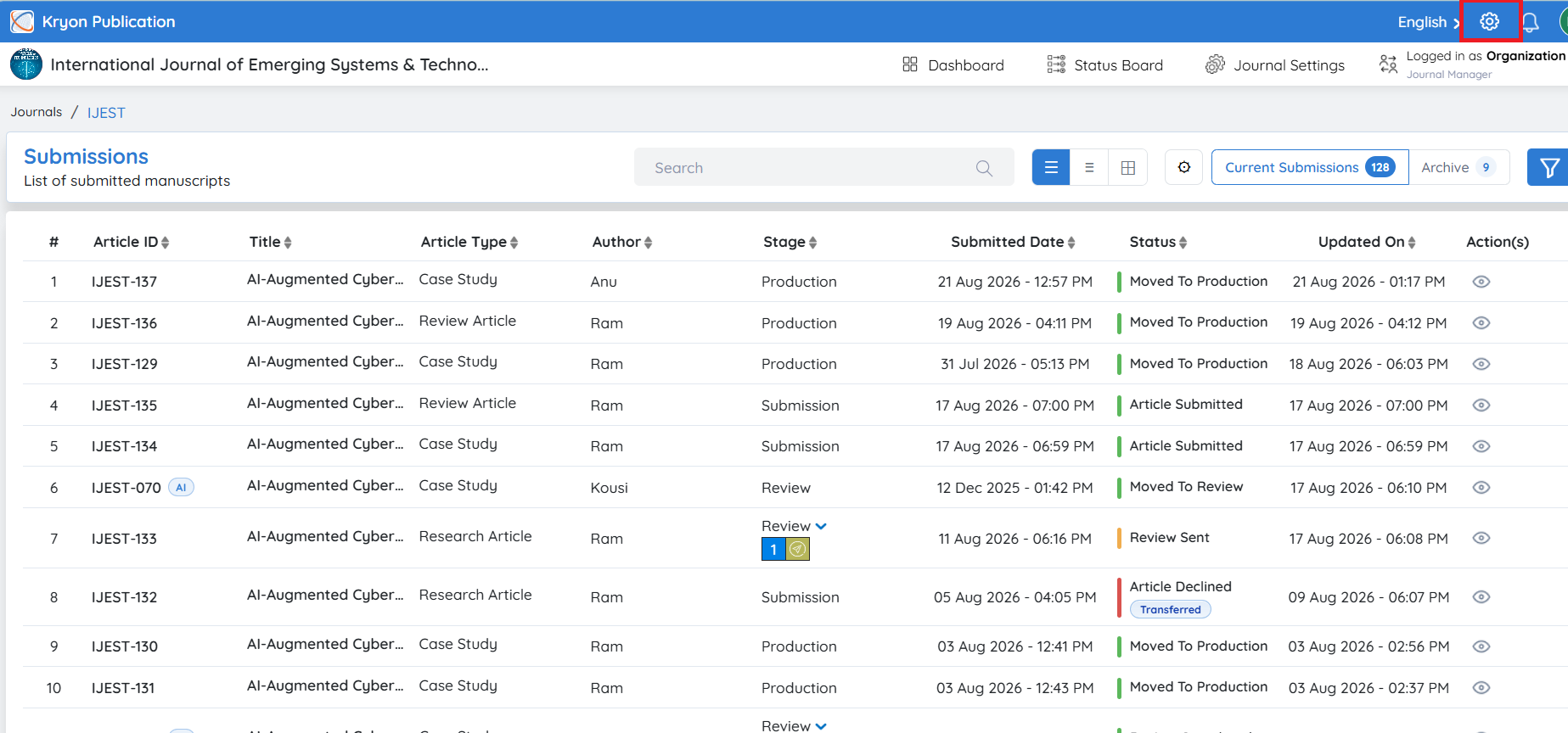
- Click Publisher Information.
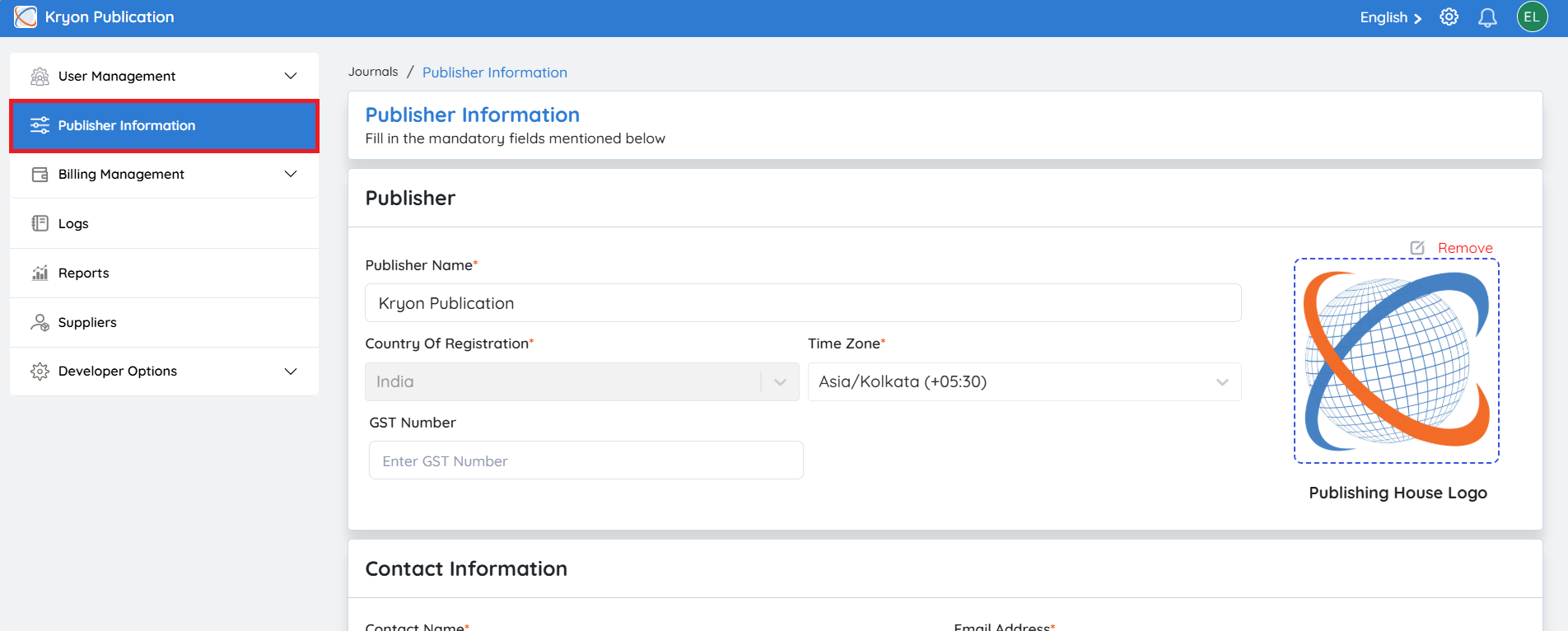
-
Go to the DOI Configuration section.
-
Update the DOI Prefix as required.
-
Click Save to apply the changes.
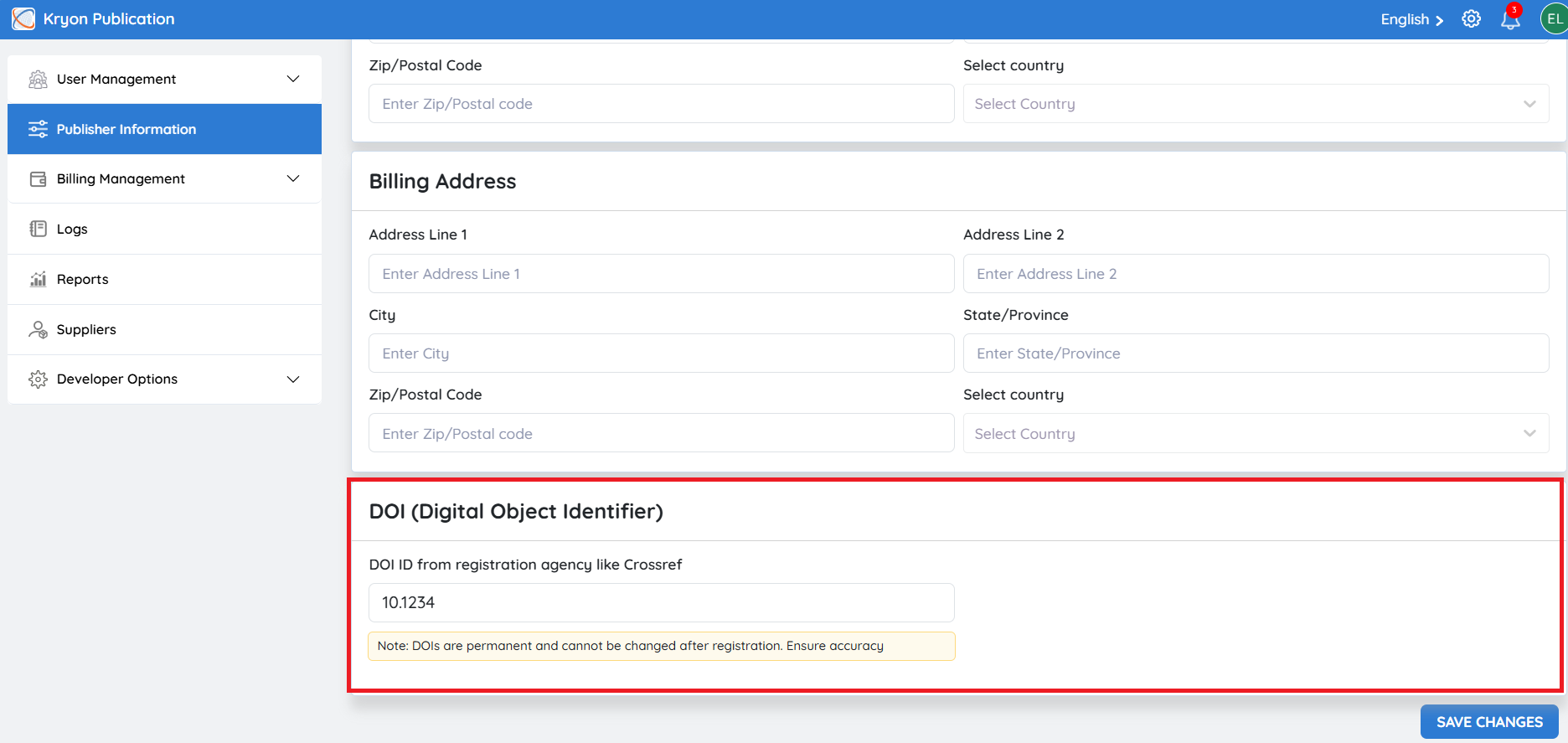
Only users with the required permissions can modify the DOI Prefix. Any changes made at the publisher level will automatically apply to all journals associated with the publishing organization. Ensure that the updated DOI Prefix is the valid, registered prefix assigned to your organization by your DOI registration agency, such as Crossref or DataCite.
Step 2: Select the DOI Assignment Stage
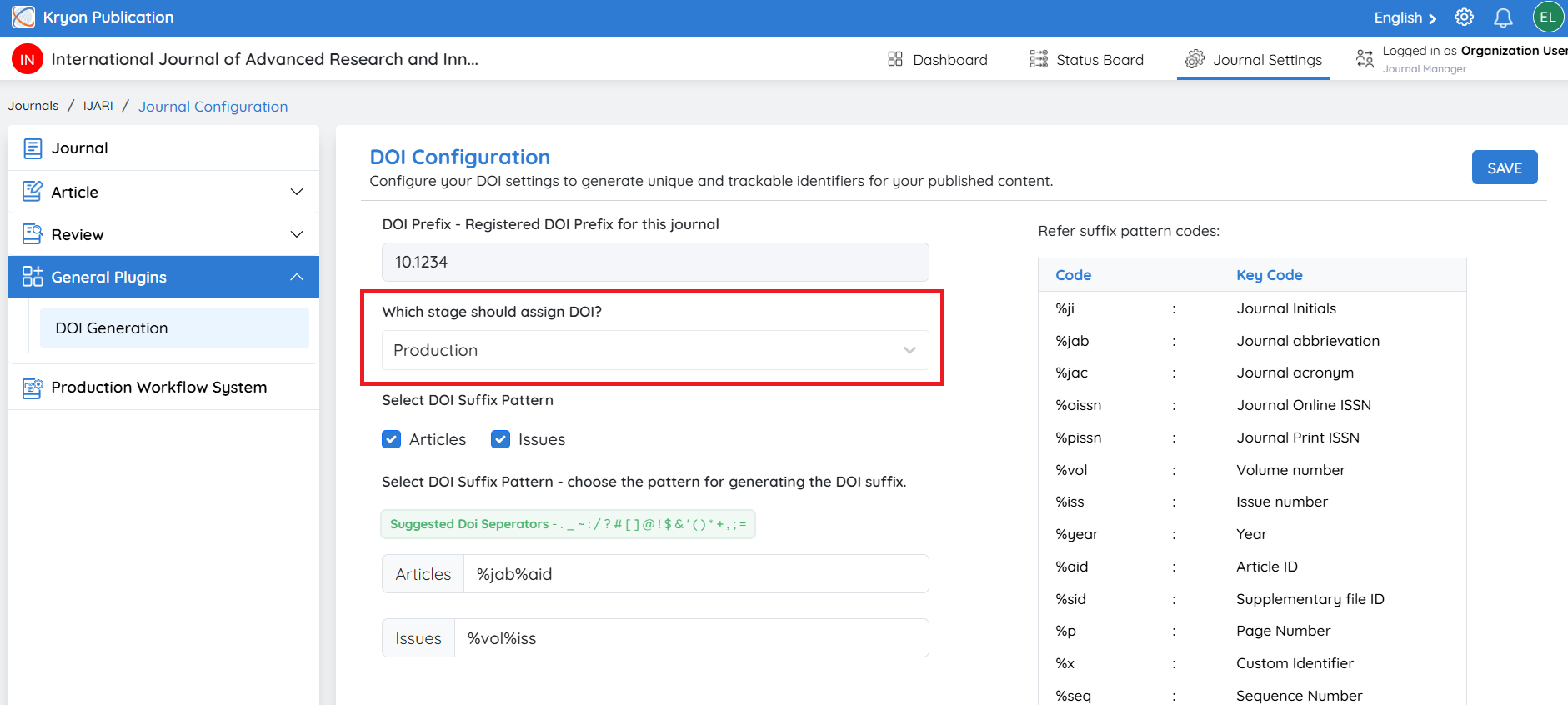
Under Which stage should assign DOI?, select the workflow stage at which Kryoni JMS should generate the DOI.
Recommended: Production
Assigning the DOI during the Production stage ensures that the identifier is generated only after the manuscript has reached its final publication-ready version.
Step 3: Configure the DOI Suffix Pattern
The DOI Suffix uniquely identifies each article or issue within your DOI prefix.
Choose whether DOIs should be generated for:
-
Articles
-
Issues
-
Both Articles and Issues
Then enter a suffix pattern for each content type.
Kryoni JMS supports dynamic placeholders that automatically populate metadata during DOI generation.
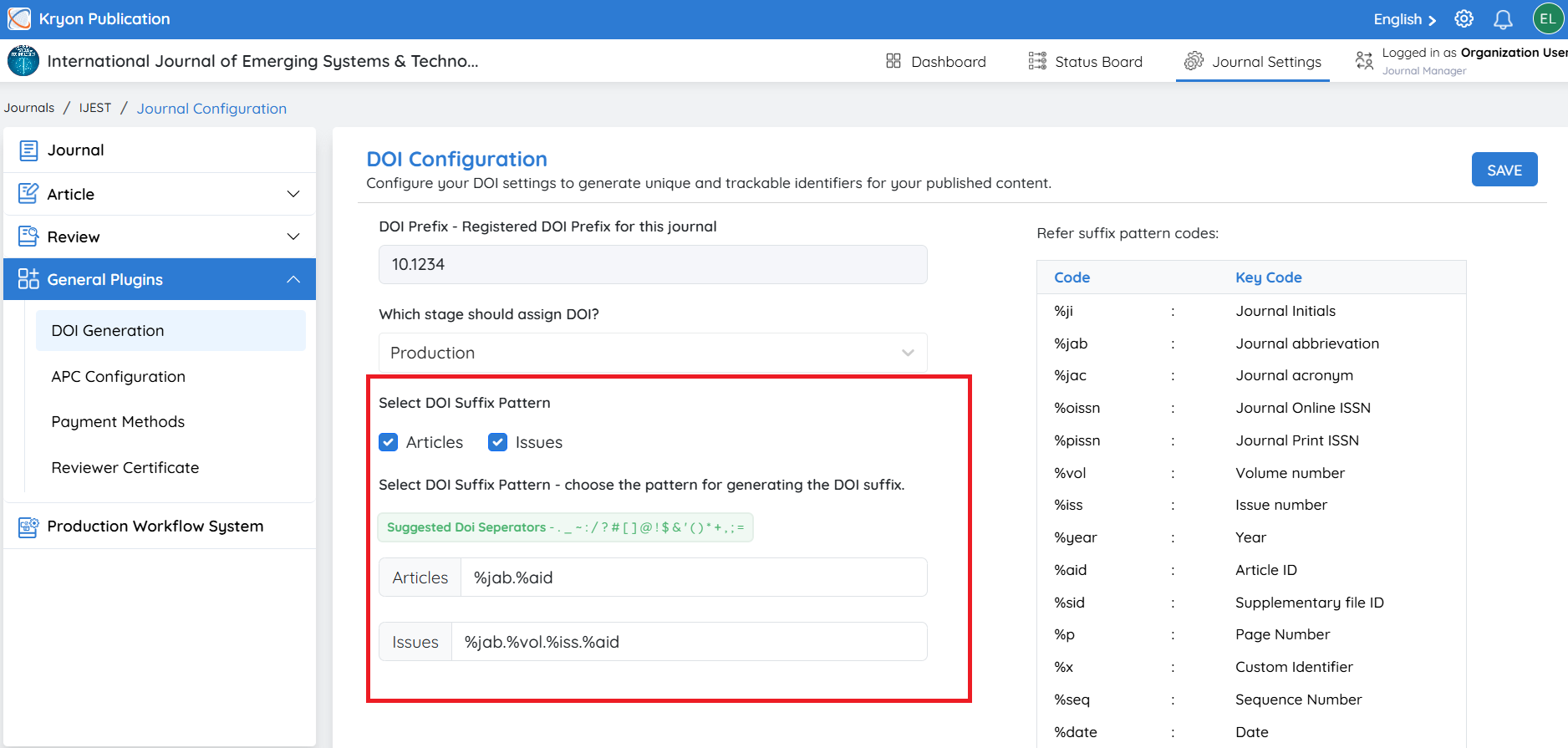
Available DOI Suffix Codes
The following placeholders can be used to build custom DOI suffix patterns.
| Code | Description | Example Output |
|---|---|---|
%ji | Journal Initials | IJCMR |
%jab | Journal Abbreviation | Int J Cranio Maxillofac Rehabil |
%jac | Journal Acronym | IJCSR |
%oissn | Online ISSN | 2589-XXXX |
%pissn | Print ISSN | 0975-XXXX |
%vol | Volume Number | 12 |
%iss | Issue Number | 3 |
%year | Publication Year | 2026 |
%aid | Article ID | 00125 |
%sid | Supplementary File ID | S01 |
%p | Page Number | 45 |
%x | Custom Identifier | YOURCODE |
%seq | Sequence Number | 0001, 0002... |
%date | Date (YYYYMMDD) | 20250922 |
Step 4: Configure DOI Patterns
Create meaningful DOI suffix patterns using the available placeholders.
Example - Article DOI
-
Pattern %aid.%year.%date
-
Generated DOI 10.4989888/IJEST-123.2025.20250922
Example - Issue DOI
-
Pattern %ji.%vol-%iss.%seq
-
Generated DOI 10.4989888/IJCMR.12-3.0001
Tip: Use separators such as ., -, or _ to improve DOI readability.
Step 5: Save the Configuration
After completing the DOI configuration:
-
Review the DOI Prefix.
-
Verify the Assignment Stage.
-
Configure the required DOI Suffix Patterns.
-
Click Save.
Kryoni JMS will generate DOIs according to the configured rules whenever an article or issue reaches the selected workflow stage.
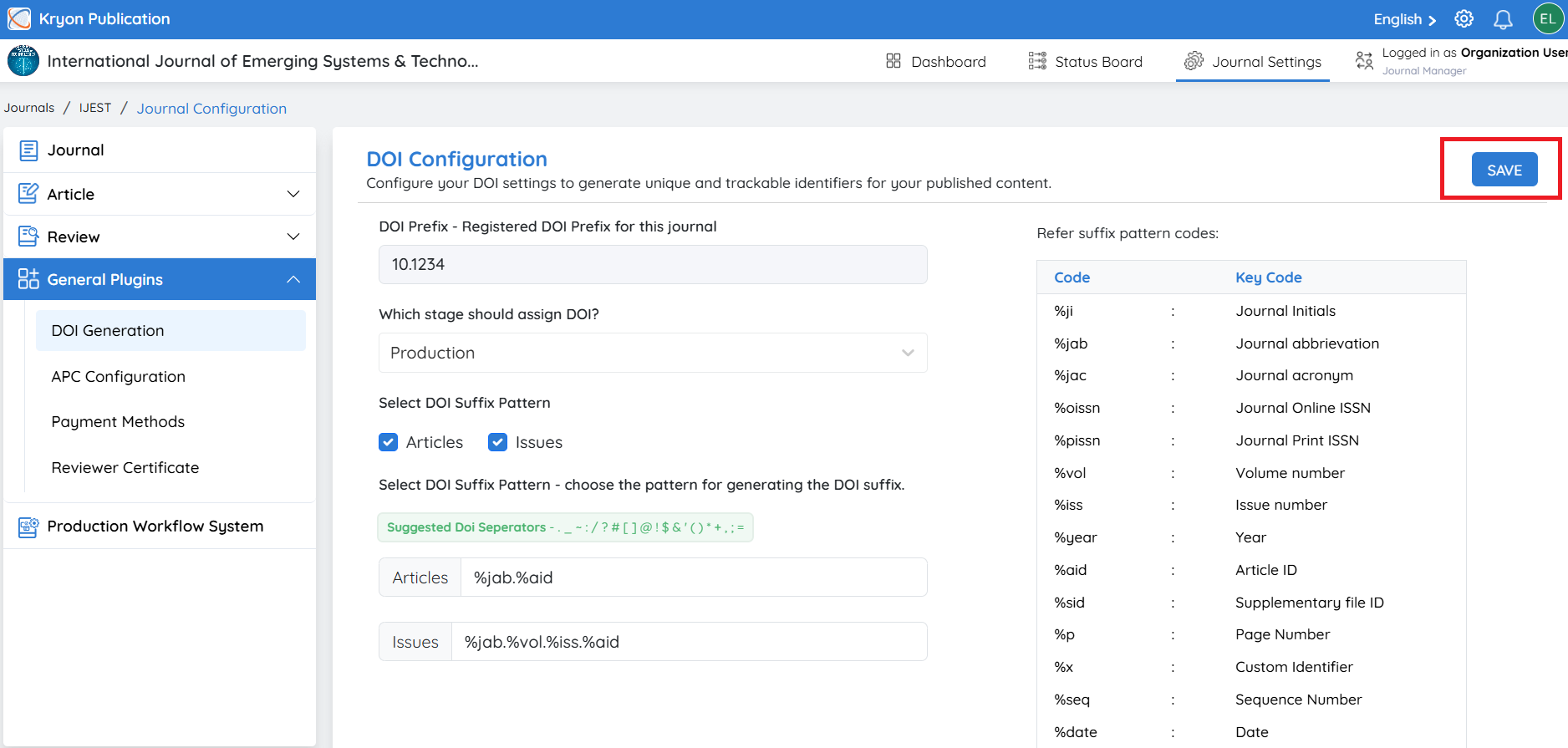
Best Practices
To ensure consistent and reliable DOI generation:
-
Ensure every DOI suffix is unique.
-
Include identifiers such as Year, Volume, Issue, or Article ID to minimize the possibility of duplication.
-
Avoid spaces and unsupported special characters in DOI patterns.
-
Test your DOI suffix pattern using sample articles before applying it to live journals.
-
Do not modify assigned DOIs after publication, as DOIs are permanent identifiers intended to provide persistent access to scholarly content.
Custom DOI Assignment
If you want to assign a custom DOI instead of using the automatically generated DOI pattern, Kryoni JMS allows you to do so during the Production stage of the manuscript workflow.
When the manuscript reaches the Production stage, authorized editorial users can manually enter a custom DOI for the article.
Important: Once a DOI, whether automatically generated or manually assigned, has been saved for an article, it cannot be edited or changed within Kryoni JMS.