Editing Journal Information
Follow these steps to update your journal information
Step 1: Select the Journal
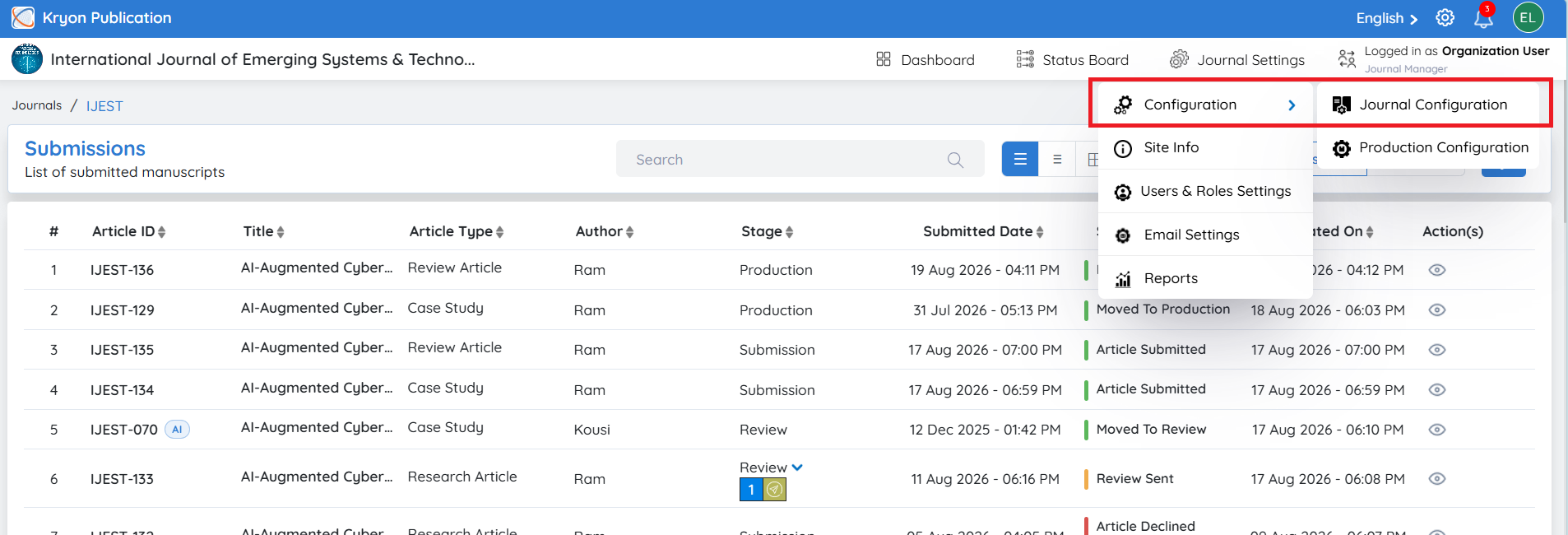
Navigate to the Journal Dashboard and select the journal you want to edit.
Step 2: Open Journal Configuration
From the right navigation menu, go to: Journal Settings → Configuration → Journal Configuration
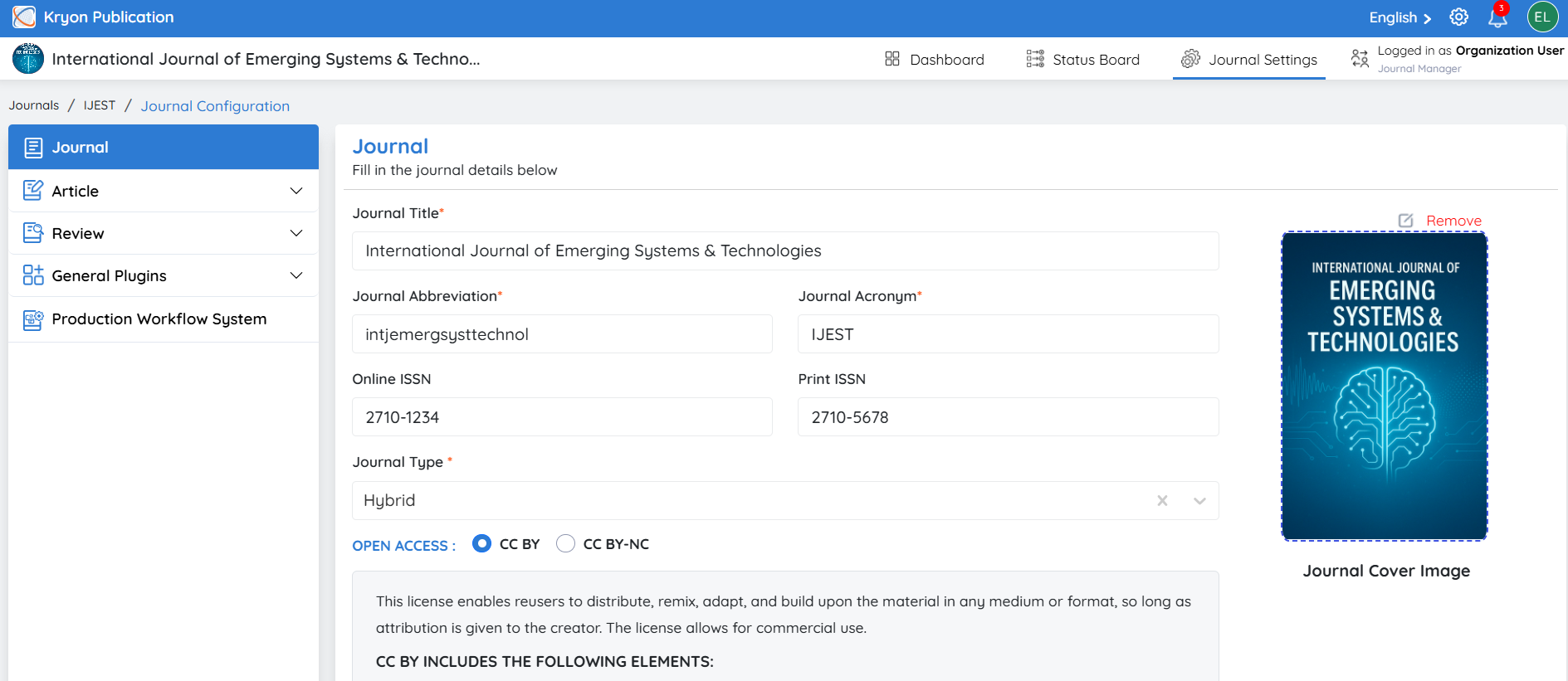
The Journal Configuration page displays all the settings configured during journal creation.
Step 3: Edit Journal Details
Update the required journal information as needed. You can modify any of the previously configured settings, including journal details, workflow preferences, submission settings, article configuration, guidelines, and other journal-specific options, based on your access permissions.
Step 4: Save Changes
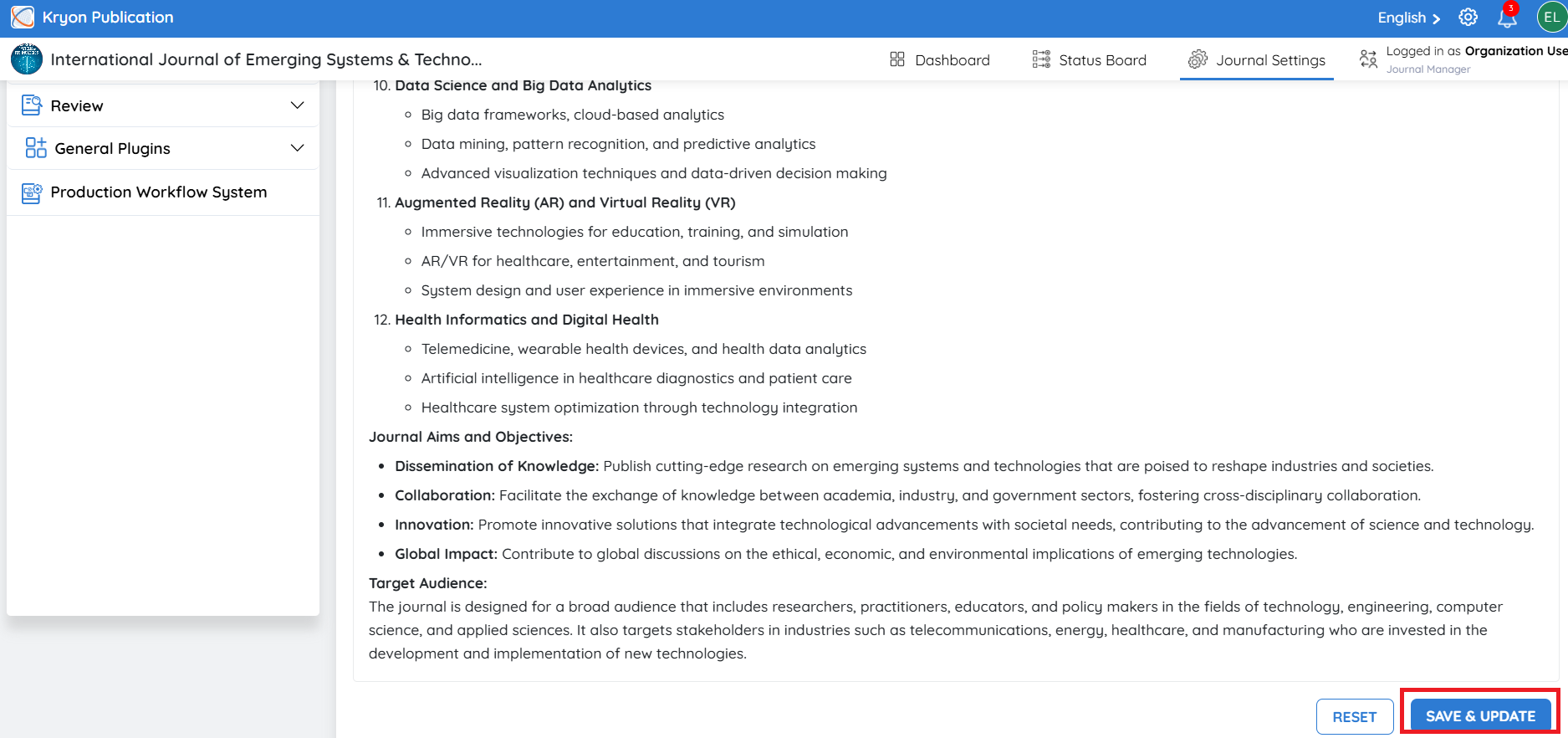
After making the required changes, click Save & Update to apply the updated configuration.
The changes are saved immediately and will be reflected in the selected journal's settings and future editorial workflows.
Additional Settings
In addition to the basic journal configuration, Kryoni JMS provides advanced settings that allow administrators to customize the editorial workflow based on the journal's publishing requirements.
To access these settings:
-
Navigate to Journal Settings → Journal Configuration.
-
Click Article.
-
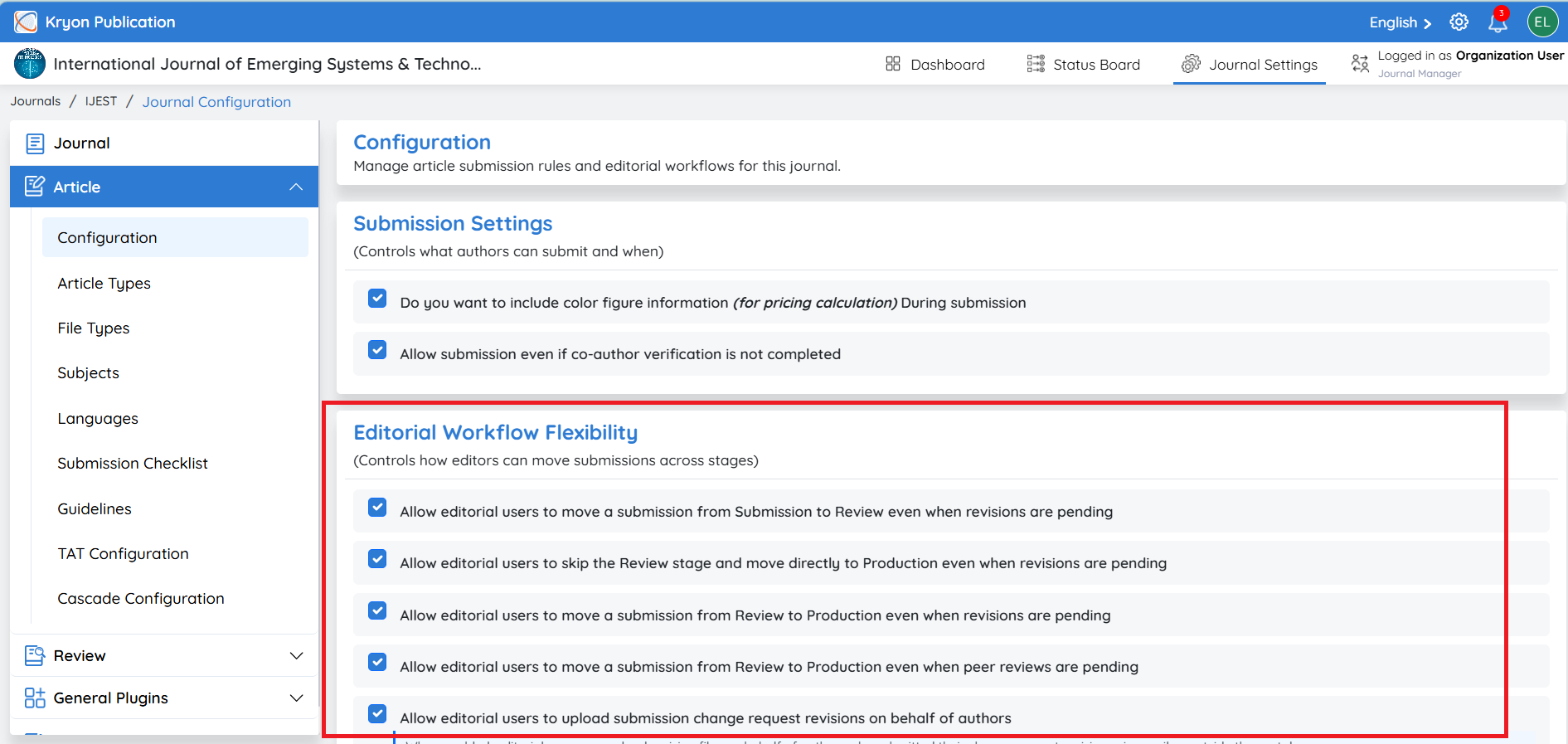
Scroll to the Editorial Workflow Flexibility section.
These options can be enabled or disabled by selecting the corresponding checkbox.
Editorial Workflow Flexibility
The Editorial Workflow Flexibility section allows journal administrators to configure how editorial users manage manuscript progression throughout the editorial lifecycle. These settings provide greater control over the movement of submissions between workflow stages, enabling journals to adapt the system to their specific editorial policies and publishing processes.
Different journals often follow different editorial workflows. While some journals require every manuscript to complete each stage sequentially, others may need the flexibility to expedite certain submissions, bypass specific stages, or manually intervene when exceptional circumstances arise. The Editorial Workflow Flexibility settings ensure that Kryoni JMS can accommodate these varying operational requirements.
By enabling or disabling these options, administrators can determine whether editorial users are permitted to advance, revert, or manage submissions outside the standard workflow. This flexibility is particularly valuable when handling invited articles, editorials, special issues, urgent publications, or manuscripts that require manual intervention due to exceptional circumstances.
Properly configuring these settings helps organizations:
-
Maintain compliance with the journal's editorial policies.
-
Streamline manuscript processing for special publication scenarios.
-
Reduce delays caused by pending revisions or incomplete reviews when editorial discretion is appropriate.
-
Improve operational efficiency while preserving editorial oversight.
-
Provide authorized editorial users with the flexibility to manage submissions based on real-world publishing requirements.
1. Allow editorial users to move a submission from Submission to Review even when revisions are pending
-
Enabled: Editorial users can move a manuscript to the Review stage without waiting for authors to complete all requested submission-stage revisions.
-
Disabled: The manuscript cannot progress to the Review stage until all requested revisions have been completed by the author.
2. Allow editorial users to skip the Review stage and move directly to Production even when revisions are pending
-
Enabled: Editorial users can bypass the peer review stage and move a manuscript directly to Production, even if submission revisions are still pending.
-
Disabled: The manuscript must complete the required review process before it can proceed to production.
This option is commonly used for editorials, announcements, or invited content that does not require peer review.
3. Allow editorial users to move a submission from Review to Production even when revisions are pending
-
Enabled: Editorial users can move a manuscript to the Production stage without waiting for authors to complete all requested review-stage revisions.
-
Disabled: The manuscript remains in the Review stage until all required revisions have been completed.
4. Allow editorial users to move a submission from Review to Production even when peer reviews are pending
-
Enabled: Editorial users can advance a manuscript to Production before all assigned reviewers have submitted their reviews.
-
Disabled: All assigned peer reviews must be completed before the manuscript can move to the production stage.
5. Allow editorial users to upload submission change request revisions on behalf of authors
-
Enabled: Editorial users can upload revised manuscript files on behalf of authors who submitted their revisions via email or through another approved communication method outside the portal.
-
Disabled: Only authors can upload revision files through their Author Portal.
6. Allow editorial users to revert a submission to the previous stage
-
Enabled: Editorial users with the appropriate permissions can move a manuscript back to its previous workflow stage, such as from Review to Submission or from Production to Review.
-
Disabled: Once a manuscript advances to the next stage, it cannot be moved back to a previous stage.
Journal Publishing Agreement
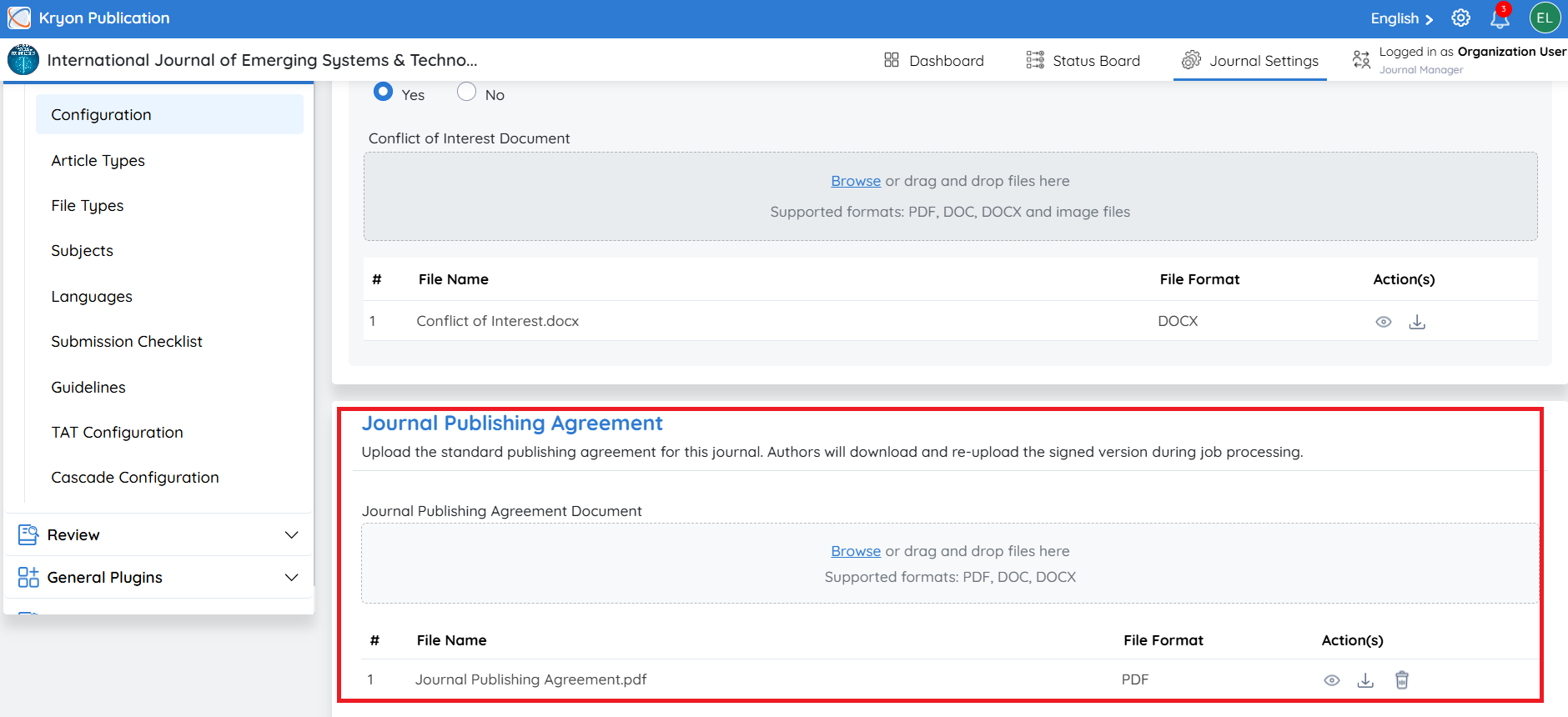
The Journal Publishing Agreement allows administrators to upload the standard publishing agreement for a journal. This agreement defines the legal terms and conditions between the author and the publisher, including copyright, licensing, publication rights, and other publishing obligations.
The uploaded agreement is used during the Production stage of the editorial workflow. Once a manuscript is accepted and moves into production, the system sends the publishing agreement to the corresponding author for review and signature before any production activities begin.
This ensures that the necessary legal approvals are completed before services such as copyediting, typesetting, XML conversion, proofreading, DOI assignment, and publication are initiated.
How It Works
-
Navigate to Journal Settings → Configuration → Article.
-
Locate the Journal Publishing Agreement section.
-
Upload the journal's standard publishing agreement (PDF or supported document format).
Submission Checklist
Overview
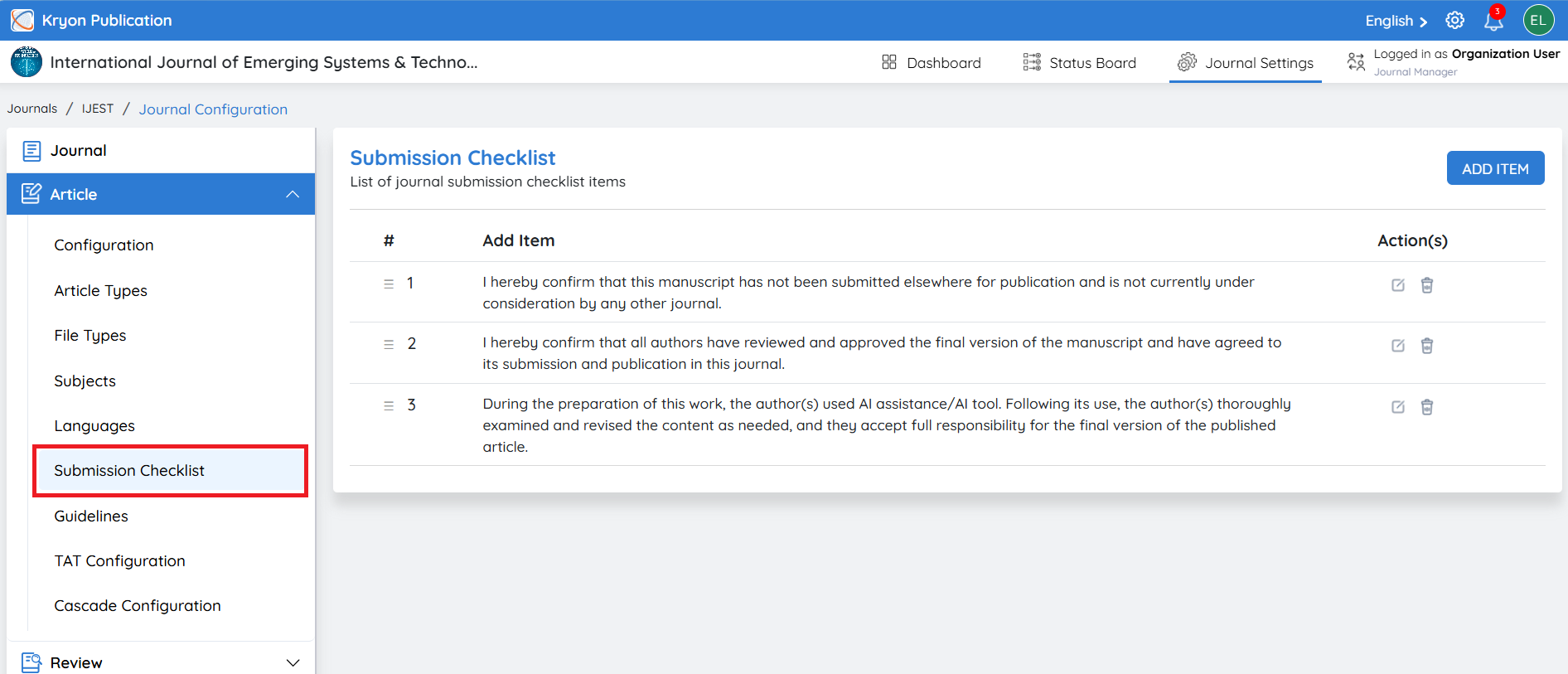
The Submission Checklist helps ensure that authors have completed all required requirements before submitting a manuscript. It serves as a pre-submission verification step, reminding authors to confirm compliance with the journal's submission guidelines, ethical policies, formatting requirements, and supporting document requirements.
By configuring a clear submission checklist, journals can improve submission quality, reduce incomplete submissions, and minimize delays during the initial editorial screening.
Authors cannot submit a manuscript until all mandatory checklist items have been acknowledged and confirmed. This helps ensure that every submission meets the journal's minimum submission requirements before entering the editorial workflow.
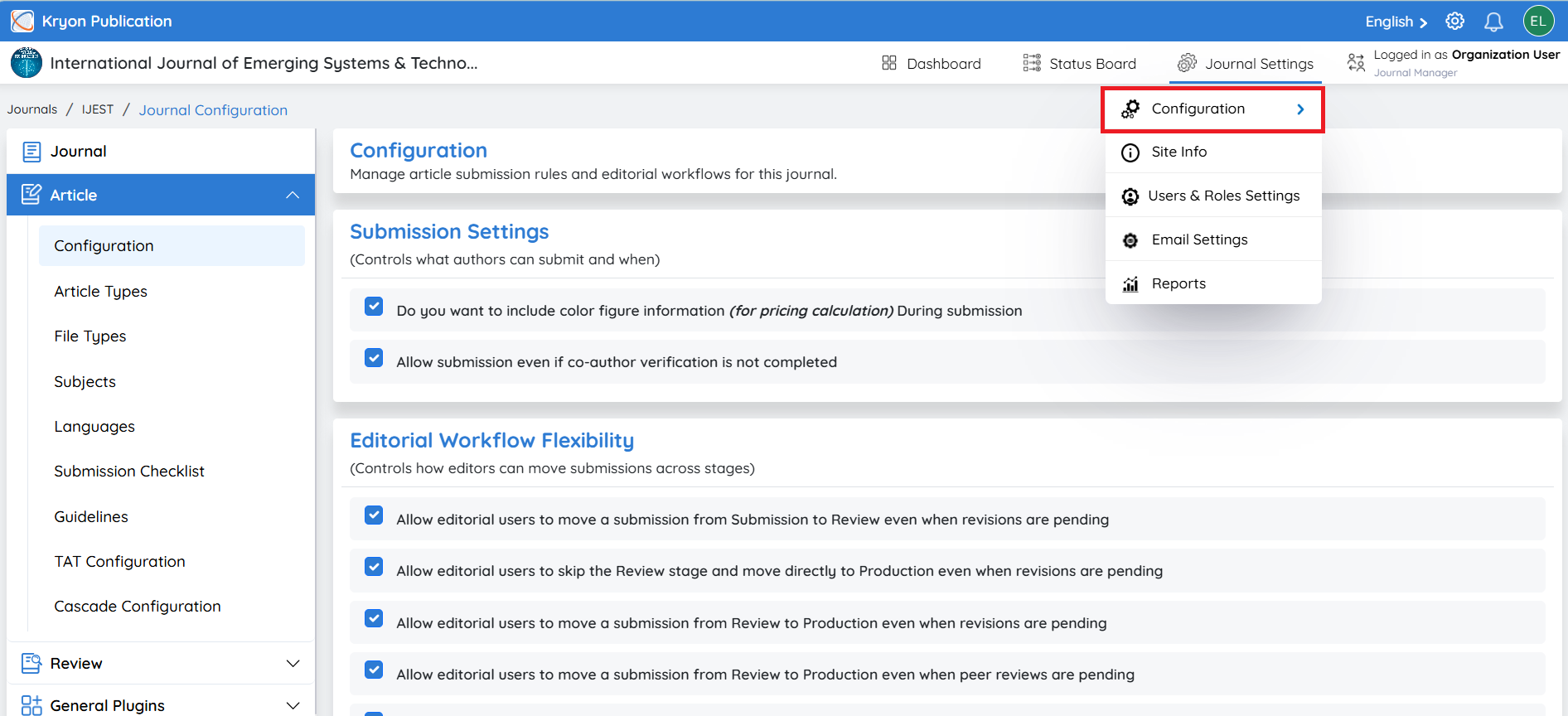
To access the Submission Checklist:
-
Navigate to Journal Settings → Configuration.
-
Click Article.
-
Open the Submission Checklist section.
Managing Submission Checklist Items
Journal administrators can edit, delete, or create checklist items at any time.
Editing a Checklist Item
Follow these steps to modify an existing checklist item.
-
Locate the checklist item you want to update.
-
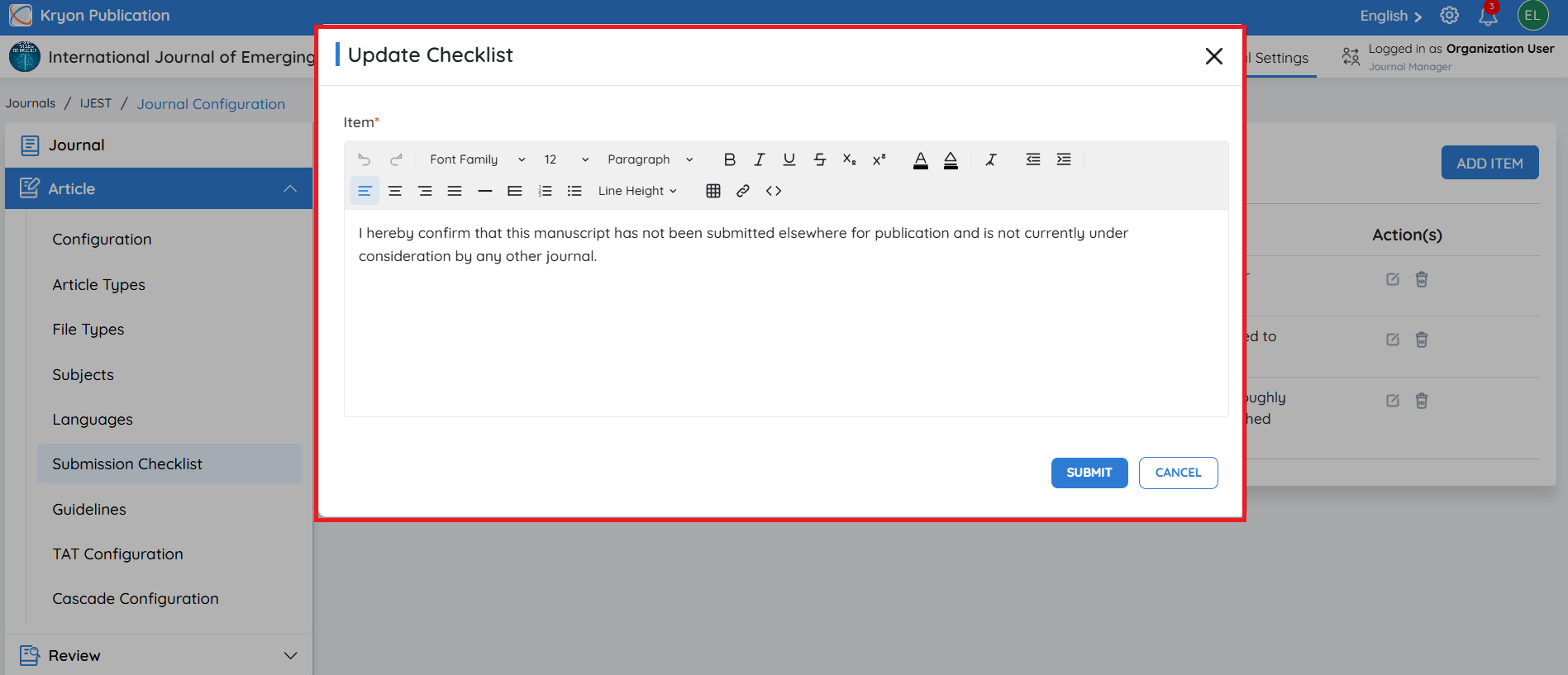
Click Edit.
-
Update the checklist content as required.
-
If necessary, modify the Display Position to change the order in which the item appears.
-
Click Submit to save your changes.
Changes are immediately reflected in the submission checklist presented to authors.
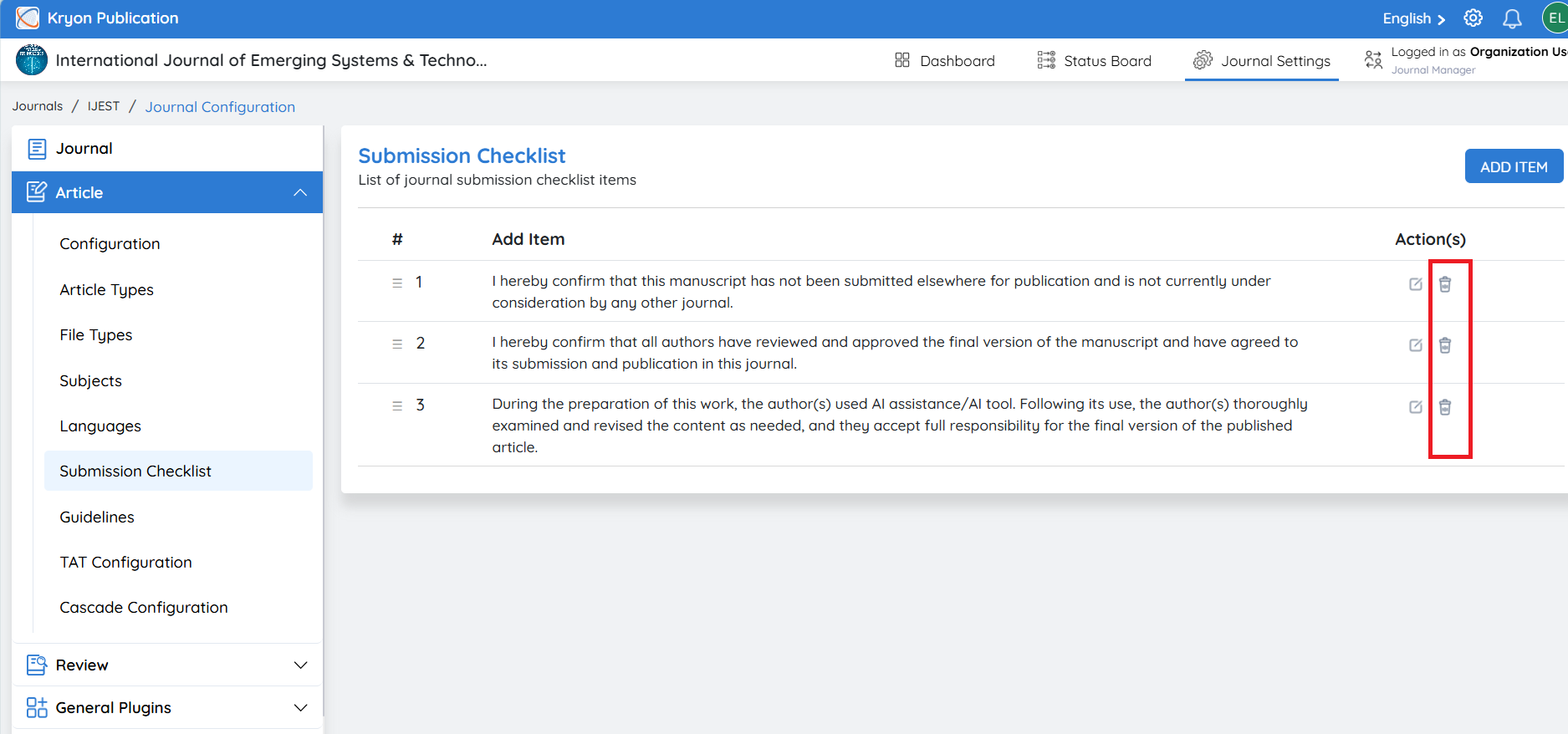
Deleting a Checklist Item
If a checklist item is no longer required, it can be removed from the journal.
-
Locate the checklist item.
-
Click Delete.
-
Confirm the deletion when prompted.
Deleted checklist items will no longer be displayed to authors during manuscript submission.
Creating a New Checklist Item
You can create additional checklist items to meet your journal's submission requirements.
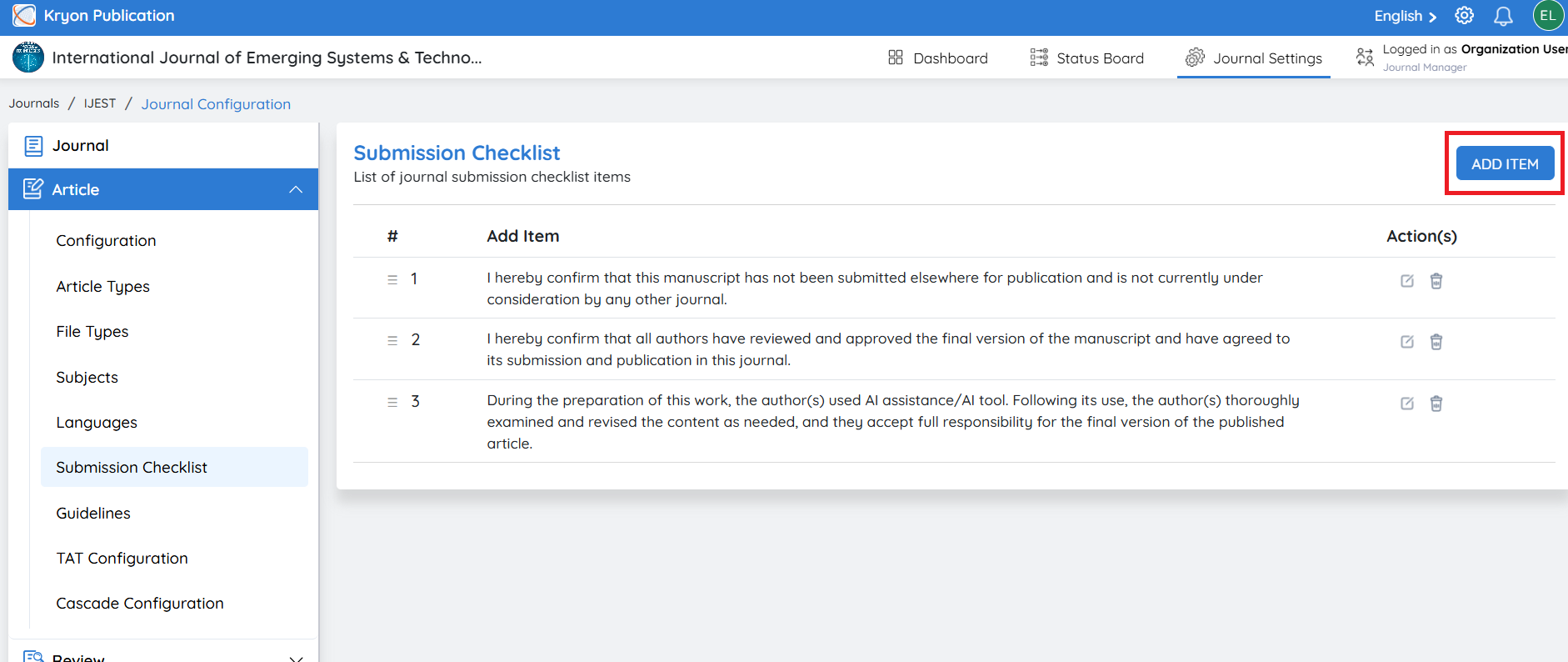
Step 1: Add a New Item
Click Add Item.
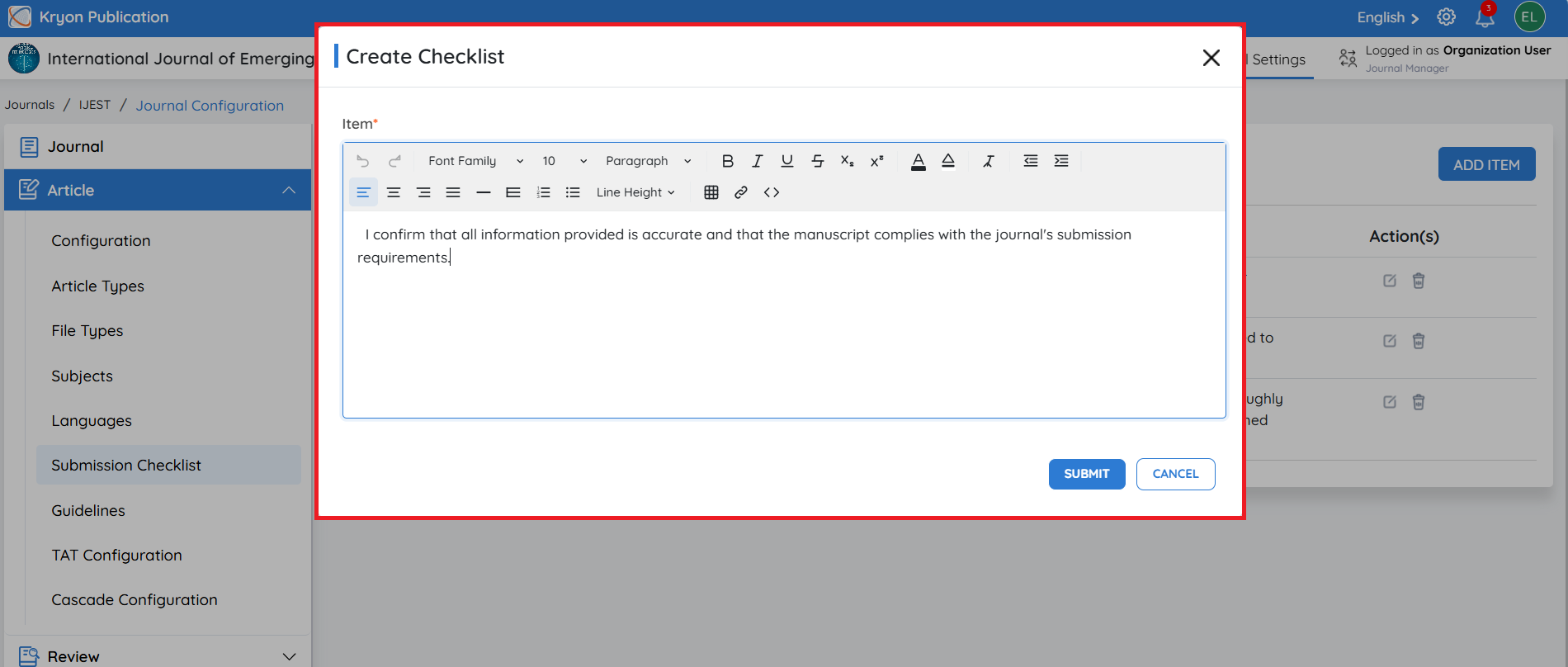
Step 2: Enter the Checklist Content
Provide the text that authors must review before submitting their manuscript.
Step 3: Save the Checklist Item
After entering all the required information, click Submit.
The new checklist item will be added to the submission checklist and displayed to authors according to the specified display position.
If required, you can reorder the submission checklist items by dragging and dropping them using the drag handle (☰) beside each item.
Word Count
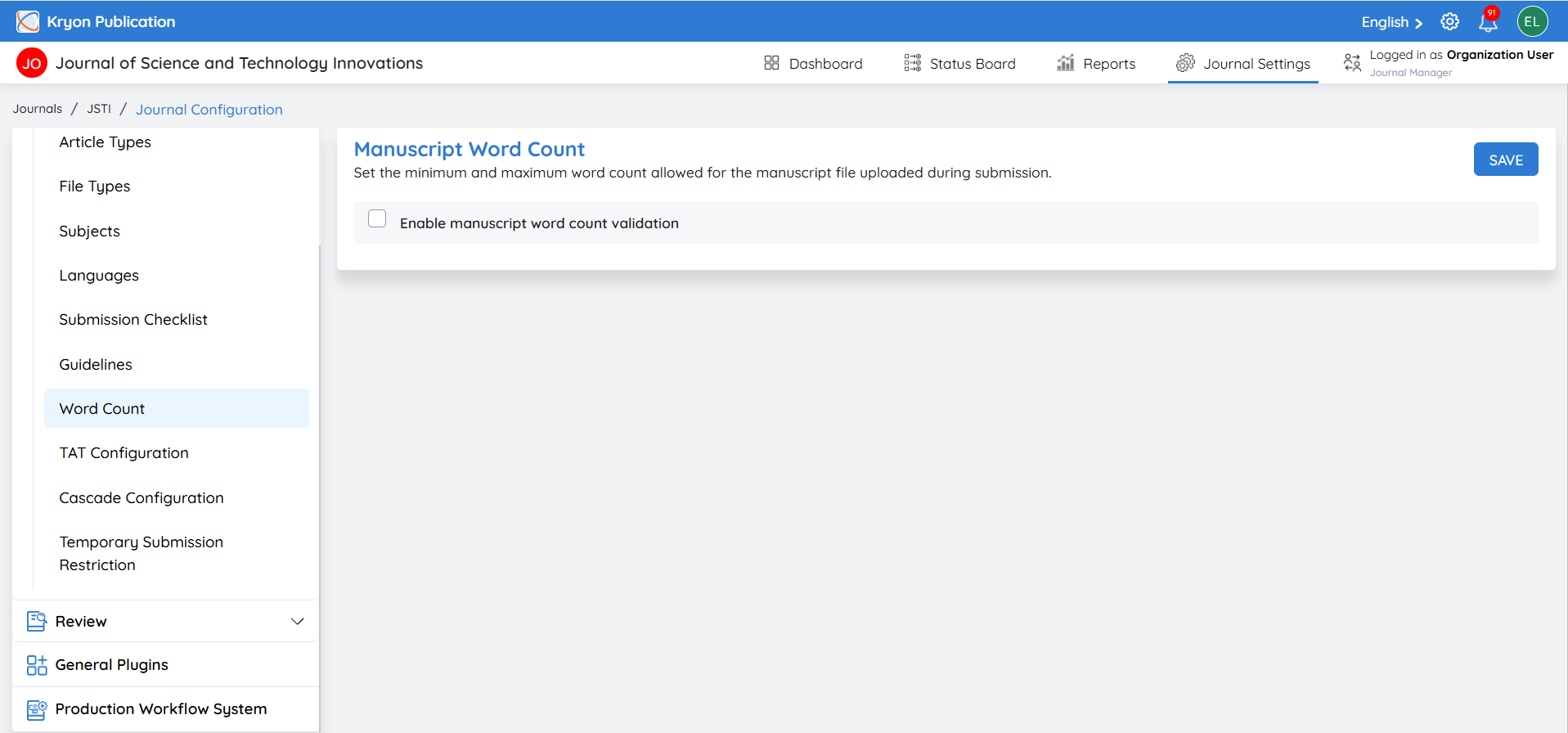
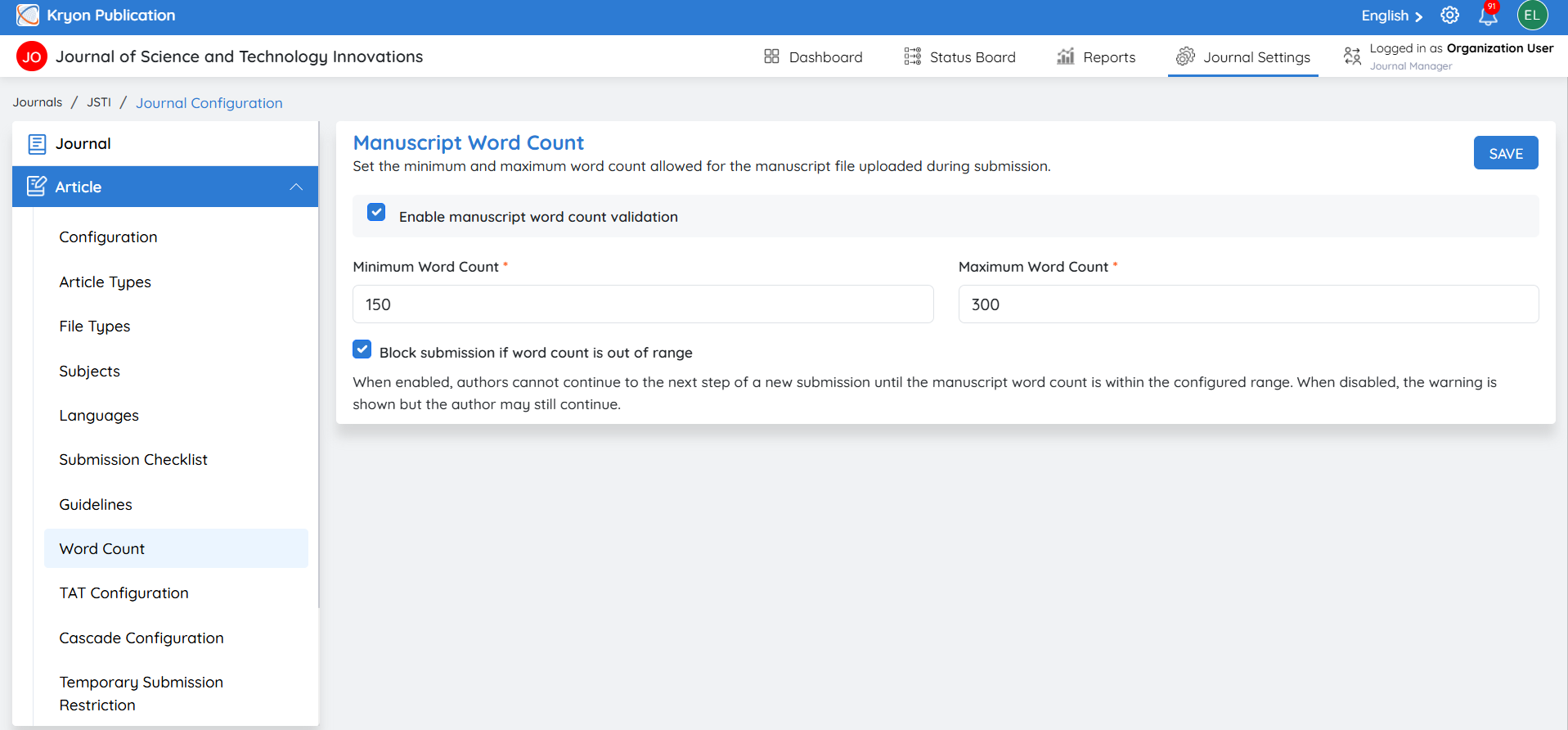
The Manuscript Word Count Validation feature automatically compares the total word count of the submitted manuscript with the minimum and maximum limits configured by the journal. This helps ensure that submissions meet the journal’s word-count requirements and reduces manual verification during initial screening.
How to Configure
Navigate to:
Journal Settings → Journal Configuration → Article → Word Count
-
Enable Manuscript Word Count Validation
Enable this option to activate word-count validation for manuscript submissions.
-
Minimum Word Count
Enter the minimum number of words required for the manuscript.
Example: 150 words.
-
Maximum Word Count
Enter the maximum number of words allowed for the manuscript.
Example: 300 words.
-
Block Submission if Word Count is Out of Range
a. Enabled: Authors cannot proceed to the next submission step when the total manuscript word count is outside the configured range.
b. Disabled: The system will notify the author that the manuscript is outside the configured word-count range, while allowing the submission to continue.
-
Save Configuration
Click Save to apply the word-count settings.
Example
If the Minimum Word Count is set to 150 and the Maximum Word Count is set to 300, Kryoni JMS will validate the total word count of the submitted manuscript against this range.
These values are provided as an example; you can configure the minimum and maximum word-count limits according to your journal’s requirements.
-
150–300 words: Meets the configured requirement.
-
Below 150 words: Does not meet the minimum requirement.
-
Above 300 words: Exceeds the maximum requirement.
The system will then apply the configured submission rule based on whether Block Submission if Word Count is Out of Range is enabled or disabled.
TAT Configuration
Overview
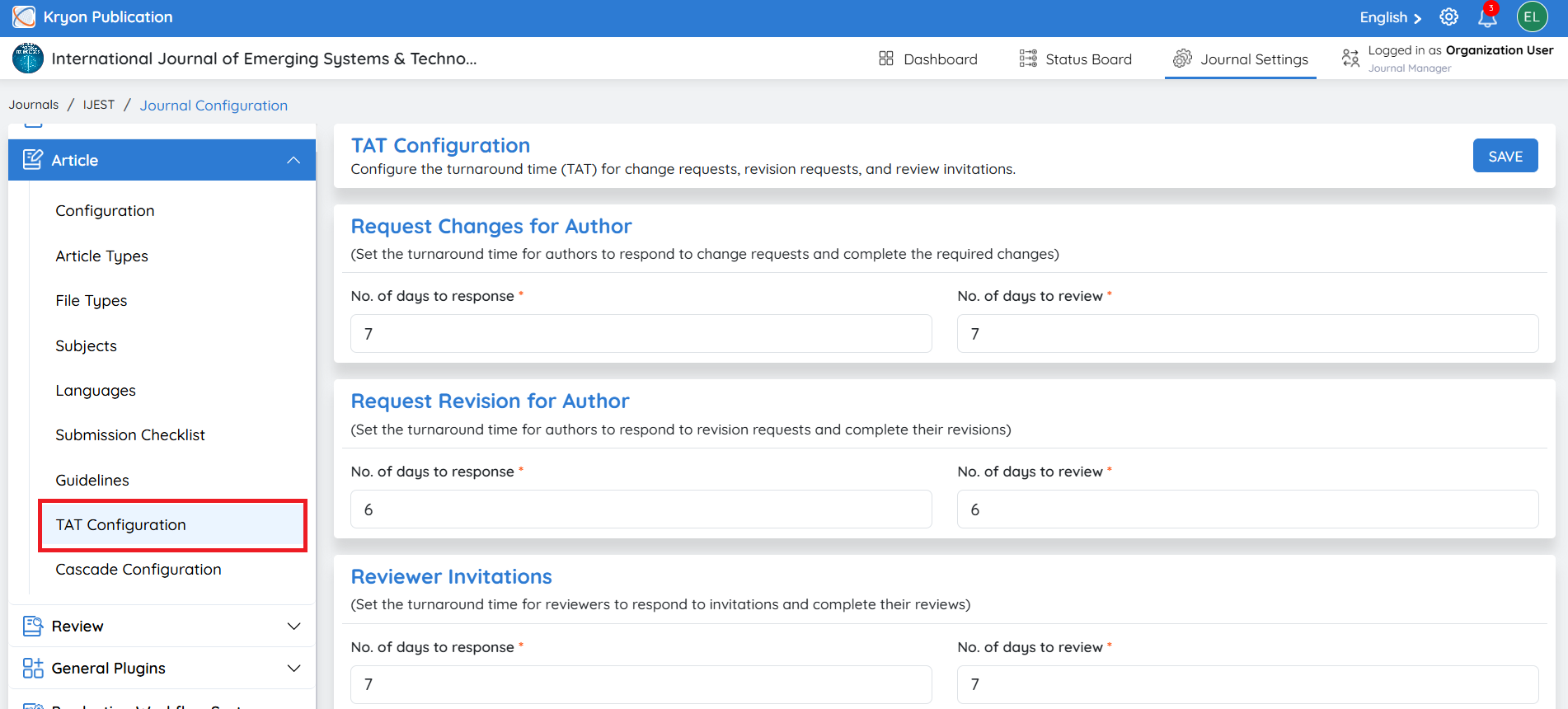
The Turnaround Time (TAT) Configuration allows journal administrators to define standard response timelines for authors and reviewers throughout the editorial workflow. These settings establish clear deadlines for responding to change requests, submitting revisions, accepting review invitations, and completing peer reviews.
Once configured, the TAT values are automatically applied to the corresponding workflow activities. Kryoni JMS calculates due dates, tracks deadlines, and sends automated reminder notifications, ensuring that every manuscript follows the journal's predefined timelines.
By configuring TAT values at the journal level, administrators eliminate the need for editors or journal managers to manually assign deadlines for every submission. This not only standardizes the editorial process but also reduces administrative effort and minimizes the risk of inconsistent turnaround times.
Benefits
-
Standardizes response timelines across all submissions.
-
Eliminates the need for editors or journal managers to manually set deadlines for each manuscript.
-
Automatically calculates due dates based on the configured TAT values.
-
Sends automated reminder notifications to authors and reviewers before deadlines.
-
Improves editorial workflow efficiency and reduces manual administrative work.
-
Helps ensure timely responses, faster editorial decisions, and shorter publication cycles.
-
Maintains consistency with the journal's editorial policies and service-level expectations.
Accessing TAT Configuration
-
Navigate to Journal Settings → Configuration.
-
Click Article.
-
Scroll to the TAT Configuration section.
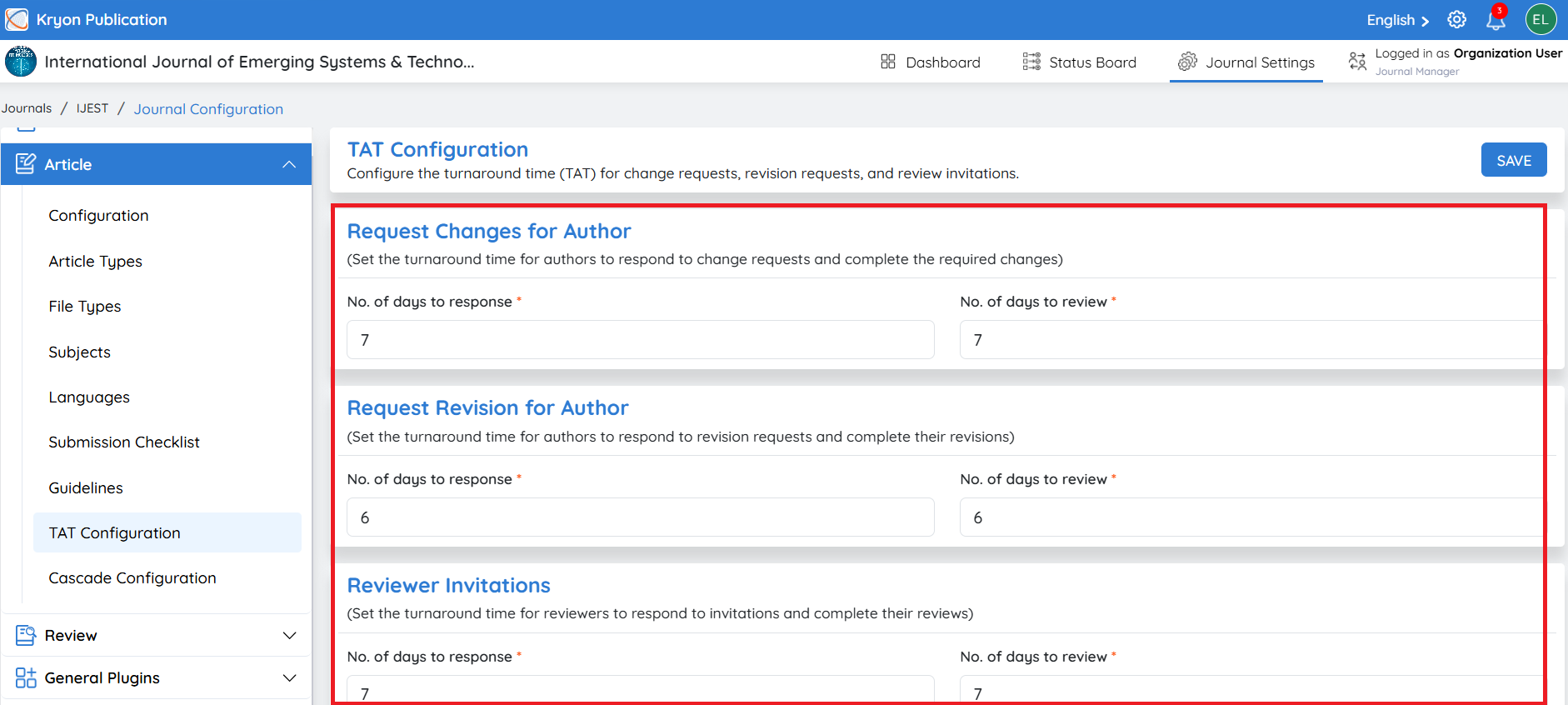
From this section, you can configure the turnaround times for Author Change Requests, Author Revision Requests, and Reviewer Invitations, ensuring that all future submissions follow the journal's predefined timelines.
Request Changes for Author
This setting defines the turnaround time for authors when editorial users request changes during the Submission stage.
No. of Days to Respond
Specify the number of days the author has to acknowledge the change request.
Example: 7 Days
No. of Days to Complete Changes
Specify the number of days the author has to submit the revised manuscript after accepting the change request.
Example: 7 Days
These values are configurable and can be modified at any time based on the journal's editorial policy.
Request Revision for Author
This setting defines the turnaround time for authors when revisions are requested after the peer review process.
No. of Days to Respond
Specify the number of days the author has to respond to the revision request.
Example: 6 Days
No. of Days to Complete Revisions
Specify the number of days the author has to submit the revised manuscript.
Example: 6 Days
Revision deadlines help ensure that manuscripts continue through the editorial workflow without unnecessary delays.
Reviewer Invitations
This setting defines the turnaround time for reviewers during the peer review process.
No. of Days to Respond
Specify the number of days reviewers have to accept or decline a review invitation.
Example: 10 Days
If the reviewer does not respond within the configured period, the editor can send reminders or invite an alternative reviewer, helping to avoid unnecessary delays in the review process.
No. of Days to Complete Review
Specify the number of days reviewers have to complete and submit their review after accepting the invitation.
Example: 25 Days
The review due date is automatically calculated based on the configured turnaround time. Kryoni JMS tracks the deadline and sends reminder notifications to reviewers, helping ensure that reviews are completed within the journal's expected timeframe.
Save Configuration
After configuring the turnaround times for authors and reviewers, click Save to apply the changes.
The updated TAT values will be used for all future change requests, revision requests, and reviewer invitations for the selected journal.
Tip: Configure realistic turnaround times that align with your journal's editorial workflow. Well-defined TAT settings help improve workflow efficiency, reduce publication delays, and ensure timely communication with authors and reviewers.
Cascade Configuration
Overview
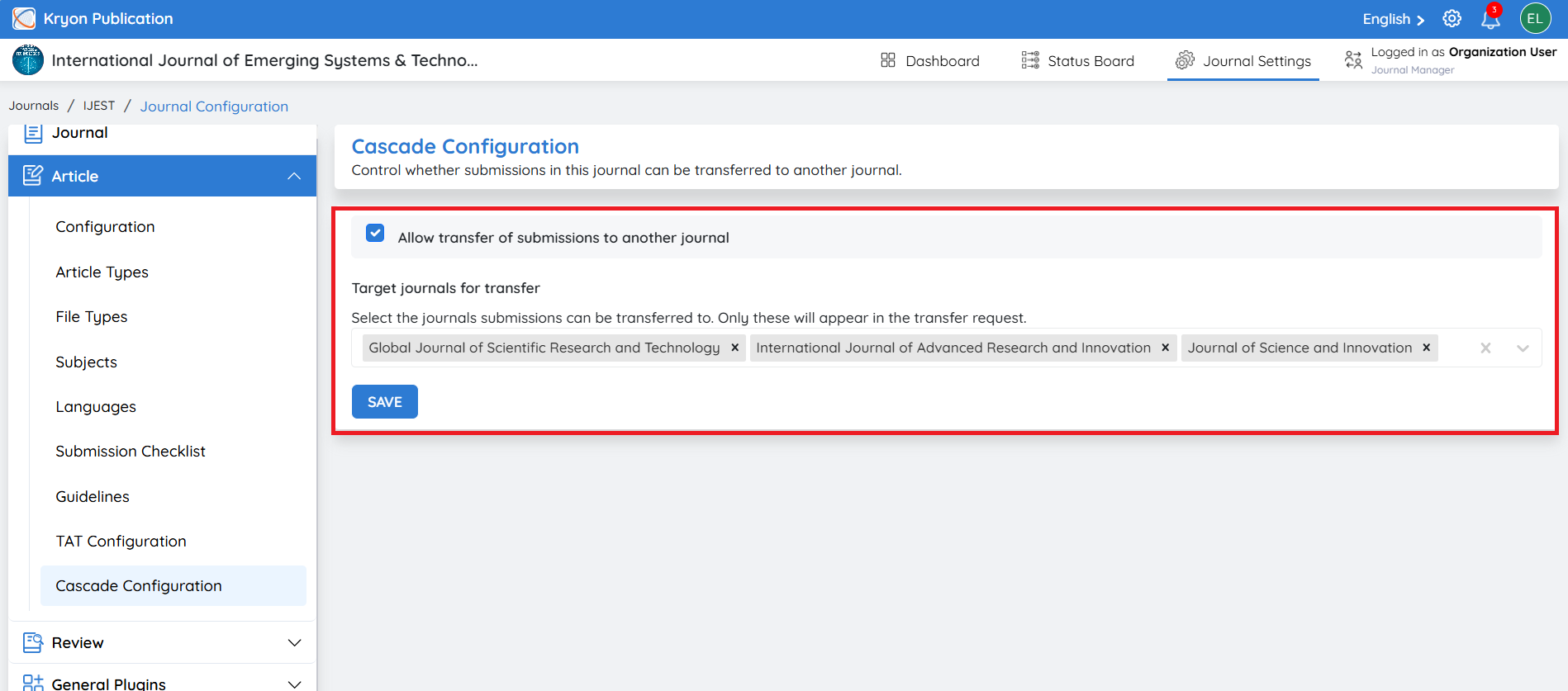
The Cascade Configuration feature allows publishers managing multiple journals within Kryoni JMS to transfer manuscripts from one journal to another without requiring authors to submit the manuscript again.
This feature is particularly useful for publishing organizations that manage a portfolio of journals covering different disciplines, scopes, or impact levels. If a manuscript is not suitable for one journal but is a good fit for another within the same publishing house, editors can transfer the submission while preserving its submission history, files, and metadata.
By enabling cascade transfers, publishers can improve the author experience, reduce duplicate submissions, and increase the likelihood of publishing suitable manuscripts within their journal portfolio.
Benefits
-
Enables seamless manuscript transfers between journals within the same publishing organization.
-
Eliminates the need for authors to resubmit the same manuscript.
-
Preserves manuscript files, metadata, and submission history during the transfer.
-
Reduces administrative effort for editors and journal managers.
-
Improves the author experience by avoiding duplicate submissions.
-
Helps publishers retain quality manuscripts within their journal portfolio.
-
Accelerates the editorial process by continuing the workflow in the destination journal.
Configuring Cascade Transfers
To access this section:
-
Navigate to Journal Settings → Configuration.
-
Click Article.
-
Scroll to the Cascade Configuration section.
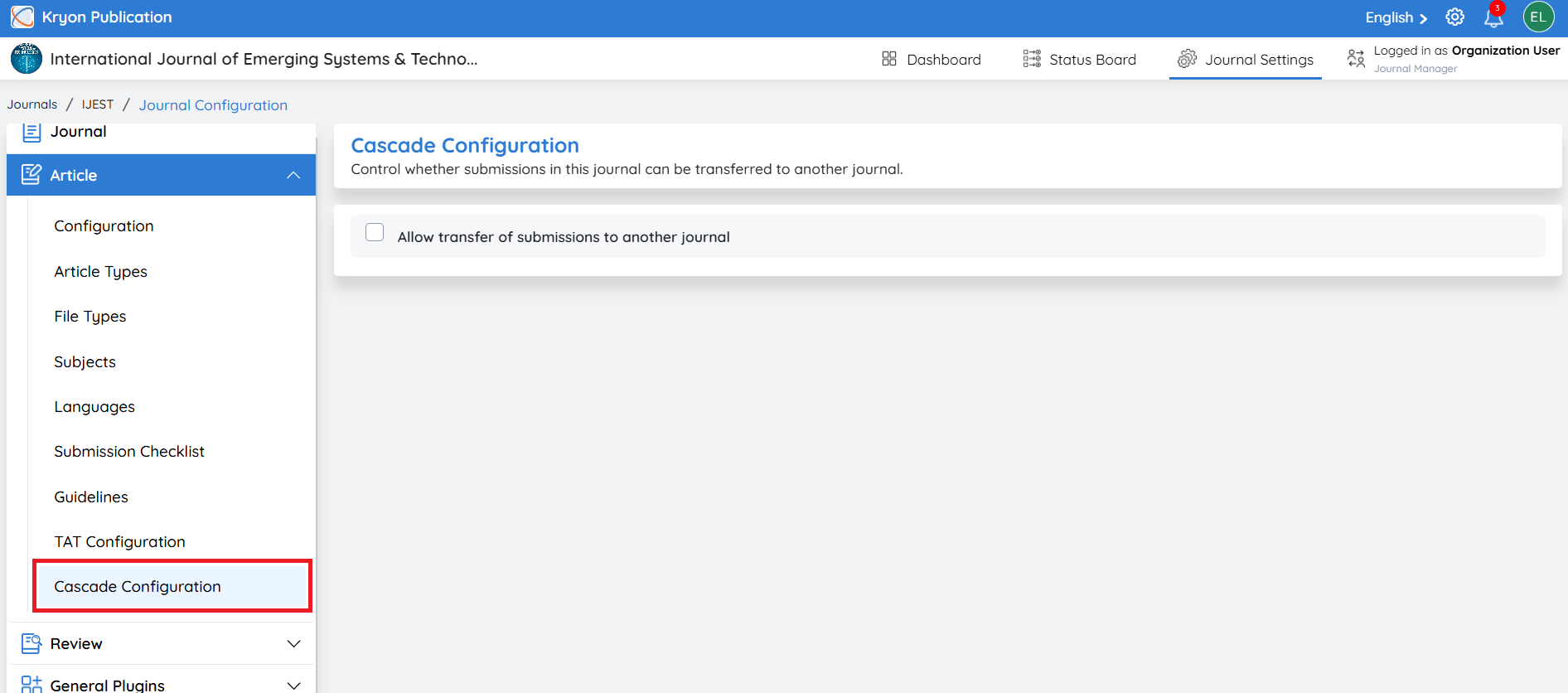
Allow Transfer of Submissions to Another Journal
This option controls whether manuscripts from the current journal can be transferred to another journal within the publishing organization.
-
Enabled: Editorial users can initiate manuscript transfers to eligible journals configured as transfer destinations.
-
Disabled: Manuscripts cannot be transferred from this journal, and the transfer option will not be available to editorial users.
Target Journals for Transfer
Use the Target Journals for Transfer option to specify which journals are eligible to receive transferred manuscripts from the current journal.
-
Click the Target Journals drop-down list.
-
Select one or more journals that should be available as transfer destinations.
-
After selecting the required journals, click Save to apply the configuration.
Only the journals selected in this list will appear as available options when an editorial user initiates a manuscript transfer request.
Example: A manuscript submitted to Journal A is found to be outside the journal's scope but is suitable for Journal B. Instead of asking the author to submit the manuscript again, the editor can transfer the manuscript directly to Journal B. The manuscript files, metadata, submission history, and workflow information are retained, allowing the editorial process to continue seamlessly in the destination journal.
Temporary Submission Restriction
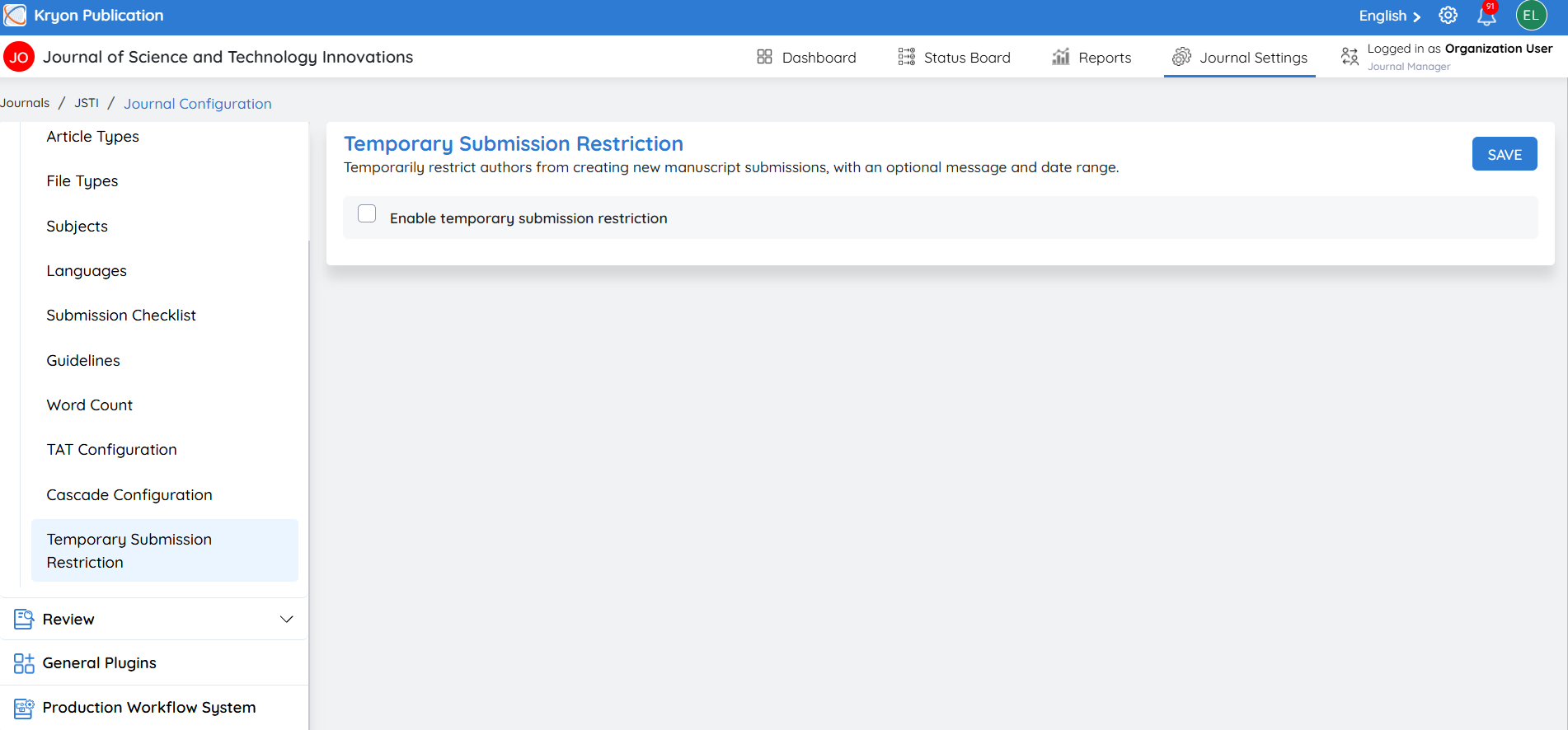
The Temporary Submission Restriction feature allows journal administrators to temporarily manage new manuscript submissions for a specified date range. Administrators can either block new submissions completely or display an informational message while allowing authors to continue.
How to Access
Navigate to: Journal Settings → Journal Configuration → Article → Temporary Submission Restriction
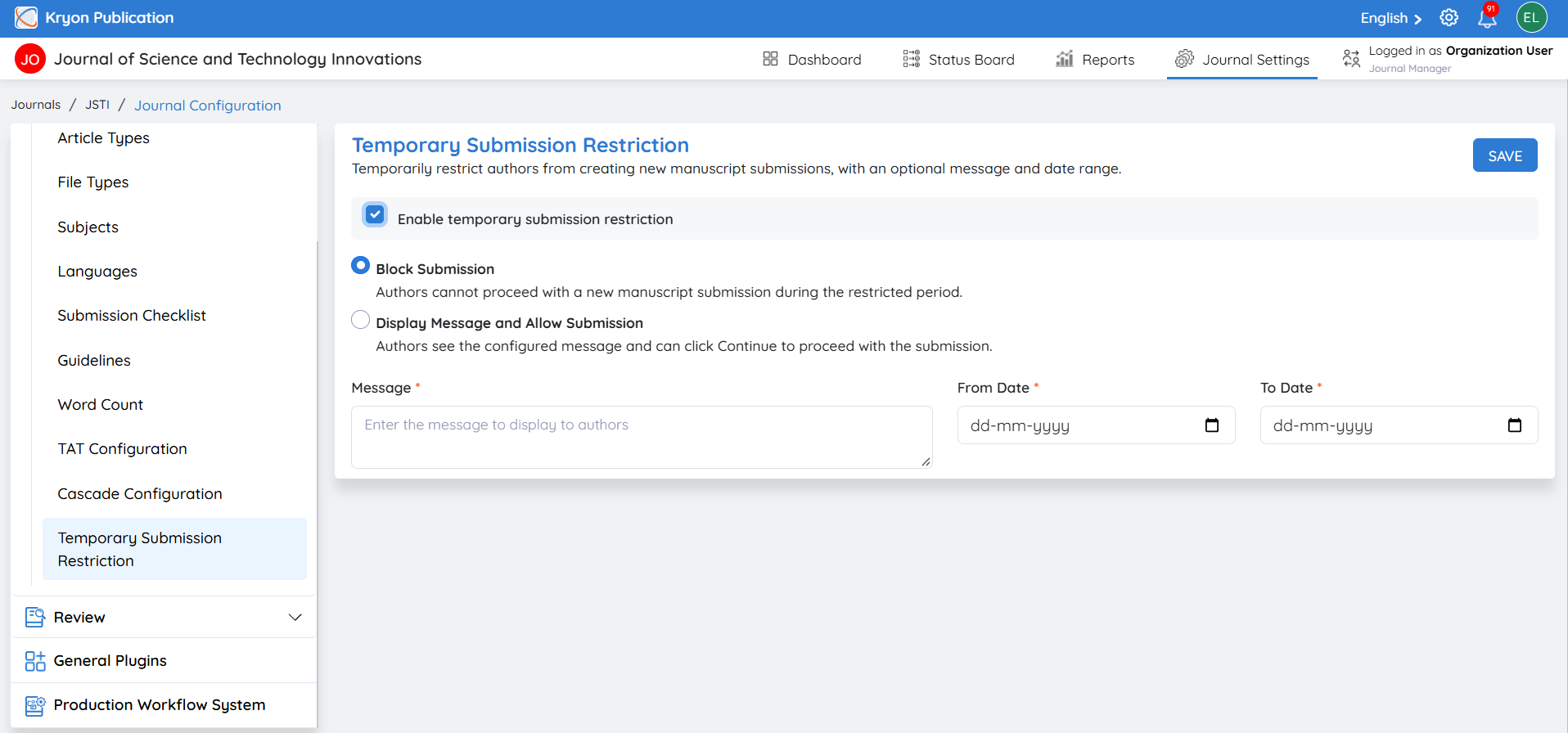
Enable Temporary Submission Restriction and select one of the following options.
Option 1: Block Submission
Select Block Submission when authors should not be allowed to create new manuscript submissions during the specified period.
Configuration
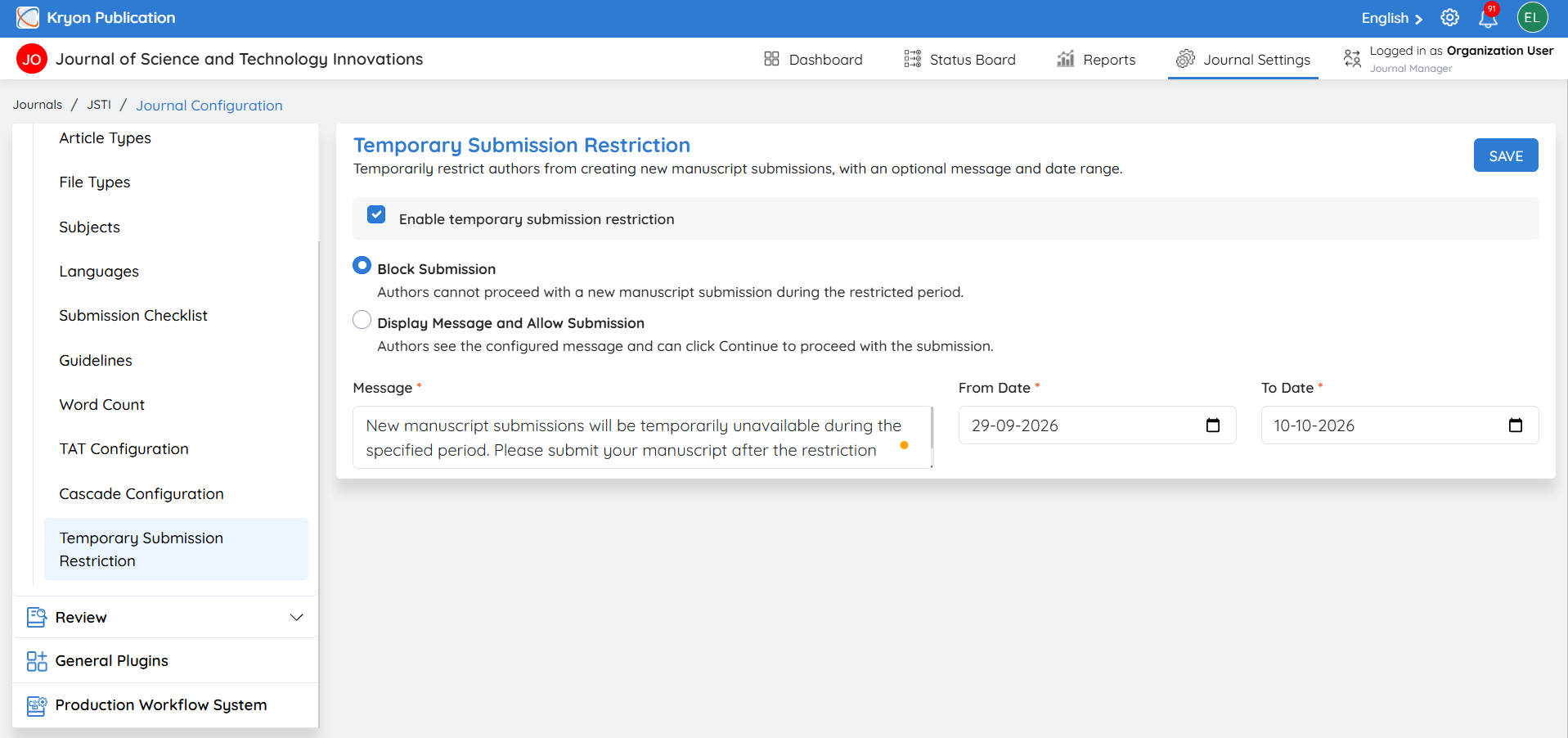
1. Select Block Submission
Choose Block Submission.
2. Enter Message
Enter the message that authors should see when they attempt to submit a new manuscript.
Example Message:
New manuscript submissions will be temporarily unavailable during the specified period. Please submit your manuscript after the restriction period ends. Thank you for your understanding.
3. Select From Date
Set the date from which new manuscript submissions should be restricted.
Example: 29-09-2026
4. Select To Date
Set the date until which the submission restriction should remain active.
Example: 10-10-2026
5. Click Save
Click Save to apply the restriction.
Result
Authors will see the configured message and will not be able to proceed with a new manuscript submission.
Option 2: Display Message and Allow Submission
Select Display Message and Allow Submission when you want to provide important information to authors without restricting manuscript submission.
Configuration
1. Select Display Message and Allow Submission
Choose Display Message and Allow Submission.
2. Enter Message
Enter the information that should be displayed to authors.
Example Message:
Please note that manuscript processing may take longer than usual during the specified period. You may continue with your submission. Thank you for your understanding.
3. Select From Date
Set the date from which the message should be displayed.
Example: 29-9-2026
4. Select To Date
Set the date until which the message should be displayed.
Example: 10-10-2026
5. Click Save
Click Save to apply the configuration.
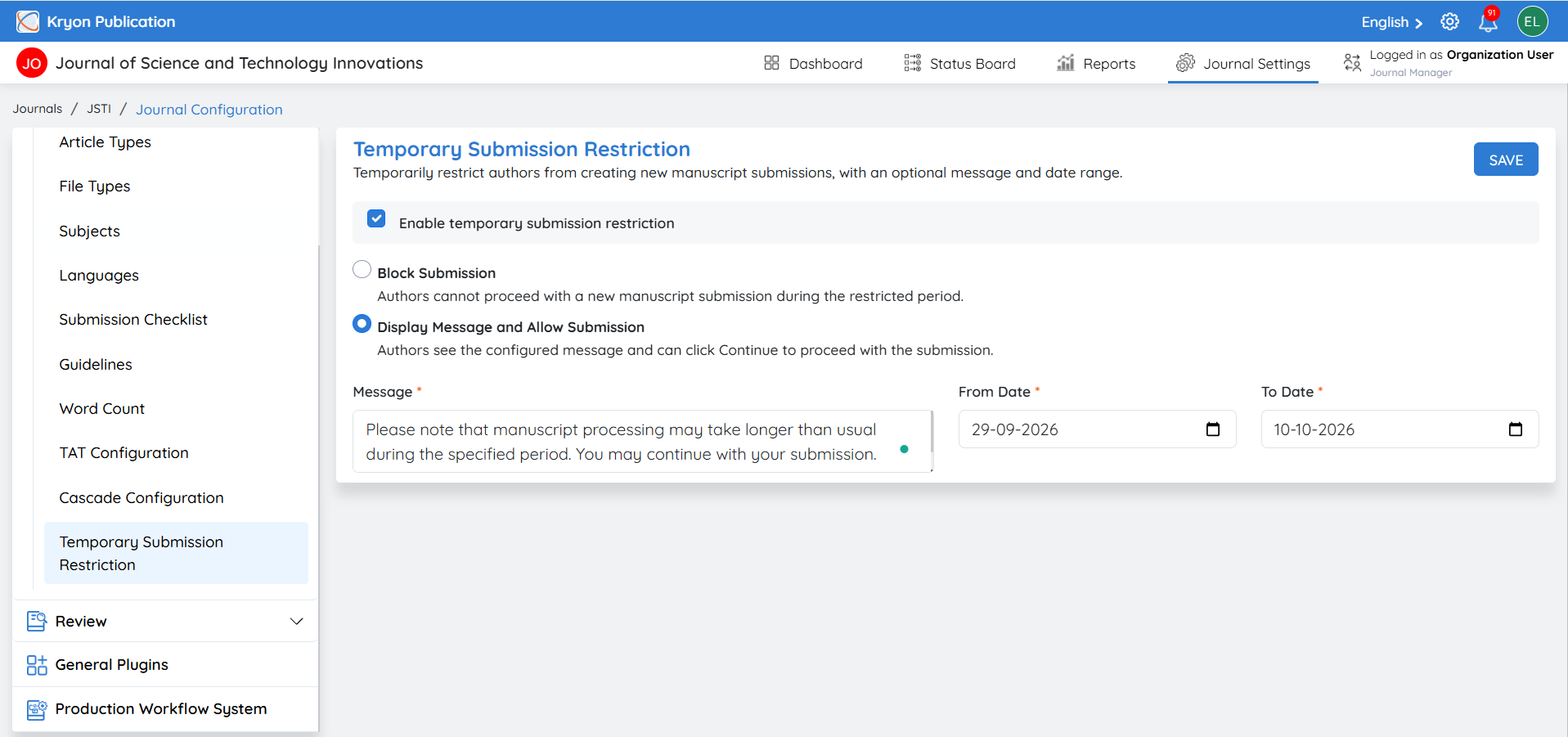
Result
From 01-10-2026 to 07-10-2026, authors will see the configured message. They can select Continue and proceed with their manuscript submission as usual.