Review Configuration
Overview
The Review Configuration section allows journal administrators to define how the peer review process is managed within the journal. These settings control reviewer forms, review workflow behavior, and editorial permissions during the review process.
By configuring these options, journals can standardize reviewer evaluations, simplify editorial workflows, and provide flexibility for handling reviews submitted outside the system.
To access this section:
-
Navigate to Journal Settings → JournalConfiguration.
-
Click Review - Configuration.
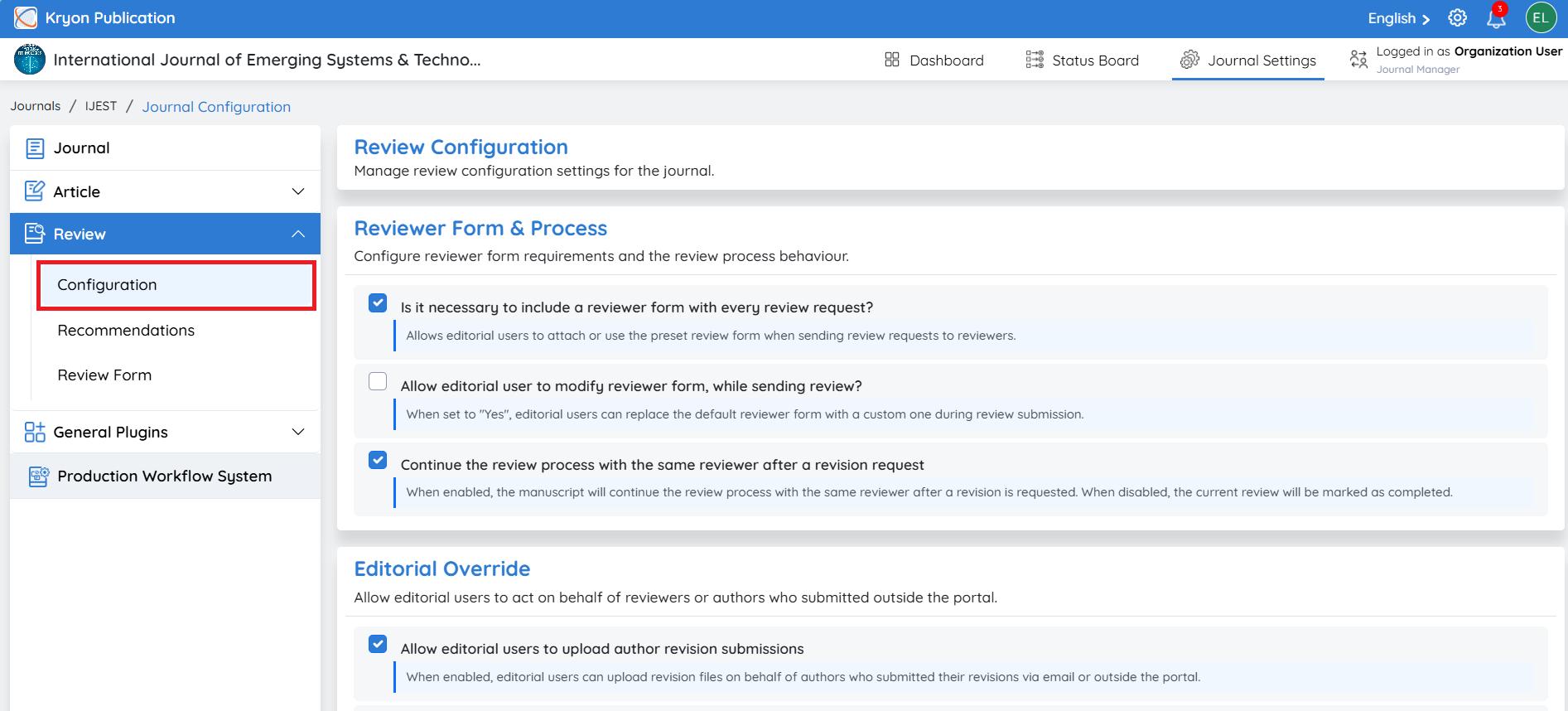
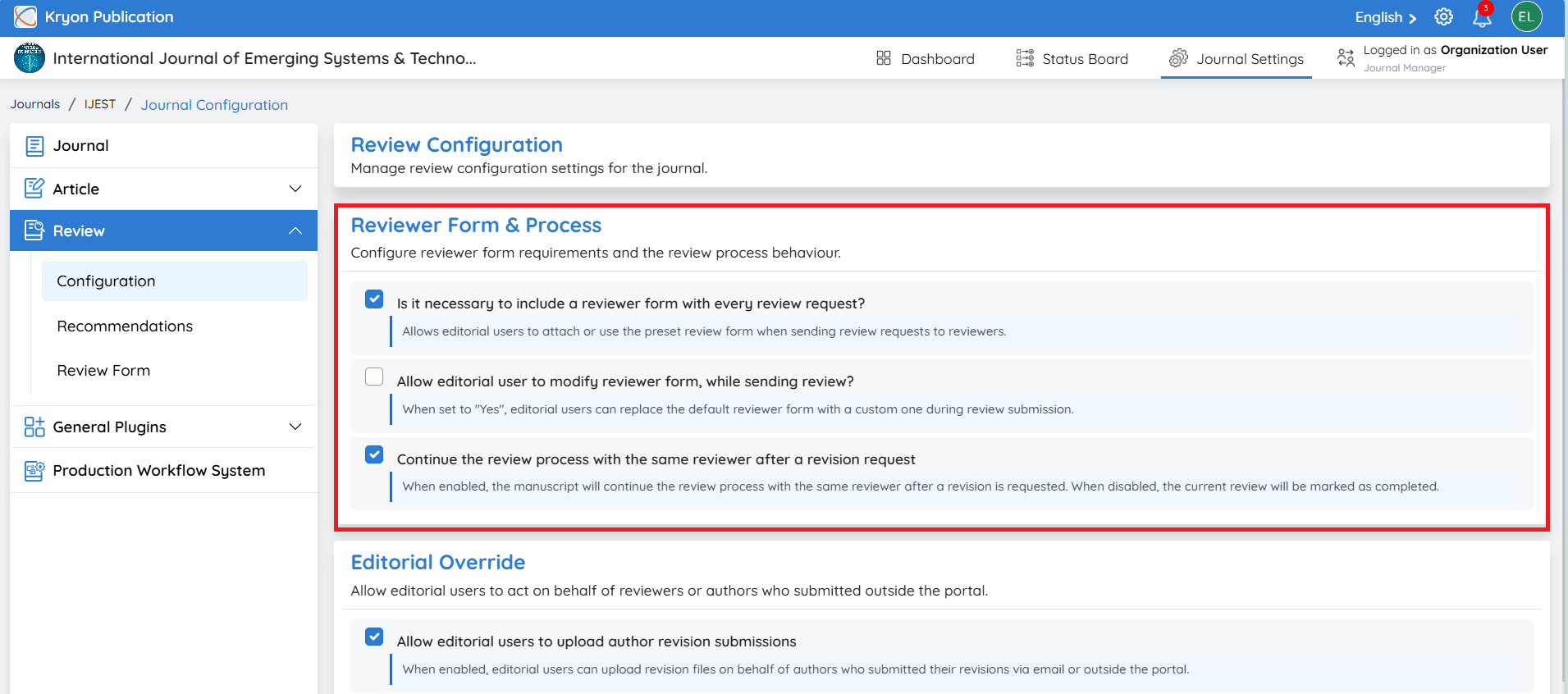
Reviewer Form & Process
The Reviewer Form & Process settings determine how reviewer forms are used and how the review workflow behaves during manuscript evaluation.
Is it necessary to include a reviewer form with every review request?
This setting determines whether a reviewer evaluation form must be included when sending review invitations.
-
Enabled: Every review request must include a reviewer form. Editorial users can attach the journal's predefined review form to help reviewers provide structured and consistent feedback.
-
Disabled: Review requests can be sent without attaching a reviewer form, allowing reviewers to provide comments without a predefined evaluation template.
Allow editorial users to modify the reviewer form while sending a review request
This setting controls whether editorial users can replace the journal's default reviewer form with another review form when inviting reviewers.
-
Enabled: Editorial users can select or replace the default reviewer form with a different or customized form before sending the review invitation.
-
Disabled: The journal's default reviewer form is automatically used for all review requests and cannot be changed.
Continue the review process with the same reviewer after a revision request
This setting determines how reviewer assignments are handled after an author submits a revised manuscript.
-
Enabled: The revised manuscript can be reassigned to the same reviewer(s), allowing them to evaluate the updated version and verify whether their previous comments have been addressed.
-
Disabled: The existing review assignment is marked as completed after the revision request. Editorial users can assign the manuscript to the same reviewer again or select a different reviewer for the next review cycle.
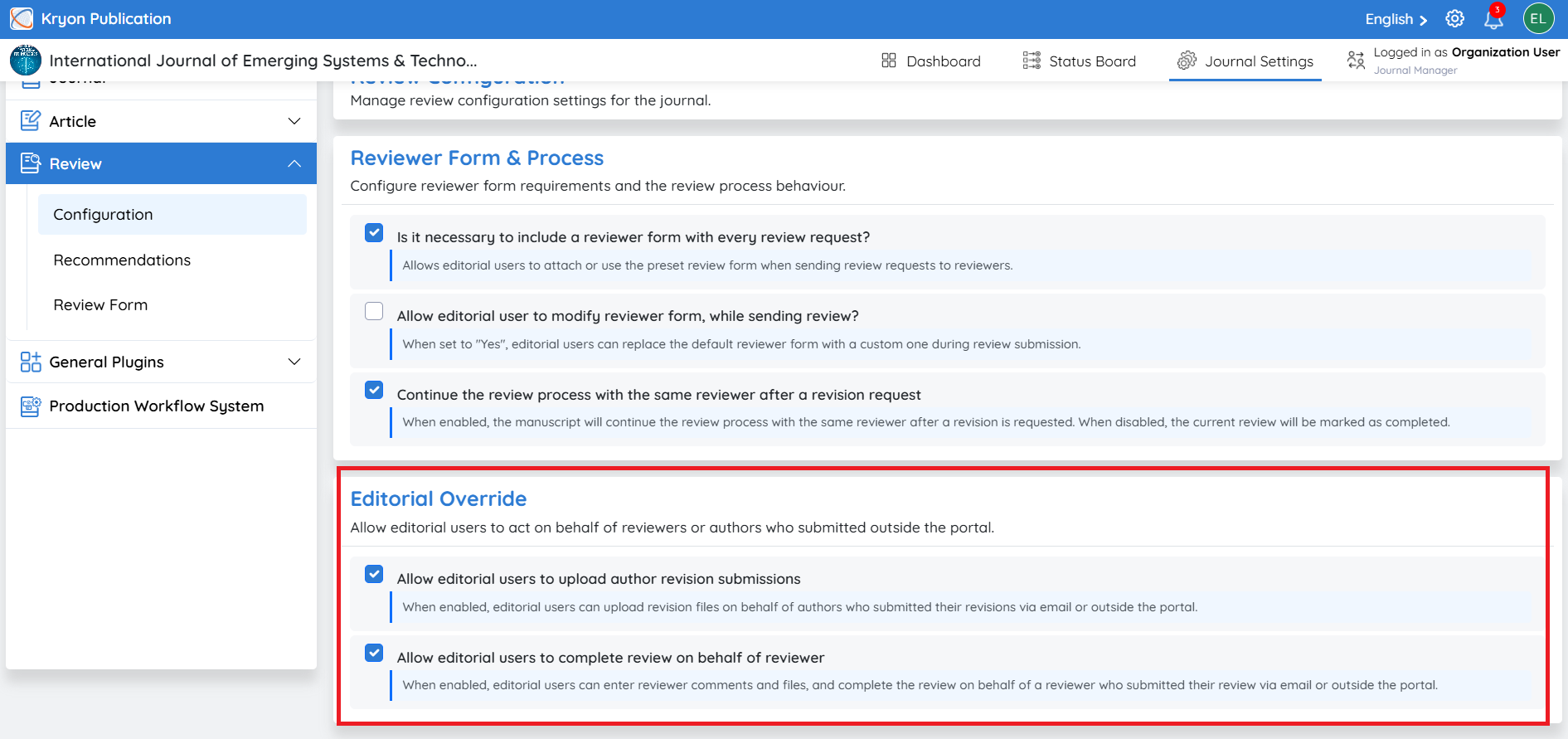
Editorial Override
The Editorial Override settings allow authorized editorial users to perform certain actions on behalf of authors or reviewers when responses are received outside the Kryoni JMS portal.
This feature is particularly useful when participants submit documents or review comments via email, discussion or other approved communication methods.
Allow editorial users to upload author revision submissions
This setting allows editorial users to upload revised manuscript files on behalf of authors.
-
Enabled: Editorial users can upload revision files received through discussion, email or other communication methods.
-
Disabled: Authors must upload all revision files through their Author Portal.
-
Benefit: Ensures that all manuscript versions are stored within Kryoni JMS, even when revisions are received outside the system.
Allow editorial users to complete review on behalf of a reviewer
This setting allows editorial users to record reviewer feedback when the review is submitted outside the portal.
-
Enabled: Editorial users can enter reviewer comments, upload review documents, and complete the review on behalf of reviewers who submit their evaluations via email or other offline methods.
-
Disabled: Reviewers must submit their reviews directly through the Reviewer Portal.
-
Benefit: Maintains a complete and accurate review history within Kryoni JMS while accommodating reviewers who are unable to use the online review portal.
When an editorial user performs an action on behalf of an author or reviewer (such as uploading revision files or completing a review), Kryoni JMS automatically records the action in the workflow history and sends email notifications to the respective participants. This ensures that authors, reviewers, and editorial users are informed of the action taken, maintaining transparency, accountability, and a complete audit trail throughout the editorial process.
Review Recommendations
Overview
The Review Recommendations section allows journal administrators to configure the recommendation options available to reviewers when submitting their evaluations. These recommendations help reviewers communicate their overall assessment of a manuscript and assist editors in making informed editorial decisions.
Each recommendation consists of a title, description, and status. Administrators can create new recommendations, edit existing ones, enable or disable recommendations, and arrange their display order to align with the journal's peer review policy.
To access this section:
-
Navigate to Journal Settings → Review
-
Open the Review Recommendations section.
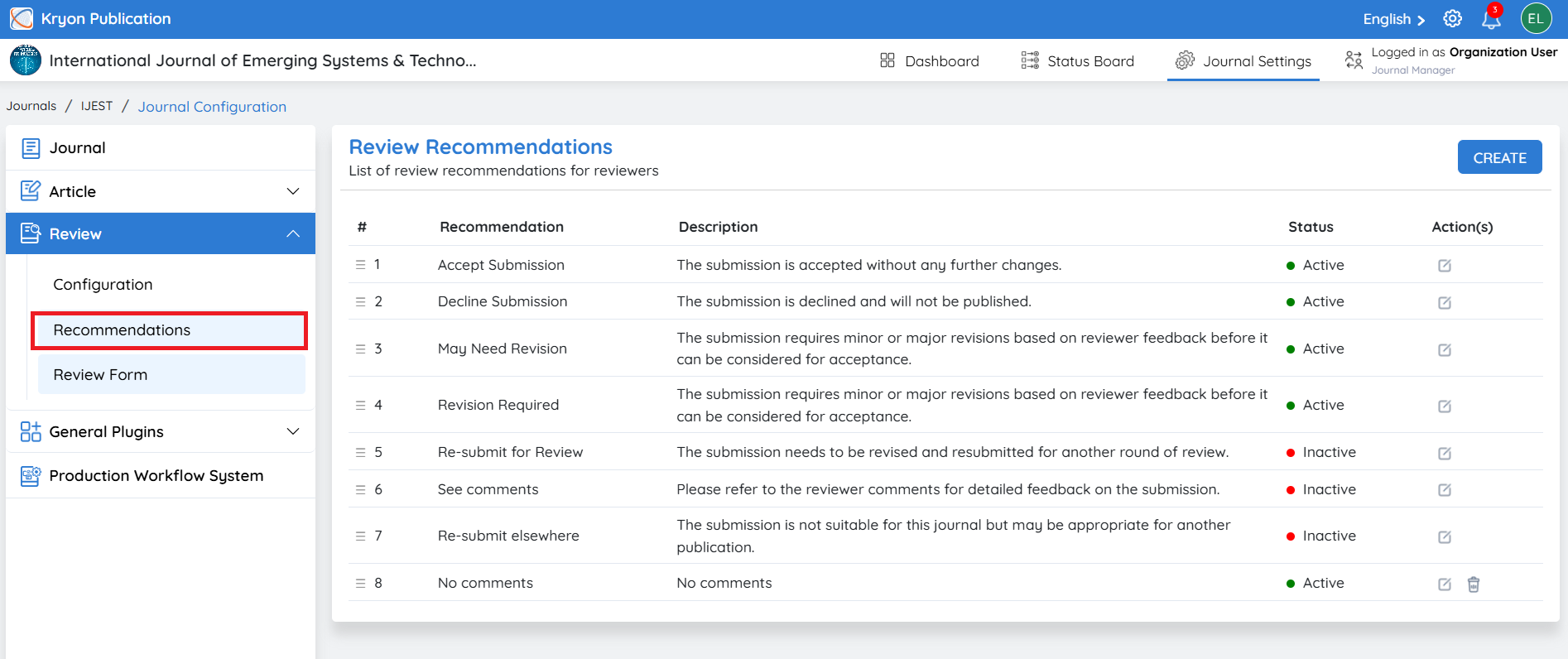
Managing Default Review Recommendations
Kryoni JMS provides a set of default review recommendations that are available immediately after journal creation.
To modify an existing recommendation:
-
Locate the recommendation in the list.
-
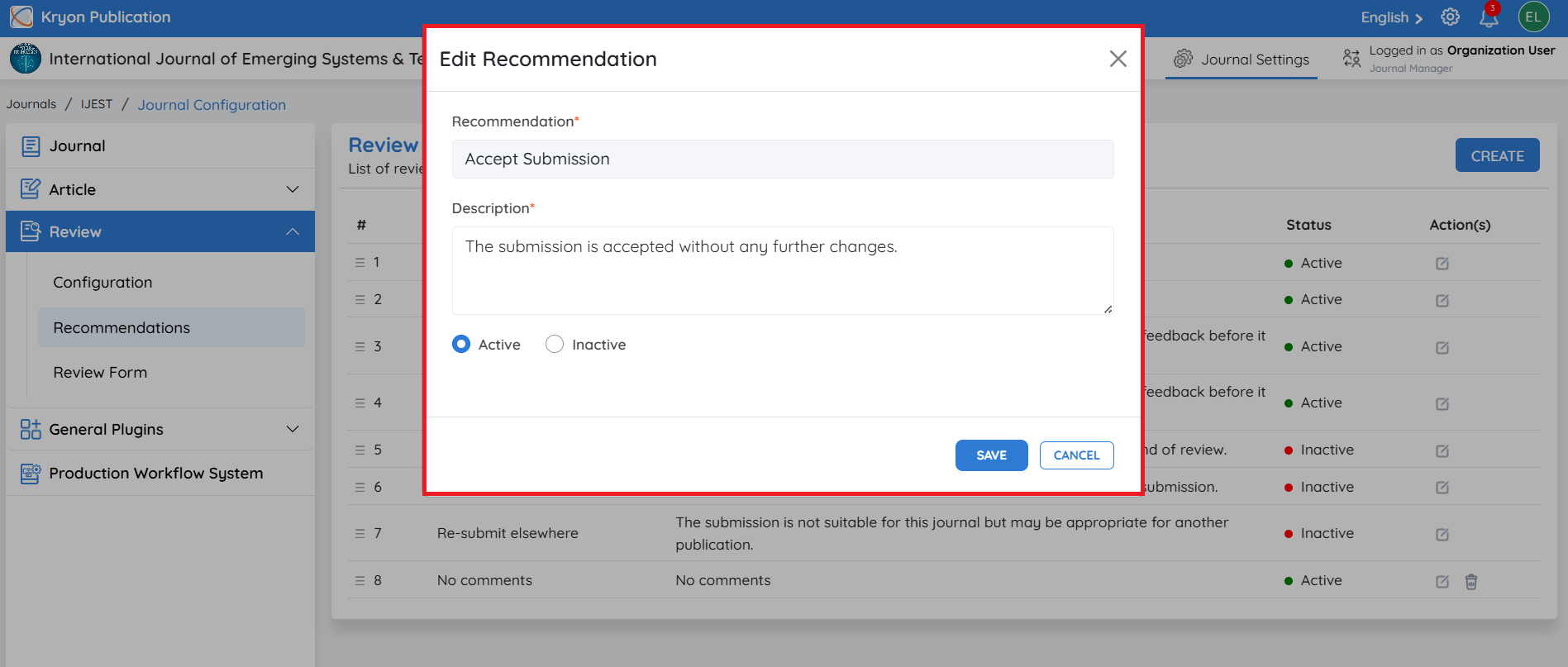
Click the Edit icon under the Actions column
-
Update the Recommendation, Description, or Status as required.
-
Click Save to apply the changes.
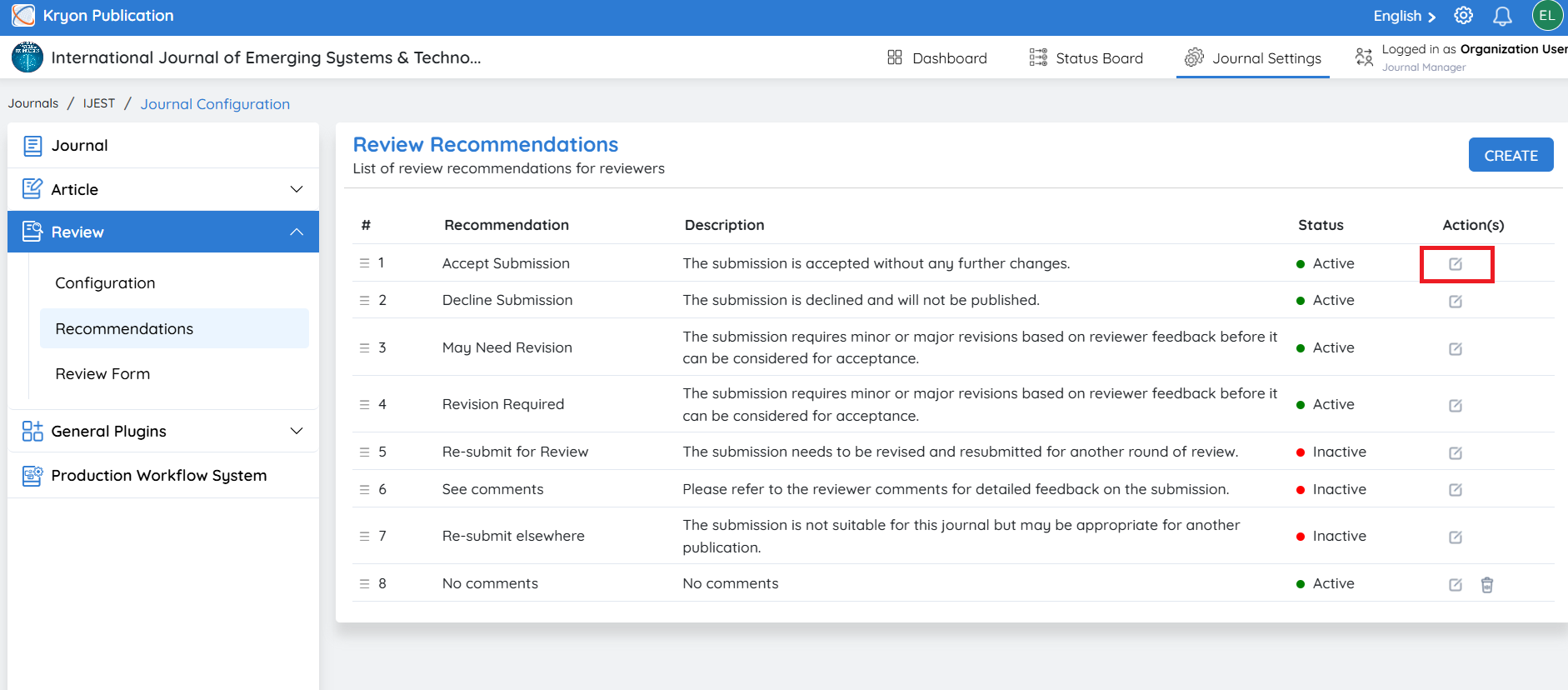
You can also activate or deactivate a recommendation by changing its status.
-
Active – The recommendation is available for reviewers to select during manuscript evaluation.
-
Inactive – The recommendation is hidden from reviewers but remains available in the system and can be reactivated at any time.
Only Active recommendations are displayed to reviewers during the review process.
Creating a New Review Recommendation
If you want to add a recommendation that is not included in the default list, you can create a custom recommendation.
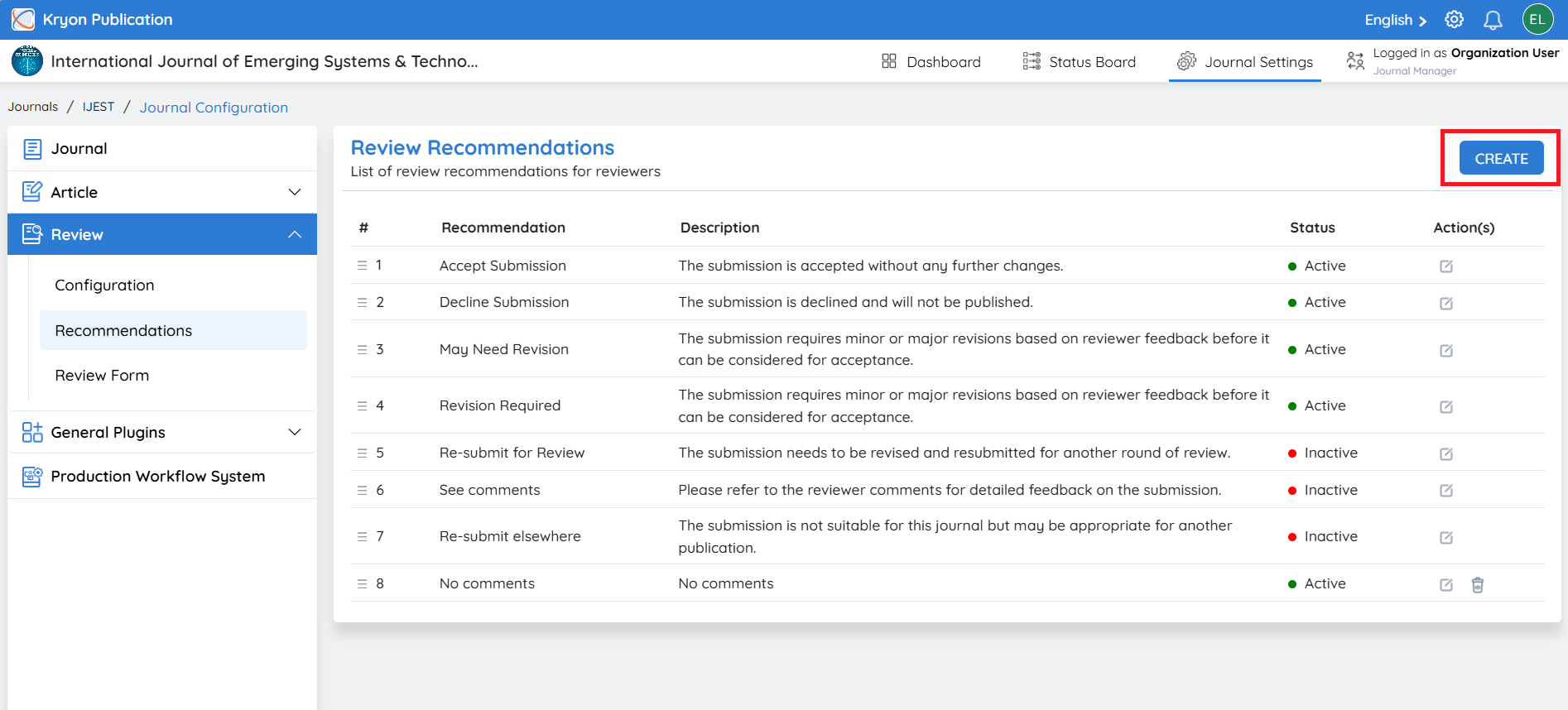
Step 1: Click Create
Click the Create button in the Review Recommendations section.
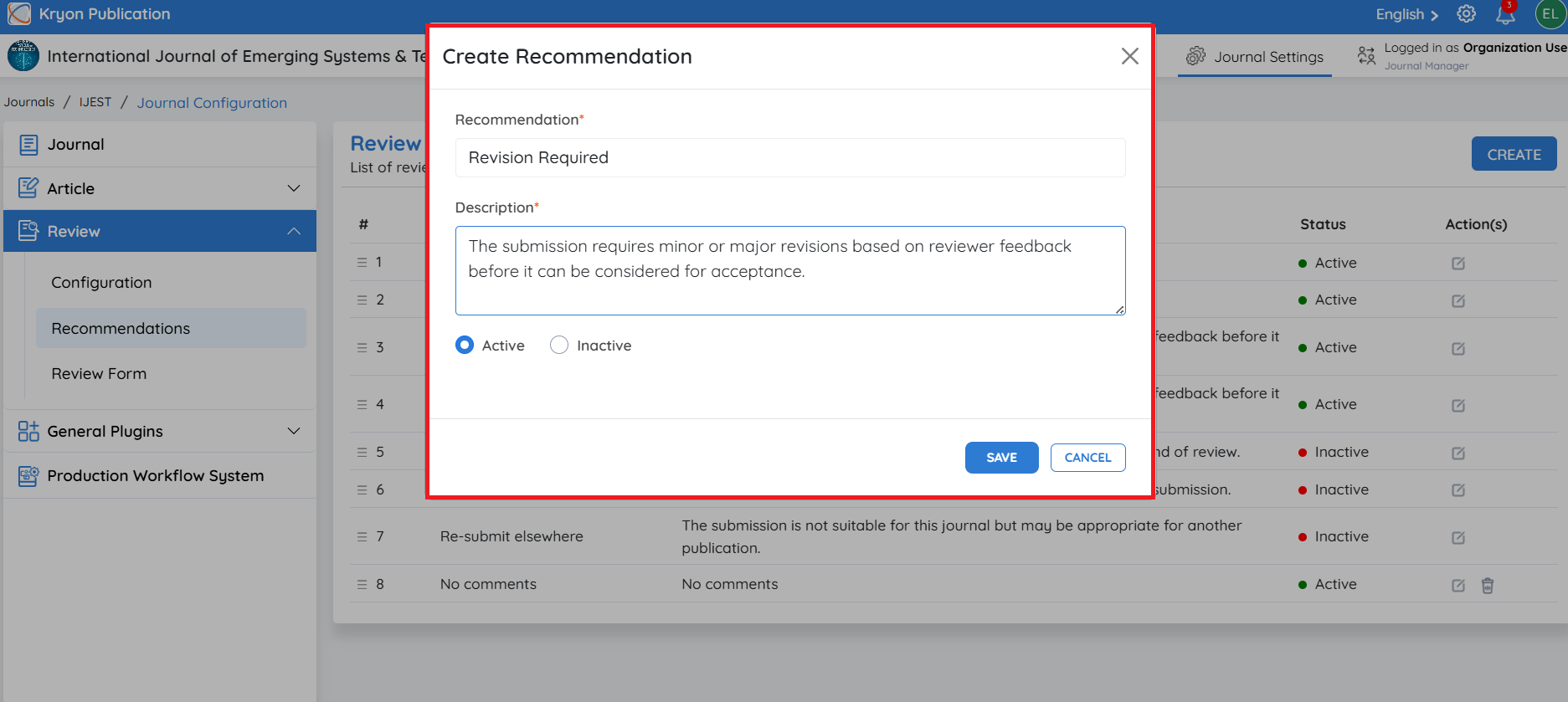
Step 2: Enter the Recommendation
In the Recommendation field, enter the title that will be displayed to reviewers.
Examples:
-
Accept Submission
-
Minor Revision
Step 3: Enter the Description
Provide a brief description explaining the purpose of the recommendation and when reviewers should select it.
Step 4: Set the Status
Select the status for the recommendation.
-
Active – The recommendation is available for reviewers during manuscript evaluation.
-
Inactive – The recommendation is hidden from reviewers until it is activated.
Step 5: Save the Recommendation
After entering all the required information, click Save.
The new recommendation will be added to the Review Recommendations list and will be available to reviewers if its status is set to Active.
Tip: You can reorder the recommendations at any time by dragging the ☰ (drag handle) beside each recommendation. The updated order determines how the recommendations are displayed to reviewers during the review process.
Reviewer Form
Overview
The Reviewer Form section allows journal administrators to configure the type of review form used when sending review invitations. The selected reviewer form determines how reviewers submit their evaluations, comments, recommendations, and supporting files during the peer review process.
Kryoni JMS supports two types of reviewer forms:
-
Default Reviewer Form
-
Dynamic Reviewer Form
To access this section:
-
Navigate to Journal Settings → Review.
-
Open the Reviewer Form section.
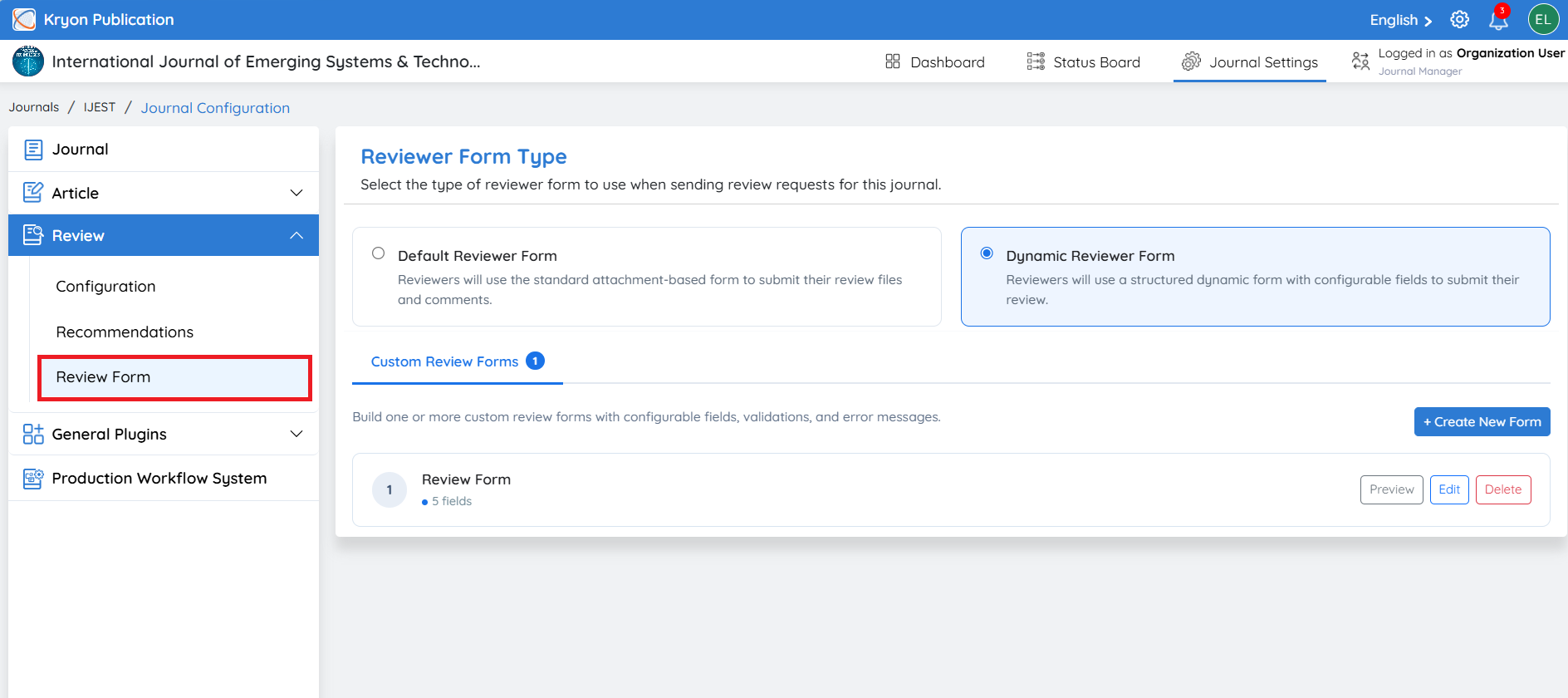
Reviewer Form Type
Select the reviewer form that will be used for all review requests in the selected journal.
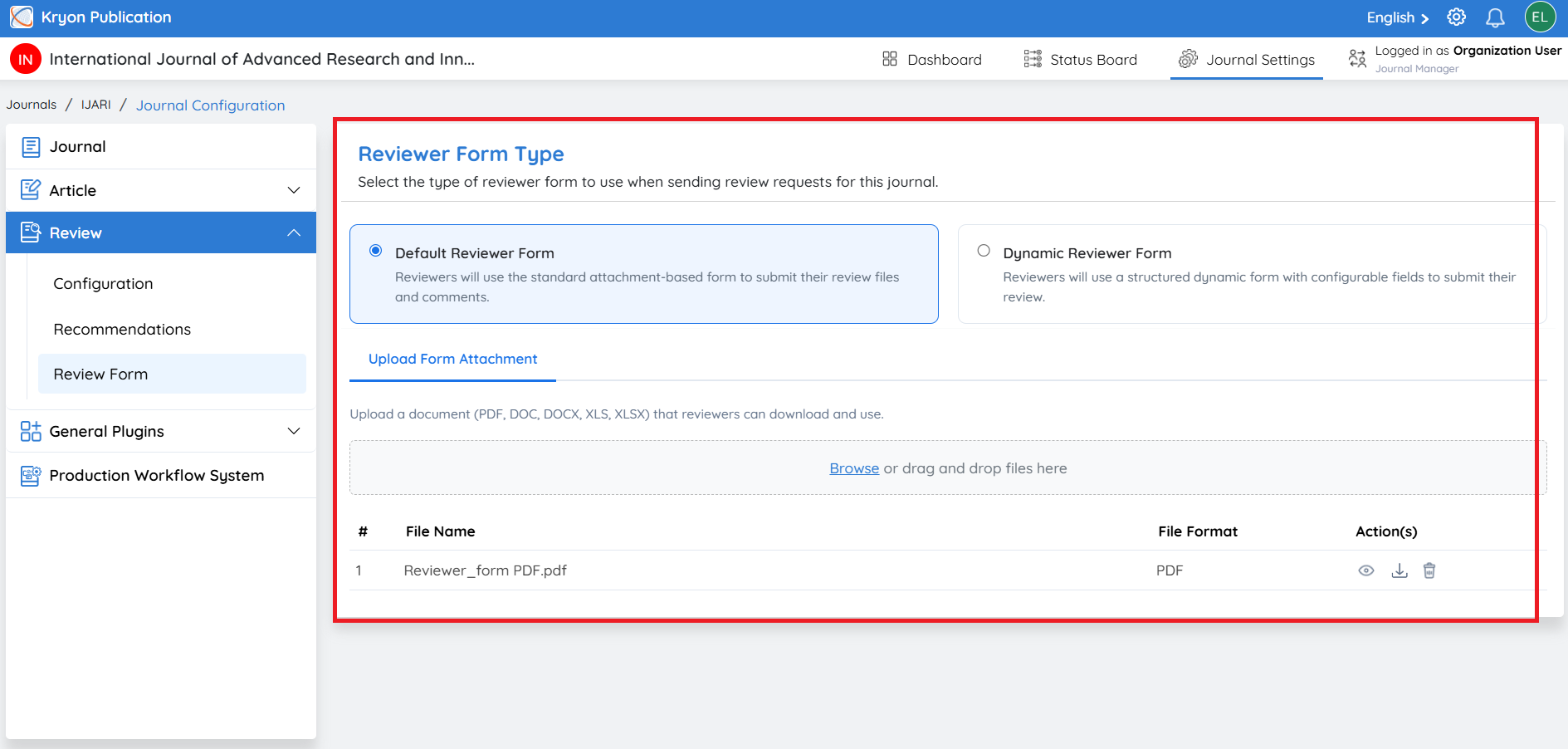
Default Reviewer Form
The Default Reviewer Form uses a standard attachment-based review process.
When this option is selected:
-
Reviewers receive a predefined review form as an attachment with the review invitation.
-
The reviewer downloads the form, completes the evaluation, and uploads the completed review form along with any supporting review files and recommendation.
This option is suitable for journals that prefer using standardized review templates or offline review forms.
Upload Form Attachment
To configure the default reviewer form:
-
Select Default Reviewer Form.
-
Click Upload Form Attachment.
-
Upload the reviewer form template (for example, a PDF, DOC, or DOCX file).
The uploaded form will be automatically attached to all future review invitations for the journal.
Replacing or Deleting the Reviewer Form
If you need to replace the existing reviewer form:
-
Delete the current reviewer form attachment.
-
Click Upload Form Attachment.
-
Upload the new reviewer form.
Only one reviewer form attachment can be configured for a journal at a time. To upload a new reviewer form, you must first remove the existing attachment.
Dynamic Reviewer Form
The Dynamic Reviewer Form provides an interactive, web-based review experience within Kryoni JMS.
When this option is selected:
-
Reviewers complete their evaluation directly in the Reviewer Portal.
-
Administrators can configure custom review questions and evaluation criteria.
-
Reviewers submit their comments, ratings, recommendations, and responses using the online form without downloading or uploading documents.
This option offers a more streamlined and standardized review process while improving data consistency and reducing manual document handling.
Benefits of the Dynamic Reviewer Form
-
Eliminates the need to download and upload review forms.
-
Standardizes reviewer feedback using configurable questions and evaluation fields.
-
Improves the reviewer experience with an online review interface.
-
Reduces manual document management.
-
Enables journals to collect structured review data for reporting and analysis.
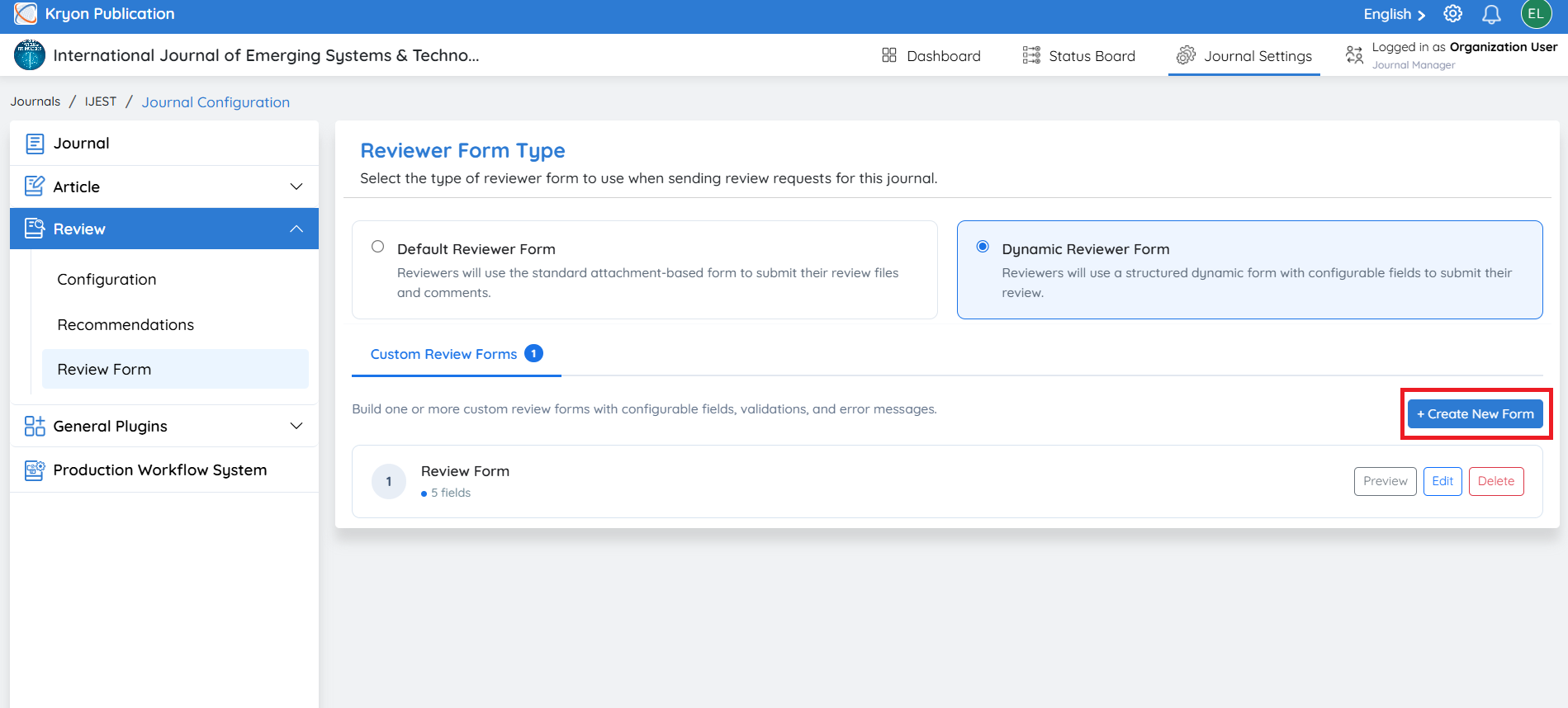
Creating a Custom Review Form
Step 1: Enter Form Details
Provide the basic information for the review form.
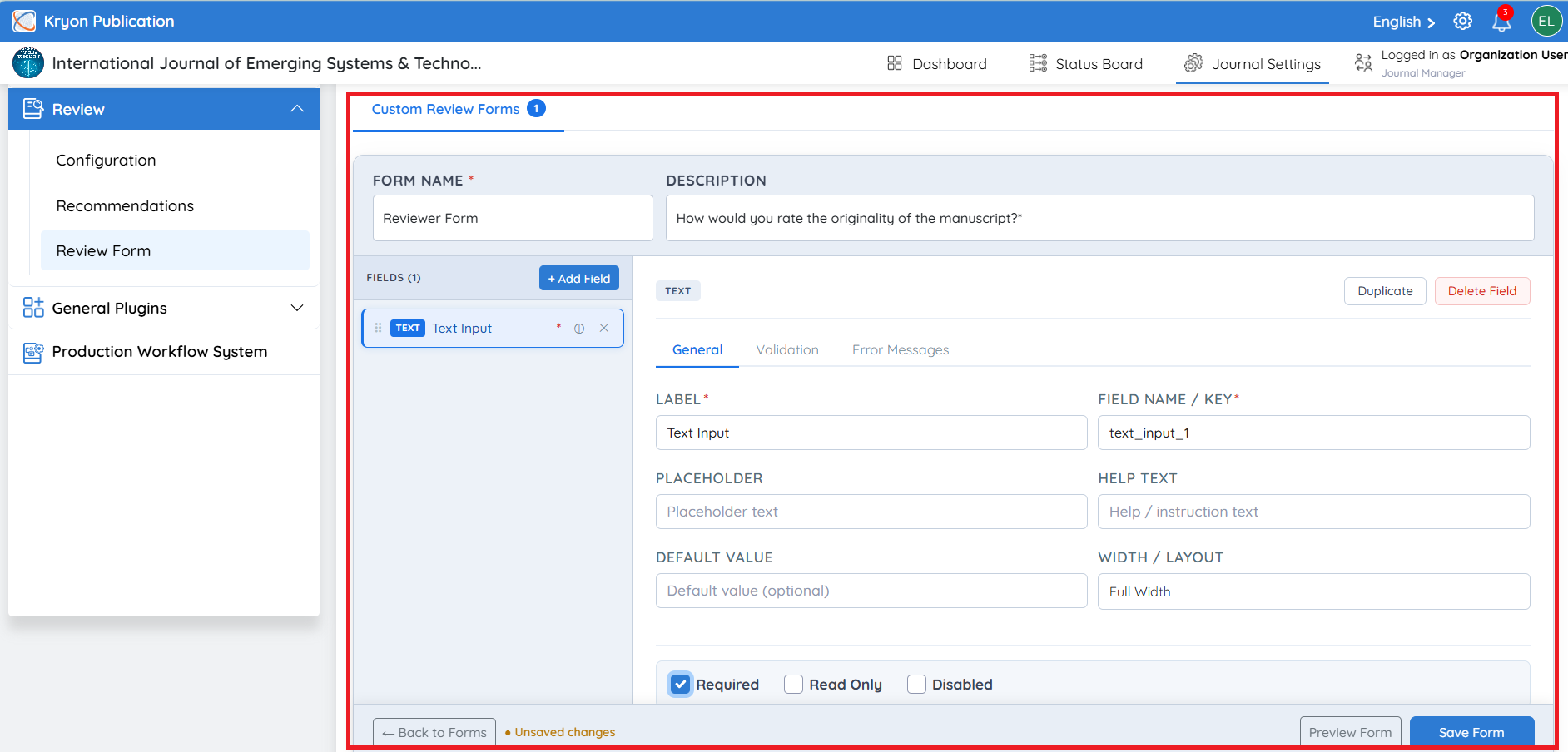
Form Name
Enter a unique name for the reviewer form.
Example:
-
Reviewer Evaluation Form
-
Editorial Review Form
-
Technical Review Form
Description
Provide a brief description explaining the purpose of the review form.
Step 2: Add Review Fields
Click + Add Field to begin building the review form.
Kryoni JMS provides multiple field types that can be added to the reviewer form.
Basic Fields
Use these fields to collect general reviewer information.
Available field types include:
-
Text Input
-
Text Area
-
Number Input
-
Email Input
-
Phone Input
-
URL Input
-
Date Picker
-
File Upload
Selection Fields
Use these fields when reviewers need to select one or more predefined options.
Available field types include:
-
Dropdown / Select
-
Multi-Select
-
Radio Group
-
Checkbox
-
Checkbox Group
-
Toggle Switch
Review Fields
These fields are specifically designed for peer review evaluations.
Available field types include:
-
Rating (Stars)
-
Score Input
-
Recommendation
-
Yes / No
-
Comments Box
Configuring Field Settings
After selecting a field, configure its properties.
The General tab allows you to define:
-
Label
-
Field Name / Key
-
Placeholder Text
-
Help Text
-
Default Value
-
Width / Layout
You can also configure the field as:
-
Required – Reviewer must complete the field before submitting the review.
-
Read Only – Displays information that cannot be modified.
-
Disabled – Temporarily hides or disables the field.
Validation Settings
The Validation tab allows administrators to define validation rules for each field to ensure reviewers enter valid information.
Depending on the selected field type, available validation options may include:
-
Required Field
-
Minimum Length
-
Maximum Length
-
Regex Pattern
These validations help maintain consistent and accurate review data.
Error Messages
The Error Messages tab allows administrators to customize the validation messages displayed to reviewers.
For example:
-
Required Message: "This field is required."
-
Minimum Value: "Please enter a value greater than or equal to the minimum allowed."
-
Maximum Length: "The entered value exceeds the maximum permitted length."
If no custom message is provided, Kryoni JMS displays the default validation message.
Save the Review Form
After configuring all required fields:
-
Review the form structure.
-
Click Preview Form to verify the reviewer experience.
-
Click Save Form to create the custom reviewer form.
The saved form becomes available for selection when sending review invitations using the Dynamic Reviewer Form option.
Tip: You can create multiple custom review forms for different article types, disciplines, or review workflows. During the review invitation process, editorial users can select the most appropriate form based on the manuscript's review requirements.