Overview
The Reports section provides journal-level reports that help administrators monitor editorial activities, workflow performance, user engagement, reviewer contributions, author submissions, and financial transactions for an individual journal.
These reports provide valuable insights into the journal's operational performance and support data-driven editorial decisions.
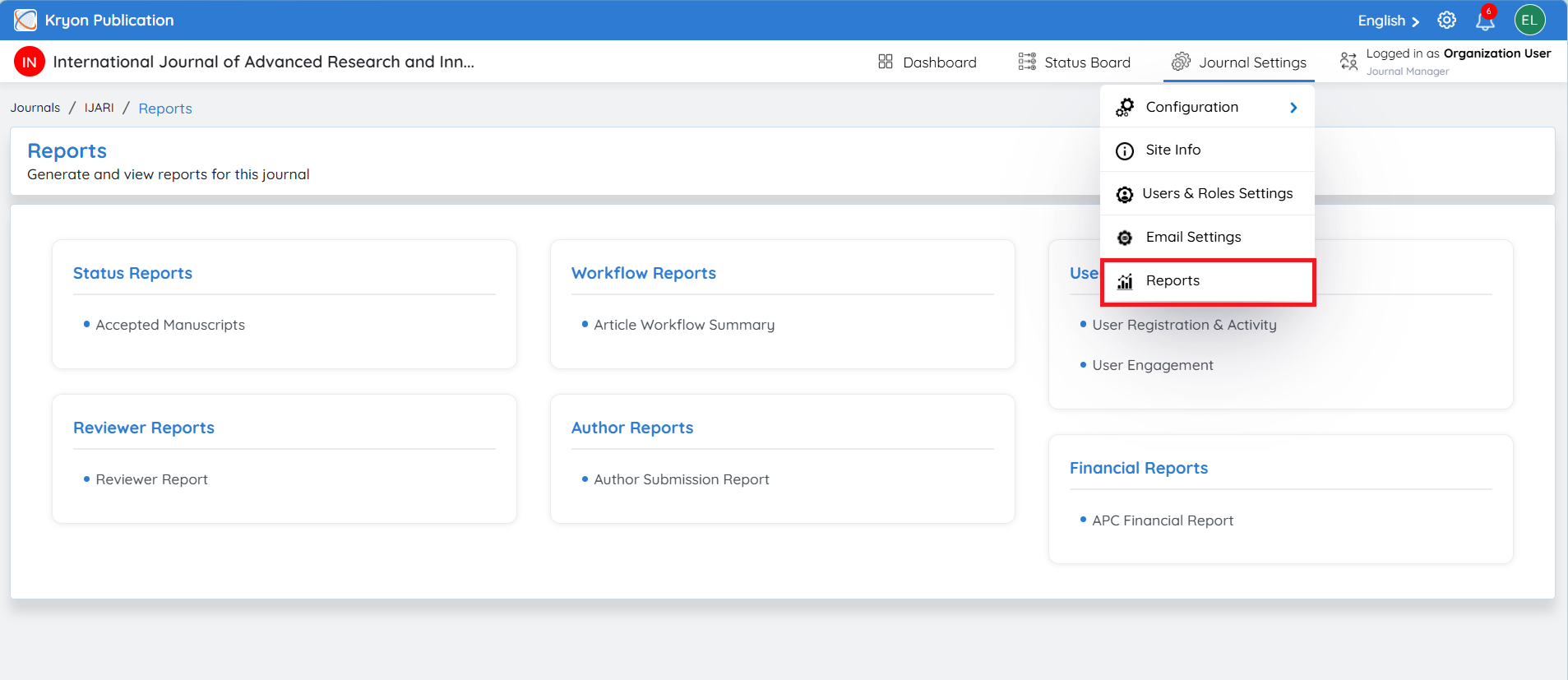
To access this section:
-
Navigate to Journal Settings.
-
Click Reports.
Benefits
-
Monitor journal performance through real-time reports.
-
Track manuscript status and workflow progress.
-
Analyze reviewer and author activities.
-
Measure user registration and engagement.
-
Generate financial reports related to APC payments.
-
Export reports for auditing, management, and performance analysis.
-
Improve editorial efficiency through data-driven insights.
Generating a Report
The procedure for generating reports is similar across all report categories. The following example demonstrates how to generate an Article Workflow Summary report for the currently selected journal.
Example: Article Workflow Summary
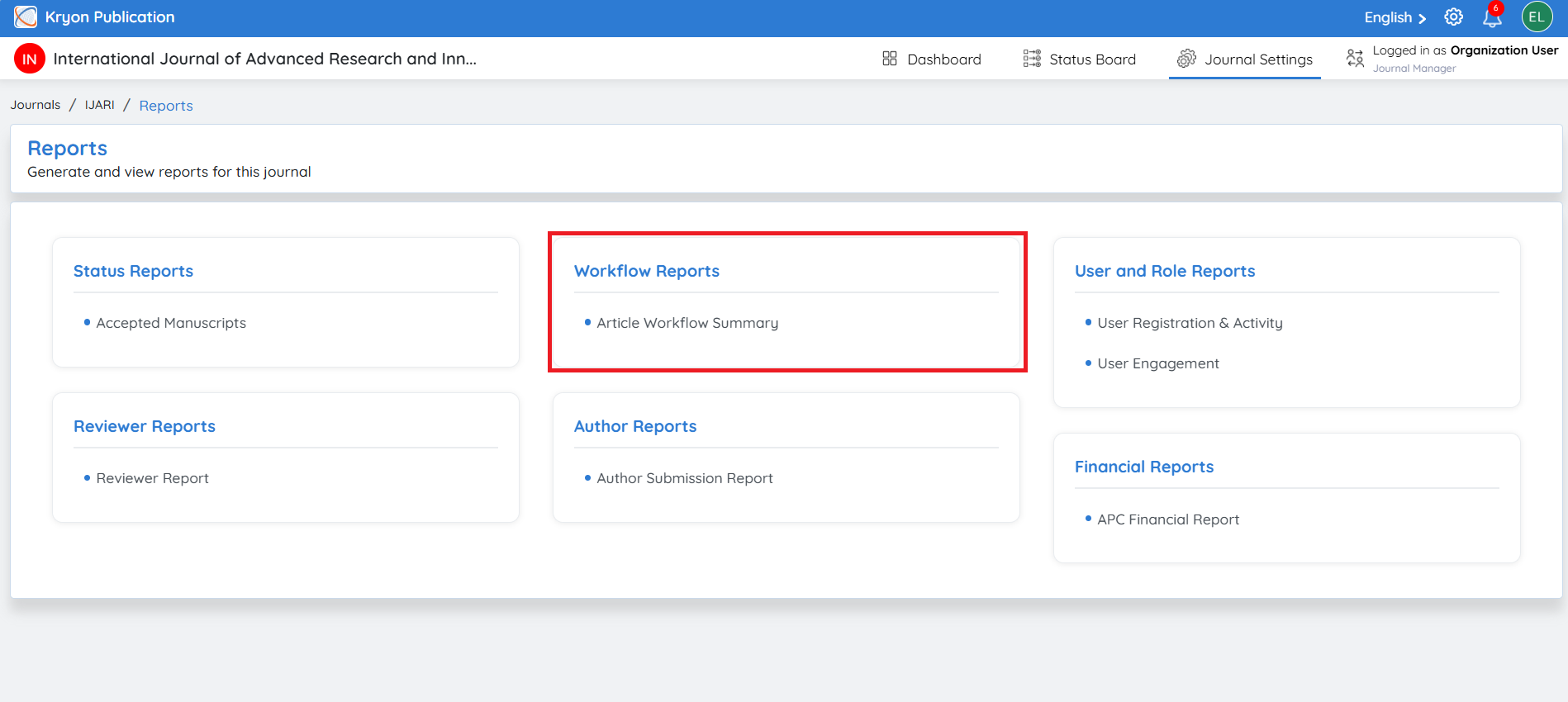
Navigate to: Reports → Workflow Reports → Article Workflow Summary
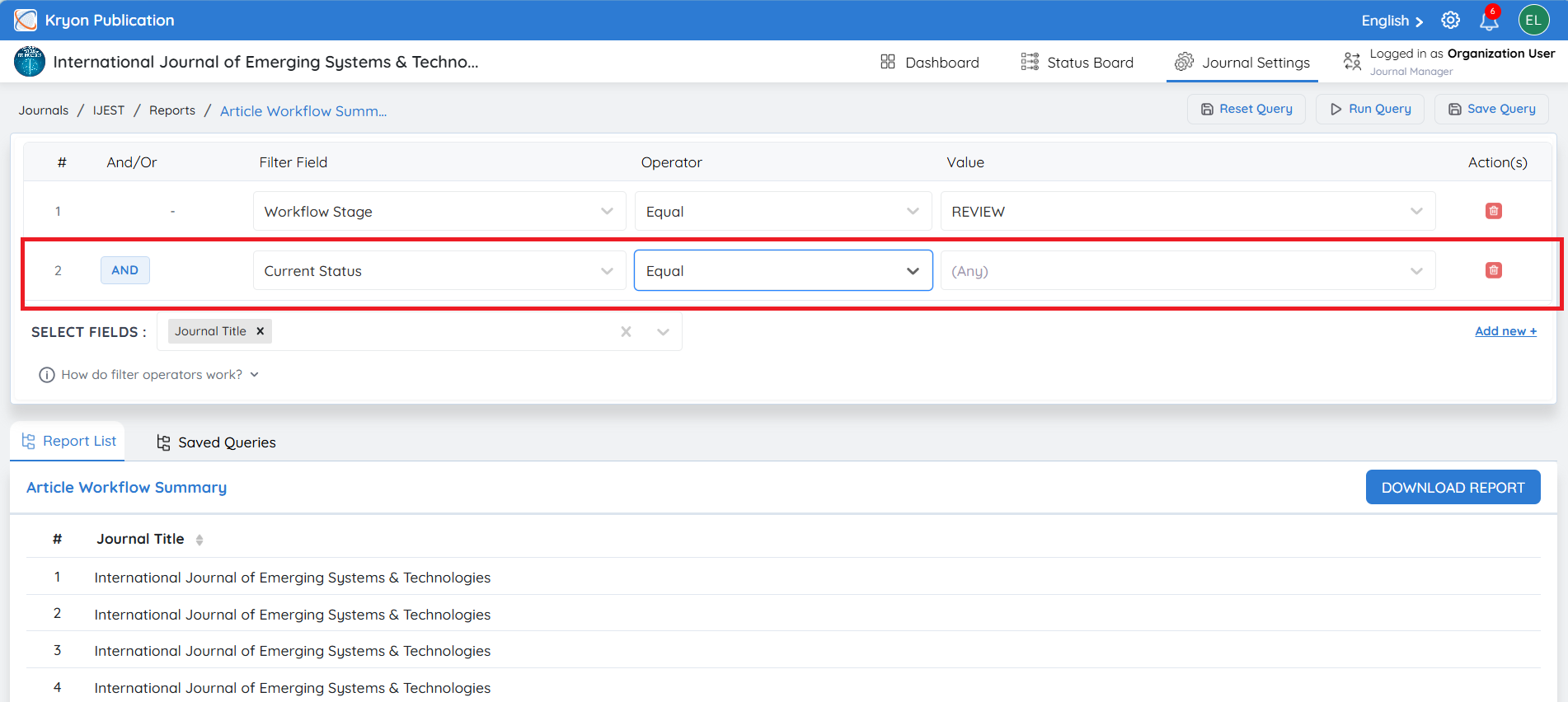
The report page allows you to generate customized reports by applying one or more filters.
Understanding Report Filters
Reports are generated using one or more filter conditions.
Each filter consists of four components:
-
Filter Field
-
Operator
-
Value
-
Logical Operator (AND / OR)
The available operators vary depending on the selected field.
Common Operators
Like
Returns records containing the entered text.
Example
Journal Title Like "Medical"
Returns all records where the journal title contains the word Medical.
Equal
Returns records that exactly match the specified value.
Example
Current Status Equal "Accepted"
Returns only accepted manuscripts.
Not Equal
Returns records except those matching the specified value.
Example
Current Status Not Equal "Rejected"
Returns all manuscripts except rejected ones.
In
Returns records matching any value from a selected list.
Example
Current Status In
-
Submitted
-
Under Review
-
Accepted
Returns manuscripts with any of the selected statuses.
Not In
Excludes records matching any value from the selected list.
Example
Current Status Not In
-
Rejected
-
Withdrawn
Returns all remaining manuscript statuses.
Date & Number Operators
Greater Than
Returns records with values greater than the specified value.
For date fields, records after the selected date are returned.
Example
Moved to Review At Greater Than
01-Jul-2026
Returns manuscripts that entered the review stage after 1 July 2026.
Less Than
Returns records with values less than the specified value.
For date fields, records before the selected date are returned.
Example
Moved to Review At Less Than
20-Jul-2026
Returns manuscripts that entered the review stage before 20 July 2026.
Equal
Returns records exactly matching the selected value or date.
Not Equal
Returns all records except those matching the selected value or date.
Combining Multiple Filters
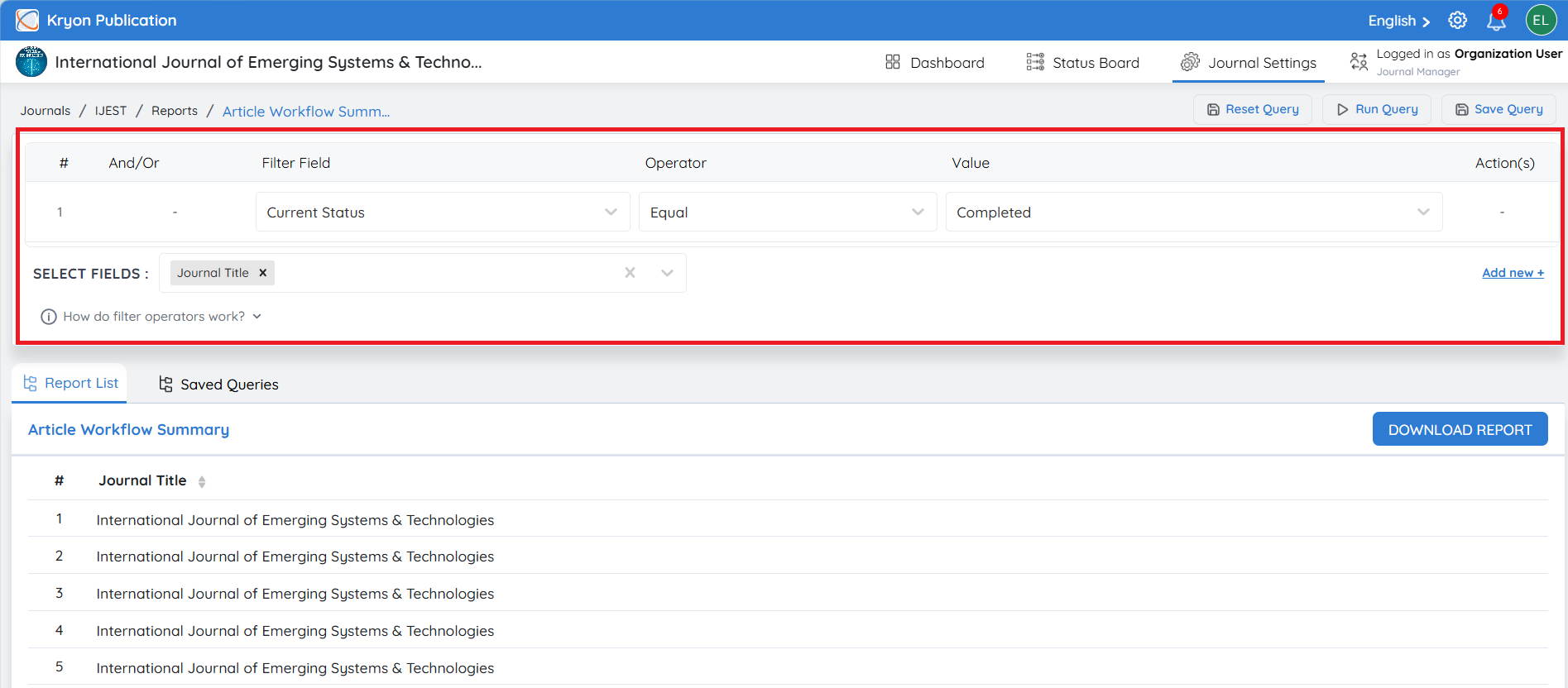
If additional filtering is required, click Add New.
Multiple filters can be combined using logical operators.
AND
Returns only records that satisfy all filter conditions.
Example
Moved to Review At Greater Than 01-Jul-2026
AND
Moved to Review At Less Than 20-Jul-2026
Result:
Displays manuscripts that entered the review stage between 1 July 2026 and 20 July 2026.
OR
Returns records that satisfy either condition.
Example
Current Status = Accepted
OR
Current Status = Revision Submitted
Result:
Displays manuscripts with either status.
Running the Report
After configuring the required filters:
-
Review the selected filter conditions.
-
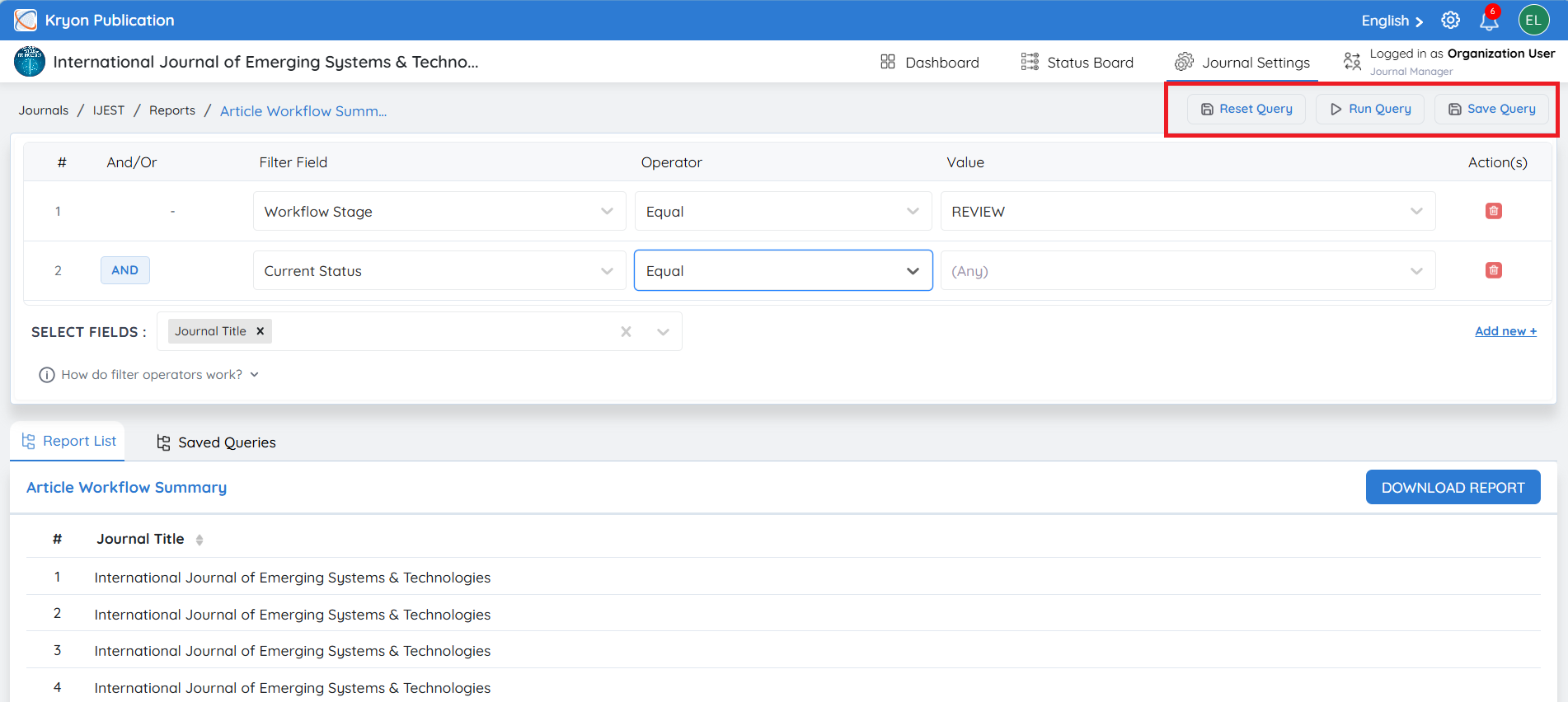
Click Run Query.
The system generates the report based on the specified criteria.
Reset Query
Click Reset Query to remove all configured filters and restore the report page to its default state.
Use this option when generating a new report with different search criteria.
Save Query
If you frequently use the same filter criteria, click Save Query.
Saved queries can be reused later without reconfiguring the filters, helping maintain consistency and save time.
Download Report
After the report has been generated:
-
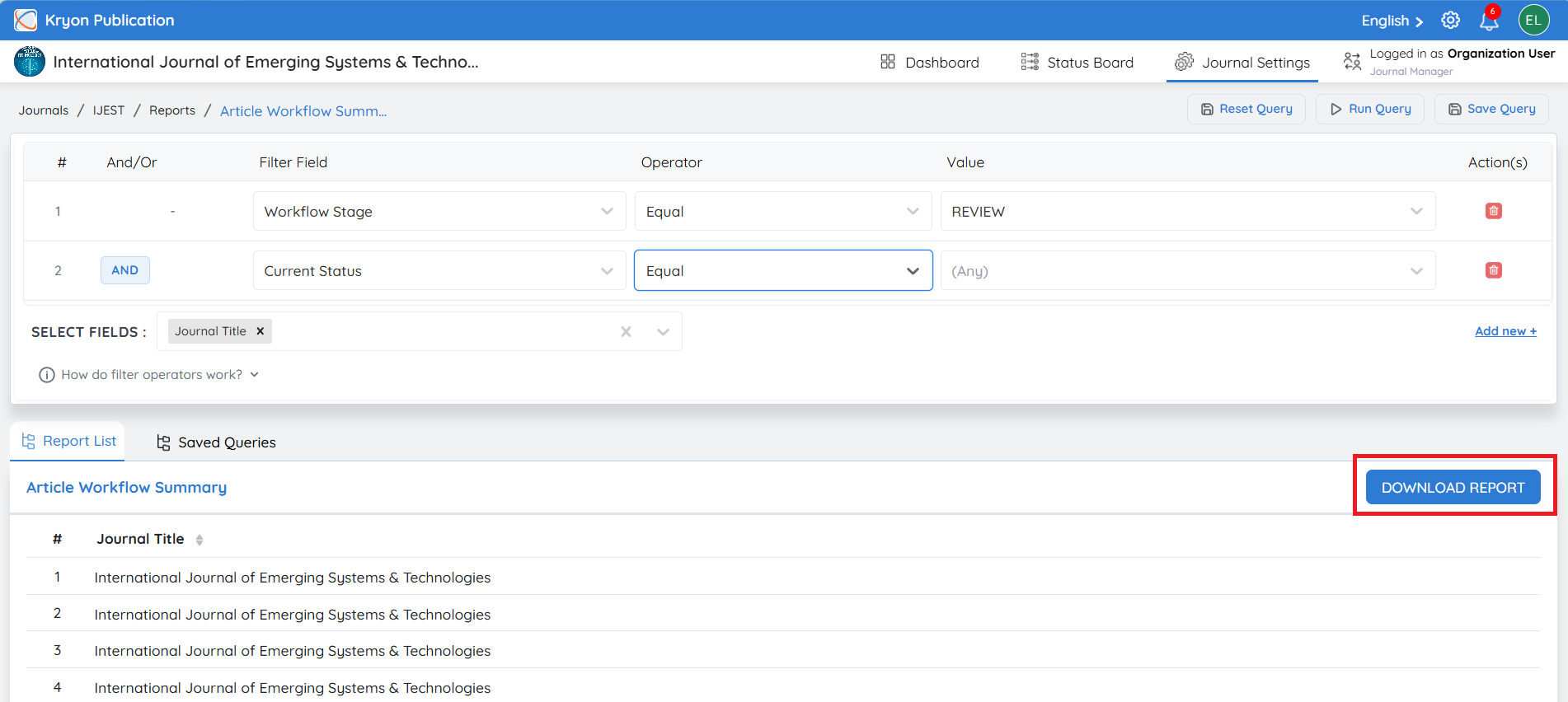
Click Download Report.
-
The report is downloaded as an Microsoft Excel (.xlsx) file.
The downloaded report can be used for further analysis, sharing, auditing, or record-keeping.
Example Workflow
Generate an Article Workflow Summary report for manuscripts that entered the Review stage between 1 July 2026 and 20 July 2026.
Step 1
Navigate to: Reports → Workflow Reports → Article Workflow Summary
Step 2
Configure the first filter:
-
Filter Field: Moved to Review At
-
Operator: Greater Than
-
Value: 01-Jul-2026
Step 3
Click Add New.
Select AND.
Step 4
Configure the second filter:
-
Filter Field: Moved to Review At
-
Operator: Less Than
-
Value: 20-Jul-2026
Step 5
Click Run Query.
Kryoni JMS generates the report displaying all manuscripts that entered the Review stage between 1 July 2026 and 20 July 2026 for the currently selected journal.