Overview
The Email Settings section gives journal administrators full control over the email templates used throughout the journal workflow. These settings allow you to customize automated email notifications that are sent when specific actions occur within the Kryoni Journal Management System (JMS).
Kryoni JMS automatically triggers email notifications for every major workflow event, ensuring timely and consistent communication between authors, reviewers, editors, production users, and other participants.
Email templates are available for all stages of the journal workflow, including:
-
Pre-Review (Submission & Editorial Screening)
-
Review
-
Production
Editing an Email Template
If you want to modify the content of an email notification:
-
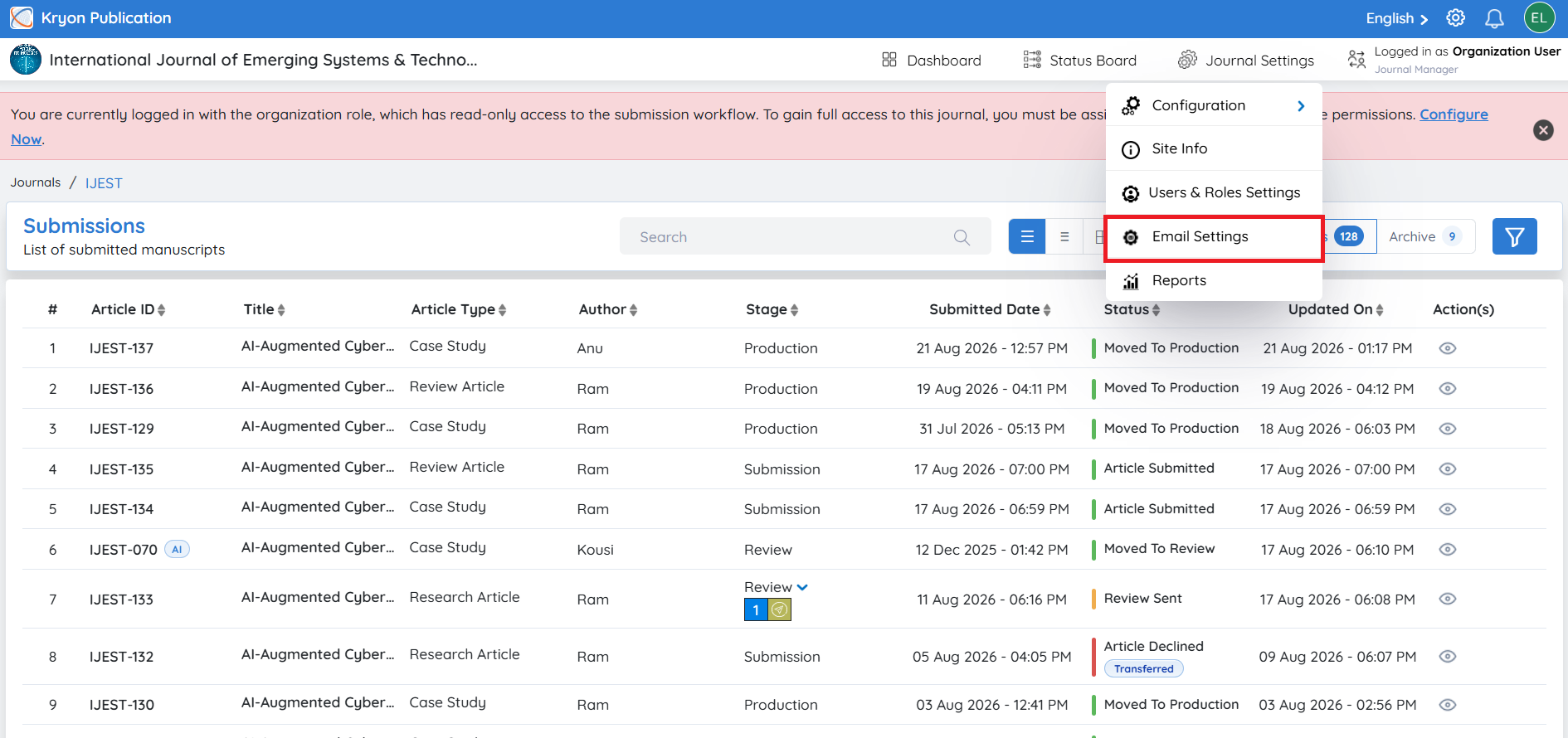
Navigate to Journal Settings → Email Settings.
-
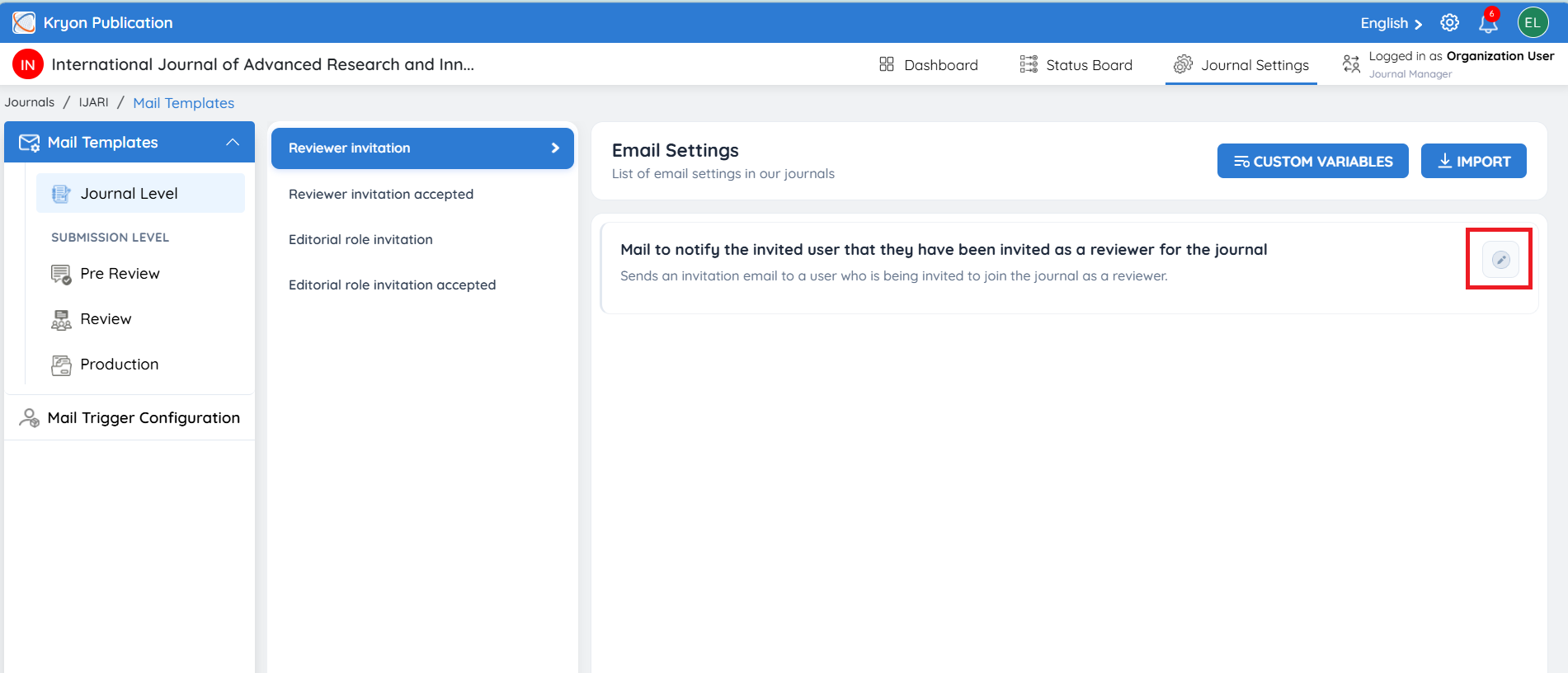
Locate the email template you want to edit.
-
Click the Edit icon.
-
Update the required fields as needed:
-
CC To – Add recipients who should receive a copy of the email.
-
BCC To – Add recipients who should receive a hidden copy of the email.
-
Subject – Modify the email subject line.
-
Mail Template – Edit the body of the email.
- Use the available dynamic variables to personalize the email content.
Examples:
-
[[JOURNAL_NAME]] – Inserts the journal name.
-
[[JOURNAL_ID]] – Inserts the journal ID.
-
[[JOURNAL_ACRONYM]] – Inserts the journal acronym.
Additional variables are displayed in the Variables panel and can be inserted into the email template as needed.
- Click Save to apply your changes.
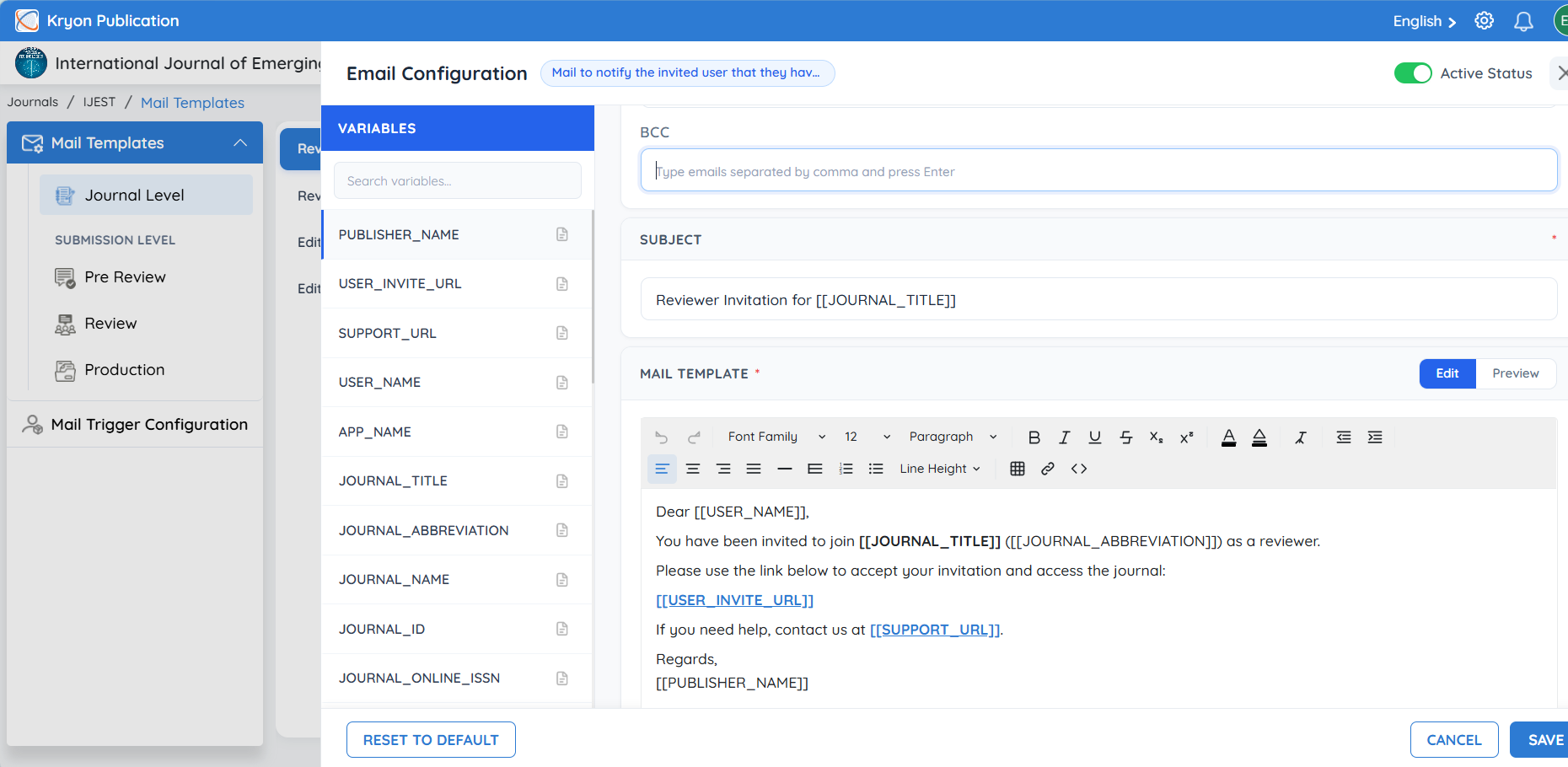
The updated email template will be automatically used whenever the corresponding workflow event is triggered.
Activating or Deactivating Email Notifications
Each email template can be enabled or disabled individually.
-
Enable an email notification by selecting the Active Status checkbox.
-
Disable an email notification by clearing the Active Status checkbox.
Only active email templates are triggered when their corresponding journal action occurs.
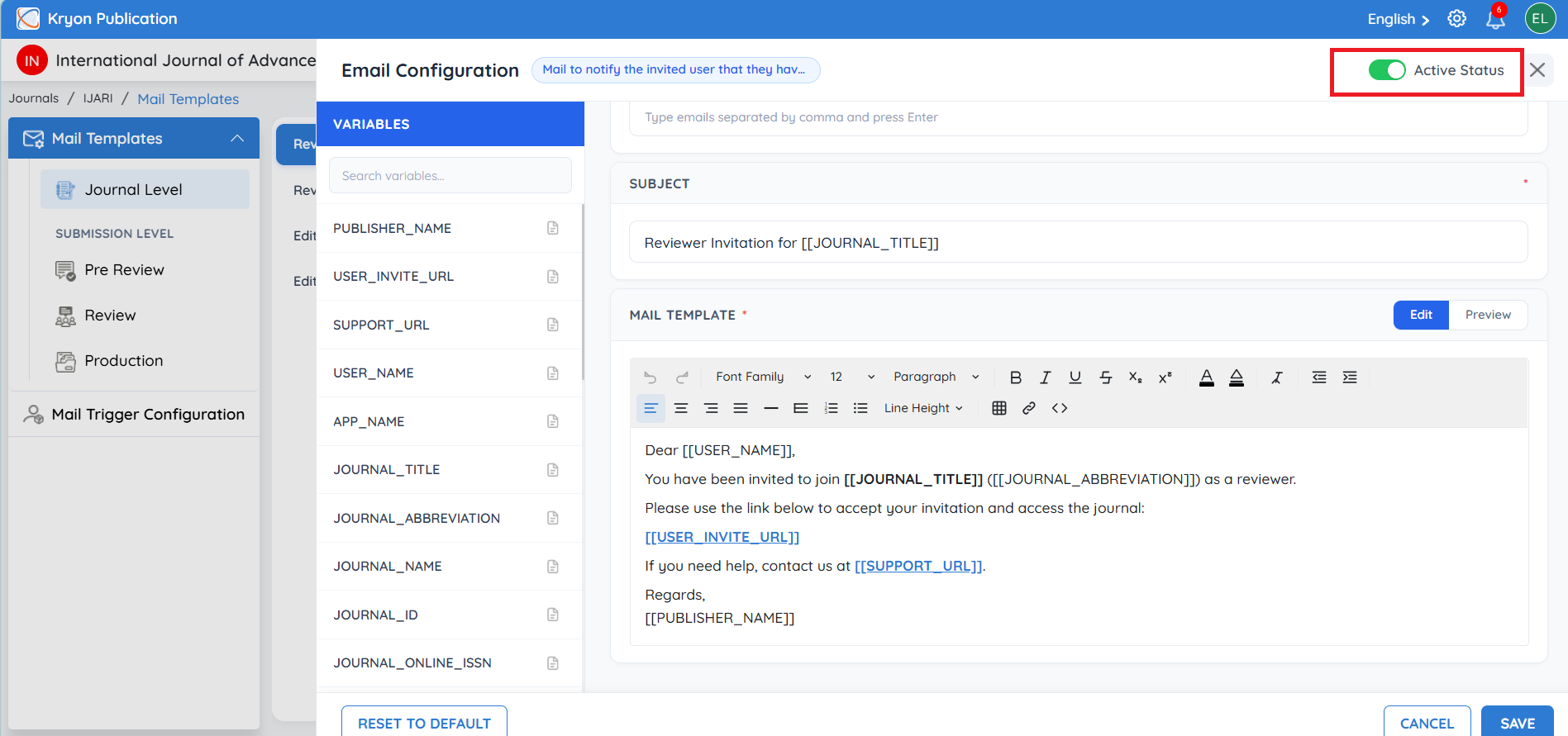
If an email template is inactive, no automated notification will be sent for that workflow event.
Import Email Templates
Overview
The Import Email Templates feature allows journal administrators to copy email templates from another journal instead of creating or editing each template manually. This is particularly useful when multiple journals use the same communication standards and notification templates.
By importing email templates, journals can quickly maintain consistent messaging and reduce configuration time.
Importing Email Templates
To import email templates:
-
Navigate to Journal Settings → Email Settings.
-
Click Import.
-
Select the Source Journal from the drop-down list.
-
Select the workflow(s) whose email templates you want to import.
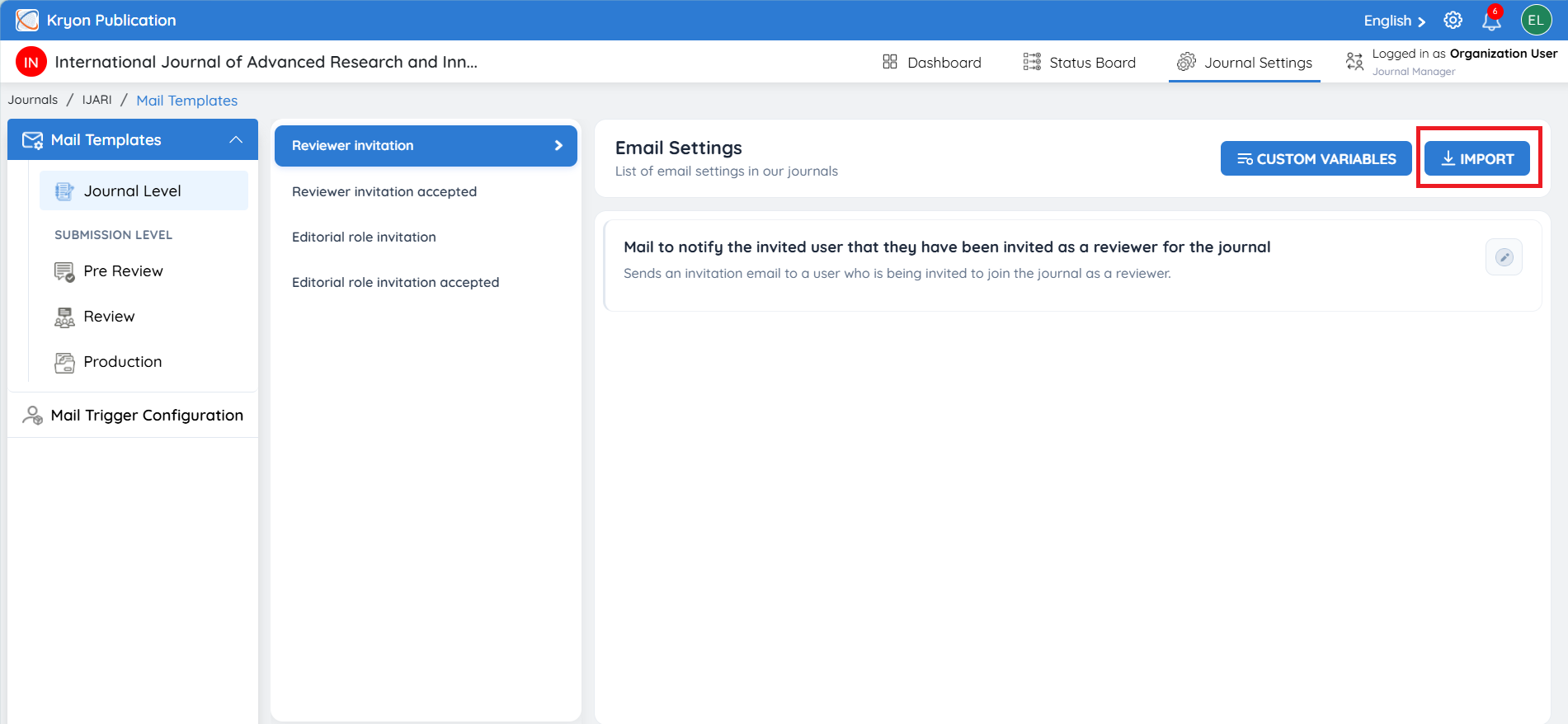
Available options include:
-
Journal Level
-
Pre-Review
-
Review
-
Production
You can select one or multiple categories depending on your requirements.
- Click Import.
The selected email templates are copied from the source journal and applied to the current journal.
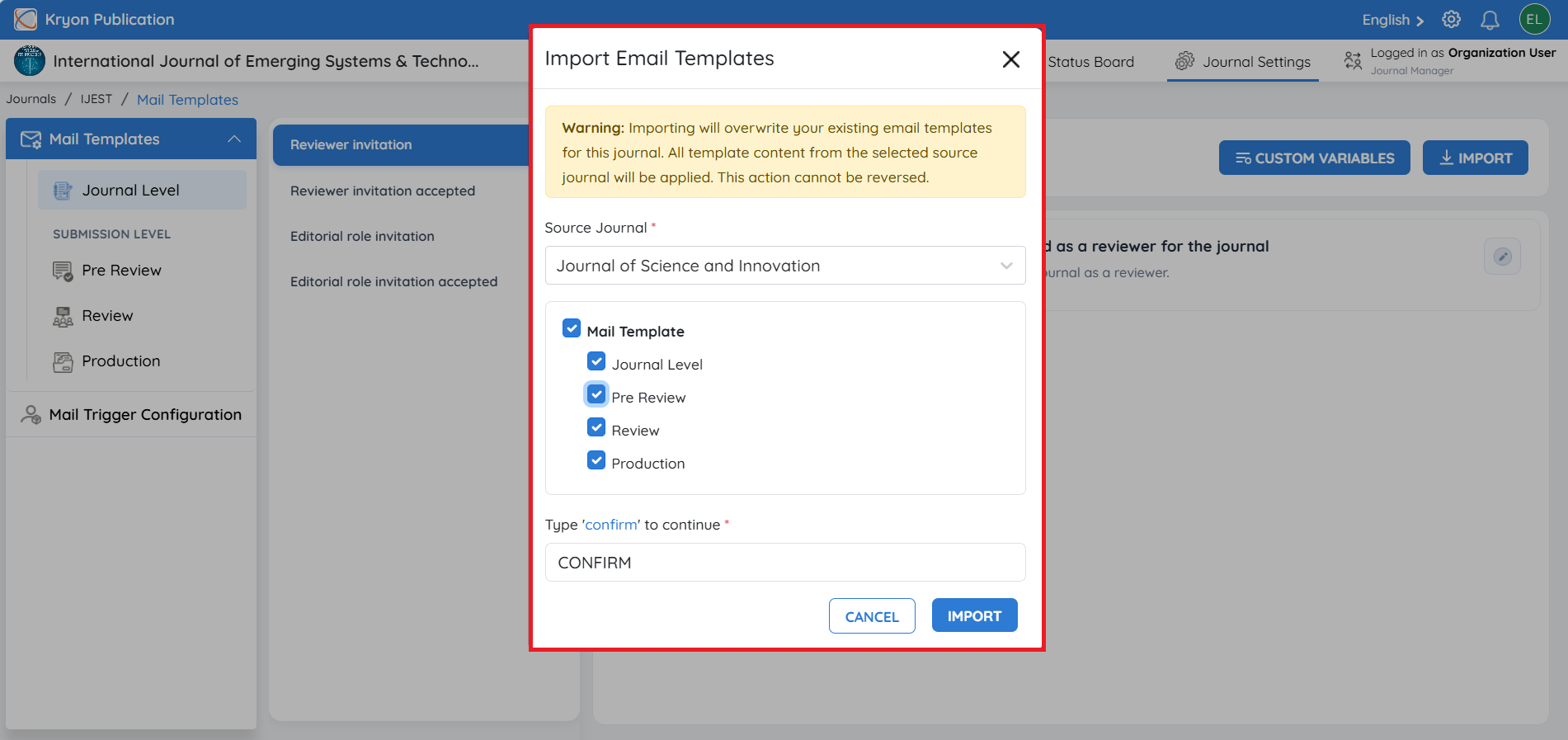
Importing email templates will overwrite the existing email templates for the selected categories in the current journal. All template content from the selected source journal will replace the current templates. This action cannot be undone.
If the current journal contains customized email templates with journal-specific content or unique placeholders, review the imported email templates carefully after the import is complete. Importing replaces the existing templates with those from the source journal, so you may need to update the content, dynamic variables, or journal-specific information to match the requirements of the current journal.
Best Practices
-
Verify that the correct Source Journal is selected before importing.
-
Import only the workflow categories you require.
-
Review the imported templates after the import is complete to ensure they align with your journal's communication requirements.
Mail Trigger Configuration
Overview
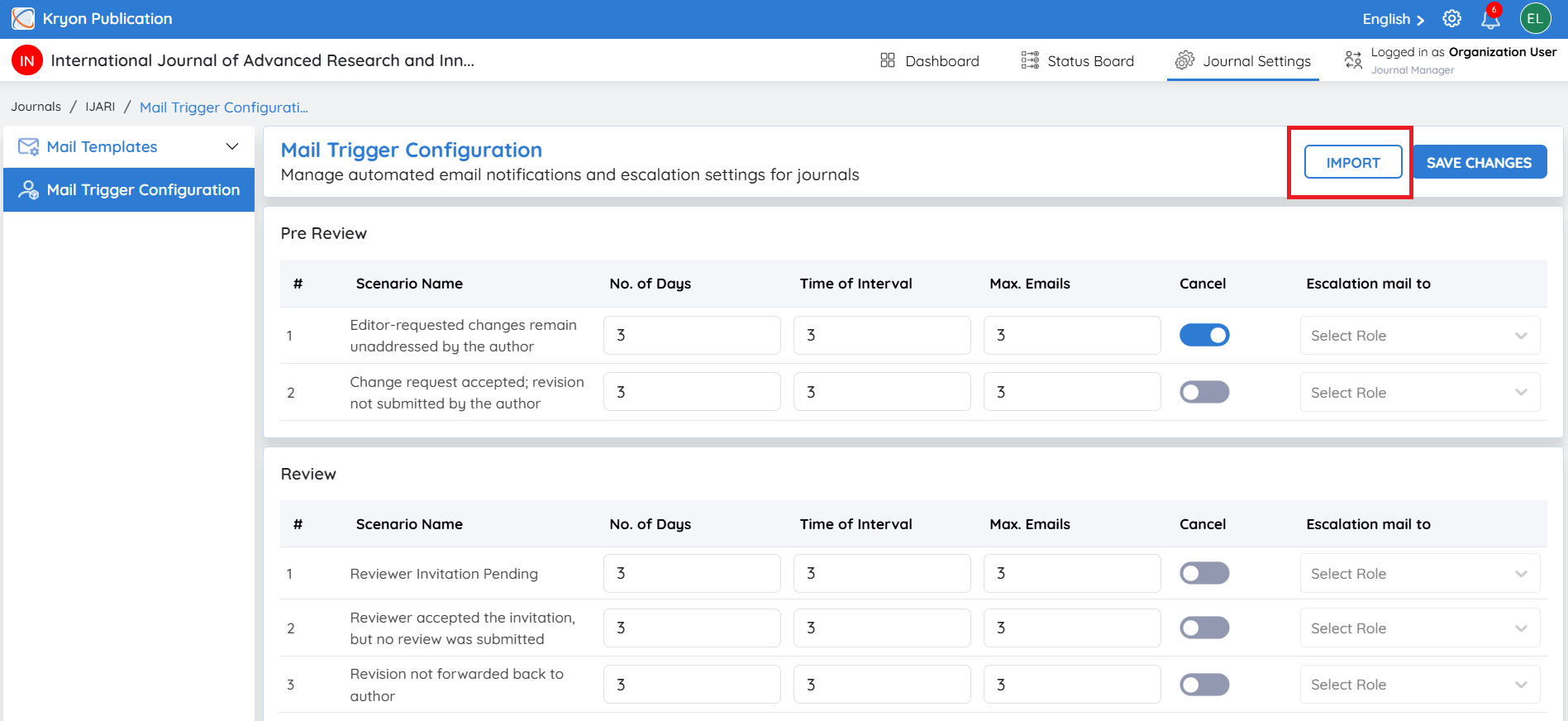
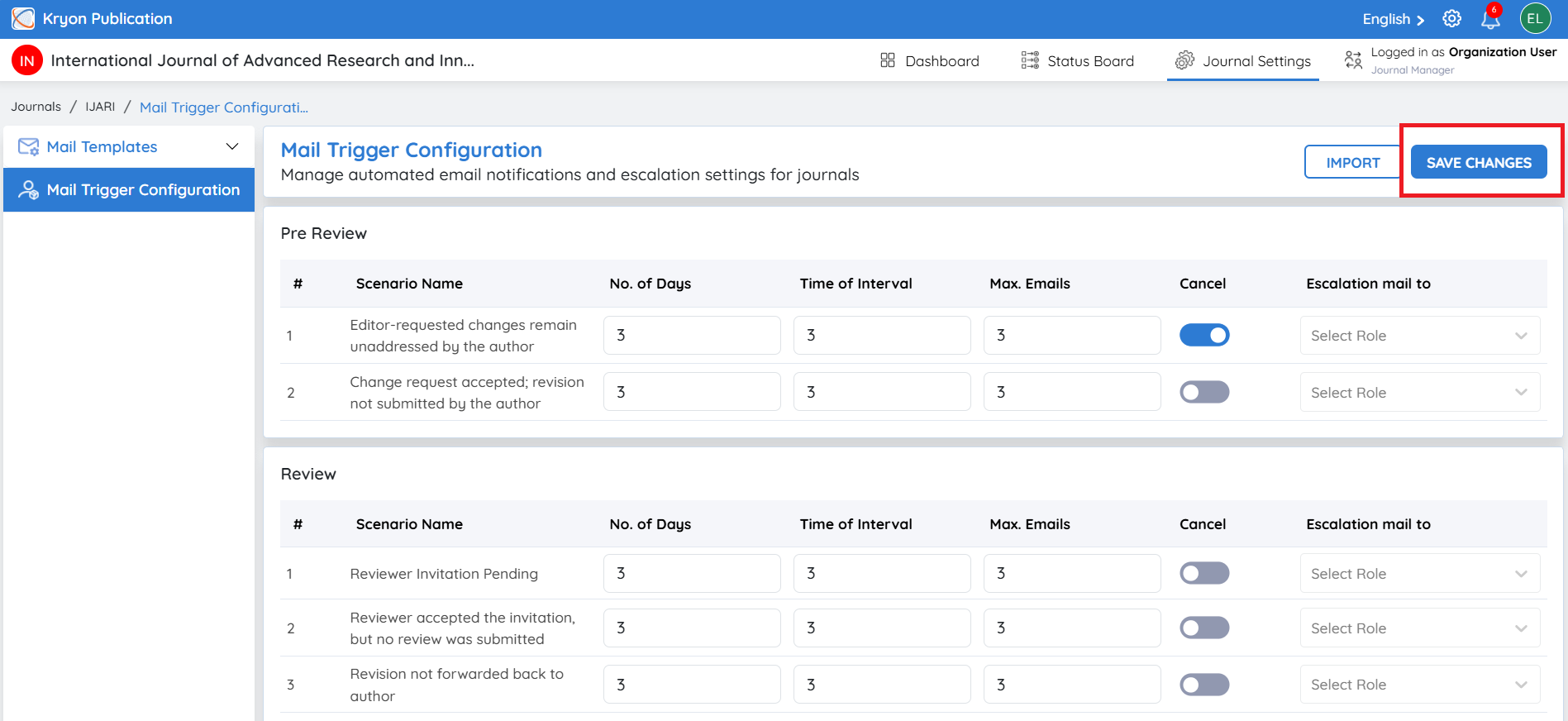
The Mail Trigger Configuration feature enables journal administrators to automate reminder and escalation emails for important workflow activities within Kryoni JMS. By configuring reminder intervals, maximum email notifications, and escalation recipients, journals can ensure that pending tasks are completed on time without manual follow-up.
Mail triggers can be configured for various scenarios across the Pre-Review, Review, and Production stages, helping maintain an efficient and timely editorial workflow.
Benefits
-
Automates Reminder Emails – Sends automatic reminder emails for pending editorial, review, and production tasks.
-
Reduces Manual Follow-ups – Eliminates the need for editors and administrators to manually track overdue actions.
-
Improves Workflow Efficiency – Keeps authors, reviewers, editors, and production teams informed of pending tasks.
-
Supports Timely Decision-Making – Encourages faster responses, helping reduce manuscript turnaround time.
-
Configurable Reminder Schedule – Define the number of days, reminder intervals, and maximum reminder emails for each workflow scenario.
-
Escalates Overdue Tasks – Automatically notifies designated journal roles when actions remain incomplete after the configured reminders.
-
Enhances Accountability – Ensures responsible users are reminded and managers are alerted when necessary.
-
Maintains Consistent Communication – Standardizes reminder and escalation emails across the entire journal workflow.
-
Flexible Configuration – Configure reminder settings independently for Pre-Review, Review, and Production workflows to align with your journal's editorial policies.
Configuring a Mail Trigger
Each workflow stage contains predefined scenarios where reminder emails can be configured.
For every scenario, configure the following settings:
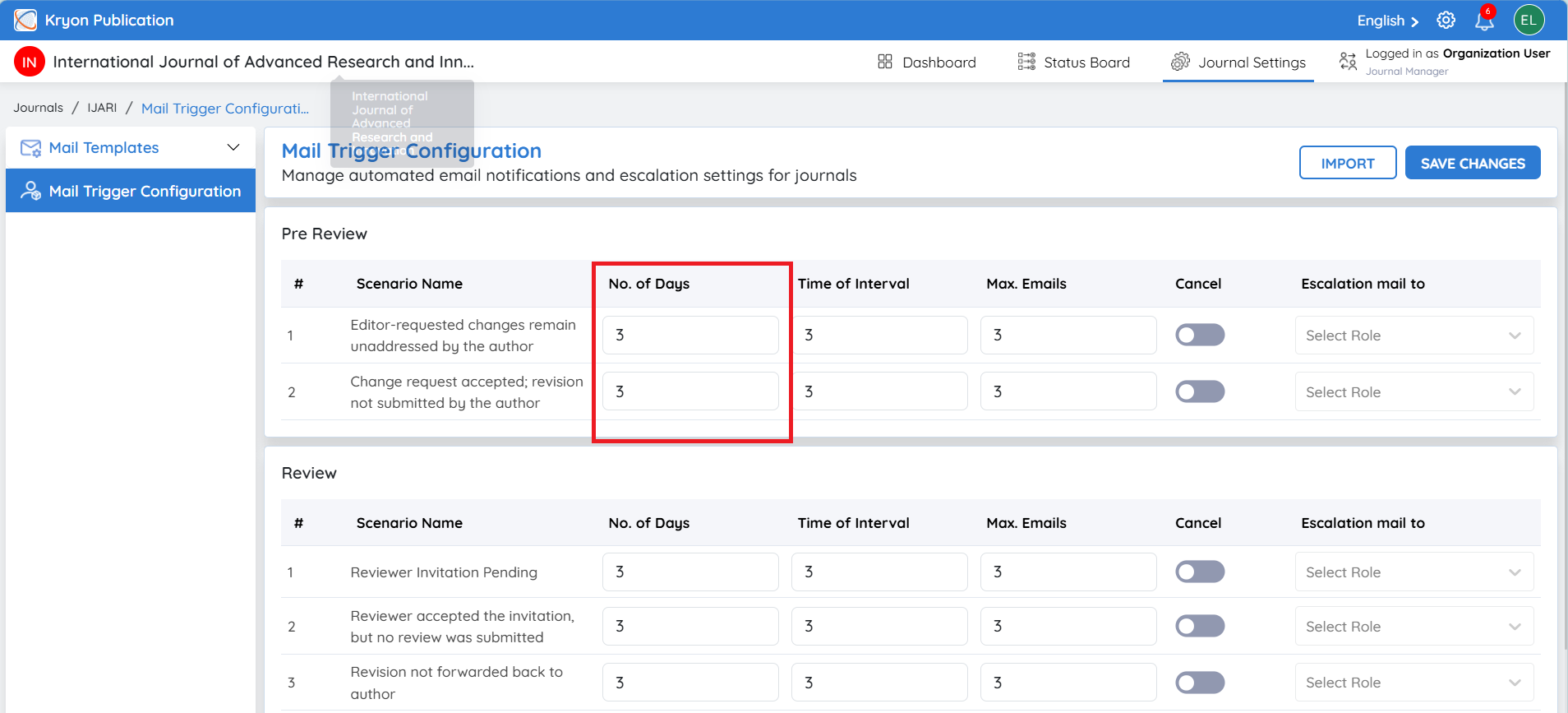
No. of Days
Specify the number of days after which the first reminder email should be sent if no action has been taken.
Example: 3
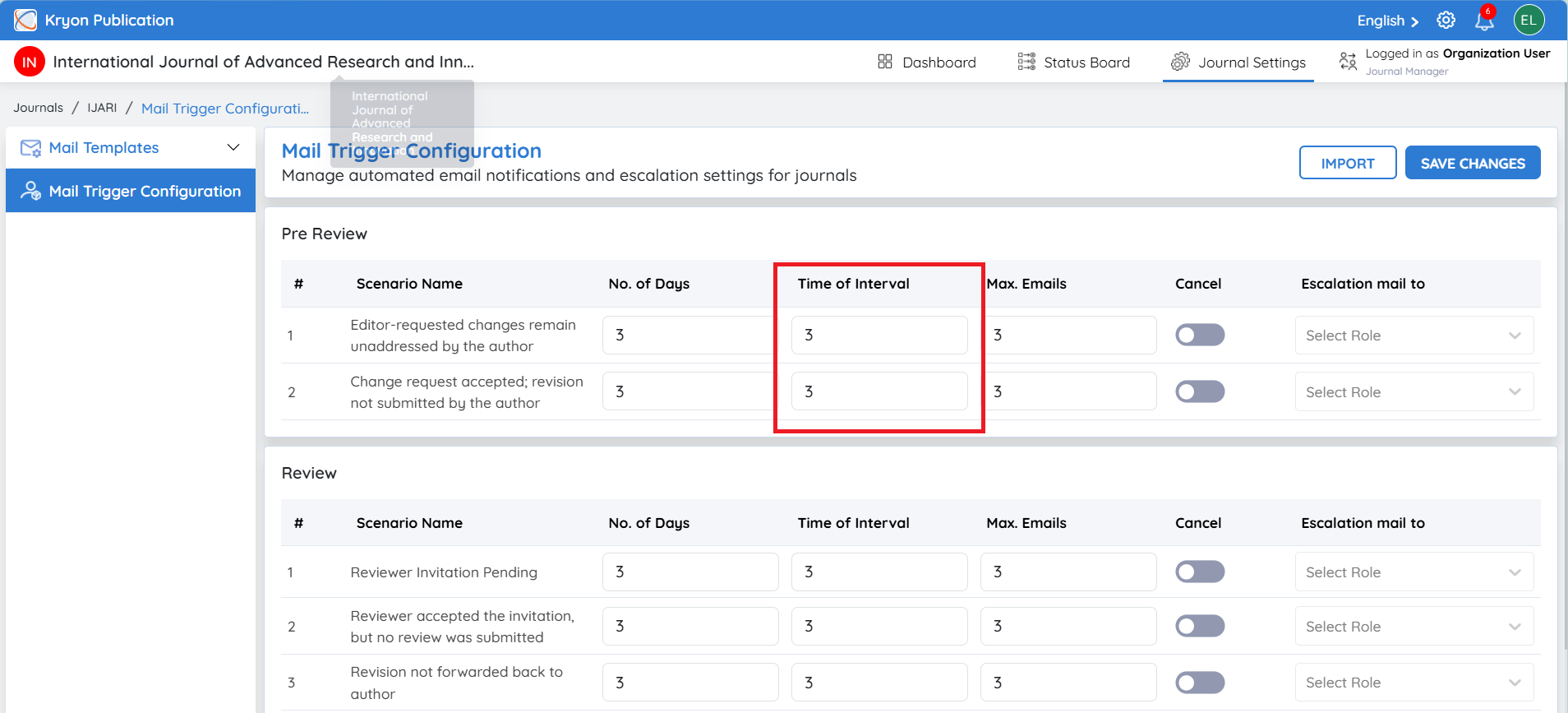
Time of Interval
Specify the number of days between each reminder email.
Example: 3
If the interval is set to 3 days, reminder emails will be sent every three days until the maximum number of emails is reached or the task is completed.
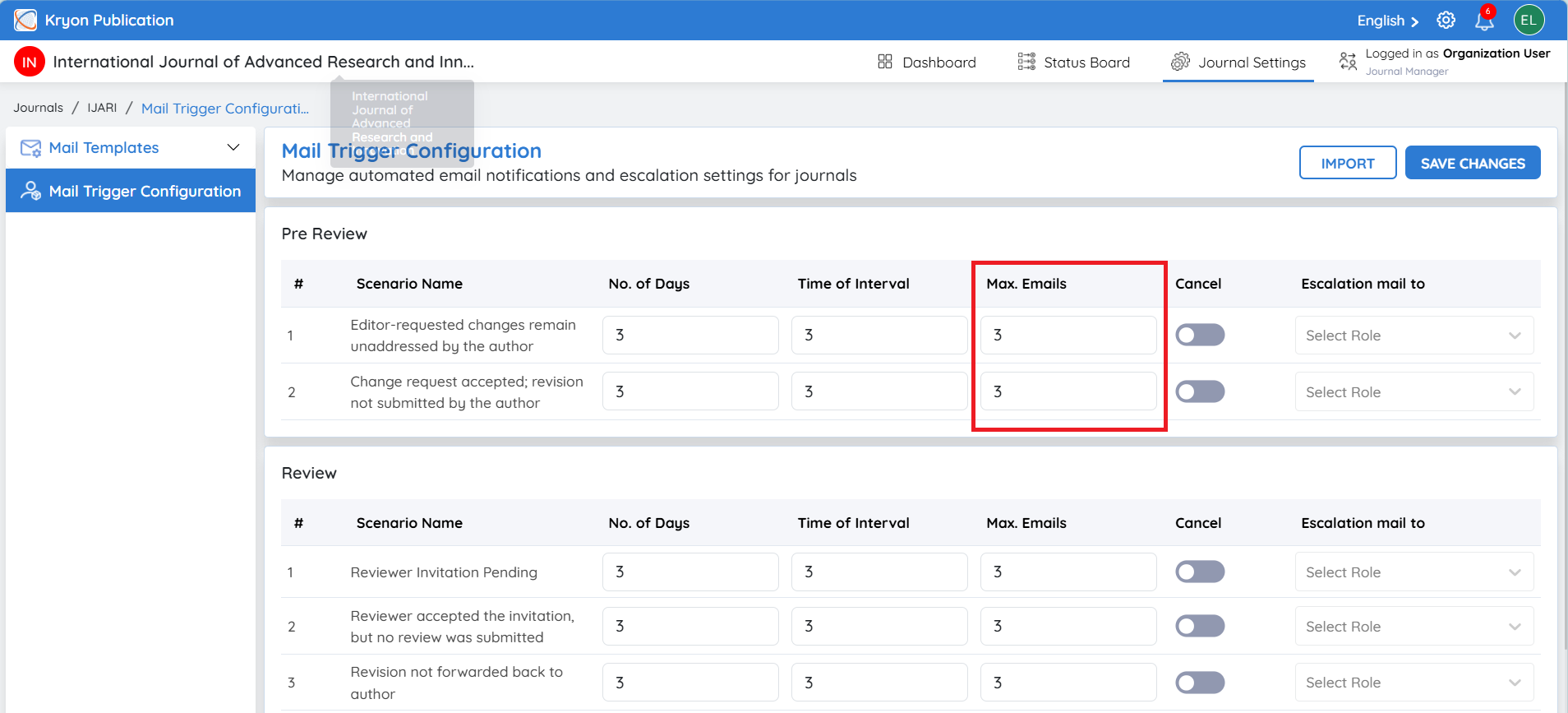
Max. Emails
Specify the maximum number of reminder emails to send.
Example: 3
Once the maximum limit is reached, no additional reminder emails are sent.
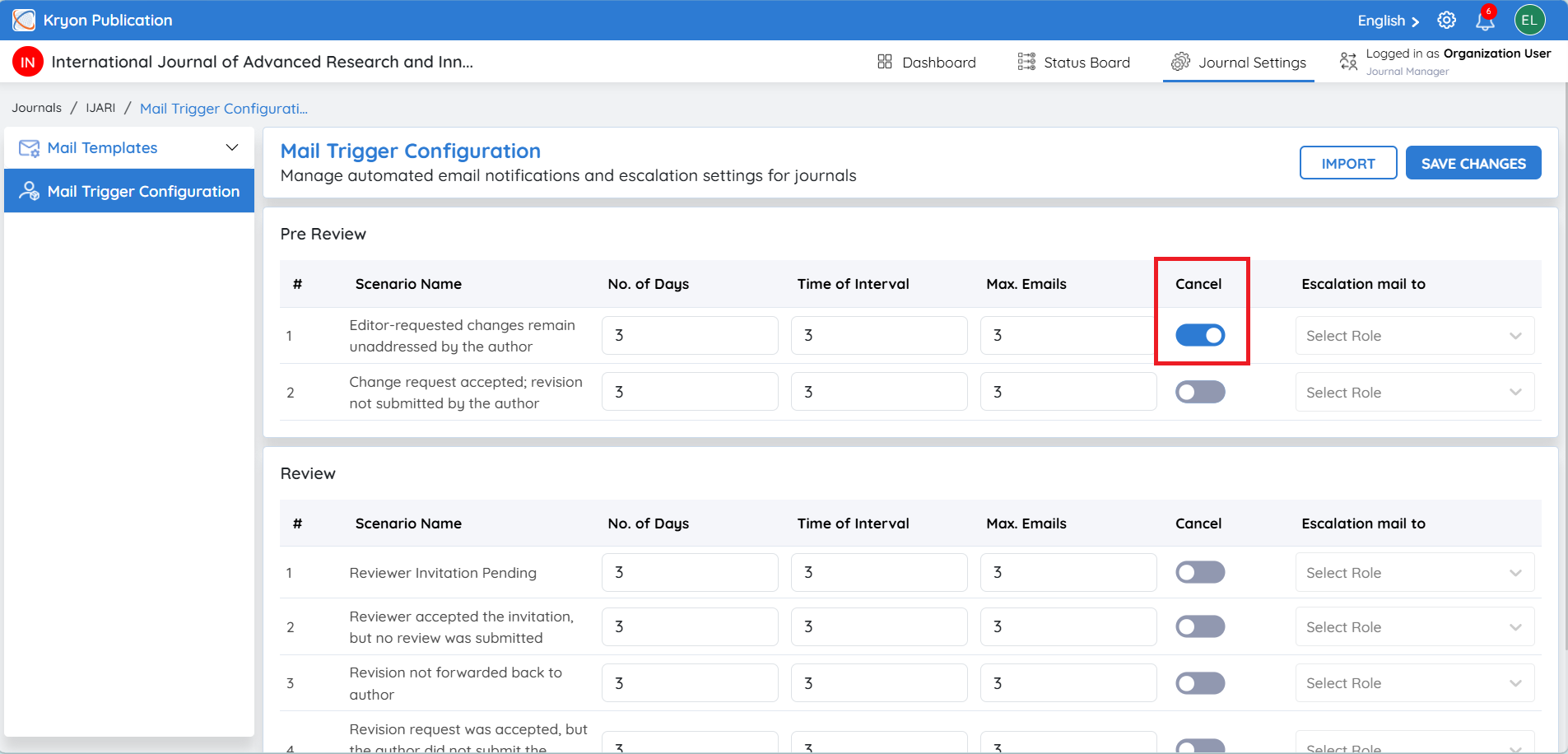
Cancel
Enable this option to stop sending reminder emails for the selected scenario.
When enabled, reminder emails for that scenario are disabled until reactivated.
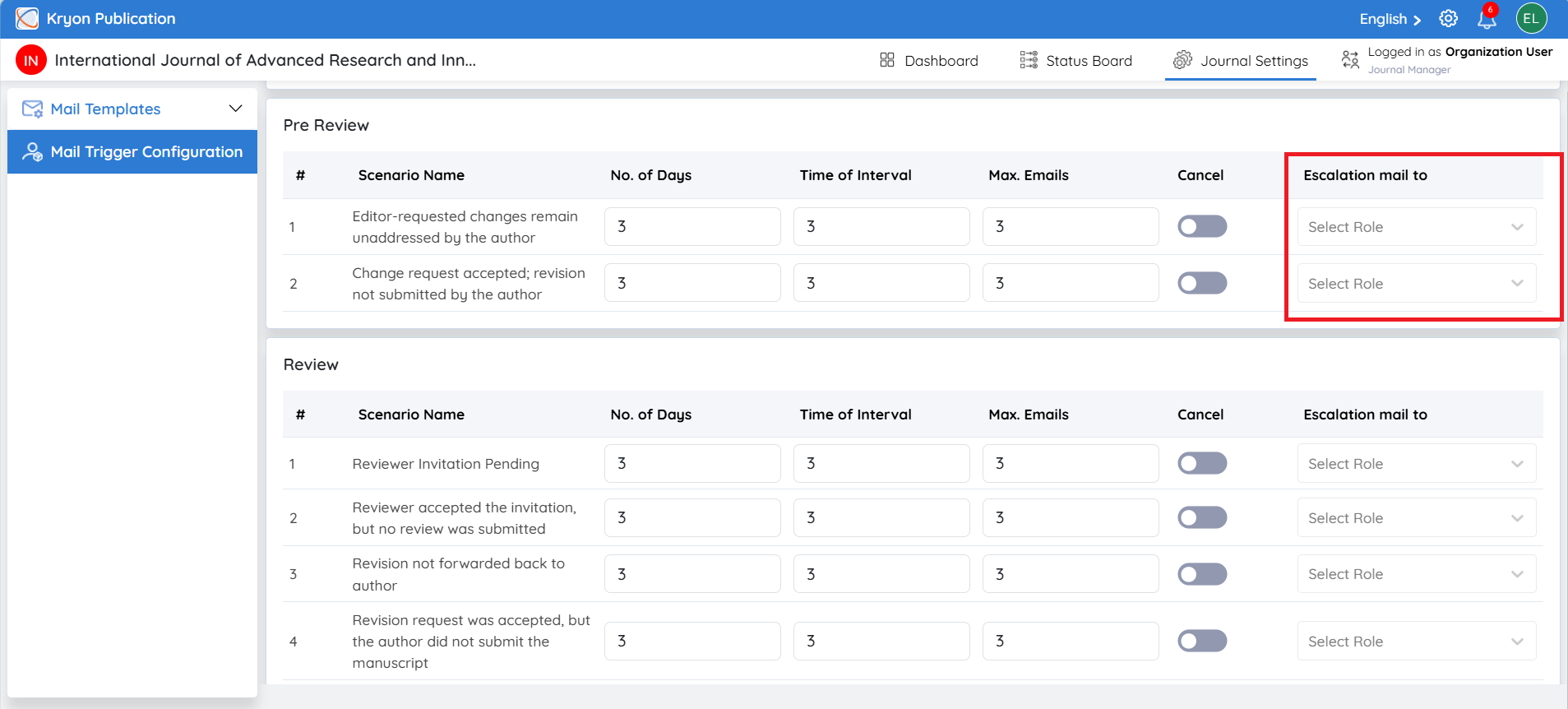
Escalation Mail To
Select the journal role that should receive an escalation email if the required action is not completed within the configured reminder period.
Examples include:
-
Journal Manager
-
Editor-in-Chief
-
Associate Editor
-
Production Editor
Escalation emails help ensure overdue tasks receive appropriate attention.
Pre-Review Mail Triggers
Pre-Review Mail Triggers
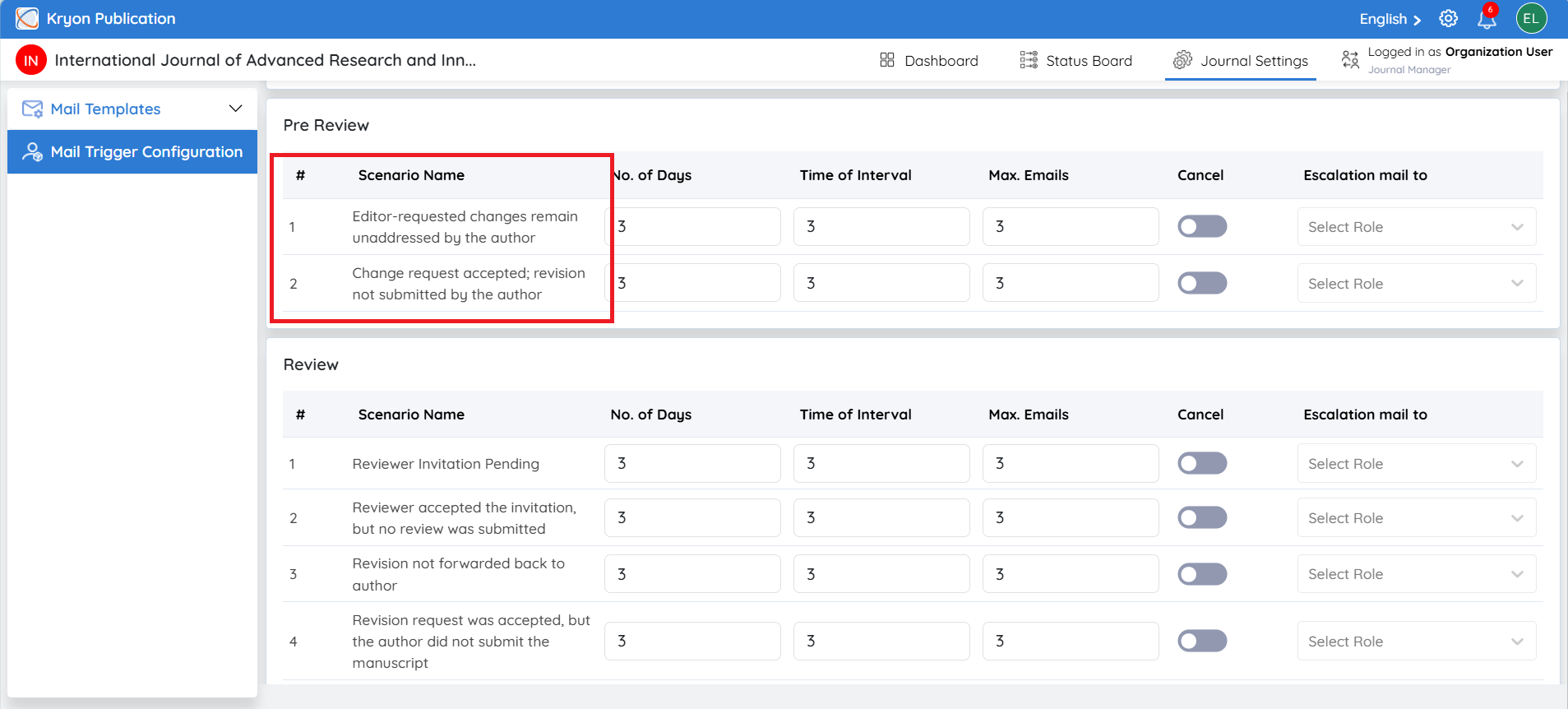
The Pre-Review stage allows you to configure automatic reminder and escalation emails before a manuscript enters the peer review process.
1. Editor-requested changes remain unaddressed by the author
This reminder is triggered when an editor requests changes during the Pre-Review stage, but the author has not responded or taken any action within the configured number of days.
2. Change request accepted, but the revised manuscript has not been submitted by the author
This reminder is triggered when the author has accepted or acknowledged the editor's change request but has not submitted the revised manuscript within the configured time.
Configure the reminder settings as required.
Review Mail Triggers
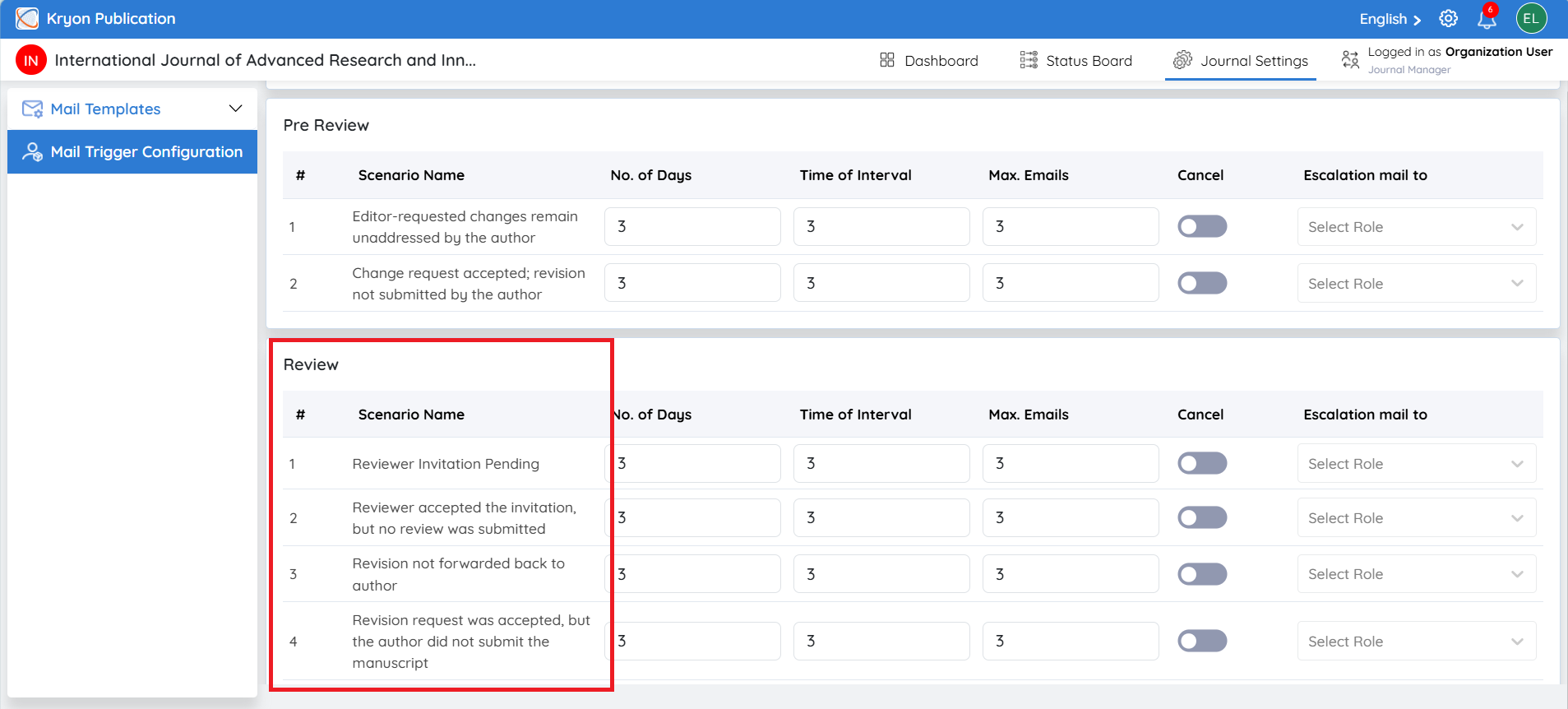
The Review stage provides reminder and escalation settings for activities related to the peer review process.
1. Reviewer Invitation Pending
This reminder is sent when a reviewer has received an invitation but has not yet accepted or declined it.
Configure the reminder schedule to encourage reviewers to respond promptly.
2. Reviewer Accepted the Invitation, but No Review Was Submitted
This reminder is triggered after a reviewer accepts the invitation but does not submit the review within the expected timeframe.
Automatic reminders help reviewers complete their evaluations on time.
3. Revision Not Forwarded Back to Author
This reminder is triggered to editorial user when reviewer comments or editorial decisions requiring revision have not yet been forwarded to the author.
This helps editors avoid delays in communicating revision requests.
4. Revision Request Accepted, but the Author Has Not Submitted the Revised Manuscript
This reminder is sent when the author has accepted the revision request but has not uploaded the revised manuscript within the configured timeline.
Production Mail Triggers
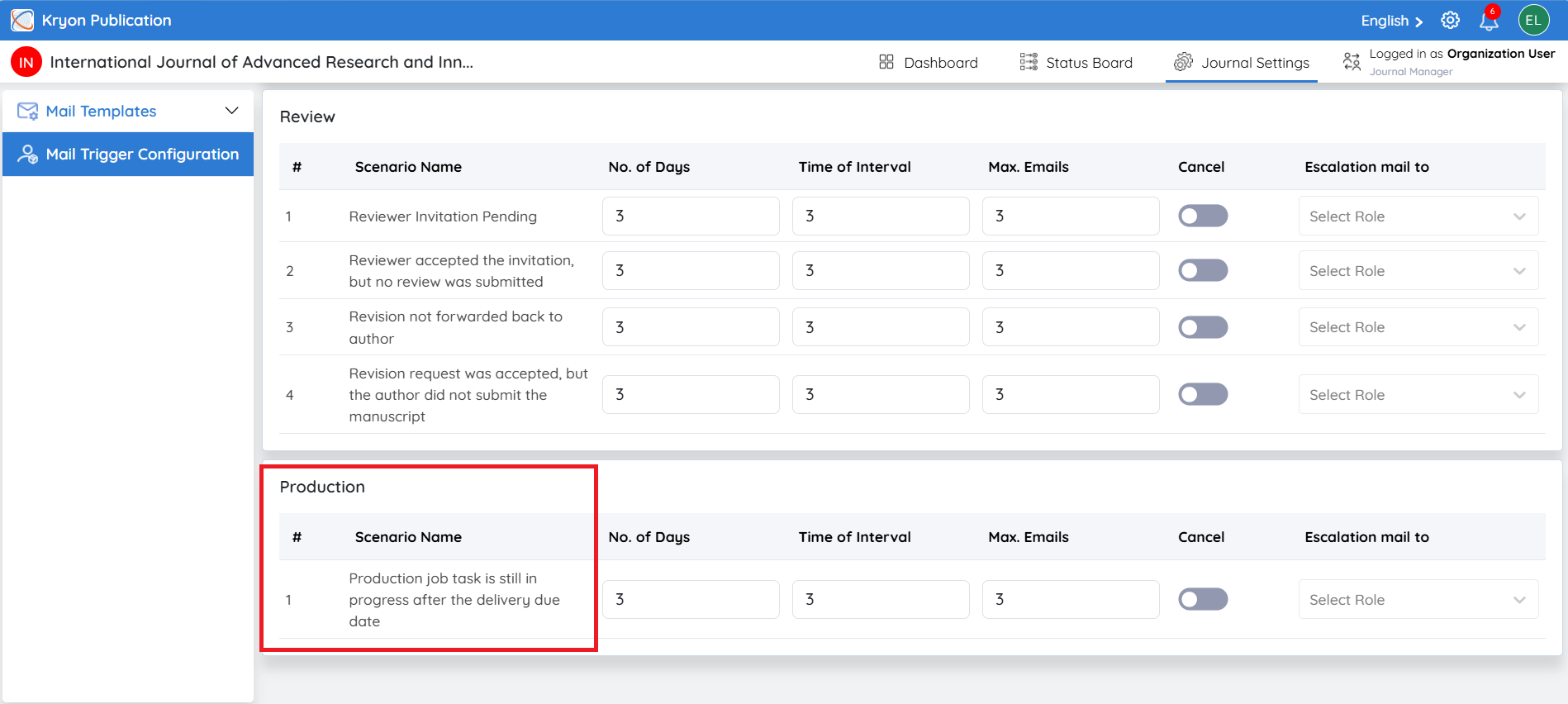
The Production stage allows administrators to configure reminders for production-related activities.
Production Job Task is Still in Progress After the Delivery Due Date
This reminder is triggered when a production task remains incomplete after its scheduled delivery date.
Saving the Configuration
After configuring the reminder settings:
-
Review all configured values.
-
Click Save Changes.
The configured reminder schedules and escalation settings are applied immediately and will automatically trigger based on the configured workflow scenarios.
Import Mail Trigger Configuration
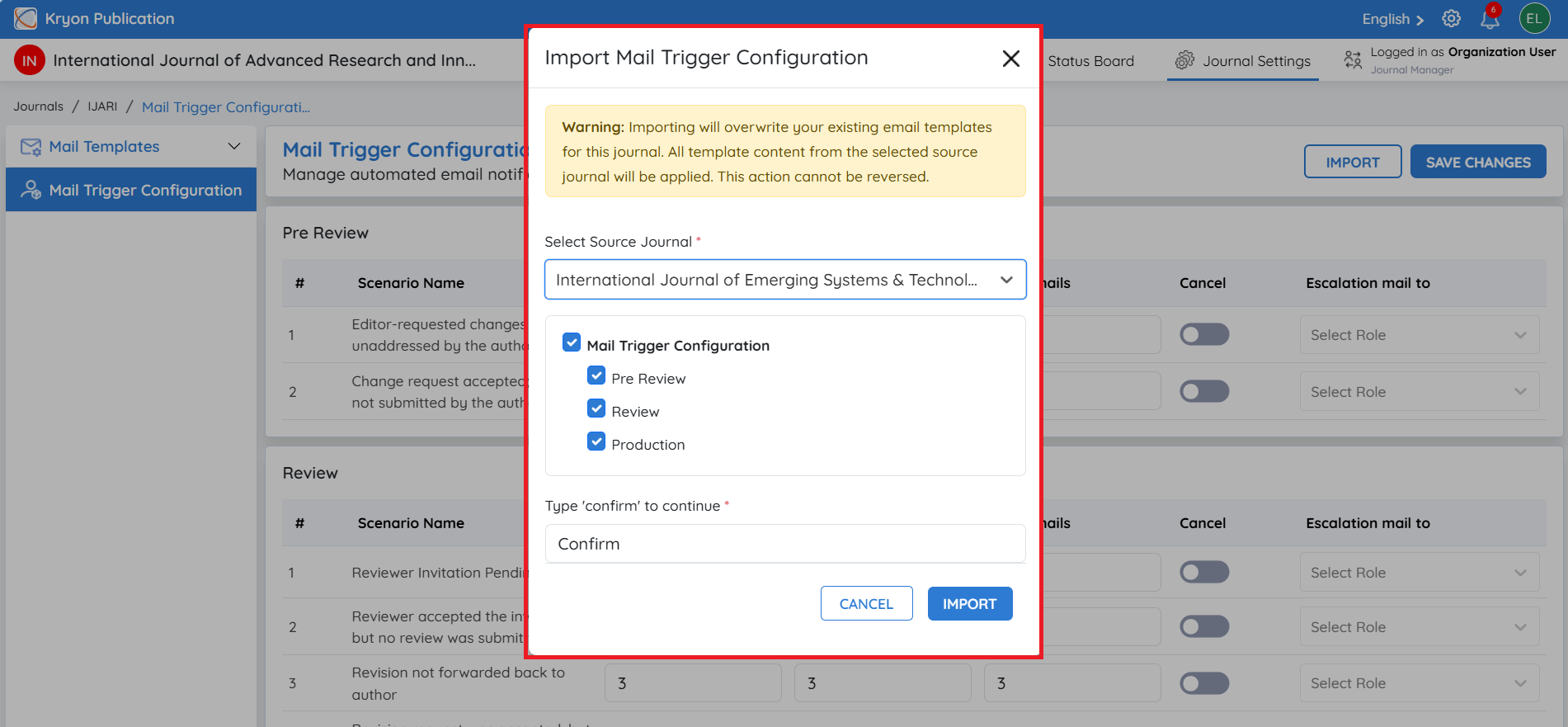
If another journal already has a mail trigger configuration that you want to reuse, Kryoni JMS allows you to import those settings instead of configuring them manually.
To import a configuration:
-
Click Import.
-
Select the Source Journal from the drop-down list.
-
Choose the workflow(s) you want to import:
a. Pre-Review
b. Review
c. Production
-
Click Import.
The selected mail trigger configuration is copied from the source journal to the current journal.
Importing a mail trigger configuration overwrites the existing mail trigger settings for the selected workflow(s) in the current journal. This action cannot be undone. Review your selection carefully before proceeding with the import.